
Manage team roles across SGEN sites
Every person who touches your SGEN account has a role. Roles control exactly what that person can see and change — nothing more, nothing less. SGEN has seven named roles, each mapped to a specific type of work. Assigning the right role to the right person is a five-minute task in SG-Dashboard. Getting it wrong creates either a security gap or a workflow bottleneck — usually both.
Seven named roles
Each role maps to a specific job type — Content Editor through Platform Admin. Choose the role that limits access to what each person needs; never choose up.
Per-site assignment
Roles are independent per site. A user can hold Content Editor on one site and Ecommerce Manager on another. Platform Admin is the only account-level role.
Changes take effect immediately
Saving a role change in SG-Dashboard applies on the member's next page load — no re-invite, no delay, no support ticket needed.
Where to manage roles
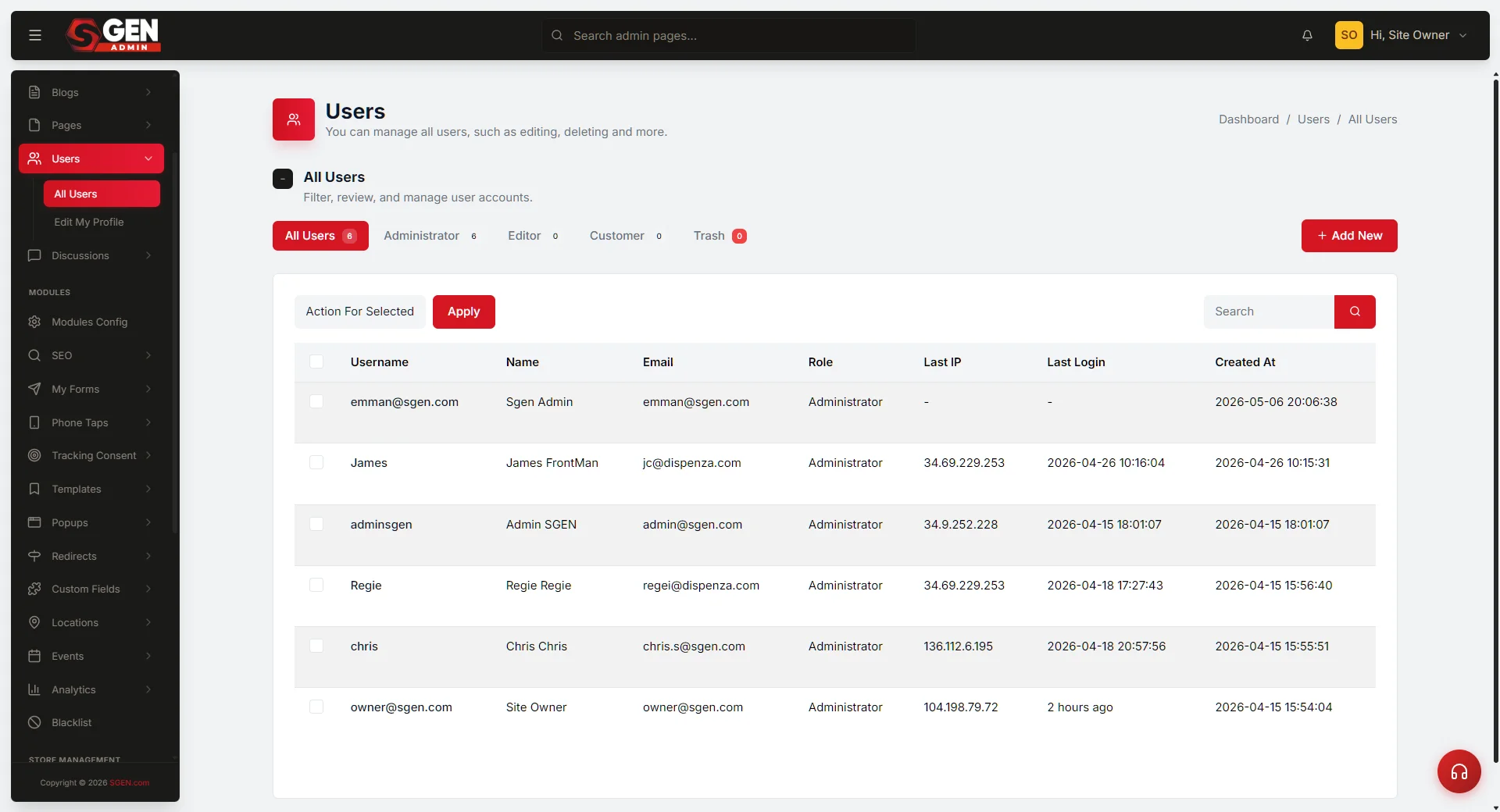
Open SG-Dashboard and click Members in the left sidebar. The Members panel shows all users on this account with their current role and the sites they are assigned to. To manage roles for a specific site, click the site name in the sidebar first, then open the Members tab inside that site's panel.
The seven roles
Read this in full before opening any invite or edit form. Assigning roles without knowing the permission boundary of each one is the most common cause of access complaints.
Content
Content Editor
Creates and edits pages, blog posts, and content objects on assigned sites. Can publish their own content. Cannot change site settings, manage users, or access billing. Assign to writers, editors, and content coordinators.
Marketing
Marketing Manager
All Content Editor permissions plus forms, email campaigns, landing pages, and analytics. Can publish marketing content and view traffic and conversion data. Cannot change technical settings or manage users. Assign to in-house marketing team members.
SEO
SEO Specialist
Can edit SEO metadata, manage redirects, and view analytics. Can edit page titles, descriptions, and URL slugs. Cannot publish new pages or change content beyond SEO fields. Assign to external SEO consultants or in-house SEO team members.
Development
Developer
Access to custom code surfaces, theme editor, and advanced site settings. Can modify the design system, add custom scripts, and change technical configuration. Cannot manage users or access billing. Assign to in-house developers and trusted agency technical staff.
Ecommerce
Ecommerce Manager
Access to products, orders, discount codes, and ecommerce settings. Can manage the full product catalog, process orders, and configure shipping. Cannot access non-ecommerce content or change settings outside the ecommerce scope. Assign to store managers and fulfillment leads.
Support
Support Agent
Read access to orders, customer records, and form submissions on assigned sites. Can view order history and customer contact information. Cannot create, edit, or publish content, and cannot change any settings. Assign to support staff who need visibility without the ability to change anything.
Assign or change a role
This sequence applies to any of the six per-site roles. Platform Admin assignment works the same way but starts from the top-level Members panel, not from inside a specific site.
1
Open the correct Members panel
In SG-Dashboard, click the site you are configuring in the left sidebar, then open the Members tab inside that site's panel. Confirm the list shows the current members and their roles. If the person you are assigning is not yet in the list, complete the invite flow first, then return here.
2
Open the member's edit panel
Click the member's name or the Edit action beside their row. The member detail panel opens showing their current role, email, and assigned sites.
3
Select the correct role and save
In the Role dropdown, select the role that matches the person's job on this site. Use the matrix above. Click Save changes. The role change takes effect immediately — the member does not need to log out. Their next page load inside SG-Admin reflects the updated permissions.
4
Verify the assignment
Return to the Members list and confirm the Role column shows the correct role. For sensitive changes — Developer or Platform Admin access — ask the member to confirm what they can see after their next page load. If the role is not reflecting after five minutes, log the member out and ask them to log back in.
5
Run a cross-site audit (multi-site accounts)
After assigning roles on a new site, open the top-level Members panel in SG-Dashboard and filter by Developer and Platform Admin. For each person in those rows, confirm they currently work on this account and still need that level of access. Revoke access for anyone who should not have it — click their name, click Remove from account, and confirm.
Platform Admin escalation
Platform Admin is not a role for everyday use. It exists for situations where per-site ownership alone cannot resolve a problem. Platform Admin has unrestricted access to all sites, all settings, and all users on the account — including billing.
Cross-site configuration conflict
A setting on one site is blocking correct behavior on another — for example, a shared domain or shared media library configuration that sits above the per-site level. A Platform Admin can change account-level settings and both sites simultaneously; a per-site Owner cannot.
User locked out across all sites
A member's account has a problem not resolvable from any individual site's Members panel. A Platform Admin can access the account-level user record, reset access, and restore the member's session.
Role reassignment after a team departure
When a site Owner leaves and the account has no other Owner on that site, no one on that site can reassign the departed Owner's access. A Platform Admin can step in, reassign or revoke the departed member's role, and assign a new Owner.
Billing and plan changes
Billing is accessible only to Platform Admins. Adding a site, upgrading the plan tier, or updating the payment method all require Platform Admin access in SG-Dashboard under Billing.
Emergency content lock
If content that should not be live is published on any site, a Platform Admin can remove it from that site without needing to be a named member of it — faster than coordinating with the per-site team in an emergency.
Heads up Do not use Platform Admin for day-to-day editorial work. Assigning it to a content editor because it is easier removes all meaningful access control from your account. Platform Admin is an escalation role — keep it held by two people at most, usually the account owner and one technical backup.