
Monthly backup cadence
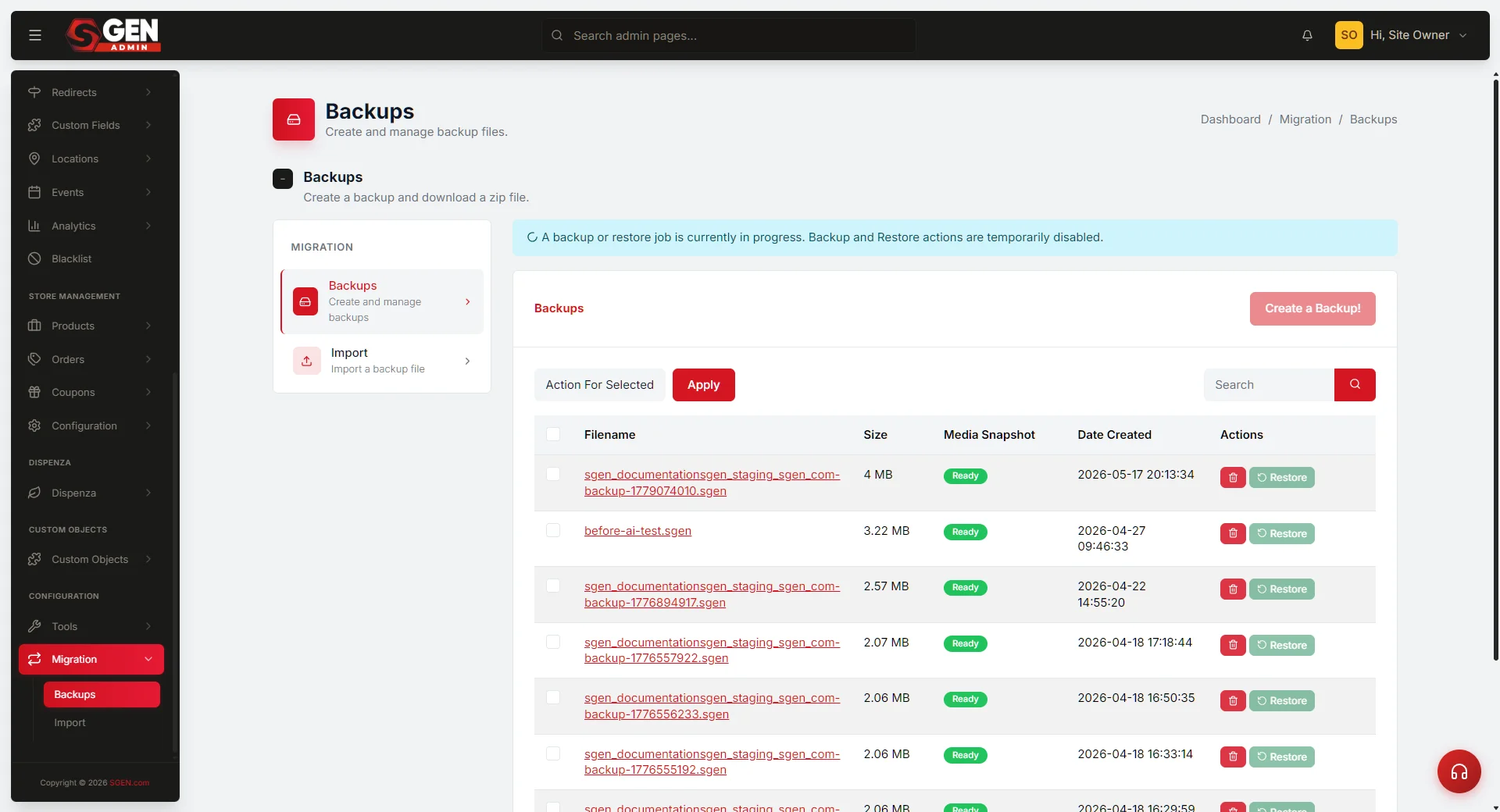 Backups panel: the Schedule tab (frequency/retention/notification) and Backup history list with Create/Download/Restore controls." loading="lazy" style="width:100%;max-width:900px;height:auto;border-radius:8px;border:1px solid #e5e7eb;display:block;margin:12px 0">
⏱ 2-min answer below · full page ≈ 12 min · skim the bold lead-ins to move faster.
In short. Configure a daily automated backup at Settings → Backups → Schedule (7-day retention, failure email to owner). Each month, take one named manual backup, download it to off-platform storage, and log it. Every quarter, restore from the off-platform file to staging to confirm the cadence produces real recovery capability. That is the full practice.
On this page: What this covers · Before you start · Steps · Retention policy · Register template · FAQ
What is this for?
Use this recipe to establish the ongoing backup infrastructure for a production SGEN site. It covers:
- Configuring the automated backup schedule (daily, with the right retention window).
- Running the end-of-month manual backup with a naming convention that makes history auditable.
- Verifying and downloading the monthly backup to off-platform storage.
- Cleaning up old automated backups past the retention window.
- Scheduling a quarterly restore test so you know the cadence produces real recovery capability.
This is a setup-once, operate-monthly recipe. Initial configuration: 30-40 minutes. Monthly maintenance once running: 10-15 minutes.
Good use cases:
- Any production site with active content — visitors, orders, form submissions, or active publishing. A backup cadence is baseline operating practice, not optional.
- Agency-managed sites — the monthly backup creates a timestamped artifact the site owner holds independently. If the relationship changes, the owner has a complete, restorable snapshot.
- Multi-author or high-volume sites — higher data-change velocity means more to lose. The daily cadence keeps the restore point close to the present; the monthly anchor is the long-horizon option.
- E-commerce sites — order data, customer records, and product inventory are irreplaceable. The monthly archive supplements the daily cadence with a verified, off-platform copy not dependent on SGEN availability to access.
- Pre-event snapshots — take a manual backup before any high-traffic period (holiday sales, product launches) in addition to the monthly cadence. The pre-migration backup recipe covers that pattern.
What NOT to use this for:
- Real-time data protection. A daily backup means up to 24 hours of data could be lost in a worst case. For transactional data that cannot tolerate any loss, supplement with platform-level transaction logging.
- Content version control. Backups restore the entire site to a point in time — they are not page-level version history. Use SGEN's page revision history for tracking individual page edits.
- Replacing an incident-response plan. A backup cadence is one component, not a complete plan. It does not replace having a recovery runbook, knowing who to call, or testing the restore process under pressure.
- Storing sensitive data off-platform without encryption. The backup file is a complete site snapshot. If your site handles personal data or e-commerce records, ensure the off-platform storage has appropriate access controls and, where required, encryption at rest.
How this connects to other features
- Backup and restore architecture — what the backup file contains, the restore engine behavior, and the retention model. Read this before configuring retention settings.
- Activate site backups — the one-time setup guide. If backups are not yet active on this site, complete that guide first, then return here.
- Pre-migration backup recipe — the event-driven backup pattern. Use that recipe for planned high-risk events; use this recipe for the ongoing cadence.
Before you start
Confirm you have Owner or Admin role on the SGEN account. Backup settings (schedule configuration, retention policy, off-platform download) require Owner or Admin access. Editor-level accounts can see the backup list but cannot configure the schedule or trigger downloads.
Check storage quota allocation for backups. Go to SG-Admin → Settings → Storage. Note how much of your quota is allocated to the backup store. The daily backup cadence stores 7 daily backups (the default retention window) plus your manual monthly backups. A 143 MB site backup stored 7 times is roughly 1 GB of backup quota — confirm you have that available.
Identify your off-platform storage location. Monthly backups need to live somewhere outside SGEN. Decide before you start: a shared team Google Drive folder, an S3 bucket, or a local machine that is itself backed up. The location should be accessible to whoever would run a restore, not only to the person running this recipe today.
Note the current monthly backup convention on your team. If someone else has been manually taking backups, find out their naming convention and whether there are existing backup files to preserve or migrate to the new storage location.
Where to go
Open SG-Admin → Settings → Backups. The panel has two tabs: Schedule (automated backup configuration) and Backup history (the list of all automated and manual backups with download and restore controls).
Steps — Set up and operate the monthly backup cadence
1. Configure the automated daily backup schedule
Go to SG-Admin → Settings → Backups → Schedule. Configure:
- Frequency: Daily.
- Run time: 03:00 site timezone (low-traffic window; adjust if your site has a different low-traffic period).
- Retention: 7 days (keeps a rolling week of daily snapshots; older automated backups are deleted automatically to manage quota).
- Include media: Yes — media files are often the largest component but also the hardest to reconstruct after a failure.
- Notification: Email notification to the site owner on backup failure. You do not need a success notification for every daily run — that creates alert fatigue. Failure notifications are the ones that matter.
Save the schedule. Verify the next scheduled run appears in the Schedule tab (it should show tomorrow at the configured time).
2. Run the first manual monthly backup
Immediately after configuring the schedule, take the first monthly anchor backup manually. This confirms the settings are correct and gives you an immediate off-platform file.
Click Create backup in the Backup history tab. Name it using the convention:
`` monthly-YYYY-MM-DD ``
For example: monthly-2026-05-27. Always use the actual date, not "month-end" — dates are unambiguous; labels are not.
Wait for the backup to complete (status changes from Pending to Complete). Note the file size.
3. Verify the completed backup
Before downloading and archiving, verify the backup completed cleanly:
- Status shows Complete (not Partial or Failed).
- File size is comparable to the most recent automated backup (within 10-15%).
- Open the backup log (click the backup name) and confirm components included: pages, posts, media, users, settings, redirects.
If the status shows Partial, the backup started but did not finish all components. Do not treat a partial backup as your monthly anchor — identify the failed component from the log, resolve it (usually a quota or timeout issue), and re-run.
4. Download and archive to off-platform storage
Click Download next to the confirmed monthly backup. SGEN downloads a .sgen file named sgen_.
Move or copy the file to your designated off-platform storage location. Use a consistent folder structure:
`` Backups/ SGEN/ your-site-name/ 2026/ monthly-2026-05-27.sgen monthly-2026-04-30.sgen monthly-2026-03-31.sgen ``
Add a one-line log entry to your team's backup register:
`` 2026-05-27 | monthly-2026-05-27 | 143 MB | Complete | Drive: /Backups/SGEN/your-site/2026/ | Logged: [name] ``
The backup register does not need to be elaborate — a shared Google Sheet or a plain text file in the storage folder works. Key fields: date, backup name, size, status, storage location, who logged it.
5. Clean up automated backups past the retention window
The automated schedule deletes backups older than your retention window (7 days) automatically. However, the Backup history list may accumulate manual backups from earlier in the year that are now redundant (because you have the off-platform archive).
After archiving the monthly backup, review the Backup history list. Delete any manual backups that:
- Are older than the current month.
- Have been successfully archived to off-platform storage (confirmed by your backup register).
Keep the two most recent monthly backups in the SGEN history — they are your in-platform recovery option. Delete older ones once confirmed in off-platform storage.
6. Schedule and run a quarterly restore test
Every quarter — January, April, July, October — run a restore test in your staging environment to confirm the cadence is producing real, restorable backups and not unusable files.
The test procedure:
- Take the most recent monthly backup file from off-platform storage (not from SGEN directly — you want to confirm the archived file works, not only the in-platform copy).
- In the staging admin, use Backups → Restore from file to upload and restore it.
- Confirm the restore completes without errors.
- Spot-check three pages, user accounts, and settings.
- Note the result in your backup register: date, backup file used, restore result (pass/fail), any issues.
A restore test that fails means you have been taking backups that would not have worked when you needed them most. The quarterly test is the only way to find out before a crisis.
What success looks like
- Automated daily backup runs without failures (confirmed by the absence of failure notification emails).
- Each month has one named, verified, off-platform manual backup.
- The backup register has an entry for every monthly backup with date, size, status, and storage path.
- A quarterly restore test has been run and recorded in the last 90 days.
- The Backup history list in SGEN is clean: no more than 2 monthly manual backups plus the rolling 7 daily automated backups.
What to do if it does not work
Automated backups stop running without a failure notification. Check SG-Admin → Settings → Backups → Schedule — the notification email field may be empty or pointing to an old address. Update it. Also confirm the schedule is still marked as active (it can be inadvertently turned off during a settings update). If the backup job stopped due to a quota issue, the failure notification is the first signal — confirm the email is reaching an active inbox, not a filtered folder.
Monthly backup file fails the restore test. Do not panic — this is exactly why you run the test quarterly instead of discovering it during a crisis. Re-download the file and retry. If the retry also fails, the backup is not usable — take a fresh backup, verify it immediately, and investigate what caused the original to fail.
Off-platform storage fills up. Establish a retention policy for the off-platform archive: keep 12 months at monthly granularity, then reduce to quarterly archives for the prior year, annual archives for anything older. Delete from off-platform storage using the same discipline as from the SGEN history.
Team member who set up the cadence left the company. The automated schedule continues running — it is attached to the site, not the user account. However, the failure notification email and the off-platform storage access may be tied to their account. Update the notification email to an active team inbox and confirm the off-platform storage location is accessible to the current team before the next monthly backup is due.
You discover a gap — a month was missed. Take the backup now, label it with the current date, and note the gap in the register. Do not backdate or retroactively label backups — accurate timestamps are what make the register trustworthy.
Reference — Backup retention policy
A sensible retention policy balances recovery coverage against storage cost. Here is a starting framework for most production SGEN sites:
| Backup type | How many to keep | Where | Deletion rule |
|---|---|---|---|
| Automated daily | 7 | In SGEN (auto-managed) | Auto-deleted after 7 days |
| Manual monthly | 2 most recent | In SGEN | Delete after confirming off-platform archive |
| Monthly archive | 12 months | Off-platform storage | Delete monthly files older than 12 months |
| Quarterly archive | Prior 2 years | Off-platform storage | Promote 1 monthly file per quarter to "quarterly" label; delete the other 2 |
| Annual archive | 3+ years old | Off-platform storage | Promote 1 quarterly file per year to "annual" label; delete others |
This policy keeps you covered for:
- Day-level restore (last 7 days): the automated daily cadence.
- Month-level restore (last 12 months): the monthly archive.
- Quarter-level restore (1-3 years ago): the quarterly archive.
- Year-level restore (3+ years ago): the annual archive.
For most operator-level incidents (accidental content deletion, bad import, settings corruption), the 7-day daily cadence covers the recovery need. The monthly archive covers the rarer cases where the problem was not discovered for weeks.
Reference — Backup register template
Keep a simple backup register in a shared location your whole team can access. A Google Sheet works well. Minimum columns:
| Date | Backup name | Size | Status | Off-platform path | Restore tested | Notes |
|---|---|---|---|---|---|---|
| 2026-05-27 | monthly-2026-05-27 | 143 MB | Complete | Drive/Backups/SGEN/2026/ | No | Monthly anchor |
| 2026-04-30 | monthly-2026-04-30 | 141 MB | Complete | Drive/Backups/SGEN/2026/ | No | Monthly anchor |
| 2026-04-15 | pre-launch-v2-2026-04-15 | 138 MB | Complete | Drive/Backups/SGEN/2026/ | Yes — pass | Pre-launch snapshot |
The "Restore tested" column is the most important and the most often skipped. A "No" means you have a backup file of unknown recoverability. A "Yes — pass" means you have a proven safety net.
Anti-patterns to avoid
Treating the automated daily backup as the monthly anchor. The automated backup is a rolling 7-day window — it is not an anchor you control or an archive. The monthly manual backup is the named, verified, off-platform record. Do not conflate them.
Storing the only copy of the monthly backup inside SGEN. If a platform-level incident prevents admin access, the in-SGEN backup is also inaccessible. The off-platform copy is the recovery option when the platform itself is the problem.
Running the cadence without a failure notification email. An automated backup that fails silently gives you a false sense of safety. The failure notification is the entire monitoring system for the automated cadence — ensure it reaches an active inbox.
Not testing the restore quarterly. Sites run the backup cadence for years, assume the backups work, and discover on a recovery day that the .sgen files do not restore cleanly. Run the restore test — it takes 45 minutes and it is the only thing that proves the cadence produces real recovery capability.
Reference — Backup cadence operator FAQ
Does the automated schedule run on staging and production separately? Yes. Each SGEN environment (staging and production) has its own backup schedule configuration. The automated backup in production does not back up staging, and vice versa. Configure the schedule separately in each environment if you want both covered.
What happens to the automated backup if the site is over quota when the job runs? The backup job fails. SGEN sends the failure notification email (if configured). The site continues serving — backups failing does not affect the public site. Resolve the quota issue (delete old backups or increase plan quota) and verify the next scheduled run completes.
Can I restore a backup without taking the site offline? The restore process does not require taking the site offline explicitly, but it replaces live content as it runs. For production restores, put the site in maintenance mode first (Settings → Maintenance mode → On) to show a "site temporarily unavailable" message during the restore.
How do I know if an automated backup succeeded without checking the admin every day? The failure notification email is the primary signal — no email means success. You can also configure a success digest (weekly summary of backup activity) under Settings → Backups → Notifications.
Can two team members both manage the backup cadence? Yes. Any Owner or Admin on the account can access the Backups panel, trigger manual backups, and change schedule settings. Document who is responsible for the monthly backup in your team's role assignments — shared responsibility without a named owner leads to gaps.
Is the backup encrypted? SGEN backup files are stored encrypted at rest on the platform. Downloaded .sgen files are not encrypted by default — if your data handling obligations require encryption of off-platform copies, use your storage provider's encryption feature (Google Drive, S3, and most cloud storage options provide this).
How long does a restore take? Restore time is proportional to backup size. A 150 MB backup typically restores in 3-5 minutes. A 2 GB backup may take 20-30 minutes. If you are restoring during an incident, set the maintenance mode message to "we are working on it, back shortly" and account for the restore time in your incident timeline.
Can I have SGEN send the backup file to cloud storage automatically? SGEN backup files are stored internally and available for download. Automatic delivery to third-party storage (S3, Google Drive, Dropbox) is handled via a webhook or API integration on plans that include webhook access. If your plan supports webhooks, configure a webhook on the backup.completed event to trigger an automatic upload to your storage provider.
Related resources
- Activate site backups — the one-time setup that must be done before this cadence can start.
- Pre-migration backup recipe — the event-driven backup pattern for high-risk moments. Complements the regular cadence with a manually-triggered, verified snapshot.
- Backup and restore architecture — what the backup file contains, what the restore engine does, and the retention model.
Checklist — monthly backup complete
Run through this at the end of each monthly backup session:
- [ ] On-demand backup created with name:
monthly-YYYY-MM-DD. - [ ] Backup status shows Complete with all components included.
- [ ] File size is within 10-15% of the previous monthly backup.
- [ ] Backup downloaded to off-platform storage.
- [ ] Off-platform file labeled clearly (event name + date).
- [ ] Backup register entry written (date, size, status, storage path, who logged it).
- [ ] Previous month's in-SGEN backup deleted if off-platform archive is confirmed.
- [ ] Next monthly backup reminder scheduled in calendar.
If a quarterly restore test month, add these:
- [ ] Restore test run from off-platform file to staging.
- [ ] Restore test result recorded in backup register (pass/fail, date, file used).
All items checked: the monthly anchor is in place, the register is current, and the cadence continues without gaps.
Backup retention policy
| Backup type | How many to keep | Where | Deletion rule |
|---|---|---|---|
| Automated daily | 7 | In SGEN (auto-managed) | Auto-deleted after 7 days |
| Manual monthly | 2 most recent | In SGEN | Delete after confirming off-platform archive |
| Monthly archive | 12 months | Off-platform storage | Delete monthly files older than 12 months |
| Quarterly archive | Prior 2 years | Off-platform storage | Promote 1 monthly file per quarter; delete the other 2 |
| Annual archive | 3+ years old | Off-platform storage | Promote 1 quarterly file per year; delete others |