
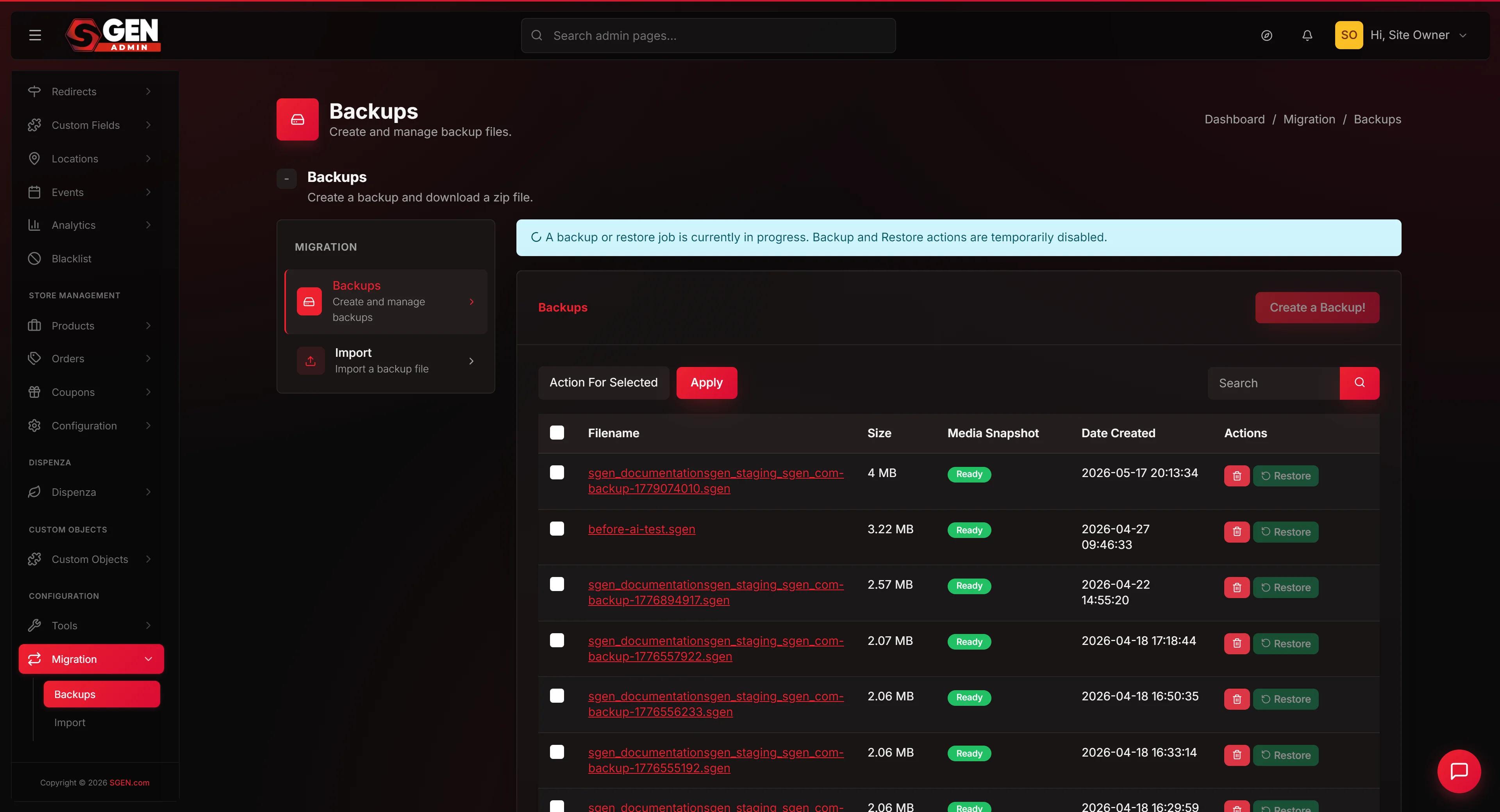
Activate site backups on SGEN
⏱ ~4 min read · quick answer below · skim the bold step headings to move faster.
In short. SGEN backups are full-site snapshots — one .sgen file containing your pages, posts, media, settings, and theme. Enable the schedule, set your cadence and retention, take one manual backup, download it, and open the restore preview to confirm it works. That last step — verifying the preview before you need it — is the one most teams skip. By the end of this guide, backups run on a schedule and you have a verified restore point on disk.On this page: When to use backups · Scope and limits · Before you start · Steps · What success looks like · Troubleshooting
When to use backups
Backups protect against the situations every site operator recognizes too late.
| Scenario | Why a backup helps |
|---|---|
| Accidental delete | Restore a page — and its SEO fields — in minutes rather than rebuilding from memory |
| Pre-rebuild snapshot | Take one before any SG-Builder work; restore to a clean slate if the rebuild goes wrong mid-way |
| Before a risky settings change | URL restructures, permalink changes — restore the original structure if something breaks |
| Before a content import | A bad CSV import is resolved by restoring, not by manually cleaning hundreds of records |
| Monthly compliance archive | Download the first-of-month backup, store it in your compliance folder; the .sgen file carries a timestamp |
| End-of-campaign preservation | Snapshot the site at peak traffic as a permanent reference after the campaign closes |
A daily backup with a 30-day retention window gives you thirty rolling restore points with no ongoing manual steps after initial setup.
Scope and limits
What backups cover: the entire site — pages, posts, custom objects, media library, settings, and theme configuration.
What they don't do:
- Not per-page version history. SGEN's Stage and Live publishing lifecycle is per-page version control. Use that first for single-page rollbacks; a full site restore is a larger operation.
- Not a partial restore tool. A backup restores the entire site. There is no supported workflow for restoring a single page or post from a backup file. Contact SGEN support if you need to recover one piece of content.
- Not a cross-account migration tool. Backup files are tied to the originating site. Cross-account migration is a separate process — contact SGEN support.
- Not a substitute for staging. Restoring after a live failure means the site was unavailable during the failure and recovery window. Use staging for risky changes; use backups as the last-resort safety net.
Related features:
- Audit log (Settings → Activity) — every backup event, scheduled or manual, is logged with a timestamp and initiator.
- Storage (Settings → Storage) — backup files count against your plan allocation. Check before setting a long retention window.
- Multi-site — each site has its own backup schedule and history. There is no account-level backup covering all sites at once.
- Plan limits — if you hit the storage limit, SGEN pauses scheduled backups and notifies your recipients.
Before you start
Three decisions to make before opening the Backups panel.
- Decide your cadence and retention. A marketing site that publishes several times a week benefits from daily backups with a 30-day window. A low-traffic site that changes monthly can use weekly backups with a shorter window. Match the cadence to how often your content changes.
- Check your storage allocation. A site with 180 MB of content on a daily 30-day schedule accumulates roughly 5.4 GB of backup storage. Check Settings → Storage before enabling the schedule to confirm you have room — or shorten the retention window.
- Decide who gets notified. Any admin-level user can take and download backups. Add at least one shared inbox to your notification recipients so a failed backup overnight doesn't go unnoticed.
Where to go
Go to SG-Admin and open Settings in the left sidebar. Select Backups from the Settings submenu. The panel has the schedule configuration at the top and the backup history list below.
If you don't see Backups in the Settings submenu, your user role may not include Settings access — contact your site's primary administrator.
Steps — Enable scheduled backups and take your first manual backup
1. Enable scheduled backups and set your cadence
Find the Enable scheduled backups toggle and switch it On. Set Cadence to the frequency that matches your content rhythm (Daily for frequent publishers; Weekly or Monthly for slower-moving sites). Set Retention window to the number of days SGEN keeps each backup before automatically deleting it. 30 days is a solid starting point for most sites.
2. Set notification recipients
In the Notifications section, enter the email addresses of everyone who should receive backup completion and failure notifications. Separate multiple addresses with commas. Include at least one address that is monitored by more than one person — a failed backup that nobody noticed is effectively no backup at all.
Click Save notifications.
3. Take your first manual backup
Find the Manual backup section and click Back up now. SGEN takes a full-site snapshot immediately. For most sites this completes in 30-90 seconds. When it finishes, the entry appears at the top of the backup history list with status Completed.
Don't navigate away while the backup is in progress — wait for the Completed status before moving on.
4. Download the backup and verify the file
Click Download on the manual backup entry. Confirm in your downloads folder:
- Filename follows
sgen_-backup- .sgen - File size is greater than zero — a near-zero file means the backup didn't complete; delete and repeat
- File size is consistent with your site's content (a site with 180 MB of media should produce a 150-200 MB backup)
Store this file somewhere safe — a local folder, a cloud drive, or a compliance archive. SGEN holds backups in your account storage, but a local copy means you can restore even if your account is inaccessible.
5. Open the restore preview and confirm it renders
Click Restore on the same backup entry. In the confirmation dialog, click Preview restore — not Confirm restore. SGEN opens a read-only render of the site at the snapshot date.
Navigate through two or three pages — the homepage, a page with media, a blog post. Confirm pages render without blank screens or missing images, content is present, and navigation resolves. Then close the preview without confirming the restore. You're verifying the backup works, not restoring the site.
6. Verify the first scheduled backup runs
After the next scheduled window passes, return to the Backups panel and confirm a new entry appears with type Scheduled and status Completed. If 24 hours pass after the expected run time and no entry appears, check the audit log and see the troubleshooting section below.
What success looks like
- Enable scheduled backups toggle is On in Settings → Backups
- Cadence and retention window are saved and match your content rhythm
- At least one notification recipient is saved
- A manual backup appears in the history list with status Completed and a non-zero file size
- The
.sgenfile downloaded to your machine has a correct filename and non-trivial file size - The restore preview rendered two or three pages without blank screens or missing media
- The next scheduled backup appeared in the history list with type Scheduled and status Completed
- The audit log (Settings → Activity) shows both the manual and scheduled events with timestamps
What to do if it does not work
- The scheduled backup did not run. Open Settings → Activity and filter by backup events. Common causes: plan storage limit hit (delete older backups or upgrade storage), or the schedule was saved before the toggle was enabled (confirm the toggle is still On in the Backups panel). Note: scheduled backups do not resume automatically after you free up space — toggle the schedule off and back on.
- The download fails or the file is empty. The download link expires after 15 minutes. Return to the history list, click Download again, and download immediately. If the file arrives near-zero size, the backup didn't complete — delete it, take a fresh manual backup, and download within 15 minutes.
- The restore preview shows a blank screen. This can indicate a corrupted backup. Delete it, take a fresh manual backup, and try the restore preview again. If the preview is blank on multiple fresh backups, contact SGEN support.
- A backup was deleted before you needed it. Once a backup exceeds your retention window, SGEN deletes it automatically. To keep a specific backup permanently — for compliance, a pre-rebuild record, or a campaign snapshot — download the
.sgenfile and store it off-site before the retention window expires. SGEN does not offer pinned backup entries within the platform.
- You can't find the Backups panel. Your user role may not have Settings access. Contact your site's primary administrator. If you are the primary administrator and Backups is missing, the feature may not be active on your current plan — contact SGEN support.
- The
.sgenfile doesn't match the expected date. The filename timestamp is UTC. If your site uses a timezone offset, the filename date may differ from your local calendar date. Use the Snapshot date field in the restore preview — not the filename — to confirm you're restoring to the right point.
Tips for getting the most from site backups
- Take a manual backup before any risky operation — a homepage rebuild, a URL restructure, a bulk import. The Backups panel takes thirty seconds to reach; a manual backup takes ninety more. Two minutes for a clean restore point.
- Download and store a copy of your monthly backup off-site. Your account storage and your site live in the same platform — a local copy means you can restore even after a catastrophic account issue.
- Verify the restore preview at least once per quarter. A backup that downloads correctly but produces a blank preview is useless in an emergency. Five minutes quarterly to open the preview and confirm it renders.
- Add a shared inbox to your notification recipients. A backup failure notification sent only to a personal inbox that receives 200 emails a day will get lost.