
Manage multiple sites from one org account
⏱ ~3 min read · four tasks — orient, scope roles, review billing, pull analytics.
In short. An SGEN org account holds a portfolio of sites in one place — one user-management surface with per-site roles, one billing surface across every site, one analytics view that compares performance across the whole estate. This page walks the four daily tasks: orient in the dashboard, scope a team member's access, review aggregated billing, and pull cross-site analytics. Single-site owners don't need this page — the per-site SG-Admin covers that case.
On this page: Orient in the dashboard · Scope roles per site · Aggregate billing · Cross-site analytics · At scale · FAQ
Before you start
- Org-admin permission required. Per-site admins don't see the org surface.
- Portfolio is provisioned — every site you want to manage is already under the org account.
- For role changes: have the team member's email and the list of sites they need.
- For billing review: know the period and any cost-center allocation the bookkeeper expects.
- For bulk changes: tell the team before you start so no one is mid-edit on an affected surface.
Where to find it
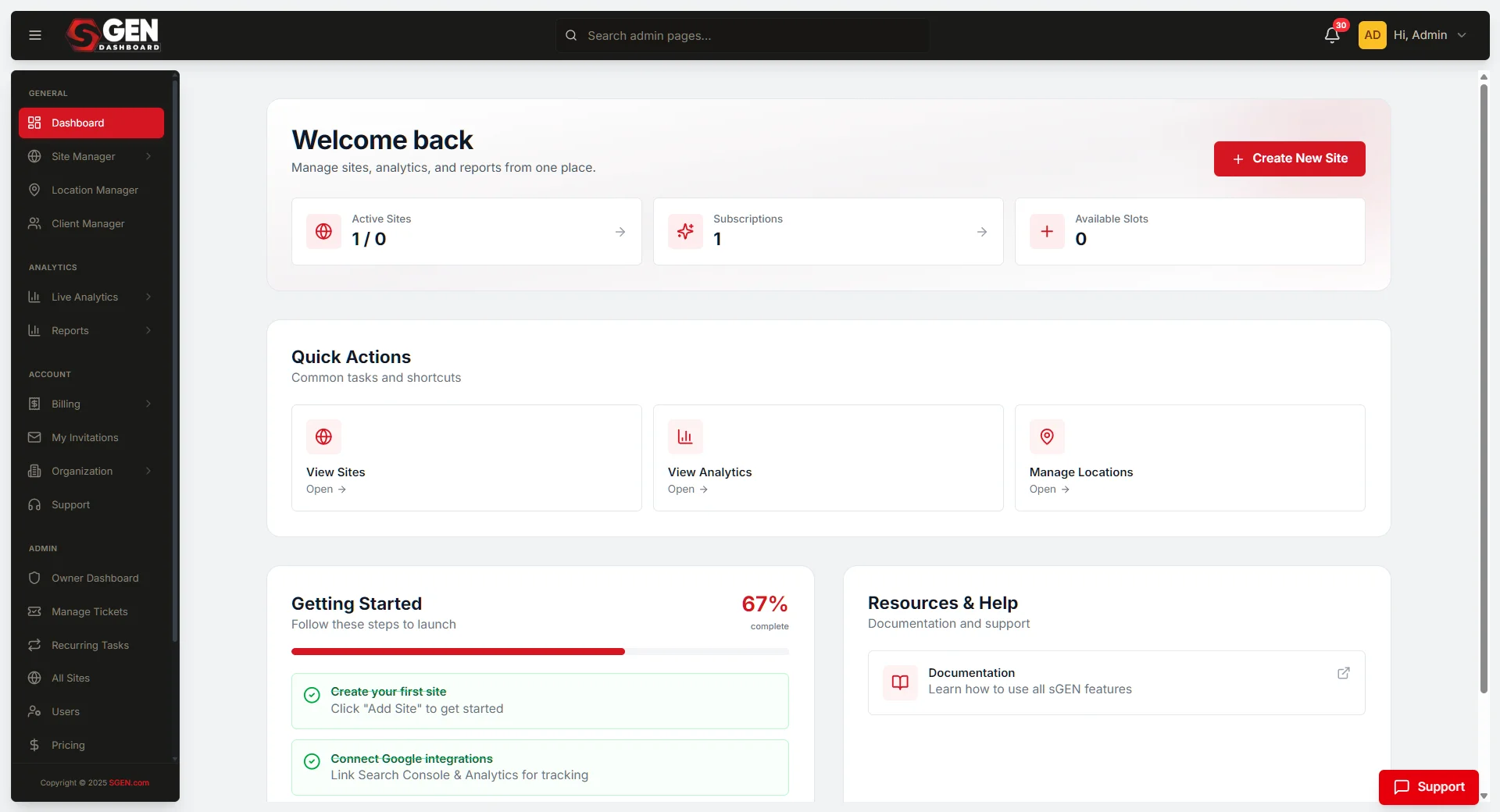
SG-Dashboard at the root of the account — sign-in lands here for an org-admin.
The left navigation carries: Sites (portfolio index) · Members (users with per-site scope) · Billing (aggregated billing) · Analytics (cross-site analytics) · Org Settings (SSO, branding, account config).
Click any site in the Sites surface to open that site's SG-Admin in a new tab. A search box at the top of Sites accepts site-name and tag substring matches — useful when the portfolio outgrows a single scroll.
Steps
The workflow has four independent parts — do whichever applies.
1. Orient in the org dashboard
Open SG-Dashboard. The landing page shows: site count, total storage, total bandwidth, current month spend, and any sites in an alert state.
The Sites surface lists every site with: name, public URL, plan tier, last-published timestamp, and a health indicator (combines uptime, recent error rate, and pending alerts).
Filter by plan tier, health state, or tag. Useful tags carry the client name, engagement type, or lifecycle phase — e.g. active, paused, offboarding. Click a site row to open the detail panel: quick actions (open admin, view recent activity, jump to billing, see user list) and the last three log entries.
For portfolios past twenty sites, use Saved Filters to keep the daily landing manageable. Save filter combinations that match read habits — active commerce, offboarding queue, pilot phase — and recall them from the dropdown at the top of Sites.
2. Scope roles per site
Open Members in the left navigation. The Members surface lists every user with their org-level role and per-site assignments.
To invite a new team member:
- Click Invite Member (top right).
- Enter the team member's Email.
- Pick the Org Role — Owner, Org Admin, or Member. Org Admins see the full org surface; Members see only assigned sites.
- Under Site Access, tick the sites they should access and pick a per-site role for each — Site Admin, Editor, Author, or Viewer.
- Click Send Invitation. The link expires in seven days; resend from Members if it lapses.
To change access: click the member row, adjust ticks and roles in the Site Access list, click Save. Changes take effect on the member's next page load. The audit log records the change.
To remove a member: click Remove Member in the detail panel. The member loses access to every org site; their account is not deleted and they can be re-invited.
Role Templates speed up repeat onboardings. Open the Templates tab on Members, build a template (org role + site set + per-site roles), save it. Future invitations pick the template from a dropdown.
3. Aggregate billing across the portfolio
Open Billing in the left navigation. The landing shows: total amount, payment method on file, next invoice date, and any pending payment alerts.
| Tab | What it does |
|---|---|
| Invoices | Lists every past invoice. Expand any to see per-site line items — plan, overage, add-ons. Use at month-end for cost-center allocation. |
| Payment Methods | One default method for the whole portfolio, or per-site overrides where a client funds their own bill. |
| Subscriptions | Active plan per site. Upgrade, downgrade, or bulk-change plans. Bulk changes show a cost-impact preview before commit. |
To export for the bookkeeper: click Export (top right), pick the period, format (printable or spreadsheet), and detail level (summary by site or full line items). The export runs in the background and lands in the Exports tab.
4. Pull cross-site analytics
Open Analytics in the left navigation. The default view shows traffic, conversion, and uptime per site for the current period — one metric per column, one site per row. Sort any column to find top or bottom performers.
Period picker (top right): Last 7 days, Last 30 days, Last quarter, or a custom range.
Compare a subset: tick the site rows, click Compare Selection — narrows to those sites and switches to a side-by-side chart.
Each site name links through to its per-site Analytics inside SG-Admin. Use per-site for page-level breakdown; use the org surface for cross-portfolio comparison.
Scheduled reports: click Schedule Report (top right). Pick metrics, cadence (weekly or monthly), format, and recipients. Reports land in recipients' email and are recorded in the Audit Log.
What success looks like
- Sites surface: every row green on health, tagged for fast filter.
- Members surface: every team member has a current role, no orphan invites pending.
- Billing surface: next invoice shows a confident estimate, no payment alerts.
- Analytics surface: "how is the portfolio doing this period" answered in under a minute.
A new team member onboarded through the org account is signed in within an hour, sees only the right sites, and appears correctly in the Audit Log on first sign-in.
What to do if it does not work
- Team member can't sign in. Invitation email landed in spam or the link expired. Open Members → find the pending invite → Resend Invitation.
- Member sees more sites than expected. Org Role is Org Admin (sees everything). Demote to Member and re-tick only the intended sites under Site Access.
- Billing total seems high. Expand the invoice and check for overage line items. Adjust the plan for the offending site or accept the overage as a one-time event.
- Role change didn't take effect. The member needs to refresh — role changes apply on the next page load. If still wrong, check the Members detail panel and the Audit Log for the role-change entry.
- Analytics shows a site with no data. The site recently launched, the time window predates launch, or analytics isn't yet provisioned. Open the per-site Analytics to confirm provisioning; wait one full collection cycle for a new site.
- Health indicator stuck on red. Open the site detail panel and review the last three log entries. If the underlying issue is resolved, the indicator turns green on the next refresh. If the alert persists, contact support with the site name and the indicator's pop-up detail.
- Bulk plan change preview price looks wrong. The preview includes proration for the remaining period plus the new plan's monthly rate. Click Show breakdown to see line items; if still wrong, cancel the bulk change and adjust each site individually.
- Offboarded site still appears in the portfolio. The site was tagged
offboardingbut not deleted. Open the site detail panel, run through the offboarding checklist, then delete the site from the panel.
Examples
Example A — onboarding a contractor with read-only access to three sites. Open Members → Invite Member → enter the contractor's email → pick Member as org role → tick three sites with Viewer role on each → Send Invitation. The Sites surface for the contractor shows three sites; opening any lands them in a read-only SG-Admin. Audit Log records the invitation and every subsequent page view.
Example B — month-end billing review for a ten-site portfolio. Open Billing → click the most recent invoice → expand the per-site breakdown. Two sites show bandwidth overage. Export the invoice as a spreadsheet with line-item detail, allocate costs to client codes, and flag the overage sites to the principal. Principal checks Analytics for those sites and either upgrades the plan or accepts the overage as a one-time event.
Example C — comparing conversion across product sites. Open Analytics → tick five product sites → Compare Selection → pick Conversion rate → set period to last quarter. The side-by-side chart shows two top performers. Open the top performer's per-site Analytics for the page-level breakdown and export the insight for a team review.
Example D — offboarding a client site with full evidence. Open SG-Dashboard → find the client site in Sites → open the detail panel → run the offboarding checklist: revoke per-site roles from every agency team member, tag the site offboarding, take a final manual backup labeled engagement-end-archive, run an Audit Log export for the engagement period, transfer billing ownership to the client. Hand the export and backup reference to the client; the agency relationship closes with a clean record.
Plan for agency and enterprise multi-site scenarios
Five sites under one account is comfortable. Twenty-plus sites is a different operation — informal habits need to become explicit.
Tag taxonomy
Build a tag taxonomy and apply it consistently. Three dimensions usually carry the operation:
| Dimension | Example values |
|---|---|
| Client | client name on the contract |
| Engagement state | active, paused, offboarding, archive |
| Site type | marketing, commerce, app, landing |
Use Sites filters to slice by any combination. Document the taxonomy in the team runbook so new members apply the same tags the same way.
Role-template discipline
For teams that add and remove contractors regularly, build three or four common role templates — agency-editor, agency-admin, client-viewer, contractor-readonly — and document which sites and per-site roles each carries. Pick the template on every new invitation. The Audit Log records each assignment with a consistent shape, which makes access review faster.
Billing-allocation patterns
Two common agency patterns:
- Agency holds the master billing relationship and re-bills clients separately; per-site cost data drives the re-bill.
- Each client funds their own site through a per-site payment method override; the agency manages but does not pay.
Pick the pattern at the start of each engagement. Switching mid-engagement is painful. Document it in the close-out runbook and the engagement-pricing conversation.
For portfolios of fifty or more sites, schedule a quarterly billing review — open Billing, expand the last three invoices, scan for overage trends before they become a budget surprise.
Onboarding and offboarding runbooks
Onboarding runbook: email → role template → per-site assignments → Audit Log verification → first-week check-in. New team members should be signed in and visible in the log within hours.
Offboarding runbook: revoke roles → retag site → export relevant Audit Log slice → run a final backup. A clean offboarding produces a record the team can reach for six months later.
Common questions about managing multiple sites
Can one user have different roles on different sites? Yes. The per-site role is set on the Members surface and applies only to that site. A team member can be a Site Admin on one site, an Editor on another, and a Viewer on a third.
Does the org account create a separate billing line for each site? The org account aggregates billing into one invoice per period with a per-site breakdown inside. The bookkeeper sees one charge on the payment method and one document for accounting, with full per-site detail one click away.
Can the agency hide some sites from a client logging into the org? Yes. A client sees only the sites where they hold a per-site role. Sites they are not assigned to don't appear in their Sites view. Review the Members assignments on every onboarding cycle.
What happens to a site if the org account is suspended for non-payment? Sites under a suspended org enter a graceful-degradation state — public visitors still see the site for a short window, but admin actions are restricted. The grace window depends on the plan tier. Resolving the payment lifts the suspension; the Audit Log records both the suspension and the lift.
Can I move a site between org accounts? Site transfer is supported through the platform support flow. Open a support request with the source org, the destination org, and confirmation from both sides; the platform performs the transfer with a brief maintenance window. The Audit Log on both orgs records the transfer.
How do I export every Audit Log entry for an entire portfolio? Open SG-Dashboard → Activity. Set the date range, filter to the event families that matter, click Export. The export covers every site in the portfolio in one file. For per-site bundling, run the export from each per-site Activity Log separately.
Related reading
Org-level vs per-site roles
| Role | Level | What it grants |
|---|---|---|
| Owner | Org | Full org control |
| Org Admin | Org | Sees the full org surface |
| Member | Org | Sees only assigned sites |
| Site Admin | Per-site | Admin on the assigned site |
| Editor | Per-site | Edit content on the assigned site |
| Author | Per-site | Author content on the assigned site |
| Viewer | Per-site | Read-only on the assigned site |