
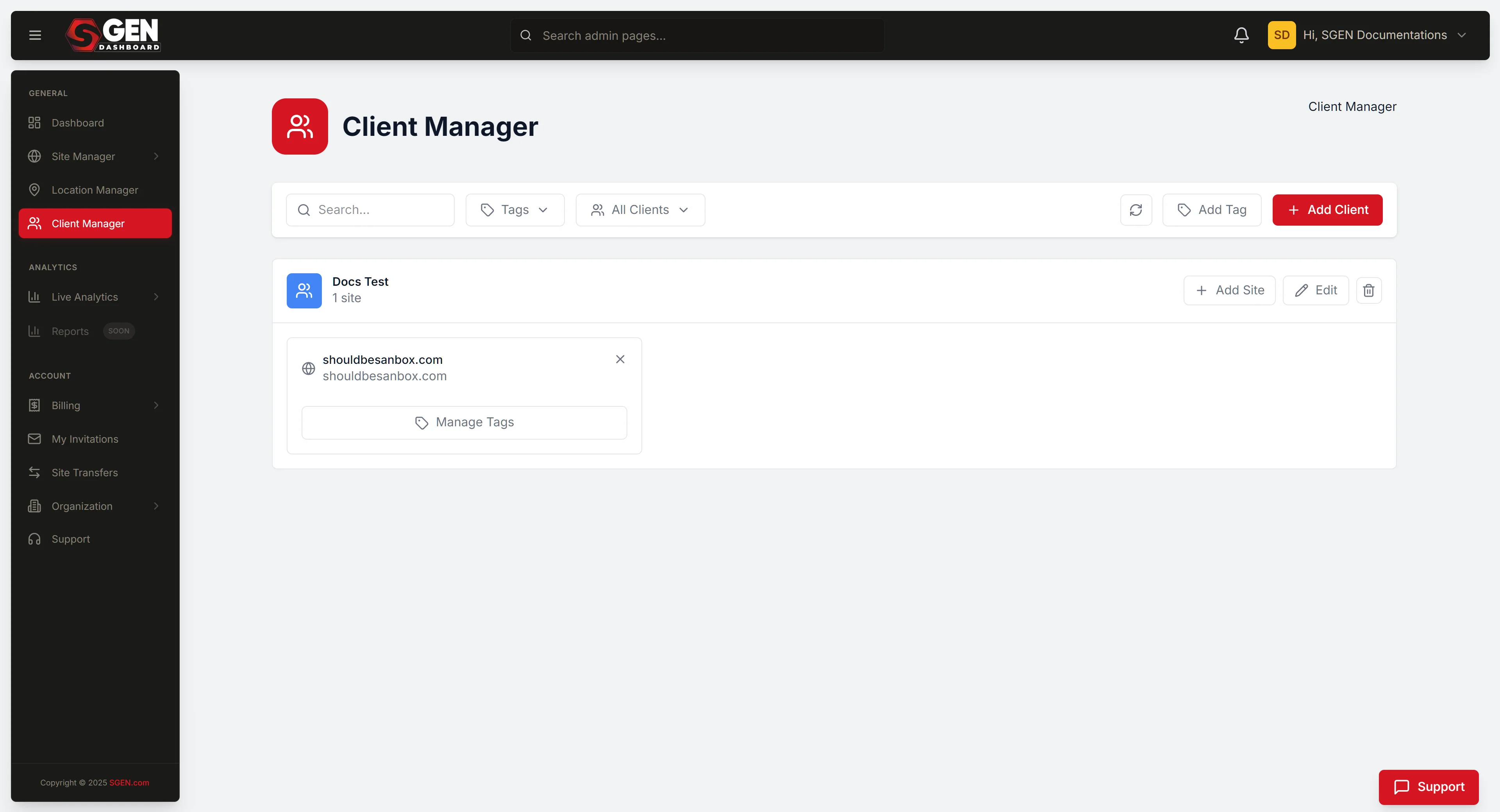
Client Manager
⏱ ~5 min read · find any client, open their account in one click, set a client active or inactive, and switch back to your own.
In short. Client Manager is the agency-tier surface in SG-Dashboard that lists every client account you administer. Each row shows the client name and the site associated with it, filtered by Active or Inactive status. From a row you can Open the client's dashboard — stepping into their account with no separate login — or Manage the client to set them active or inactive. Use it to scan your portfolio, jump straight into any client, and offboard a client without losing their data.
On this page: Where to find it · The client list · Find a client · Open a client account · Set a client active or inactive · Permissions · Common scenarios · Troubleshooting · Related reading
Client Manager sits inside SG-Dashboard. Where Site Manager handles sites within one account, Client Manager handles accounts across many clients. It's the agency-facing layer — relevant to agency operators and partner teams managing SGEN at multi-account scope.
Where to find it
Sign in to your SGEN Dashboard and choose Client Manager under the GENERAL group in the left navigation. The client list loads, showing every client account you've been granted access to.
When to use this page vs. others
| You want to | Go here |
|---|---|
| See all client accounts and their status | Client Manager (this page) |
| Work inside one client's sites | Open that client → Site Manager |
| Review billing for one client | Open that client → Billing Overview |
| See traffic rolled up per account | Analytics |
The client list
Client Manager presents your client accounts in a filterable list. Each row identifies one client by name and shows the site URL associated with that client, so you can confirm the right account at a glance before you act on it. The list is split by status into All, Active, and Inactive tabs.
Agency · Client Manager
Client accounts
AllActiveInactiveSearch clients…
| Client | Site URL | Status | |
|---|---|---|---|
| Client A | clienta.example | Active | Open · Manage |
| Client B | clientb.example | Active | Open · Manage |
| Client C | clientc.example | Inactive | Open · Manage |
Find a client
On accounts with many clients, narrow the list before you scroll:
- Choose the status tab that matches who you're looking for — All, Active, or Inactive.
- Scan the list, or use the search or filter options to locate the client by name.
- Use the site URL column to confirm you've got the right account before you click.
Picking the right status tab first cuts the list down before you search — for example, jump to Inactive when you're reviewing offboarded clients.
Open a client account
To work inside a client's account:
- Find the client's row.
- Choose Open on that row (or click the client name).
- The dashboard reloads inside that client's account context.
- From there, navigate to the client's site admin — Site Manager, Billing, Analytics — as if you were the account owner.
Switching into a client does not log you out of your own account. Your session stays active; you're stepping into the client's view, not leaving your own. When you're done, return to your own account using the account-switcher at the top of the dashboard. Switching clients means returning to Client Manager and opening a different row — there's no direct client-to-client jump.
Set a client active or inactive
When a client offboards (or comes back), change their status rather than deleting anything:
- Find the client's row.
- Choose Manage on that row (or open the row's action menu).
- Set the status to Active or Inactive.
- Save.
A confirmation banner appears, and the row moves to the matching tab — to Inactive if you set it inactive, back to Active if you reversed it. Setting a client to Inactive does not delete their site or data — it only moves the row off the Active tab, so the work is preserved if the client returns. To permanently remove a client's account and data, contact SGEN support; that's not a Client Manager operation.
Permissions
Client Manager surfaces only the clients you've been granted access to. Access is controlled per client — a client must explicitly grant the agency operator permission before that account appears in your list. A newly onboarded client shows up once they've granted that access.
Common scenarios
| Scenario | What you do |
|---|---|
| Morning portfolio scan | Open Client Manager, switch between the Active and Inactive tabs, and open any account that needs attention. |
| A new client onboards | The client grants you access → their account appears in Client Manager → Open the row to complete setup. |
| A client offboards | Manage the row → set status to Inactive (data is preserved). |
| Jump into a client's site | Find the row → Open → navigate to their site admin → return via the account-switcher. |
Troubleshooting
- A client I expect isn't in the list. Client Manager only shows clients who have granted you access. Confirm the access grant, then refresh; also check you're on the right status tab (a client set inactive sits under Inactive, not All's default view).
- I can't get back to my own account. Use the account-switcher at the top of the dashboard — opening a client doesn't end your own session.
- Setting a client inactive didn't remove their site. That's intended. Inactive preserves the client's data and only moves the row off the Active tab. Permanent removal goes through SGEN support.
Related reading
- SG-Dashboard Overview — parent surface; the full SG-Dashboard feature map.
- Billing Overview — per-account billing detail (open from inside the client account).
- Analytics — account-tier analytics rollup.
When to use this page vs. others
| You want to | Go here |
|---|---|
| See all client accounts and their status | Client Manager (this page) |
| Work inside one client's sites | Open that client → Site Manager |
| Review billing for one client | Open that client → Billing Overview |
| See traffic rolled up per account | Analytics |