
How to change a user's password
⏱ ~4 min read · quick answer above the fold · full reference below.
In short. Go to Users, click the user's row, scroll to the Change Password card. Fill in a new password (5–30 characters), confirm it, and click Change Password — then confirm the browser dialog. A green banner confirms the change. The user is immediately signed out of every active session and must sign in again with the new password. Leave the Old Password field blank when resetting someone else's password; fill it in only when changing your own.
On this page: Scope · Good use cases · Before you start · Steps · What success looks like · Troubleshooting
What is this for?
The Change Password card on the user-edit screen lets a Site Owner rotate any user's password without going through the public forgot-password email flow. It works in two modes: an admin resetting someone else (no Old Password field required) and a user changing their own (Old Password field appears at the top).
Scope
This page covers password changes made from the SGEN admin — both Owner-initiated resets and user-initiated self-changes. It does not cover the public "Forgot password?" email flow (user-initiated, no admin involvement) or role changes and account deletion (separate features on the same edit screen).
Good use cases
- Locked-out user — the person lost their password and needs a temporary one to get back in.
- New-hire onboarding — set an initial password when creating the account; ask the user to rotate on first login.
- Compromised credential — you spotted a user's email in a credential dump; rotate immediately to kill active sessions.
- Departing contractor — change the password to a random throwaway on their last day; instantly kills open sessions.
- Periodic rotation — walk through accounts on a 90-day schedule per your security policy.
- Self-service rotation — any user can change their own password from their profile page without admin involvement.
- Recovery when email is unavailable — if the user has lost access to both their password and their recovery email, an admin-side reset is the only path back.
What NOT to use this for
- Sending passwords over plain email — emails persist on multiple servers. Use an encrypted messenger, or prefer the public "Forgot password?" flow which emails a one-time link instead of a literal password.
- Triggering a password-reset email — this screen does not send emails. Direct the user to the "Forgot password?" link on your login page if you want them to set their own password via email.
- Logging out a user without changing their password — there is no stand-alone "force logout" on this screen. To revoke access without rotating, change the user's role or trash the account.
- Keeping a rotation history — SGEN does not retain old passwords. Maintain rotation records in your own team notes if compliance requires it.
How this connects to other features
- Login page — the new password takes effect on the user's next attempt after the session ends.
- Forgot-password flow — use this when you want the user to set their own new password without you knowing it; the public link emails a one-time reset link directly.
- User profile editing — the Change Password card sits on the same edit screen as name, email, and role. You can touch either without affecting the other.
- Roles and permissions — only Owner-tier admins can reset another user's password. Editors and Authors can change their own but not anyone else's.
- Audit log — every change records the affected user ID and the acting user ID. The password value itself is never logged.
Before you start
- Owner role required to reset another user's password. Editors and Authors can change their own only.
- Session impact — saving a password change immediately ends every active session for that user. Warn them before you act if they are online.
- Prepare your secure channel before clicking save — have the message ready so the handoff is instant.
- Your own password? You will need your current password in the Old Password field. The form rejects the save with a clear error if it does not match.
Where to go
To reset another user's password:
Dashboard → Users → click the user → scroll to the Change Password card
To change your own password:
Dashboard → Users → Edit Profile → Change Password card
The Edit Profile link is also available from the avatar menu in the top-right of every admin page.
Steps
1. Open the user's edit screen
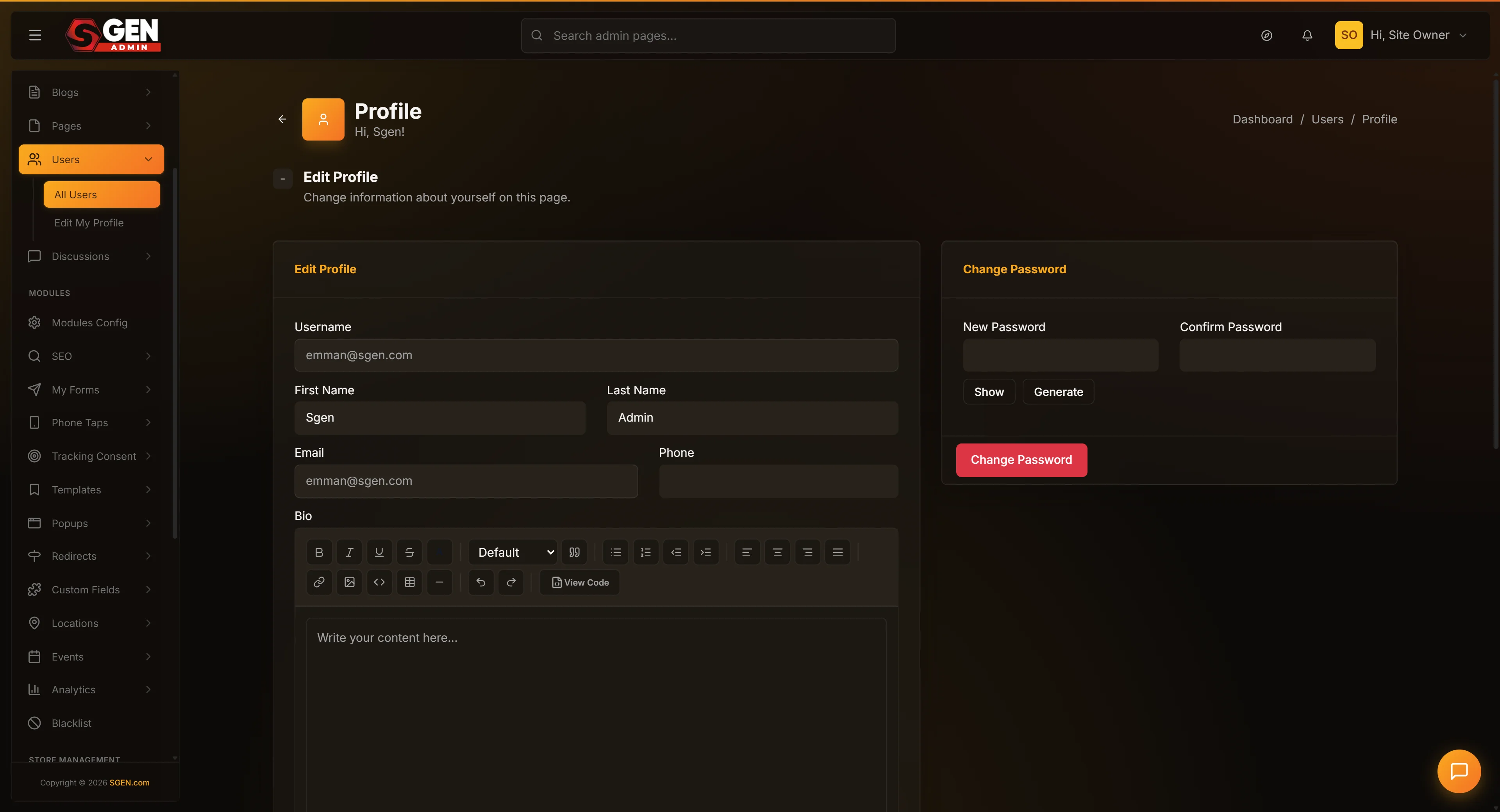
From the admin sidebar, click Users. Use the search box or scroll to find the person, then click their name. Their edit screen opens with the Change Password card below the main profile fields.
2. Fill the New Password and Confirm Password fields
Type the new password into the first field and the same value into the Confirm Password field. Both must match exactly — including spaces and special characters. The password must be 5–30 characters; that is the only length rule. Use a password manager to generate a random value rather than inventing one.
3. Click Change Password and confirm the dialog
When you click Change Password, your browser shows a confirmation dialog. Click OK. This second confirmation prevents an accidental click from silently rotating credentials.
4. Verify the success banner and notify the user
The page reloads and a green banner reads "Password has been successfully updated!" The user's sessions end at this moment — share the new password through your secure channel right away.
What success looks like
A green banner at the top of the Change Password card reads: "Password has been successfully updated!" The form fields clear; you stay on the edit screen. The user's next click in any open admin tab bounces them to the login page — that confirms the change took effect.
What to do if it does not work
- "Please enter your correct password to continue!" — you are changing your own password and typed the wrong current password. Try again, or have another Owner reset it for you.
- Password length or match error — re-type both fields. Watch for trailing spaces if you pasted.
- "Invalid user" — the account was removed. Go back to the user list.
- No banner after confirming — the dialog may have appeared in a background tab. Bring it forward and confirm. If still unclear, attempt the change again.
- "Access Restricted" — your role cannot reset other users' passwords. Find an Owner.
- User says the new password does not work — a mismatch between what you saved and what you sent. Walk through the rotation again and copy-paste the same value into both fields and the message.
Examples
New-hire setup — create the account, set a temporary password, share it through the team messenger, ask the user to rotate on first login.
Emergency rotation — an editor's email appears in a credential dump. Go directly to Users, rotate to a randomly-generated 24-character string, then message the user with the new password and ask them to rotate again to something only they know.
Locked-out user (no email access) — if the user cannot reach the forgot-password email, an admin-side reset is the only path back. Set a temporary password and share it out-of-band. Once the user logs in, they can update their email address on the profile screen and then rotate to a permanent password.
Rotation overview — keep a running record of which accounts have rotated and when. The Users list Last Login column is a useful proxy for credential currency.
Reference
| Field | Constraint |
|---|---|
| New Password | 5–30 characters; any keyboard character |
| Confirm Password | Must match New Password exactly |
| Old Password | Required only when changing your own password |
| Minimum role to reset others | Owner |
| Session behavior on save | All active sessions for the affected user are invalidated immediately |
| Email notification sent? | No — notify the user yourself |
| Password history enforced? | No — platform accepts re-use |
| Audit log entry | Records affected user ID + acting user ID; password value never logged |
Things to know
- SGEN enforces no rotation schedule — track periodic rotations in your own calendar.
- Generate, do not invent — use a password manager to produce a 16–24 character random value for any reset. The user will rotate it again on next login anyway.
- Prefer the public reset link when the user can reach their email — the "Forgot password?" flow lets the user set their own password without you seeing it.
- Confirm the name at the top before saving — with multiple admin tabs open, it is easy to rotate the wrong account.
- Stage the notification before you click — have the messenger window open so the handoff is instant.
Frequently asked questions
Can I see the user's current password? No. SGEN stores passwords as one-way hashes. Nobody — including the platform — can read the current password. You can only replace it.
Does the user get an email when an admin changes their password? No. Sessions end silently; the user discovers the change when they next try to sign in. Notify them yourself.
Can I set a password that never expires? SGEN does not enforce automatic expiry. Passwords persist until changed. Enforce your own rotation schedule outside the platform.
What happens if I set the same password the user already had? The platform accepts it and records a new audit-log entry. The user's sessions still end and they need to log in again.
Can I change a password without ending the user's sessions? No. Every password change through this screen kills all active sessions for the affected user. If you need them to stay logged in, ask them to rotate their own password through the self-change form instead — which also kills their other sessions but allows them to stay in the one they used to make the change.
Next steps
- How to update a user's profile and role — change name, email, role, and contact details on the same edit screen.
- How to add a new user — create a brand-new account rather than rotating an existing one.
- For users who can reach their email and want to reset themselves, point them at the "Forgot password?" link on your public login page.
Change Password field reference
| Field / Aspect | Constraint |
|---|---|
| New Password | 5-30 characters; any keyboard character |
| Confirm Password | Must match New Password exactly |
| Old Password | Required only when changing your own password |
| Minimum role to reset others | Owner |
| Session behavior on save | All active sessions for the affected user invalidated immediately |
| Email notification sent? | No - notify the user yourself |
| Password history enforced? | No - platform accepts re-use |
| Audit log entry | Records affected user ID + acting user ID; password value never logged |