
How to update a user's profile and role
⏱ ~4 min read · quick answer above the fold · full reference below.
In short. Go to Users, click the user's row to open their edit screen. Change any field — name, phone, bio, role, address, or display name — then click Save Changes. All changes on the left card save in one go; a green banner confirms. Role changes take effect on the user's next page load (ask them to refresh). The username and primary email fields are read-only on the edit screen and cannot be changed after account creation. For password resets, use the Change Password card on the right side of the same screen.
On this page: What this screen covers · Fields reference · Steps · What success looks like · Troubleshooting · FAQs
What is this for?
The user-edit screen at Dashboard → Users → Edit is the one place a Site Owner or Administrator changes who someone is on your site and what they can do — name, email, role, bio, contact details, and password.
Use this screen when a team member's role changes, contact details need updating, a display name has a typo, or you need to revoke edit access without deleting an account.
Scope
What this screen handles:
- Updating any profile field: name, email, phone, bio, address, display name
- Changing a user's role (Administrator, Editor, Author)
- Setting a new password as part of a wider profile edit
What it does not handle:
- Creating a new user — use Dashboard → Users → Add New User instead
- Kicking existing sessions on a password change — use the dedicated Change Password tab for that
- Bulk role or status changes — edit each user individually, or use the bulk-action checkboxes on the Users list for status changes only
- Notifying the user when their role or email changes — SGEN does not send automatic notifications; notify the user directly
Fields
All fields live on a single form. One Save Changes click persists everything you changed.
| Field | What it does | Notes |
|---|---|---|
| First Name / Last Name | Sets the user's identity; used in bylines | Letters, numbers, spaces only — apostrophes and hyphens are rejected (known limitation) |
| The sign-in address; changing it changes what the user types at login | No verification email is sent; confirm the new address works before saving | |
| Phone | Stored on the user record; not shown publicly | Optional |
| Role | Controls what menus and actions the user can access | Takes effect on the user's next page load |
| Display Name | What appears in bylines on the public site | Falls back to "First Name Last Name" if left blank |
| Bio | Plain text; appears on author pages on your public site | Most themes truncate at ~200 characters |
| Address fields | Address Line 1/2, City, State, Country, Postal Code | Optional; used by some accounting or shipping integrations |
| Change Password | Sets a new password in the same save | Does not kick existing sessions — use the Change Password tab if you need sessions to drop |
Good use cases
- Promote a contributor to Editor — change the Role dropdown from Author to Editor, save. The new menus appear on their next page load.
- Change a user's email — update the email field when someone's work address changes so password-reset notices reach them.
- Fix a display name typo — a typo in the Display Name field breaks how bylines render publicly; correct it and bylines update on the next page load without re-publishing posts.
- Update contact details — address and phone fields support accounting or shipping integrations that pull from the user record.
- Revoke edit access without deleting — drop someone from Editor to Author to remove publish and edit-others access while keeping their authorship history intact.
- Add or update a bio — set a contributor's bio so their author page renders with real content.
What NOT to use this for
- Adding a new user — use Dashboard → Users → Add New User. This screen modifies existing accounts only.
- Kicking active sessions on a password change — use the dedicated Change Password tab; the combined form does not terminate sessions.
- Editing the platform's reserved admin account — that account is intentionally locked from your dashboard.
- Bulk role changes — no bulk role-change action exists; edit users one at a time.
- Expecting email notifications — SGEN does not email users when an admin updates their account; notify the user yourself.
How this connects to other features
- Roles and permissions — the Role dropdown determines what menus and surfaces a user can see. Changing it here changes everything gated on that role.
- Audit log — every save on this screen writes a
user_updateentry in Dashboard → System → Audit Logs, recording who changed what and when. - Change Password tab — there are two paths to a password change. This combined form changes the password without terminating sessions. The dedicated tab terminates sessions when it runs.
- Public-site bylines — changing First Name, Last Name, or Display Name re-renders bylines on all of that user's posts on next page load — no need to re-publish individual posts.
- Add New User — the create flow uses a similar but separate form; fields set there become editable here.
Before you start
You need to be signed in as Site Owner or Administrator. Editors and Authors cannot reach the user-edit screen.
If you are changing a password and need existing sessions to drop, use the dedicated Change Password tab instead of this combined form.
If you are changing a role, plan to notify the user — SGEN will not send an automatic notification.
Where to go
Dashboard → Users
Find the user in the list and click their row (or the Edit action on hover). You land on the user-edit screen with all current values pre-filled.
Steps
1. Open the user's edit screen
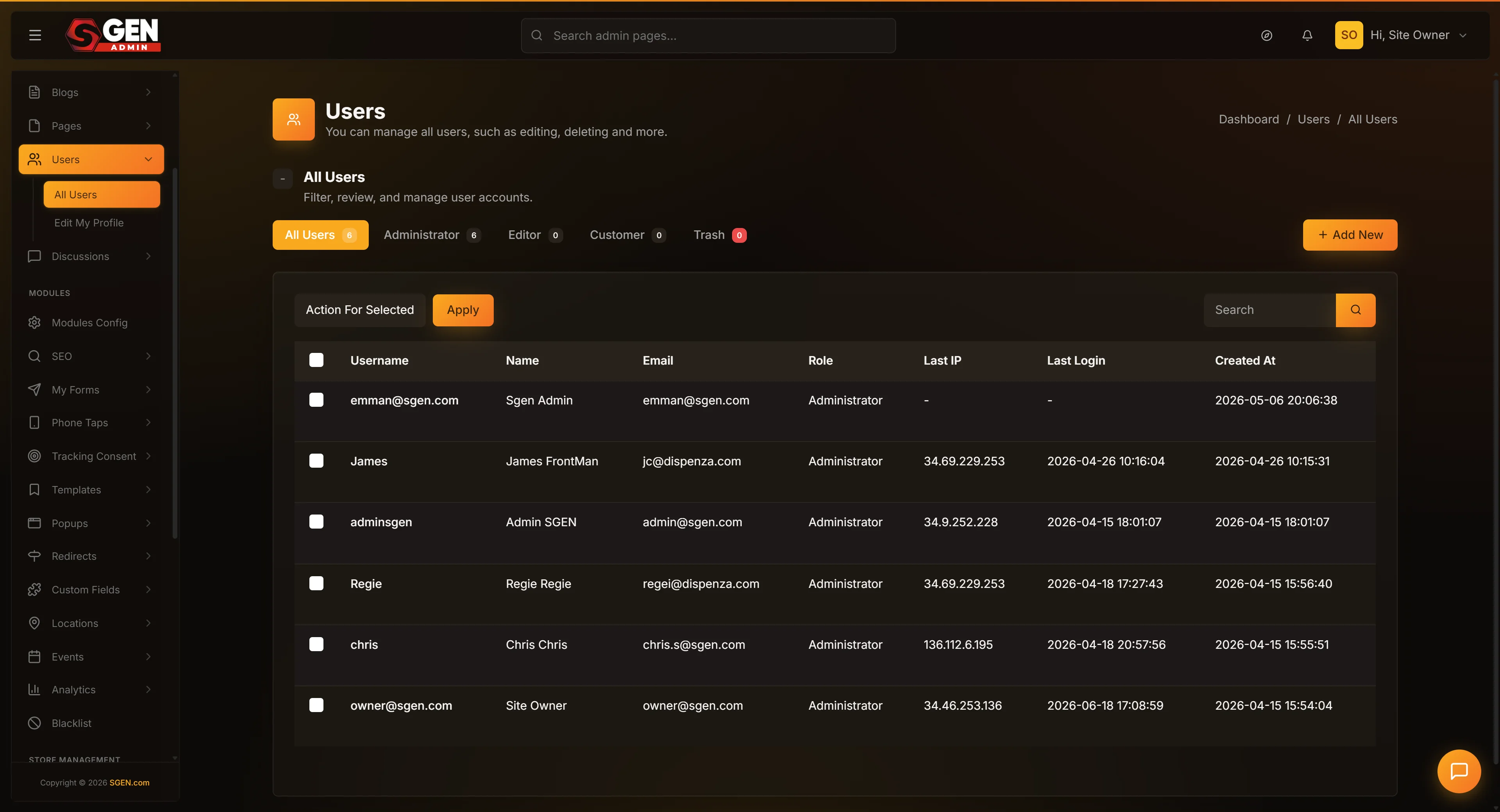 Users -> Edit): profile fields, Role dropdown, and Save Changes button" loading="lazy" style="width:100%;max-width:900px;height:auto;border-radius:8px;border:1px solid #e5e7eb;display:block;margin:12px 0">
From Dashboard → Users, click the row for the person you want to edit. The edit screen opens with current values pre-filled. If you do not see the user, check the filter tabs — trashed users hide unless you click the Trash tab.
2. Update the basics
Change First Name, Last Name, Phone, or Bio as needed.
Names accept letters, numbers, and spaces only — apostrophes and hyphens are rejected with a red banner. This is a known limitation; omit the punctuation for now.
The Bio field is plain text and shows on author pages. Keep it short — most themes truncate longer bios.
3. Change the role if needed
Click the Role dropdown and select:
- Administrator — full admin access: settings, users, billing
- Editor — can publish their own work and edit others', but not touch settings
- Author — can write and publish their own posts only
The change takes effect on the user's next page load. Open admin tabs will still reflect the old role until they refresh.
4. Update contact and display fields
Address fields (Address Line 1/2, City, State, Country, Postal Code) are optional and used by some integrations. They are not shown on the public site by default.
The Display Name field controls bylines. If blank, the site falls back to "First Name Last Name." Set it to a preferred format — an initial-and-last-name style, a pen name, or a full name.
5. Save changes
Click Save Changes at the bottom. A green banner confirms: "Profile has been successfully updated!"
A red banner means a field failed validation — read the message, correct the field, and re-save. The form does not auto-save; navigating away without saving loses your edits.
What success looks like
After saving, a green banner appears: "Profile has been successfully updated!"
Scroll through the form and confirm the changed values are showing the new data. Navigate back to Dashboard → Users — the row for that user reflects the change.
Role changes take effect on the user's next page load. Display Name changes re-render public bylines on next page load.
What to do if it does not work
- Red banner: "First Name field cannot contain..." — the name has punctuation SGEN does not accept (apostrophes, hyphens, periods). Remove the punctuation and re-save.
- Red banner: "Please enter your password to continue" — browser autofill populated the Current Password field, triggering the password-change branch. Clear that field and re-save.
- Role change saved but menus haven't changed — ask the user to refresh their browser tab. Role changes apply on the next page load.
- Email changed but user didn't get a password-reset notice — SGEN does not send a verification email when an admin changes a user's email. To issue a new password on the new address, use the Change Password tab to set a temporary password, then ask the user to reset it.
- Address fields blank after saving — do a hard refresh (Ctrl+Shift+R / Cmd+Shift+R), re-fill the fields, and save again. If they still do not persist, contact support.
- Cannot reach Dashboard → Users — only Site Owner and Administrator roles can access the Users panel. If you hold one of those roles and still see Access Restricted, contact support.
- Role option missing from the dropdown — only the three standard roles appear by default (Administrator, Editor, Author). Custom roles appear here when the relevant add-on is active. If you do not see them, the add-on is not enabled.
- Bio text truncated on the public site — most themes cap bio length at ~200 characters. Shorten the bio or check the theme's author-page template settings under Appearance.
Examples
Promote a contributor to Editor. A contributor has been writing reliably for months and you want them to start publishing without your final review. Open Dashboard → Users, click their row. Change Role from Author to Editor, click Save Changes. The green banner confirms. Let the contributor know — ask them to refresh their browser. On their next page load they will see the Publish button.
Revoke edit access without deleting. A team member is leaving at the end of the month and you want to preserve their authorship without keeping their edit access. On their last day, open their edit screen and change Role from Editor to Author. Author is the lowest write role — they still own their posts but cannot edit others' work or access Users or Settings. Save. If you want to suspend the account entirely later, return to the Users list, tick the checkbox next to their row, and use the Trash bulk action. Their bylines on published posts are not affected.
Team overview — keeping your Users list current
After any round of profile edits, open Dashboard → Users and confirm the list reflects your changes. The Role column updates immediately after a save; if a role change does not show, a page refresh corrects it.
The role breakdown tab shows counts by role at a glance — useful after a round of promotions or demotions to confirm the distribution is what you intended.
Things to know
- Display Name is what your readers see — it is free text, so you can use a pen name, initials, or a full name.
- Role changes apply on next page load — if the user has admin tabs open, ask them to refresh after a role change.
- Address fields are optional — leave them blank unless an integration needs them.
- Password change via this form does not kill sessions — use the dedicated Change Password tab when you need active sessions to terminate.
- The audit log records every save — Dashboard → System → Audit Logs tracks who changed what and when, including role changes and email updates.
- Save Changes is the only save — the form does not auto-save; navigating away loses any unsaved edits.
- Role uncertainty — Editor is the right default for someone who writes frequently; Author for someone who writes occasionally; Administrator only for people who should be able to change settings or invoice your account.
Frequently asked questions
Does changing a user's role email them? No. SGEN does not automatically email users when their role changes. Tell them directly and ask them to refresh their browser tab. The change is immediate on your end but the user will not see it until they reload.
Can I change someone's username? The username in SGEN is the user's email address — the field labeled Email on the edit screen. Changing the email field changes what they type at the sign-in prompt. No verification link is sent to the new address, so confirm the new address works before saving.
What happens to authored content if I demote a user from Editor to Author? Nothing changes for existing content. Authorship is stored on the post record, not on the user's current role. Demoting a user does not remove their byline from anything they wrote. It only limits what they can do going forward.
Can I change a role and a password in the same save? Yes. The combined edit screen has both a Role dropdown and a Change Password card — one Save Changes persists everything. The exception: if you need the password change to terminate active sessions, use the dedicated Change Password tab separately. The combined form does not terminate sessions.
Why can't I see the Administrator option in the Role dropdown? If you are signed in as Editor or Author, you cannot reach this screen. If you are signed in as Administrator but cannot assign Administrator to another user, a permissions add-on may be restricting role escalation. Contact your platform owner.
I saved but the old values came back on reload. What happened? This is almost always a browser-cache issue. Do a hard refresh (Ctrl+Shift+R on Windows / Cmd+Shift+R on Mac). If the saved values still do not appear, check Dashboard → System → Audit Logs for a user_update entry at the time you saved. If no entry exists, the save did not persist — try again.
Next steps
- Add a new user — see the Add New User guide for creating accounts from scratch.
- Reset a password — see the Change Password guide for the dedicated session-aware flow.
- Bulk-change user status — see the Bulk-manage users guide for applying active/trash changes across multiple accounts.
- Review your audit log — Dashboard → System → Audit Logs tracks every save on this screen.
User-edit screen field reference
| Field | What it does | Notes |
|---|---|---|
| First Name / Last Name | Sets the user's identity; used in bylines | Letters, numbers, spaces only - apostrophes and hyphens rejected |
| Sign-in address; changing it changes the login value | No verification email sent; confirm the new address works first | |
| Phone | Stored on the user record; not shown publicly | Optional |
| Role | Controls what menus and actions the user can access | Takes effect on the user's next page load |
| Display Name | What appears in bylines on the public site | Falls back to First Name Last Name if blank |
| Bio | Plain text; appears on author pages | Most themes truncate at ~200 characters |
| Address fields | Address Line 1/2, City, State, Country, Postal Code | Optional; used by some accounting/shipping integrations |
| Change Password | Sets a new password in the same save | Does not kick existing sessions - use the Change Password tab for that |