
How to set up site-wide spam protection for your forms
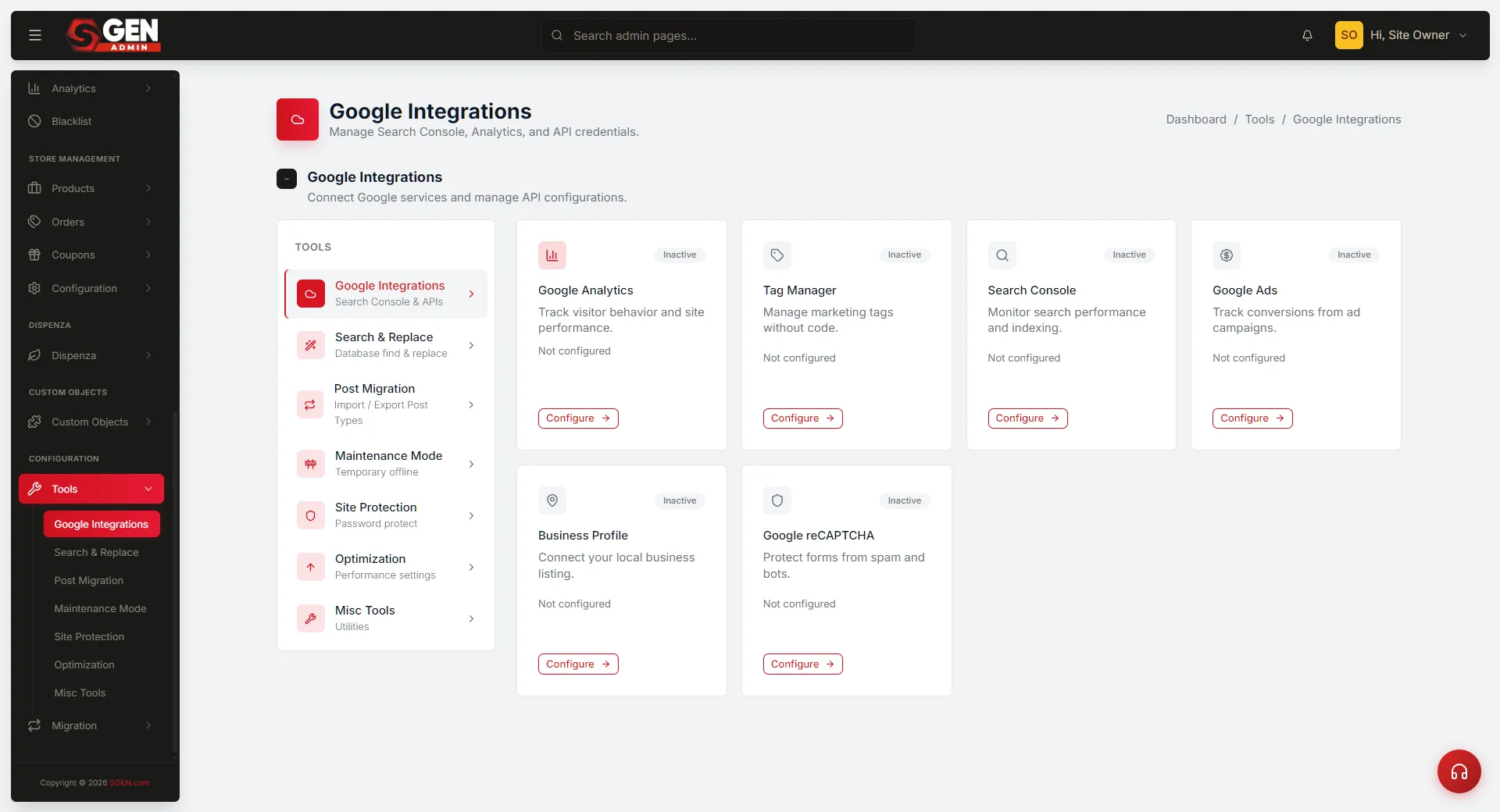 Google Integrations panel with the Google reCAPTCHA card showing the Site Key and Secret Key fields and Save Integration button" loading="lazy" style="width:100%;max-width:900px;height:auto;border-radius:8px;border:1px solid #e5e7eb;display:block;margin:12px 0">
⏱ ~2 min read · setup takes under 5 minutes · skim the bold lead-ins to move faster.
In short. Connect Google reCAPTCHA once — in Tools → Google Integrations — and every form on your site is protected automatically. Bots are rejected silently before they reach your inbox or integrations. Real visitors see no interruption. New forms you publish later are covered immediately, no extra steps needed.
On this page: What is this for? · Scope · Before you start · Steps · Options · Troubleshooting · FAQ
What is this for?
Site-wide spam protection lets you connect Google reCAPTCHA to your site in one step, after which every form is automatically protected from bot submissions. Blocked submissions are discarded silently — they never reach your inbox, reports, or connected integrations. Use it when bot submissions are inflating your inbox counts, skewing lead reports, or arriving alongside a traffic spike from a marketing campaign.
When to think twice: if your audience uses older assistive technology that cannot complete reCAPTCHA challenges, test before enabling. For test environments, clear the keys temporarily and restore them before reopening the form to public traffic. For forms gated behind a VPN, bot traffic is already blocked at the network level and reCAPTCHA adds unnecessary friction.
Scope
reCAPTCHA configured here applies to every published form on your site — you cannot toggle it per form from within SGEN. Protection is enforced at the server level after a visitor clicks Submit, before the submission is recorded in your inbox or passed to any connected integration (email, Slack, webhook). The scope does not include:
- Field-level validation (empty fields, format checks, required fields) — configured per form.
- Page-level access control — password-protecting a form's hosting page is a separate visibility setting.
- Deceptive humans — reCAPTCHA distinguishes bots from real visitors, not honest humans from dishonest ones.
How this connects to other features
reCAPTCHA blocks spam before it reaches email alerts, Slack messages, or webhook payloads. Your Submissions Over Time chart shows cleaner trend lines after enabling, and your lead-source breakdown becomes more accurate because channel totals no longer include bot-generated noise. You can layer site-wide reCAPTCHA with per-form field validation for a two-tier approach to data quality.
Before you start
You need a Google account to generate reCAPTCHA credentials. Visit the Google reCAPTCHA Admin console and create a new site registration — select reCAPTCHA v2 (visible checkbox) or v3 (invisible scoring) depending on your preference. After registering, Google provides two values: a Site Key and a Secret Key. Copy both — you will paste them into SGEN during setup. Keep the Secret Key private; it is used server-side and should never appear in public-facing code or shared documents.
Make sure you are logged in to SGEN as a site administrator before starting — the Google Integrations panel is not accessible to contributor or editor roles. Confirm that the domain you register in Google's console matches the primary domain shown in Settings → Site Details in SGEN — a mismatch is the most common cause of reCAPTCHA saving successfully but having no effect.
Where to go
Go to Tools → Google Integrations in your SGEN admin sidebar. The reCAPTCHA section appears within the integrations panel alongside other Google services.
Steps
1. Open Google Integrations
In your SGEN admin sidebar, click Tools, then click Google Integrations. The page loads a list of available Google connections for your site. Scroll down if you do not immediately see the reCAPTCHA card — it sits below Analytics and Search Console.
2. Locate the reCAPTCHA section
Find the Google reCAPTCHA card in the integrations list. If you have not connected reCAPTCHA before, both key fields will be empty. If keys are already present, you can overwrite them with new credentials if you are rotating keys.
3. Paste your Site Key
Click the Site Key field and paste the key you copied from the Google reCAPTCHA Admin console. The key typically begins with 6Lc followed by a long string of characters. Do not add spaces before or after the key — whitespace causes validation to fail silently.
4. Paste your Secret Key
Click the Secret Key field and paste your Secret Key. Keep this value private — it is used server-side to verify submissions and should not be shared or appear in any public code or team messaging channels.
5. Save the integration
Click Save Integration. SGEN stores both keys and immediately applies reCAPTCHA checking to every form on your site — no further configuration is needed. You can test by submitting a form entry from any published page on your site.
Options
The version you choose (v2 or v3) is determined by which key type you generate in the Google console — SGEN accepts both.
| Field | What it does | Where to find it |
|---|---|---|
| Site Key | Public token that loads reCAPTCHA on your form pages | Google reCAPTCHA Admin console → your site registration |
| Secret Key | Private token used server-side to verify each submission | Google reCAPTCHA Admin console → your site registration |
reCAPTCHA v2 — Presents a visible challenge (checkbox or image puzzle) that visitors must complete before submitting. Suitable when you want a visible friction layer or your audience is comfortable with interactive CAPTCHAs.
reCAPTCHA v3 — Scores each submission invisibly using browser signals (mouse movement, timing, device fingerprint). Suitable for most sites — no visible challenge interrupts the visitor flow. Submissions below the score threshold are rejected without the visitor seeing any prompt.
What the reCAPTCHA check covers
Automated bot scripts — reCAPTCHA detects form submissions from headless browsers, scraping scripts, and common spam-bot libraries. These submissions are rejected silently — no entry is recorded in your SGEN inbox.
Rapid repeat submissions — Submissions arriving in unusually high volume from the same IP in a short window are flagged as suspicious.
Unusual browser signals — reCAPTCHA examines mouse movement, timing, and screen properties to distinguish human visitors from automated clients. A session with none of the behavioural signals of a real user receives a low score and is rejected.
What it does not catch — reCAPTCHA does not validate submission content; a real human entering false information will still pass. Combine reCAPTCHA with strong field validation for high-stakes forms.
What success looks like
After saving, submit a test entry through any form on your site using a regular browser session. The submission should arrive in your form inbox as normal — reCAPTCHA works silently in the background. Your Google reCAPTCHA Admin console will log new assessments within a few minutes. A healthy dashboard shows a high score distribution (0.7–1.0) for most traffic; a cluster below 0.3 indicates bot activity being intercepted.
Examples
Contact form receiving bot submissions. A contact form inbox was receiving 38 bot submissions out of 42 daily entries, with only 4 genuine inquiries. After saving reCAPTCHA credentials, the daily bot count dropped to zero within 24 hours while real inquiries continued arriving normally.
All forms covered in one step. Saving reCAPTCHA credentials once protects every form on your site — and any new forms published later are automatically covered without additional configuration.
What to do if it does not work
reCAPTCHA is not blocking spam after saving: Verify that both keys were copied correctly — a single extra space or missing character causes silent validation failure. Log in to your Google reCAPTCHA Admin console and confirm your domain is listed under the key's allowed domains. Check that the domain registered in Google matches the live domain in Settings → Site Details in SGEN exactly.
Legitimate submissions are being blocked: Switch from reCAPTCHA v2 (visible challenge) to reCAPTCHA v3 (invisible scoring) in your Google console, then update the keys in SGEN. If switching to v3 does not help, check whether your audience uses browser extensions or privacy tools that interfere with reCAPTCHA signals.
The reCAPTCHA section does not appear in Google Integrations: Your SGEN plan may not include the Google Integrations module. Contact your SGEN account manager to confirm which integrations are available on your current plan.
Keys saved but forms still accept obvious spam: The keys may be registered under a different domain than the one SGEN is serving. Check your SGEN site's primary domain under Settings → Site Details and confirm it matches the domain registered in the Google reCAPTCHA Admin console — a domain mismatch is the most common cause of reCAPTCHA appearing to save successfully but having no effect.
The Google Integrations page shows an error on save: This typically means one of the keys contains an invalid character or was truncated during copy. Clear both fields, return to the Google reCAPTCHA Admin console, and copy each key fresh using the copy icon rather than manual selection. Paste into a plain-text editor first to strip any hidden formatting, then copy again into SGEN.
Frequently asked questions
Do I need to configure each form separately? No. The reCAPTCHA connection is site-wide — every form is protected as soon as you save the integration. Any new forms you publish after enabling reCAPTCHA are automatically covered without additional steps.
Which version of reCAPTCHA does SGEN support? SGEN accepts keys from both reCAPTCHA v2 and v3. The experience (visible challenge vs. invisible scoring) is determined by the key type you generate in the Google reCAPTCHA Admin console.
Will reCAPTCHA slow down my forms? reCAPTCHA loads a small script from Google's servers when your form page loads. For most visitors on standard connections, this adds no noticeable delay. reCAPTCHA v3 has a lighter resource footprint than v2 if page performance is a concern.
Can I disable reCAPTCHA for a single form? Site-wide reCAPTCHA applies to all forms and cannot be toggled per form from within SGEN. To exclude a form temporarily, clear the keys from the Google Integrations panel, which disables site-wide protection. Restore the keys immediately after your testing window is complete.
What happens to spam submissions? Submissions that fail the reCAPTCHA check are rejected before they enter your SGEN database. They do not appear in your form inbox, reports, or connected integrations.
Does reCAPTCHA work on password-protected pages? Yes. reCAPTCHA fires on form submission regardless of whether the hosting page requires a password to view. The spam check happens at the server level after the user submits the form.
Will this affect my Google Analytics data? No. reCAPTCHA is a separate Google service with its own console and does not share data with Google Analytics. Your Analytics tracking is not affected by enabling or disabling reCAPTCHA.
How do I choose between v2 and v3? Use v3 for invisible protection with no user-facing challenge — it scores submissions in the background. Use v2 if you want a visible checkbox or image challenge that users must actively complete. Most sites use v3 because it does not interrupt the submission flow for real visitors.
Tips
- Check the Google console in your first month — the analytics tab shows score distributions that reveal whether your traffic is healthy.
- Watch campaign launches — bot activity often spikes alongside legitimate traffic; monitor submission counts after a big push.
- Register keys under a shared team account — prevents access loss if a personal account leaves the organisation.
- Give it 48 hours before drawing conclusions about effectiveness — bots sometimes retry before dropping off completely.
Related reading
- Read your form submissions over time — monitor submission volume trends after enabling spam protection to see the impact on your counts
- Read your lead-source breakdown — cleaner data from spam protection makes channel attribution more accurate
- Test your form integration delivery — verify that real submissions still reach connected destinations after enabling reCAPTCHA