
Set Up Your SEO Defaults on SGEN
Every page on your SGEN site inherits from a single set of SEO defaults. Configure them once — in one place — and the entire site starts with a solid search baseline: branded titles in results, an OG image on every social share, and a submitted sitemap so Google knows where to look.
One place, site-wide effect
All six defaults live in SG-Admin → Settings → SEO. Change the title template there and every page without a per-page override updates instantly.
Defaults are the floor
Per-page SEO values override these defaults. Set the defaults as your baseline, then add per-page values on the pages that matter most for search.
Under twenty minutes
Six fields to fill, one sitemap to submit. By the end of this guide your site has non-placeholder titles, a branded OG card, and a submitted sitemap.
What are SEO defaults?
SEO defaults are the fallback values SGEN applies to every page, post, and custom object on your site when that content has no per-page SEO settings of its own. There are five defaults you are configuring here.
Title
Site title template
The pattern SGEN uses to build the <title> tag on every page. A standard template — {Page Title} | {Site Name} — produces results like "Shop All | Your Store" in search. Without a correct template, pages show a bare title or the SGEN placeholder.
Description
Default meta description
The description search engines use for pages without their own. It appears under the page title in results. Keep it under 155 characters. Write it for the reader, not for the algorithm — a specific one-sentence summary outperforms a keyword list every time.
Social
Default OG image
The image that renders when any page URL is shared on LinkedIn, Slack, Facebook, or iMessage. Without an OG image you get a blank card or a random in-page photo. A branded OG image means every shared link presents the same visual identity.
Crawl
Robots.txt + Sitemap
Robots.txt tells search engines which pages to crawl. The SGEN default is correct for almost every site — leave it unchanged unless your SEO team has a specific instruction. The sitemap is auto-generated at /sitemap.xml and submitted to Google Search Console.
Before you start
Have four things ready before you open Settings → SEO. Preparing them in advance means you can complete the entire setup in one session without stopping.
Domain connected
SEO defaults apply to the live domain. Confirm your domain is connected and your site is live. If you are still on a staging subdomain, configure the defaults now — they transfer when you connect the domain — but do not submit the sitemap to Google until the domain is live.
Site title decided
Know the exact name of your site as it should appear in search results. Decide the final name before setting the template — changing it later updates every page that uses the default, but previously indexed titles take Google several weeks to catch up.
Default description written
Write your default meta description before opening the settings panel. Keep it under 155 characters. Describe what the site is and for whom. Example for an apparel brand: "Everyday essentials in organic cotton — totes, tees, and accessories shipped direct, with wholesale accounts for stockists." Clear, specific, written for the reader.
Default OG image prepared
Export a 1200 × 630 pixel image as JPG or PNG. Include your logo and a brand visual. Text on the image must be legible at roughly 500 × 260 pixels — the size OG cards render in most social feeds. A logo on a brand-color background with your tagline in large type works better than a densely designed banner that is unreadable at card size.
Where to go
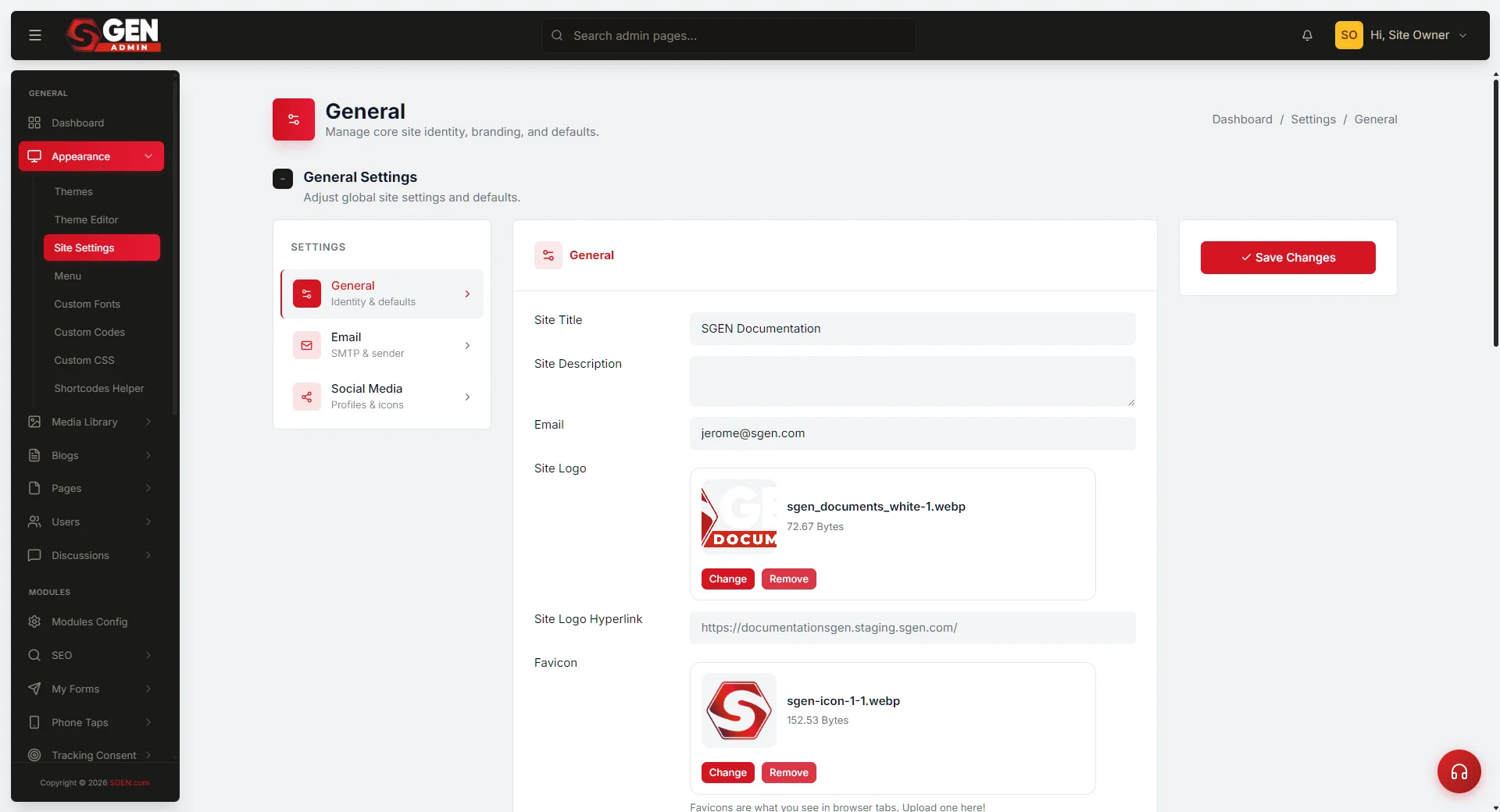
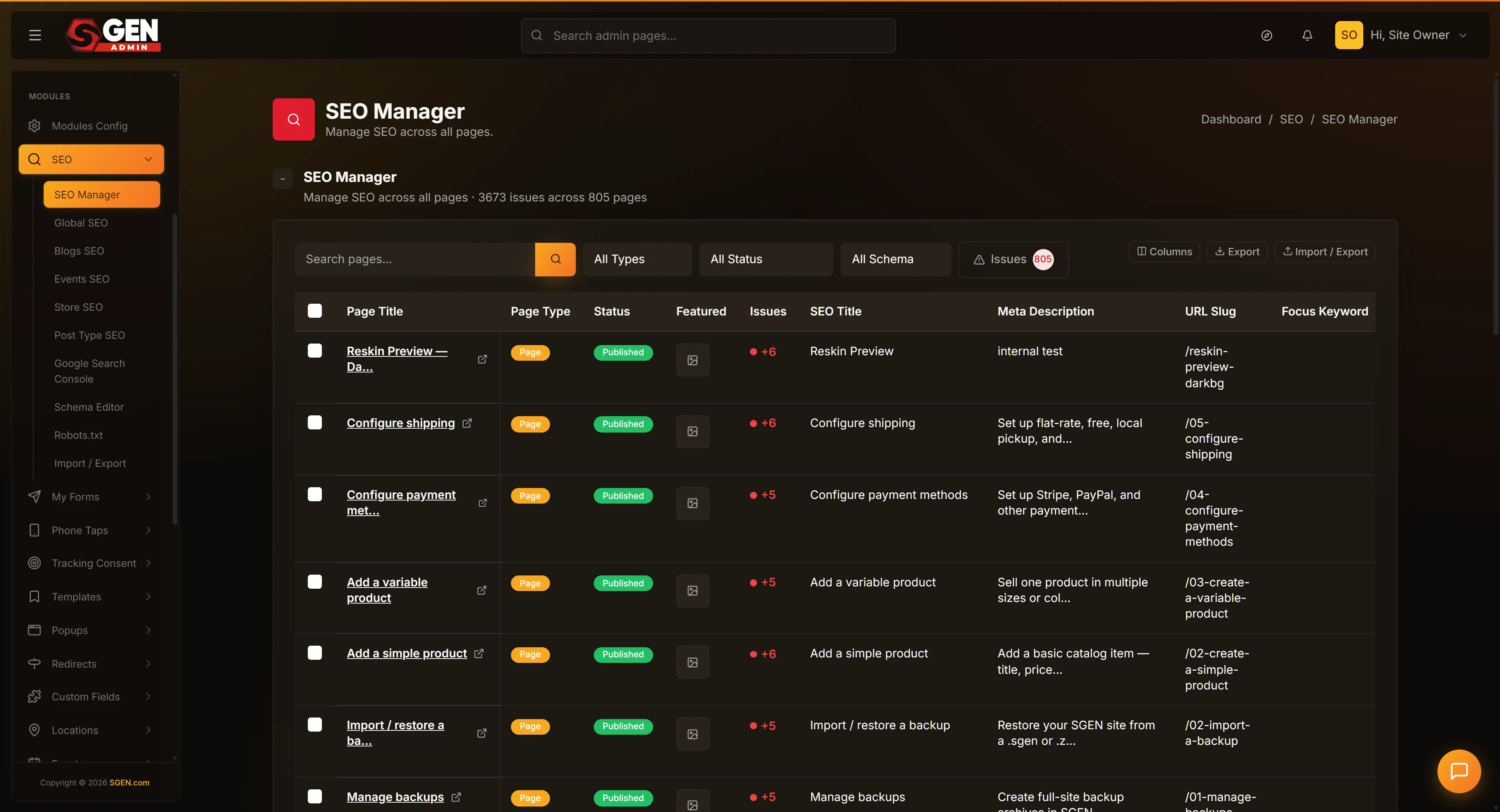
Go to Settings in the left sidebar of your SGEN admin. Select SEO from the settings sub-navigation. The SEO settings page opens with sections for Site Title, Meta Description, OG Image, Robots.txt, and Sitemap.
If you do not see an SEO option in Settings, confirm your user account has Admin access. SEO settings are admin-only. Contact your site owner if the option is missing.
Steps — set up your SEO defaults
These steps take you from opening the SEO settings page to submitting your sitemap to Google Search Console.
1
Set your site title template
In the Site Title section, enter your title template using {Page Title} and {Site Name} as placeholders. A standard template:
{Page Title} | {Site Name}For Your Store, that produces results like "Shop All | Your Store" in search. If your brand name is long, use a short form for the site name portion. Choose one separator — a pipe | or an em dash — — and keep it consistent across the site. Save before moving to the next field.
2
Write your default meta description
In the Default Meta Description field, paste your prepared description. The field shows a character count — keep it under 155. At 156 or more, search engines may truncate the end of the sentence in results. Write in plain sentences. No keyword stuffing. Write it as if you are telling a potential customer what the site is about in one sentence. Save the section.
3
Upload and set your default OG image
In the Default OG Image section, click Upload Image or Choose from Media. Select your prepared 1200 × 630 image. Confirm the preview renders correctly in the section. If it looks stretched or cropped, the image dimensions may not match the 1200 × 630 ratio — re-export at the correct ratio and re-upload. After saving, test the card with LinkedIn Post Inspector or Facebook Sharing Debugger. If a cached old image shows, use the tool's "Scrape Again" option. Save the section.
4
Review robots.txt rules
In the Robots.txt section, read the current configuration. For most sites, the default is:
User-agent: *
Allow: /
Disallow: /sg-admin/
This tells all search engines: crawl everything except the admin panel. That is the correct setting for almost every SGEN site. Only change robots.txt if your SEO team has given you a specific, confirmed instruction and you understand exactly what the change blocks. Do not copy disallow rules from another site without understanding what they block. Save only if you made a change.
5
Verify your sitemap resolves
In the Sitemap section, SGEN displays your auto-generated sitemap URL — typically https://yourdomain.com/sitemap.xml. Open a new browser tab and navigate to that URL. You should see a page of well-structured XML listing your site's URLs. Copy the sitemap URL — you will submit it in the next step. If the URL returns a 404, confirm your domain is connected and live, not on a staging subdomain.
6
Submit your sitemap to Google Search Console
Open Google Search Console at search.google.com/search-console. Select your property. In the left sidebar, click Sitemaps under the Index section. In the Add a new sitemap field, enter the path portion of your sitemap URL — if your sitemap is at https://yourdomain.com/sitemap.xml, enter sitemap.xml. Click Submit. Google shows the sitemap as "Pending" initially. Within a day or two it shows "Success" with a count of discovered URLs. New pages you publish appear in the sitemap automatically — you do not need to resubmit.
What success looks like
When SEO defaults are configured correctly, all of these are true at the same time.
Search results
Branded titles everywhere
Every page without a per-page SEO title shows your template in the browser tab and in search results — "Page Name | Site Name" — not "SGEN Site" or a blank title.
Social sharing
OG card renders on every share
Sharing any page URL on LinkedIn, Slack, or iMessage renders your branded OG image. No blank card, no random in-page photo.
Sitemap
Resolves and is submitted
Navigating to yourdomain.com/sitemap.xml returns well-formed XML. Google Search Console shows your sitemap with status "Success" and a URL count that matches your published page count.
Indexing
Google finds the site
Within two weeks of submission, Google's URL Inspection tool shows your homepage as "URL is on Google." A search for your brand name returns your site with the correct title and description — not a placeholder.
If something does not work
The most common issues after saving SEO defaults, and how to resolve them.
Still showing "SGEN Site" in search results after saving
Search engines cache page titles. After updating the template it may take Google several days to re-crawl the affected pages. To speed this up, use Google Search Console URL Inspection — inspect the page URL, then click Request Indexing. If individual pages still show "SGEN Site" after a week, check whether those pages have a conflicting per-page SEO title set explicitly. Per-page values override the default. Open each affected page in the editor, go to the SEO panel, and clear the SEO Title field if it is set to a placeholder.
OG image not rendering on social platforms
Social platforms cache OG metadata aggressively. To force a refresh: LinkedIn — go to linkedin.com/post-inspector, paste the URL, click Inspect. Facebook — go to the Sharing Debugger, paste the URL, click "Fetch new scrape information." Slack and iMessage typically clear their cache within 24 hours. If the image is not rendering at all on a fresh URL, confirm the image was saved (reload Settings → SEO and verify the OG Image field shows your upload) and confirm the image file is publicly accessible by loading its URL directly in a browser.
Sitemap URL returns a 404
Confirm your domain is connected and the site is live — not on a staging subdomain. The sitemap at yourdomain.com/sitemap.xml is only available at the live connected domain. If the domain is connected and the 404 persists, navigate to Settings → SEO and confirm the sitemap URL shown there. If the URL is correct but still returning 404, contact SGEN support with the domain and sitemap URL — this is a platform-level issue, not a configuration problem.
Google Search Console shows a sitemap error
Common reasons: the sitemap URL was entered with the full domain instead of just the path — enter sitemap.xml, not the full URL. The site is not yet verified in Search Console — verify domain ownership before submitting. The sitemap returned a non-200 status when Google fetched it — confirm the URL resolves in a browser before resubmitting.
Google is not indexing the site after two weeks
Use Search Console URL Inspection on your homepage — it shows the last crawl date, crawl status, and any issues Google encountered. Common blockers: the domain is not returning a 200 status, the robots.txt has an accidental Disallow: / for the entire site, or a noindex meta tag added during development was never removed. Check all three before opening a support request.
Heads up Do not edit robots.txt unless your SEO team has given you a specific, confirmed instruction. An incorrect disallow rule can accidentally block all search engines from crawling your site — the default SGEN configuration is correct for almost every site.