
Route SGEN Form Submissions to Email, Webhook, or CRM
⏱ ~4 min read · three routing paths, nine steps total · skim the bold step headers to move faster.
In short. A visitor submits your form. SGEN stores it and — if you have routing configured — pushes it somewhere your team acts on. Three paths: email (Mail Settings tab, fastest to set up), webhook (Integrations tab, fires a POST to Slack, Zapier, or any endpoint), CRM (Integrations tab, direct list sync — Mailchimp is the most common). The paths are independent; run one or all three. Without routing, submissions accumulate silently in My Forms — visible only to admins who log in.
On this page: Before you start · Email routing (Steps 1-3) · Webhook routing (Steps 4-6) · CRM routing (Steps 7-9) · Troubleshooting · Common questions
How to route form submissions
Haven't built the form yet? Start with How to Build a Contact Form first.
Not covered here: payment collection (handled in Orders/ecommerce) or conditional alerts based on field values (set that logic at the receiving end — Zapier, Slack, or your CRM's workflow rules).
Before you start
| Requirement | Why |
|---|---|
| Form is Active (not Draft) and embedded on a live page | Routing on a Draft form does nothing; you can't test end-to-end without a live submission |
| Routing destination is ready | Email: recipient address. Webhook: URL from the receiving system. CRM: API key + audience/list identifier |
| Form accepts submissions correctly | A submission that doesn't complete doesn't trigger any routing path — fix form issues first |
Navigate to SG-Admin → My Forms, then click the form name. The detail view has tabs: Fields, Mail Settings, Integrations, Submissions.
- Email routing → Mail Settings tab
- Webhook and CRM routing → Integrations tab
Steps — Configure email routing
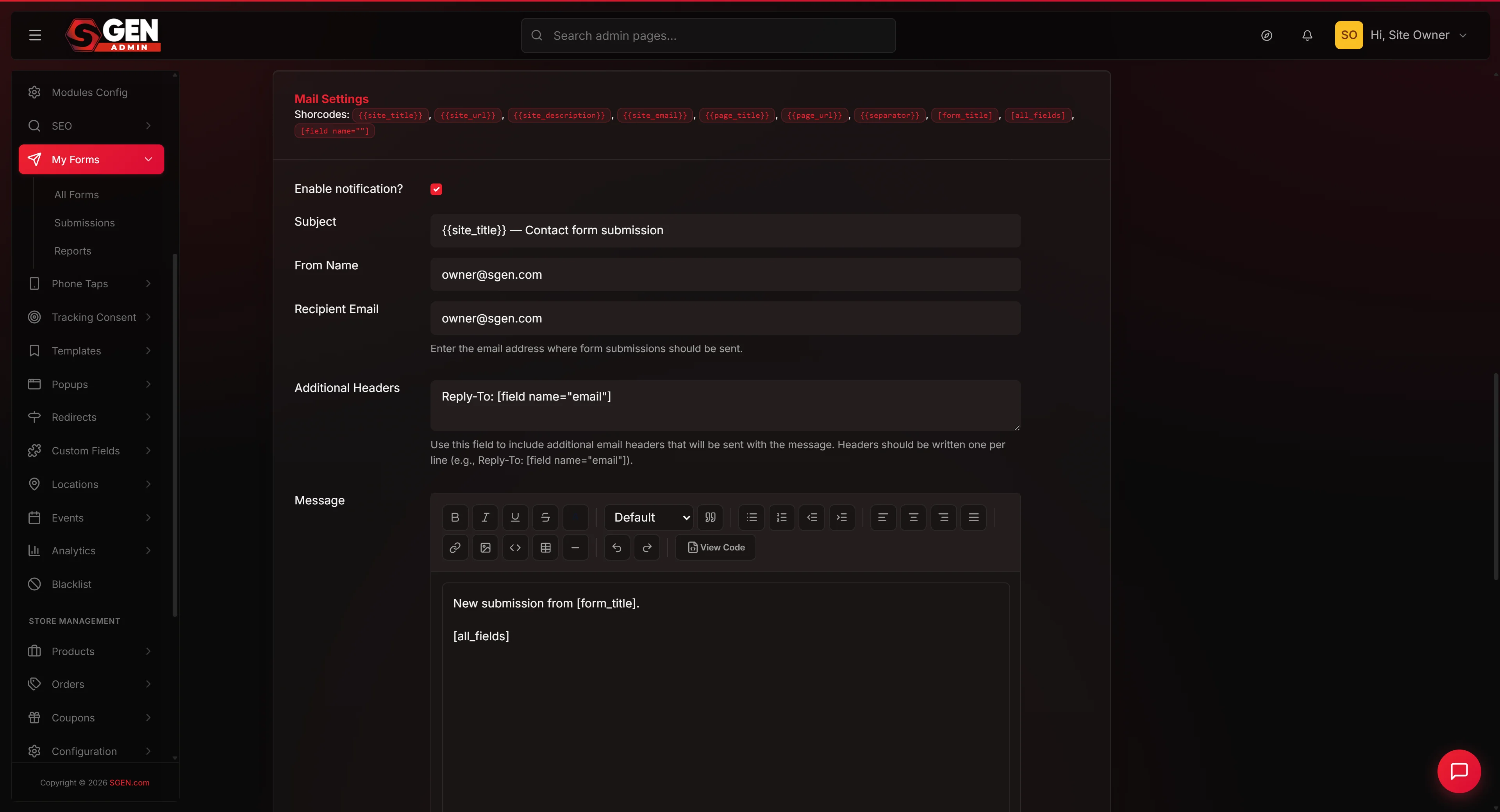
1. Open Mail Settings for the form
Click the Mail Settings tab. If this form has never had notifications configured, all fields will be blank — if an old configuration exists, review it before changing anything.
2. Set the recipient, subject, and reply-to
Enter the recipient address. For multiple recipients, separate with commas and no spaces: sales@yoursite.com,team@yoursite.com. Set the subject using {form_name} and {site_name} so it's specific without hardcoding.
Set reply-to to {field:email}. Skipping this means replies from the recipient go to a no-reply address — the visitor never hears back.
3. Send a test and save
Click Send test notification and verify the email arrives within two minutes — subject resolves, body includes submission fields, reply-to routes correctly. Once the test passes, click Save mail settings.
Steps — Configure webhook routing
4. Open the Integrations tab
Click the Integrations tab and locate the Webhook section.
5. Configure the webhook URL
Click Configure next to Webhook and enter the URL from the receiving system.
| Receiving system | Where to get the URL |
|---|---|
| Slack | App → Incoming Webhooks configuration |
| Zapier | "Webhooks by Zapier" trigger step in the Zap editor |
| HubSpot / ActiveCampaign | CRM's forms or API integration settings |
SGEN posts submission data to the URL automatically — the field keys in the payload match the slugs set in your form builder. If the receiving system expects different key names, map them in the intermediary (Zapier, Make) rather than renaming slugs in SGEN.
6. Send a test payload and verify receipt
Click Send test payload and confirm the payload arrived at the Slack channel, in the Zapier task history, or in the CRM's incoming event log.
If the test payload does not arrive: confirm the URL is correct and the endpoint is live. Some endpoints require allowlisting or authentication headers — check the endpoint's requirements before troubleshooting further.
Once receipt is confirmed, click Save webhook.
Steps — Configure CRM routing
7. Locate the CRM integration
In the Integrations tab, find the CRM section. SGEN supports direct integrations with a set of platforms — Mailchimp is the most commonly configured; available integrations depend on your plan. Click Configure next to the CRM you want to connect.
8. Map form fields to CRM fields
Enter the slug of your email field (typically email) in the Email mapping — this is required. Optionally map a name field (typically full_name or name) to the CRM's first-name field.
For Mailchimp, these map to the Email address field and the FNAME merge tag respectively. For other platforms, field names differ — consult the CRM's SGEN integration documentation.
9. Test the CRM connection and save
Click Test connection — this confirms SGEN can reach the CRM and that the audience exists. It does not add a test subscriber.
After a successful connection test, submit the form with a test email address and check the CRM immediately. The subscriber should appear within one to two minutes with the correct tags and field values. Click Save integration once verified.
What success looks like
| Path | Expected result |
|---|---|
| Notification arrives within 2 minutes; reply-to routes to the visitor | |
| Webhook | Payload appears in Slack, Zapier task history, or CRM event log within seconds |
| CRM | Subscriber appears in the correct audience within 1-2 minutes with correct tags |
| Submissions | Always stored in My Forms → Submissions, regardless of routing configuration |
What to do if it does not work
Email notification not arriving. Open SG-Admin → Audit Log and filter for form notification events. "Delivered" means SGEN sent it — check the recipient's spam folder. "Failed" means the address is wrong or delivery is misconfigured. Full tree: Set Up Form Notifications.
Webhook payload not arriving at the endpoint. Verify the URL is correct and the endpoint is reachable. Some endpoints require IP allowlisting or authentication headers — check the endpoint's requirements. Send the test payload from the Integrations panel and check the endpoint's event log at the exact timestamp.
Mailchimp integration not creating subscribers. Confirm the API key is valid, the audience ID is correct (Mailchimp uses internal IDs, not audience names), and the email field mapping points to the right slug. Submit a test entry and check the audience immediately — if the subscriber doesn't appear within two minutes, check the error log in the Integrations panel.
Submission arrives in My Forms but not in the CRM. Open the Integrations tab, confirm the toggle is on, and re-test. If the integration was recently modified, save it again and submit a fresh test.
Common questions
Can I add more than one webhook to a single form? Check whether your SGEN version supports multiple webhook entries per form. If not, route to a single aggregator (Zapier, Make) and fan out from there.
Does the webhook fire on every submission, including spam? Yes — on every submission that passes the form's own validation. Filter for spam at the receiver, or enable SGEN's spam protection settings on the form.
Will changing a field's slug break the CRM mapping? Yes. The mapping references slugs by name — if you rename one in the form builder, update the Integrations panel immediately after.
What happens to routing if SGEN detects a bot submission? Submissions blocked by SGEN's spam protection are dropped before reaching My Forms and do not trigger any routing path.
Can I disable one routing path without deleting it? Yes — each path has an Enable toggle. Turn it off to pause without losing the configuration; turn it back on when ready.
Related reading
- How to Build a Contact Form — build the form before configuring routing
- Set Up Form Notifications — detailed Mail Settings guide with audit log verification
- How to Use SGEN Analytics — view submission events as conversion signals