
Pre-launch SEO audit for your SGEN site
⏱ 2-min answer below · full checklist ≈ 10 min · skim the bold step headers to move faster.
In short. Before your SGEN site goes public, six SEO items need confirming: unique titles and descriptions on every page, canonical URLs pointing to the production domain, the sitemap enabled and referencing production, robots set to allow indexing, 301 redirects for every old URL, and Open Graph images on key pages. Done on staging, each fix takes minutes. Done after launch, the same gaps cost rankings and crawl budget.
On this page: What is this for? · Steps — the audit · What success looks like · Summary checklist · Common mistakes
How to run a pre-launch SEO audit on a SGEN site
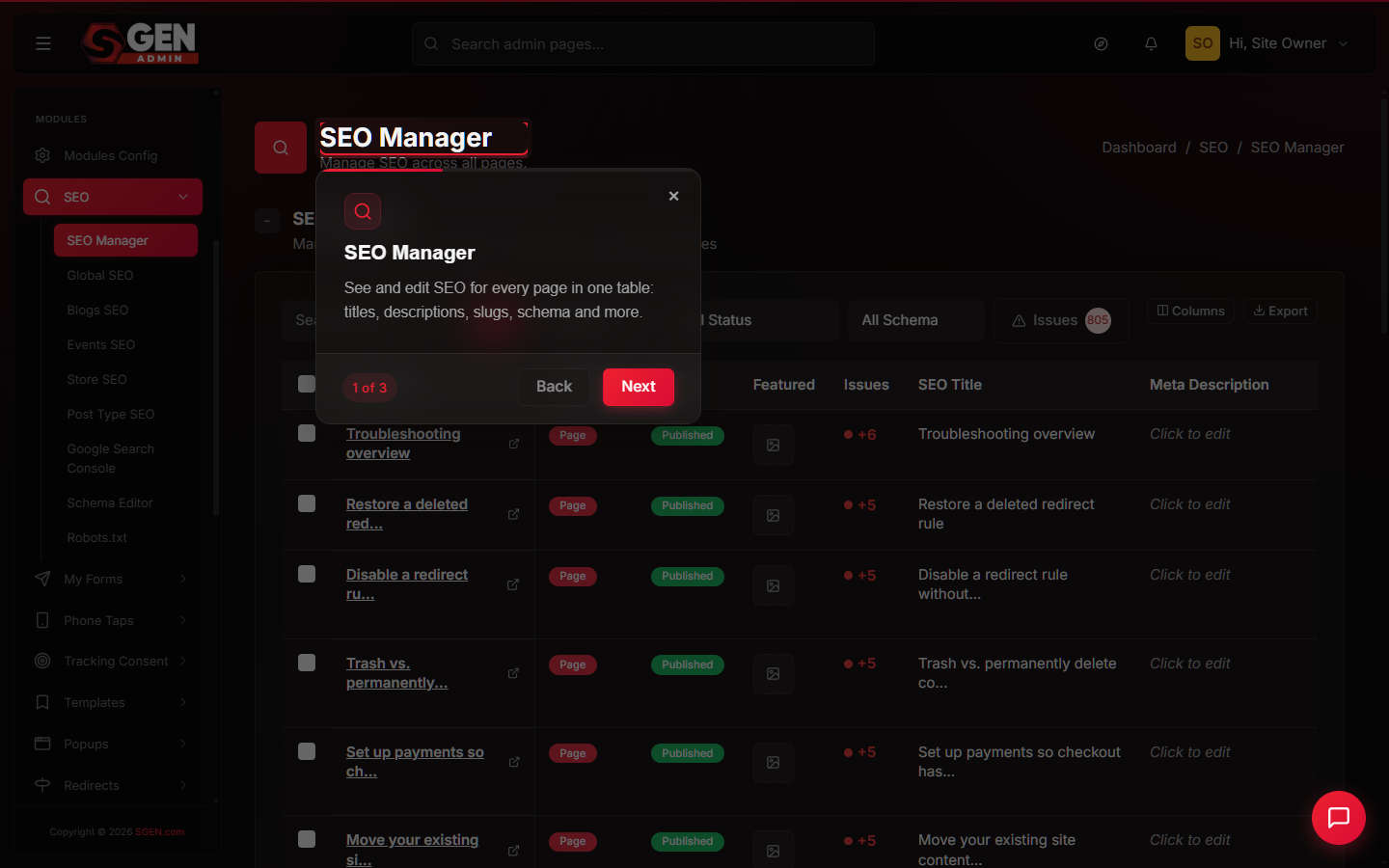
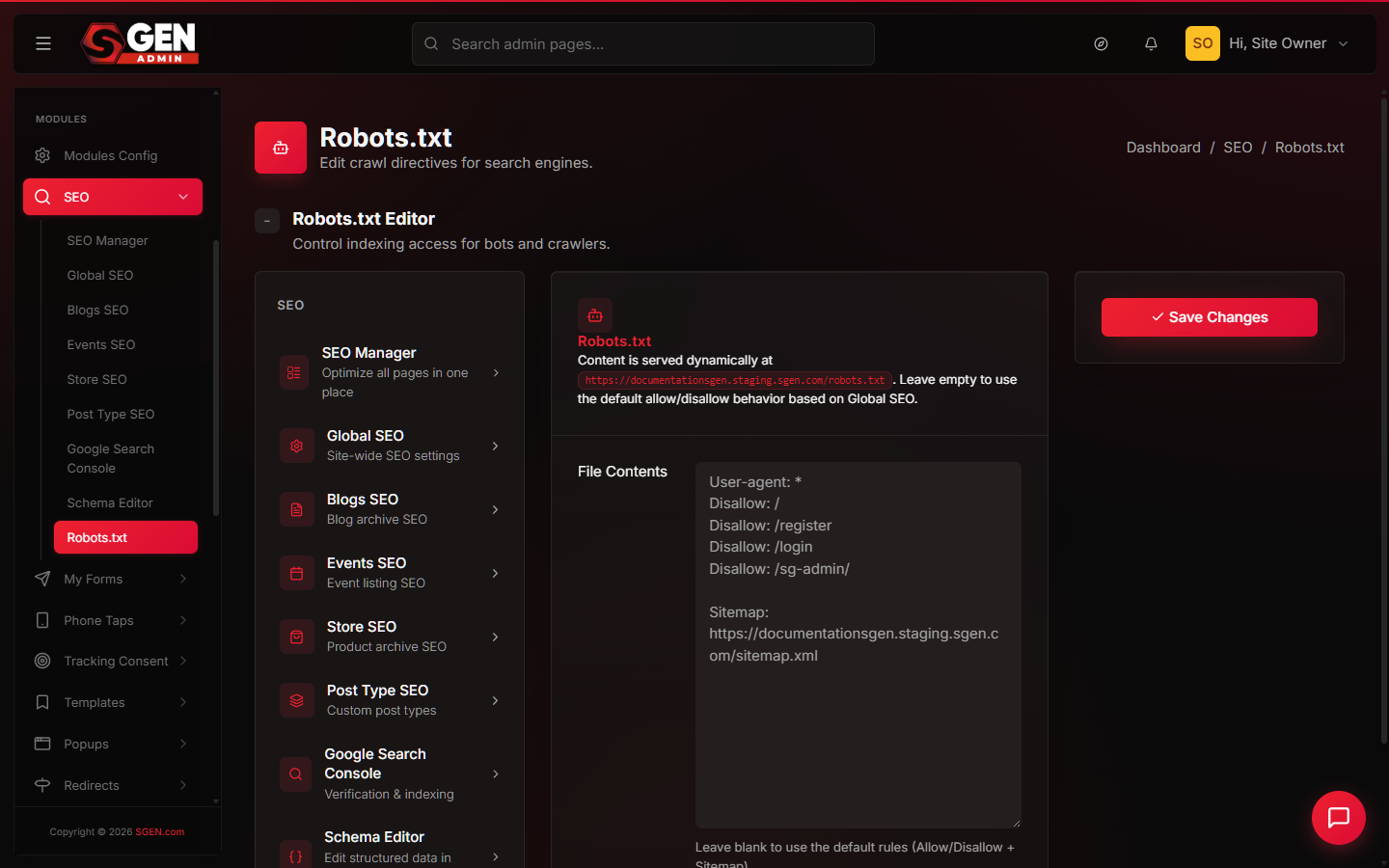
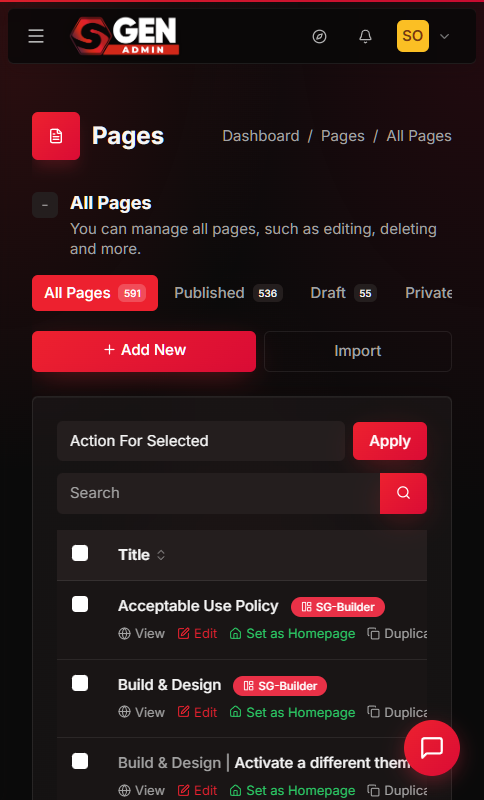
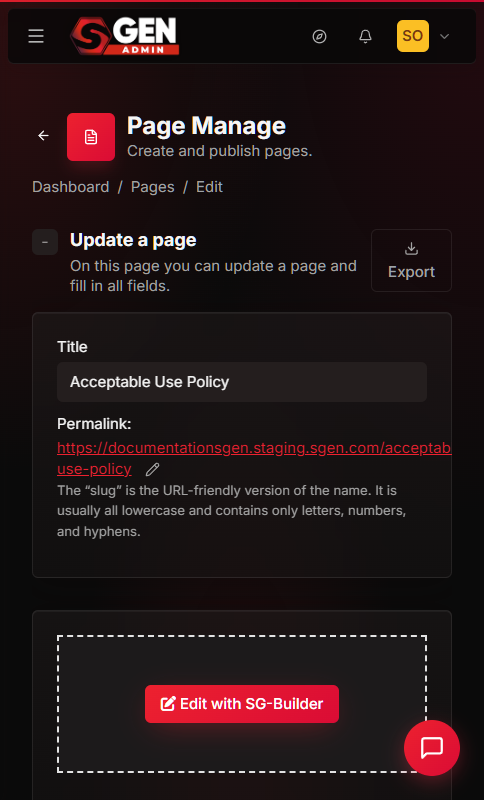
Done on staging, SEO fixes cost minutes. Done after launch, the same fixes cost rankings, crawl budget, and weeks of recovery time. This guide walks every item worth checking before a SGEN site goes public — ordered by impact, with explanations for what each item affects.
What is this for?
For SGEN admins preparing any site for public launch — new build, migration, or redesign. It covers the SEO configuration items that should be confirmed and correct before the domain is switched and before search engines crawl the site. Work through the steps in order: items that affect all pages come first, and foundational gaps compound later ones.
Good use cases
This checklist applies to any SGEN site going public. The most common scenarios where it catches real problems before they cause damage:
| Scenario | What the audit catches |
|---|---|
| New build | Placeholder SEO titles left on default; sitemap pointing to staging domain; robots still blocking crawlers |
| Migration from another CMS | Canonical URL fields blank on migrated posts — staging URL gets indexed instead of production |
| Redesign with new URL structure | Old URLs with no redirect; 404s for bookmarks and external links on day one |
| Site with social media presence | OG images missing site-wide; social shares generate blank or generic previews at launch |
What NOT to use this for
- Ongoing SEO maintenance — run this checklist once at launch; use a lighter periodic review for day-to-day metadata and sitemap health.
- Page speed and Core Web Vitals — performance SEO is outside this scope; use your browser's performance tooling.
- External domain and DNS configuration — DNS records, search console domain verification, and certificate provisioning are handled by your registrar, not SGEN admin settings.
- Content quality and keyword strategy — editorial decisions outside this scope.
How this connects to other features
- Pages — SEO title, meta description, canonical URL, Open Graph fields, and robots directives are set on the page edit screen under the SEO tab. See Create and manage pages.
- Redirects — permanent redirects for old or renamed URLs are managed in the Redirects panel. See Add a new redirect rule.
- Domain switchover — complete this audit before switching the domain. See Domain switchover safely.
- Sitemap — generated automatically from Active pages and published posts. Confirm the domain setting before launch.
Before you start
Have these ready before beginning:
- Admin access to the SGEN site on staging.
- A complete list of pages and posts that will be live at launch.
- The production domain name — needed to confirm canonical URLs and the sitemap domain setting.
- For migrations or redesigns: a list of old URLs from the previous site, to verify redirect coverage.
Time estimate: allow at least two hours for a 10-30 page site. Sites with 50+ pages may need a full day.
Where to go
| Area | Path |
|---|---|
| Pages and blog posts | Admin → Pages · Admin → Blog |
| Site-level SEO defaults | Admin → Settings → SEO |
| Sitemap | Admin → Settings → Sitemap |
| Robots | Admin → Settings → Robots |
| Redirects | Admin → Redirects |
Steps — the pre-launch SEO audit
1. Audit every page for SEO title and meta description
Every public page needs a unique SEO title and meta description. Missing or duplicate fields display generic placeholders in search results — a weaker signal to search engines and a worse experience for visitors.
- Go to
Admin → Pages. - Open each Active page and click the SEO tab.
- Check the SEO Title field. It should be unique, contain the page's primary keyword, be under 60 characters, and follow the pattern:
Page name — Site name. - Check the Meta Description field. It should be unique, summarise the page in 1-2 sentences, be under 155 characters, and not duplicate the title.
Fix all missing or duplicate titles and descriptions before moving on — a page with a duplicate SEO title is not ready for launch.
2. Confirm canonical URLs point to the production domain
Canonical URL tags tell search engines which version of a URL is definitive. On staging, canonical tags may be set to the staging domain — or left empty, causing search engines to infer the canonical from the staging URL. If not updated before launch, search engines may index the staging URL instead of production, creating a split-signal problem that can take months to resolve.
- Open each page or post edit screen and click the SEO tab.
- Find the Canonical URL field and confirm it is set to the production domain URL for that page.
- In
Admin → Settings → SEO, check the Site canonical base URL. If set to the staging domain, update it to production — this base affects every page unless a per-page override is set. - Spot-check five pages from different areas to confirm canonical URLs now reflect the production domain.
3. Review the sitemap and confirm production domain
SGEN generates a sitemap automatically from Active pages and published posts. Before launch, confirm the sitemap is enabled and that its domain setting references production, not staging.
- Go to
Admin → Settings → Sitemap. - Confirm the sitemap is enabled.
- Check the Domain setting — it should be the production domain, not the staging domain.
- Review the Excluded pages list and confirm no pages that should be indexed are excluded.
- Save, then open the sitemap URL (
/sitemap.xml) in a browser tab to review the actual output.
On launch day, after the DNS switch completes, submit the sitemap to Google Search Console and Bing Webmaster Tools using the production sitemap URL.
4. Confirm the robots configuration allows indexing
Staging sites are typically configured to block all crawlers — intentional during development, but it must be updated before launch or the site will not be indexed after the domain switch.
- Go to
Admin → Settings → Robots. - Check the Crawling setting. If it is set to Block all crawlers or No index, no follow, change it to Allow indexing before or immediately after the domain switch.
- For specific pages you want excluded from indexing (thank-you pages, login pages, admin landing pages), set those pages' individual robots directive to noindex via their SEO tab rather than using a site-wide block.
Confirm by opening /robots.txt on the staging site and checking the output. The production configuration should show Allow: / for pages intended to be indexed.
5. Check all redirects for old URLs
If this site is replacing an existing site — migration, redesign, or domain rename — create a redirect for every old URL that had traffic, external links, or bookmarks.
- Go to
Admin → Redirects. - Compare the configured redirects against your list of old URLs from the previous site.
- For any old URL without a redirect, create one:
- Source: the old path (e.g.,
/old-page-slug) - Destination: the new URL on the SGEN site
- Type: 301 Permanent for URLs that have moved permanently
- Test each redirect by visiting the old URL and confirming it routes to the correct destination.
Redirects must be in place before the domain switches. Adding them after launch risks a window where old URLs return 404 errors — harming both user experience and any link authority those URLs had built.
6. Set Open Graph images for key pages
Pages without OG images generate generic or blank previews when shared on social platforms. At minimum, set OG images for: the homepage, blog post category index, any page used in paid or organic campaigns, and any page with a strong share incentive.
- Open the page edit screen —
Admin → Pages → Edit. - Click the SEO tab.
- Find the Open Graph Image field and select an image from the Media Library (recommended: 1200 × 630 px, JPEG, under 200 KB).
- Fill in the OG Title and OG Description fields if they appear separately from the SEO title and meta description.
- Click Save.
What success looks like
The audit is complete when all six items are confirmed:
- Every Active page and Published post has a unique SEO title and meta description.
- Canonical URLs on all pages and in site-level settings point to the production domain.
- The sitemap is enabled, references the production domain, and contains all pages intended for indexing.
- Robots is set to allow indexing on the production domain.
- Every old URL has an active 301 redirect to the correct new URL.
- Key pages have OG images set.
Record the audit completion date and any items that required fixes in your launch notes. This is useful if SEO issues surface in the weeks after launch.
What to do if it does not work
If settings are not saving or the sitemap URL is returning an error, collect the following before contacting SGEN support:
- A screenshot of the settings screen that is not behaving correctly.
- The sitemap URL (
/sitemap.xmlon the staging domain) and a screenshot of the output or error. - The production domain name and the planned launch date.
Including the launch date helps support prioritise your report.
Pre-launch SEO audit — summary checklist
| Item | Where to configure | Done? |
|---|---|---|
| Unique SEO title on every page | Admin → Pages → Edit → SEO | |
| Unique meta description on every page | Admin → Pages → Edit → SEO | |
| Canonical URL set to production domain | Admin → Pages → Edit → SEO + Settings → SEO | |
| Sitemap enabled and pointing to production | Admin → Settings → Sitemap | |
| Robots set to allow indexing | Admin → Settings → Robots | |
| Redirects in place for all old URLs | Admin → Redirects | |
| OG images set on key pages | Admin → Pages → Edit → SEO → OG Image |
Common pre-launch SEO mistakes
Forgetting to update robots. The staging crawler block is intentional during development and easy to miss at launch. A site launched with crawlers blocked will not be indexed — absent organic traffic in the weeks after launch is the usual signal this was missed.
Leaving canonicals pointing to staging. Search engines that crawl staging before the domain switch can index the staging URL. When production launches, the engine sees apparent duplicate content at a new URL — and the staging URL may briefly outrank production. Update canonicals to the production domain before launch, or block the staging domain from crawling entirely.
Incomplete redirect map. Every old URL without a redirect is a potential 404 for visitors arriving from bookmarks or external links. Build the redirect map before the domain switches, not after.
Preview: Pre-launch SEO Audit Summary — Your Store — a screenshot of this screen will be added here.