
How to add a new redirect rule
⏱ ~10 min read · quick answer above the fold · full reference below.
In short. Go to Redirects → Add New. Fill in the Target (the old URL path, no domain), the Destination (where to send visitors), choose Type — 301 Permanent for a real content move, 302 Temporary for short-term substitutions — and leave Status off while you review. Click Create redirect rule, then turn Status on when you are ready. Use the Test URL tool on the Redirects list to confirm the rule fires before it reaches real visitors. For more than a handful of rules at once, use Import / Export instead of this form.
On this page: What this is for · Scope · Fields · Good use cases · Steps · What success looks like · Troubleshooting
What is this for?
The Add New redirect rule form configures forwarding instructions — telling the system that when a visitor (or search-engine crawler) requests one URL, send them to a different one instead. Think of it as a forwarding address for your old URLs.
Each rule says: "when a request matches this URL pattern, forward to this destination using this redirect type." You configure the pattern, destination, type, priority, and whether the rule is active. The form supports both literal URL matches (e.g. /old-page → /new-page) and regular-expression patterns (e.g. any URL starting with /legacy-products/ → a single landing page).
New to redirects? When you rename a page, retire a section, or move content, visitors and search engines have already saved the old address. A redirect rule forwards them automatically to the right new destination — no broken pages, no lost search ranking.
Scope
This page covers creating a single redirect rule through the Add New form — one URL pattern, one destination, one rule. For bulk operations (dozens of URLs at once), see Import and export redirect rules in bulk. For viewing and managing existing rules, see Browse all redirects.
Good use cases
- Renamed a page — forward the old URL to the new slug. Without a redirect, saved bookmarks and inbound links break.
- Retired a promotional page — forward the old promo URL to a current equivalent so visitors don't hit a not-found page.
- Migrated a content section — use a single regex rule to forward an entire path prefix (e.g.
/old-blog/..→/blog/). - Consolidating near-duplicate URLs — forward variations to one canonical destination for cleaner SEO.
- Marketing-friendly short URL — forward
/promoto the actual landing page for flyer use. - Temporary A/B or maintenance redirect — use a 302 Temporary so you can reverse it without lasting SEO consequences.
What NOT to use this for
- A link you control on one of your own pages — fix the link directly. Redirects accumulate and slow your site over time.
- Bulk URL operations (30+ rules) — use Import/Export with a CSV instead of this form.
- Blocking abusive visitors — redirects forward, they don't block. Use the Blacklist feature.
- Masking a broken page — fix the page rather than redirecting around it. A redirect used as a band-aid is harder to remove each month it survives.
- Redirecting your homepage — forwarding
/has unpredictable consequences for analytics and search engines. Change the homepage content directly.
Fields
The Add New redirect form contains the following fields. All are required unless marked optional.
| Field | What it controls | Notes |
|---|---|---|
| Target | The old URL path you want to forward (e.g. /spring-2025-promo) | Path only — no domain. Must be unique across all your rules. |
| Destination | The URL visitors are sent to | Can be a path on your site or a full URL to an external site. |
| Type | Permanent or Temporary | Permanent passes search ranking to the destination. Choose Temporary only for time-boxed substitutions. |
| Priority | Which rule takes precedence when multiple rules match the same URL | Higher number wins. Leave at 0 unless you have overlapping patterns. |
| Status | Active (fires for visitors) or Inactive (saved but dormant) | Create as Inactive to stage a batch of rules before going live. |
| Regex | Whether the Target is a pattern instead of a literal path | Leave unchecked for standard URL-to-URL rules. Regex rules do not fire on this version. |
How this connects to other features
- Redirects (the list view) — every rule you add here appears on the main Redirects page. Use the list to search, edit, and remove rules.
- Redirects Import/Export — for adding or updating many rules at once, use the Import/Export page instead of this form.
- Pages — when you rename a page slug, add a redirect rule from the old slug here. Page rename plus a single redirect rule is the standard flow.
- Custom Codes — separate feature, sometimes confused. Custom Codes is for inserting third-party scripts; it is not for forwarding behavior.
- Blog Posts — if you change a post's slug or publish date (which can change its URL), add a redirect from the old URL to the new one to preserve external links.
Before you start
- Decide permanent vs. temporary. A 301 Permanent tells search engines to update their index; use it for real content moves. A 302 Temporary leaves the original URL as canonical; use it for A/B tests, maintenance pages, or seasonal content. Choosing wrong has lasting SEO consequences.
- Check whether a rule for this target already exists. Search the Redirects list before creating — duplicate rules create unpredictable behavior, and only the higher-priority one fires.
- Decide on priority. Higher numbers evaluate first. For most one-off rules, leave Priority at 0. Set a higher value only when you need this rule to override a more general one.
- Plan to save inactive first. Rules default to Status off. Save, review target and destination on the list view, then activate — especially for high-traffic URLs where a destination typo would affect every visitor.
Where to go
In your admin sidebar, navigate to Settings → Redirects → Add New.
You can also reach this page from the Redirects list by clicking the Add New button at the top right. Finish or cancel any existing edit before starting a new one — there's no "save and add another" shortcut.
Steps — Create a new redirect rule
1. Open the Add New form
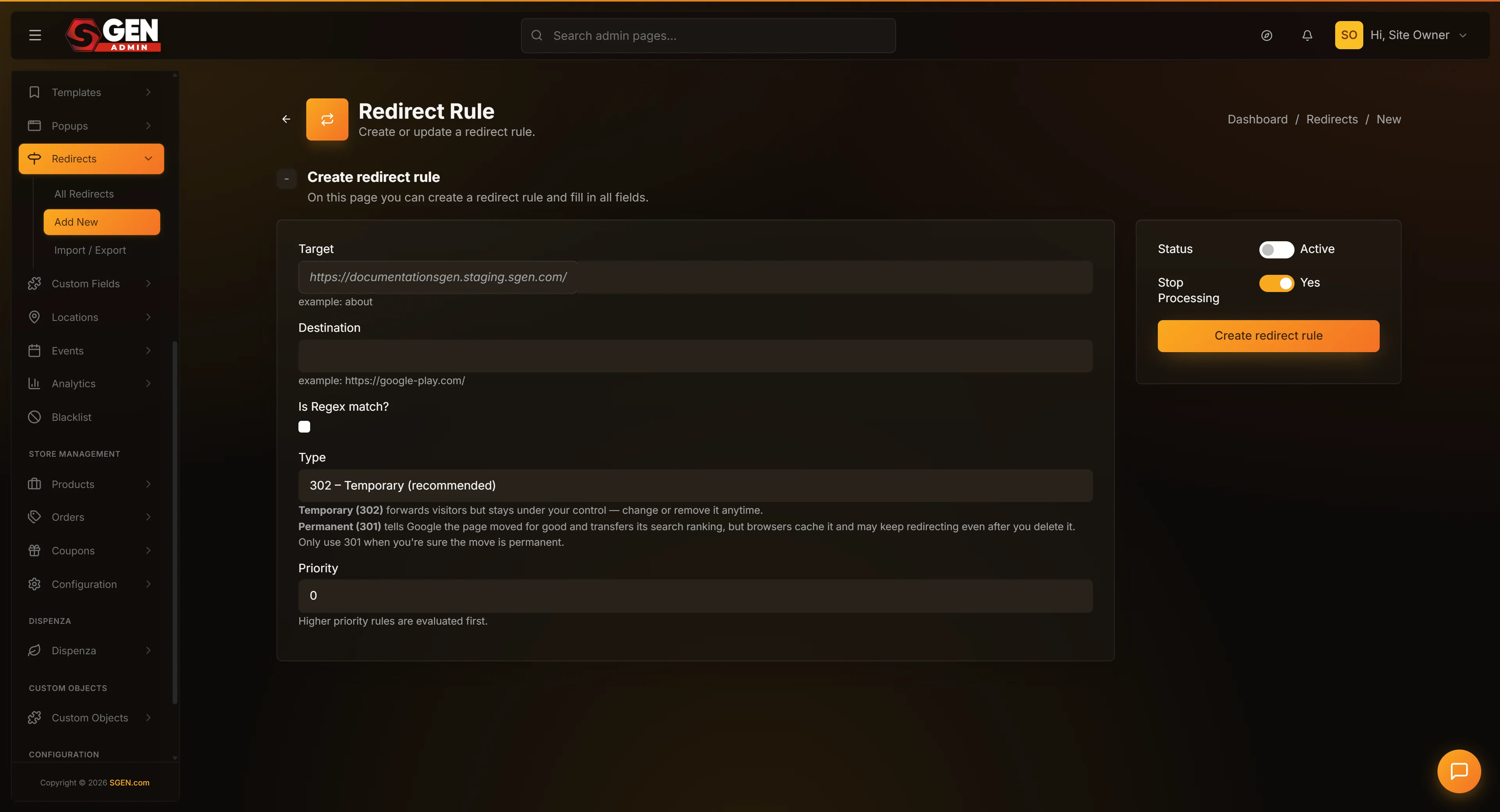 Redirects -> Add New form: Target, Destination, Is Regex, Type, Priority, Status, Stop Processing fields with Create redirect rule button" loading="lazy" style="width:100%;max-width:900px;height:auto;border-radius:8px;border:1px solid #e5e7eb;display:block;margin:12px 0">
From the Redirects list page, click Add New at the top right. The form opens with heading "Redirect Rule" and subtitle "Create or update a redirect rule." A breadcrumb shows Redirects / New.
The form has two areas: a main column for URL configuration (target, destination, regex toggle, type, priority) and a sidebar for runtime behavior (status switch, stop-processing switch). The back arrow at top-left returns to the list without saving.
2. Enter your Target URL
The Target field is the URL you want to forward FROM. A prefix shows your site's base URL — type only the path after it.
Valid target values: old-promo-page, blog/legacy-post-1, team. The field is required. A common gotcha: trailing slashes matter. Use the Test URL tool on the Redirects list after saving to confirm match behavior.
3. Enter your Destination URL
The Destination is where the visitor should land. Use either:
- A path on your own site (start with
/) — e.g./promotions/spring-2026 - A full URL on another domain (start with
https://) — e.g.https://your-other-site.example/landing
Common mistakes: destination same as target (creates a redirect loop); relative path like new-page instead of /new-page (unpredictable behavior). Always start with / or https://.
4. Choose Is Regex (or leave it off)
- Off (default) — matches the exact URL in Target. Recommended for most rules.
- On — treats Target as a regular-expression pattern.
If you turn Is Regex on, wrap your Target in delimiters: ~your-pattern~ or #your-pattern#. Without delimiters the rule is silently skipped — a common cause of "my regex rule isn't matching." Example: target ~^/legacy-products/.*~, destination /products.
5. Choose the Type — permanent or temporary
- 301 Permanent — browsers and search engines treat the original URL as moved forever. Search engines update their index over time. Use for content moves you don't intend to reverse.
- 302 Temporary — the original URL stays canonical. Use for A/B tests, maintenance pages, or seasonal pages.
Default is 301. The practical test: "Would I be okay if Google replaced the old URL with the new one in its index?" If yes, use 301. If no, use 302.
Important for permanent redirects: browsers cache them aggressively. If you reverse a 301 quickly, returning visitors may still be forwarded to the old destination until their cache expires (sometimes weeks). Temporary redirects are not cached as aggressively.
6. Set the Priority
Controls evaluation order when a request URL matches more than one rule. Higher numbers evaluate first. Rules at the same priority evaluate alphabetically by target.
For most one-off redirects, leave Priority at 0. When order matters, a practical tier system works well: 100 for high-priority specific rules, 50 for typical rules, 10 for catch-all fallbacks.
7. Set the Status (Active or Inactive)
- Off (default) — rule is saved but not applied.
- On — rule is active; visitors hitting the target URL will be forwarded.
Recommended: save inactive, review the rule on the list view, then activate. This two-step pattern is especially valuable for high-traffic URLs — a destination typo in an active rule affects every visitor until corrected.
8. Confirm Stop Processing is set as you want
- On (default) — once this rule matches, no lower-priority rules are evaluated.
- Off — evaluation continues after this rule matches; the last matching rule applies.
Leave Stop Processing on for most rules. Turn it off only in the unusual case where you need deliberate rule chaining. If you find yourself reaching for this, check whether adjusting priorities achieves the same result more cleanly.
9. Save the rule
Click Create redirect rule. The form submits and you're returned to the Redirects list, where your new rule appears with a green confirmation banner.
If saving fails, the form re-renders with your values and an inline error. Common errors:
- "The Target field is required." — fill in the Target.
- "The Destination field is required." — fill in the Destination.
- "Invalid destination's url." — Destination must start with
/,http://, orhttps://. - "Redirect '..' is already exists!" — a rule with this target already exists. Edit the existing rule instead.
- "Conflicting redirect(s) detected: .." — your rule overlaps a pattern rule. Adjust priorities so the right rule wins.
- "Regex pattern failed safety checks." — the regex is empty, too long, or has a syntax error. Simplify and retry.
To discard mid-flow, click the back arrow or navigate away. The Add New form does not auto-save drafts.
What success looks like
After clicking Save, you should see:
- The Redirects list reload with a green banner confirming the rule was saved.
- Your new rule appearing with the target, destination, type, priority, and status you configured.
- The Status column showing "Active" or "Inactive" matching your choice.
If the rule is Active and the rollout is complete in your environment, visiting the target URL should forward visitors to the destination.
Verify before real visitors see it: use the Test URL tool on the Redirects list — type the URL you want to test and the tool shows which rule (if any) would match. Then open a private/incognito window, visit the target URL, and confirm the URL bar updates to the destination.
What to do if it does not work
Work through these checks in order:
- Is Status set to On? The most common cause. Edit the rule on the Redirects list, toggle Status on, and Save.
- Is the rollout complete in your environment? There is currently a rollout window for the redirect engine. Even with Status On, live-site forwarding may not yet be active. Contact your support team to confirm rollout status.
- Did you wrap a regex pattern in delimiters? If Is Regex is On, the Target must start and end with
~or#. Without delimiters the rule is silently skipped. Edit, wrap the pattern, save. - Is there another rule with higher priority matching the same URL? Use the Test URL tool to see which rule fires. Adjust priorities as needed.
- Did you create a redirect loop? If Target and Destination resolve to the same URL (or two rules forward back and forth), browsers halt with "too many redirects." Edit one of the rules to break the loop.
- Trailing slash mismatch?
/aboutand/about/are different to the matching engine. Use the Test URL tool with the exact form visitors use. - Browser cache? A cached earlier redirect may persist. Test in a private/incognito window.
- CDN or caching layer? Redirect changes can take a few minutes to propagate. Wait 5–10 minutes before declaring a rule broken.
If you've worked through all of the above and the rule still doesn't behave, contact your support team. Mention that you've verified Status is On, tested with the Test URL tool, and would like rollout status confirmed for your account.
Examples
Three common patterns using the Add New form.
Example 1: Retiring a spring promotion
A spring 2025 promotion ran at /spring-2025-promo. The promotion is over but Google still shows the URL in results, and external blogs linked to it. The team configures a permanent redirect:
- Target:
spring-2025-promo - Destination:
/promotions/spring-2026 - Type: 301 Permanent (the old URL won't return)
- Priority: 100
- Status: off initially — toggled on after reviewing the rule on the list
After activating, the Test URL tool confirms the rule fires. Traffic on /spring-2025-promo drops to near zero as visitors are redirected; traffic on /promotions/spring-2026 rises. Search Console marks the old URL as "moved" within a month.
Example 2: Consolidating a legacy product section
A "Legacy Vintages" section at /legacy-vintages/.. has been folded into /products. Rather than one rule per URL (30+), the team uses a regex rule:
- Target:
~^/legacy-vintages/.*~(wrapped in~delimiters) - Destination:
/products - Is Regex: on · Type: 301 · Priority: 10
A higher-priority specific rule handles one notable vintage with its own product page:
- Target:
legacy-vintages/2018-cabernet· Destination:/products/2018-cabernet-reserve· Priority: 100
The specific rule fires first; all other /legacy-vintages/.. URLs fall through to the general regex catch-all. This is the canonical pattern for "catch-all regex + high-priority specific overrides."
Example 3: Temporary maintenance redirect
The booking system at /book is under maintenance for a weekend. A temporary redirect sends visitors to a friendly maintenance page:
- Target:
book· Destination:/maintenance· Type: 302 Temporary · Priority: 100 · Status: on
After the maintenance window, the Status is toggled off — visitors immediately resume reaching the live booking page. Set a calendar reminder when creating any temporary redirect; forgetting to disable it is a common oversight.
Next steps
- Manage your existing redirects — see the Redirects list page to view, search, edit, and remove rules.
- Bulk-add redirects from a CSV — see the Redirects Import/Export page if you have many rules to add at once.
- Rename pages with redirects in mind — when renaming a page slug, plan the redirect at the same time so old URLs continue to work.
- Audit your redirect rules periodically — rules accumulate over months and years. A quarterly review catches rules whose destinations no longer exist.
_Redirects work best when you keep the rules tidy. Audit your list every quarter to retire entries that no longer earn their keep._
Add New redirect form fields
| Field | What it controls | Notes |
|---|---|---|
| Target | The old URL path you want to forward | Path only - no domain. Must be unique across all rules. |
| Destination | The URL visitors are sent to | Can be a path on your site or a full external URL. |
| Type | Permanent or Temporary | Permanent passes search ranking; Temporary for time-boxed substitutions. |
| Priority | Which rule wins when multiple match | Higher number wins. Leave at 0 unless overlapping patterns. |
| Status | Active (fires) or Inactive (dormant) | Create as Inactive to stage rules before going live. |
| Regex | Whether Target is a pattern vs literal path | Leave unchecked for standard URL-to-URL rules. |