
Popups
⏱ ~5 min read · create a popup, make it open on its own after a delay, control how often visitors see it, trigger one from a button, and pause it without deleting it.
In short. Popups are overlay windows that appear over your page — announcements, signup forms, offers. You give a popup a title and content, then choose how it opens: turn on Autoload so it appears on its own after a short delay, or leave Autoload off and trigger it from a button using the popup's hashcode. An Autoload frequency controls how many days pass before a returning visitor sees it again. Setting a popup's status to Draft takes it offline without deleting it.
On this page: Where to find it · Create a popup · Autoload and delay · Control how often it appears · Open a popup from a button · Edit a popup · Pause a popup · Popup vs announcement bar · Worked examples · Troubleshooting
Where to find it
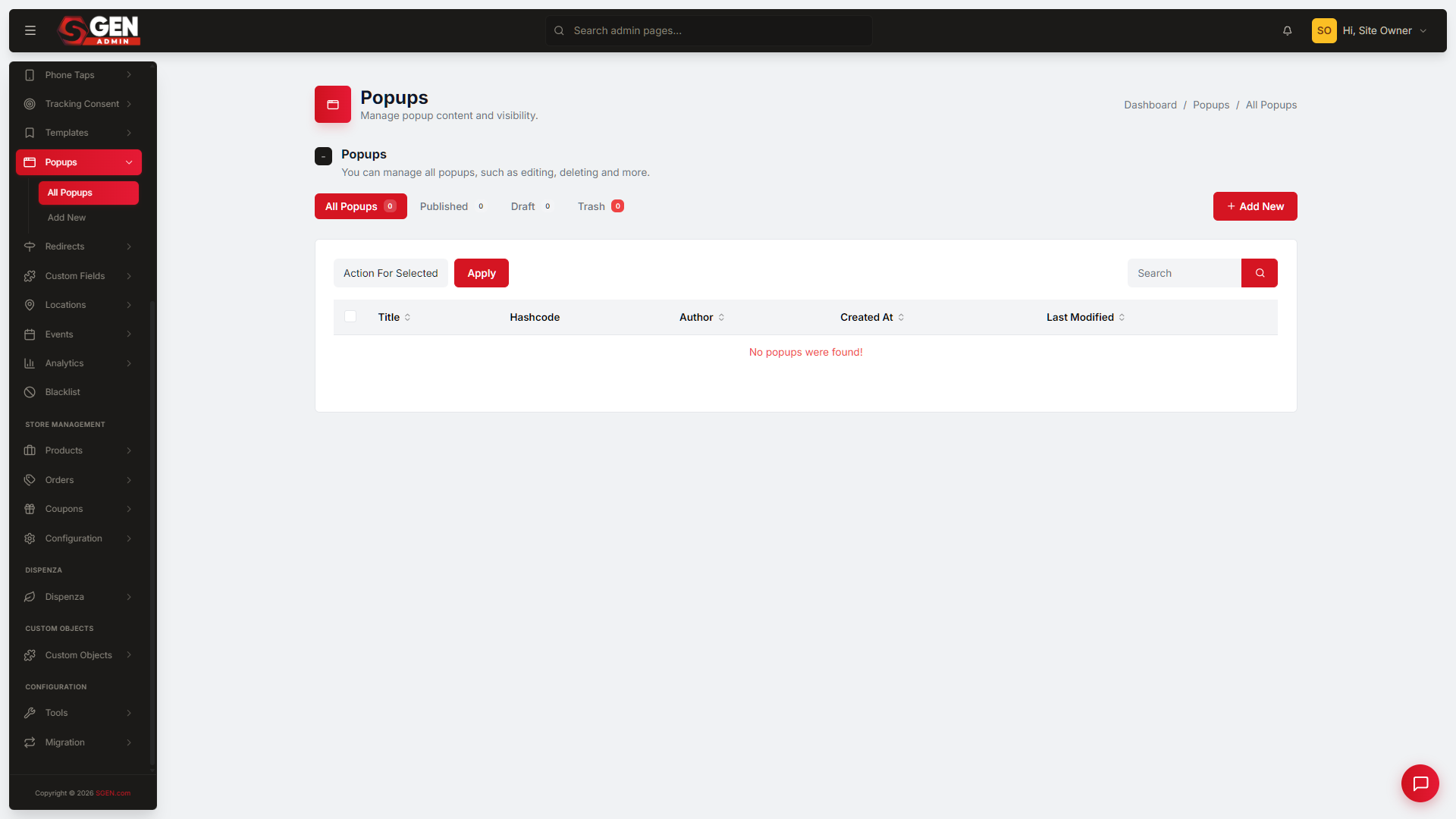
Open the admin for your site and click Popups in the left navigation. You'll land on the popups list, with status tabs — All, Published, and Draft — to filter the view, a Hashcode column for each popup, and per-row Edit actions. To start a new one, click + Add New Popup. Editors and Administrators can manage popups.
Create a popup
Every popup starts with a title and some content, then a choice of how it opens:
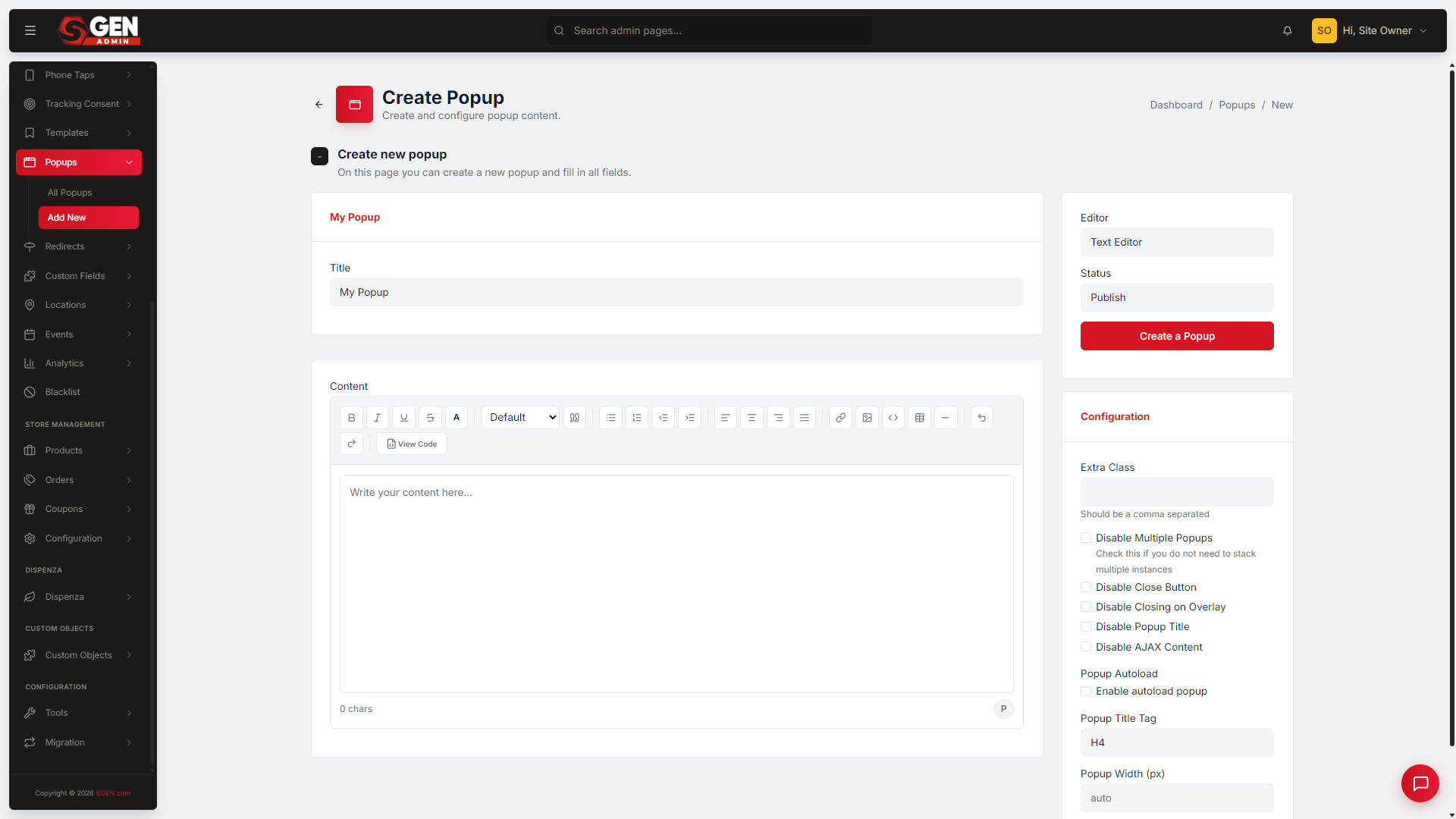
- From the popups list, click + Add New Popup.
- Fill in the Title — this is your internal label, not shown to visitors.
- Fill in the Content — what visitors see. You can compose it in the text editor or in SG-Builder.
- In the Configuration section, decide how the popup opens (see Autoload and delay below to open it automatically, or Open a popup from a button to trigger it on click).
- Set Status to Published.
- Click Create a Popup.
Autoload and delay
To have a popup appear on its own when a visitor arrives, turn on Autoload:
- Open the popup form (a new one, or an existing popup you're editing).
- In the Configuration section, tick the Autoload checkbox.
- Set a Delay — the number of seconds to wait after the page loads before the popup appears. Two to four seconds feels natural; under one second feels abrupt.
- Set Status to Published and click Create a Popup (or Update a Popup).
The popup now opens on its own for every visitor, on every page, after the delay you set.
Control how often it appears
A popup that opens on every single page load gets old fast. The Autoload frequency field sets a cooldown:
- Open the popup and make sure Autoload is ticked — frequency only applies to autoloading popups.
- Find the Autoload frequency field, just below the Autoload checkbox in the Configuration section.
- Type the number of days between appearances — for example,
7means a returning visitor sees the popup about once a week. - Leave the field at
0if you want the popup to appear on every page load with no cooldown. - Click Create a Popup or Update a Popup.
SGEN uses a browser cookie to track each visitor, so a visitor who dismisses the popup won't see it again until that many days have passed.
Open a popup from a button
If you'd rather a popup only opens when someone clicks a button — a size guide, a "show details" link — use its hashcode instead of Autoload:
- On the popups list, find the popup and look at the Hashcode column. You'll see a code like
#sgp_5. Click the copy icon to copy it. - Open the popup and make sure Autoload is turned off, so it only opens on click and not automatically. Click Update a Popup to save.
- Go to the button or link you want to use — a menu item in Menu Builder, or a button block inside your page editor.
- Paste the hashcode (for example,
#sgp_5) into that button's URL or Link field. - Save the page or menu.
Now visitors who click that button see the popup open; visitors who never click it never see it.
Edit a popup
To change a popup you already created:
- Click Popups in the sidebar and use the status tabs (All, Published, Draft) to find it.
- Hover the popup's row and click Edit. The same form opens with the current title, content, and settings filled in.
- Make your changes — update the wording, toggle Autoload, adjust the Delay or Autoload frequency, or switch the Status.
- Scroll to the bottom and click Update a Popup.
A green confirmation banner appears when the save succeeds. If the popup's status is Published, changes go live immediately — visitors see the new wording on their next page load.
Pause a popup
To take a popup off your site without deleting it — say, after a campaign ends — switch it to Draft:
- Click Popups in the sidebar and click Edit on the popup's row.
- Scroll to the Status dropdown near the bottom of the form and change it from Published to Draft.
- Click Update a Popup.
The popup disappears from your live site immediately and moves to the Draft tab, where it stays — content and all — ready to publish again whenever you need it. To bring it back, open it, switch Status to Published, and click Update a Popup.
Popup vs announcement bar
A popup interrupts: it appears on top of the page and the visitor has to dismiss it, which makes it a good fit for a promo or a lead-capture form. When you want a notice that stays visible in the layout instead, SGEN has an Announcement Bar block (and a CTA Banner block) in SG-Builder that you place at the top of a page or template. Use a popup when you want to interrupt; use the announcement bar when you want a persistent strip.
Worked examples
| Goal | What you do |
|---|---|
| Newsletter signup on every page | Tick Autoload · Delay 3s · Autoload frequency 7 · Published. |
| One-time launch announcement | Tick Autoload · short Delay · set a generous Autoload frequency so returning visitors aren't re-shown. |
| Size guide from a button | Leave Autoload off · copy the Hashcode · paste it into the button's link field. |
| Stop a popup feeling pushy | Raise the Autoload frequency so it reappears less often. |
| Retire a popup after a campaign | Open it · set Status to Draft · Update a Popup. The record and content stay. |
Troubleshooting
- My popup never appears on its own. Confirm Autoload is ticked and Status is Published. If Autoload is off, the popup only opens from a button via its hashcode.
- It appears, but instantly. Set a Delay of a few seconds so it doesn't fire the moment the page loads.
- A returning visitor keeps seeing it. Set an Autoload frequency (number of days) so the cooldown cookie suppresses repeats.
- My button doesn't open the popup. Check that you pasted the exact Hashcode (like
#sgp_5) into the button's URL field, and that the popup's Autoload is off. - My edits aren't live. Changes only go live when the popup's Status is Published and you've clicked Update a Popup; refresh the public page to see them.
Related reading
- SG-Admin Overview — the parent surface.
- Forms — pair a form with a popup for capture flows.
- Pages — where popups appear, and where you place button triggers.