
Manage popups list in SGEN
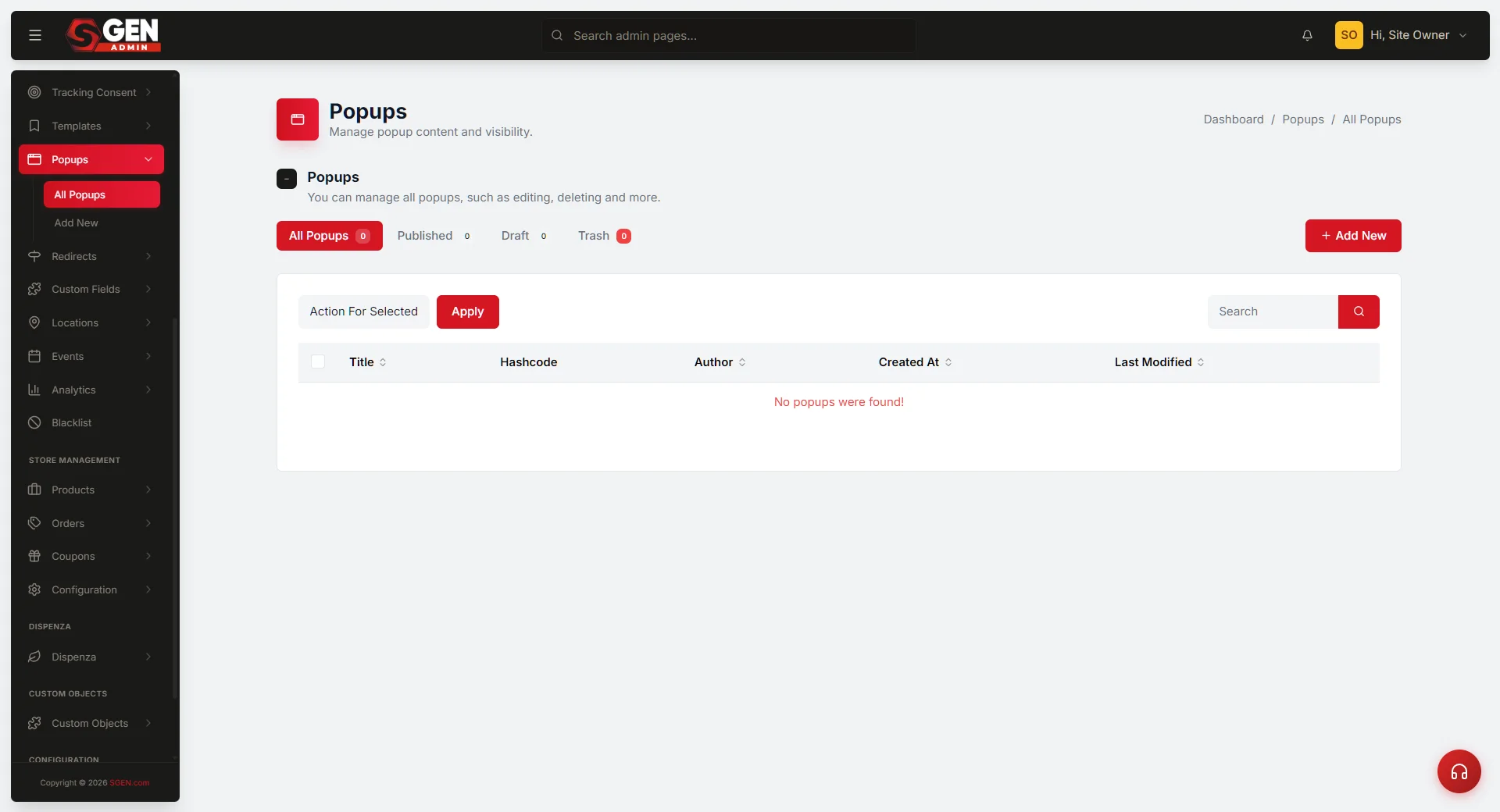 Popups list — All/Published/Draft/Trash status tabs, search box, rows with name/status/#sgp_X hashcode/bulk checkboxes and +Add Popup" loading="lazy" style="width:100%;max-width:900px;height:auto;border-radius:8px;border:1px solid #e5e7eb;display:block;margin:12px 0">
⏱ Quick answer below · full page ≈ 5 min · skim the bold lead-ins to move faster.
In short. The Popups list is your central catalog for every overlay on your site — filter by Published/Draft/Trash, search by name or hashcode, copy the #sgp_X hashcode to wire any button or link to fire a popup, and use bulk actions to publish or retire multiple overlays at once.On this page: What you can do · Hashcodes · Steps · Troubleshooting · FAQs
What is this for?
The Popups area is where every overlay your site shows lives — newsletter signup boxes, age-gate confirmations, seasonal promo banners, exit-intent offers. The list view is the central catalog: every popup named, status-tagged (Published / Draft / Trash), with a copy-paste hashcode like #sgp_5 that fires the popup when pasted into any button or link.
Scope
| Scope item | In this list? |
|---|---|
| View all popups across all statuses | Yes |
| Filter by Published / Draft / Trash | Yes |
| Copy hashcode to clipboard | Yes |
| Bulk-publish or bulk-trash | Yes |
| Edit popup content or design | No — use the Edit row action |
| Configure trigger rules | No — trigger config is inside the popup editor |
| Set per-page firing rules | No — per-page rules live in the popup editor |
What you can do from this list
- See what's live. The Published tab shows every overlay currently active on the public site.
- Resume a draft. The Draft tab is where half-finished promos wait. Click in, finish, publish.
- Clean up expired offers. The Trash tab holds retired popups without permanently deleting them. Recover later if needed.
- Bulk operations. Select multiple rows, then publish, unpublish, move to trash, or restore from trash — all at once.
- Search by name or hashcode. Find the popup you want even when the list is dozens long.
- Copy hashcodes. Each row has a
#sgp_Xhashcode. Copy it, paste into any button or link's "URL" field — clicking that button fires the popup.
Fields
| Element | What it shows |
|---|---|
| Status tabs (All / Published / Draft / Trash) | Filter by lifecycle state. Counts shown per tab. |
| Search box | Filter by title or hashcode. Type to narrow live. |
| Row columns | Name · Status badge · Hashcode (copy-button) · Trigger type · Last updated · Row actions (Edit · Duplicate · Move to trash) |
| Bulk-action checkboxes | Top-left of each row. Tick multiple → bulk-action dropdown appears at top. |
| "+ Add Popup" button | Creates a new empty draft. Top-right of the list. |
Where to find it
Dashboard → Popups in the left navigation. The list opens on the All tab by default. Requires an account with the Popups module enabled — Contributors and read-only roles can view but cannot publish, trash, or bulk-act.
Hashcodes — what they do
Every popup has a hashcode like #sgp_5. Paste it into any link or button URL field on the public site — clicking that link fires the popup. No extra JavaScript or shortcode needed; the popups module intercepts hash-anchor clicks automatically.
| Placement | Example value |
|---|---|
| Header "Get the discount" button | #sgp_4 |
| Blog post "Sign up for updates" link | #sgp_1 |
| Custom-coded landing page CTA | href="#sgp_2" |
Good use cases
- Pre-launch audit. Click Published and confirm only the overlays you want active are showing.
- Seasonal cleanup. After a promo ends, move it to Trash — keep it for next year instead of rebuilding.
- Hashcode swap on a button. Edit the button's URL field: replace
#sgp_3with#sgp_7. No popup-side change needed. - Bulk-publish on launch day. Multi-select all launch-day popups in Draft, then bulk-publish in one action.
- Bulk-unpublish at end of campaign. Multi-select the campaign popups in Published, then bulk-move to Draft or Trash.
What NOT to use this for
- Editing popup content. Click the Edit row action to open the editor.
- Building a new popup. Use "+ Add Popup" at the top.
- Configuring trigger logic. Time-on-page thresholds, scroll-depth percentages, exit-intent sensitivity — all in the popup editor.
- Linking popups to specific pages. Per-page firing rules live in the editor, not the list.
Tips for keeping your popups list healthy
- Name by intent, not by date. "Newsletter signup" stays useful for years. "Holiday popup Dec 2025" clutters search.
- Trash, don't delete. Trash keeps the popup and its hashcode for reuse. Permanent deletion frees the hashcode but silently breaks any button or link still pointing to it.
- Audit Published every week. Any popup that doesn't belong gets moved to Draft until the next campaign.
- Reuse hashcodes across campaigns. If
#sgp_4always points to "the current 10%-off offer," swap the popup content each campaign rather than minting new hashcodes. Every wired button updates automatically.
Before you start
- You need admin access to the Popups module. Contributors and read-only roles see the list but can't publish, move to trash, or bulk-act.
- If your site uses popups for first-time-visitor flows (age gate, cookie consent), confirm you're not bulk-trashing those. Test bulk actions on a smaller set first.
How this connects to other features
- Public site. Published popups fire according to their trigger config. Trash and Draft popups never fire publicly.
- Buttons + links. Any URL field containing
#sgp_Xbecomes a popup trigger. See Create a popup for how the hashcode is assigned at creation time. - Custom Codes. A custom-coded button can carry a hashcode in its
hrefattribute — same behavior as a Menu Builder link or page-builder button. - Analytics. Popup impressions, dismiss events, and conversion events surface in SG-Dashboard analytics under Popups.
- A/B testing. Wire two popups with different hashcodes to different buttons, compare conversion rates in SG-Dashboard, then trash the loser.
- Forms integration. Popups that contain a form push submissions through the same pipeline as inline forms.
- Editor. Content, trigger, and per-page firing rules all live in Edit popup content + triggers, reachable via the Edit row action.
Steps
1. Open the Popups list
Dashboard → Popups in the left sidebar. The list opens on the All tab by default.
2. Filter by status
Click a status tab — Published (currently live), Draft (in flight), Trash (retired). The count next to each tab shows how many popups are in that state.
3. Search by name or hashcode
Use the search box at the top right. Type any part of a name or any hashcode like #sgp_4. The list filters live as you type.
4. Copy a hashcode
Each row shows the popup's hashcode with a copy-icon next to it. Click the icon → hashcode copied to clipboard → paste into any button or link URL field.
5. Take a row action
Hover over a row to reveal row actions — Edit, Duplicate, Move to trash.
- Edit — opens the popup editor.
- Duplicate — creates a copy as a new Draft with a new hashcode.
- Move to trash — sends the popup to Trash. Stops firing immediately. Recoverable.
6. Bulk-act on multiple rows
Tick the checkboxes on the rows you want. The bulk-action dropdown appears at the top. Pick an action:
- Publish — move selected from Draft → Published.
- Move to Draft — unpublish selected.
- Move to Trash — retire selected. Stops them firing.
- Restore from Trash — bring selected back to Draft.
Confirm the bulk action in the modal. The list updates.
What success looks like
- Filtering by status shows only popups in that state.
- Search filters the list live as you type.
- Hashcode copies to clipboard on click.
- Row actions open editor / duplicate / trash correctly.
- Bulk actions affect all checked rows simultaneously.
- Published popups fire on the public site. Trash popups never fire.
What to do if it doesn't work
- Hashcode doesn't fire the popup when I click my button. Confirm the URL field has the hashcode exactly (
#sgp_5notsgp_5or#sgp-5). Confirm the popup is Published. Hard-reload the public page to clear cache. - Bulk action greyed out. Check at least one row is selected, and that your role has bulk-action permission.
- Row vanishes from Published but still fires. Browser cache. Hard-reload the public site.
- "Add Popup" button does nothing. Refresh the admin page. If still nothing, check the browser console for JavaScript errors — may be a custom-code conflict.
- Two popups fire at once. Two published popups have triggers that match the same visitor state. Edit one's trigger to be more specific, or unpublish one.
- Hashcode shows but copy-icon doesn't work. Browser may be blocking clipboard access. Click the hashcode text and copy manually.
Examples
Audit live popups before a campaign
Open the Published tab. Confirm only the overlays you want active are showing. Move anything stale to Trash via the row action — it stops firing the moment it's trashed.
Hashcode swap on a header CTA
Want a button to fire a different popup? Open the button in its editor (Menu Builder, SG-Builder, blog post, Custom Codes block), replace the old hashcode in the URL field with the new one. No popup-side change needed. Done in under a minute.
Bulk-publish on launch day
Multi-select all launch-day popups in the Draft tab, pick Publish from the bulk-action dropdown, confirm. All go live at once.
Trash and recover seasonal popups
After a campaign ends, bulk-move the relevant popups to Trash. Next season, open Trash, select the same popups, pick Restore from Trash → Draft. Review, update copy if needed, then bulk-publish. The same hashcodes carry forward — any buttons already wired to them work immediately.
Per-popup performance over a launch week
After launch, track per-popup impressions in SG-Dashboard analytics. The chart makes prioritization clear: keep high-volume overlays always on; tighten triggers on slower ones; leave compliance overlays (age gate) untouched.
Audit snapshot before a campaign launch
The panel gives the launch-day stand-up everything it needs in one screen. If something looks off — wrong trigger, wrong owner, a button that shouldn't fire this popup — catch it here, not after launch.
Frequently asked questions
What's the difference between Trash and unpublish?
Trash stops the popup from firing and hides it from Published — but you can recover it with the same hashcode and content. Moving back to Draft (unpublish) also stops public firing; it's the lighter "still working on it" state. Both stop public firing; Trash is the more permanent retire-it state.
Can I change a popup's hashcode?
No. The hashcode is auto-assigned at creation. To get a different number, duplicate the popup (new hashcode) and trash the original. Update any buttons or links that referenced the old hashcode.
How many popups can I have?
No hard limit on the admin side, but keep your published set small. Too many published popups create trigger conflicts and erode user trust. Most well-run sites run 3–7 published at any time.
Will Trash popups eventually delete themselves?
No. They stay in Trash indefinitely — the popups module doesn't auto-purge.
Can I schedule a popup to publish at a future date?
Not from the list view. The popup editor has a scheduled-publish option per popup. Set it, save as Draft, and the popup auto-publishes at the scheduled time.
How do I tell which popup a specific button fires?
Open the button in its editor (Menu Builder, SG-Builder, blog post body, Custom Codes block) and read the URL field. If it starts with #sgp_, the number after the underscore is the popup ID — match it against the Hashcode column on this list.
Will Restore from Trash publish the popup immediately?
No. Restore moves it from Trash back to Draft. Draft popups never fire publicly. Open the editor to confirm trigger and content, then publish.
Next steps
- Create a popup — build a new overlay from scratch. Covers the editor, trigger picker, and how the hashcode is assigned.
- Edit popup content + triggers — change what an existing popup shows, when it fires, and which pages it appears on.