
How to configure phone tap tracking and data retention
⏱ ~5 min read · quick-answer above the fold · full reference below.
In short. Go to Dashboard → Phone Taps → Settings. Two fields: Enable Phone Taps (toggle) and Data Retention (days) (number). Toggle on to start capturing tap events; toggle off to pause — existing rows are not deleted. Set retention to the number of days you want rows kept (180 is a reasonable default; 0 means keep forever). Click Save Config. Retention is enforced by a daily scheduled job on your server — if the cron is not installed, old rows accumulate regardless of your setting. Disabling tracking does NOT delete existing rows; use bulk delete or tighten retention for that.
On this page: Fields explained · Enable and set retention · When to change settings · How retention works · Troubleshooting · FAQs
Scope
This reference covers the Phone Taps Settings panel — the enable toggle, data retention day count, and cron command. Viewing and managing individual session records is covered in the browse and manage-sessions references.
What is this for?
The Phone Taps Settings page controls two things: whether to capture tap events at all, and how long to keep them once captured. Most admins set both once at first enable and leave them alone for months. The choices here ripple through every other phone-tap workflow — toggle off and the call log stops growing; tighten retention and older rows quietly purge on schedule.
Good use cases
| When | What to do |
|---|---|
| First-time enable on a new site | Toggle on; set a retention day count that matches your records policy. |
| GDPR-style storage limitation | Set the retention day count to 30, 90, or 180 days to match your policy. |
| Privacy audit window | Toggle off for the audit duration; re-enable when the audit closes. |
| Tighten retention | Change the day count to a smaller number; next scheduled purge removes older rows. |
| Loosen retention for trend analysis | Change the day count to a larger number (or 730 for two years). |
| Low-volume site, keep forever | Set retention to 0; rows accumulate indefinitely. |
| Emergency data-quality pause | Toggle off while the issue is fixed; toggle on to resume. |
What NOT to use this for
- Delete existing data — disabling tracking does NOT retroactively delete rows. Use single-row delete, bulk delete, or tighten retention and let the cron handle it.
- Filter which pages or buttons to track — this is a global on/off. Per-page gating is a script-level decision.
- Integrate a consent banner — consent gating happens in your tracking script before it writes data, not in this panel.
- Assume retention enforces immediately — the purge runs once daily; allow up to 24 hours after saving.
- Interpret 0 as "delete immediately" — 0 means keep forever. To enforce deletion, set 1 or higher.
- Run the cron command without server access — if your hosting plan does not give you shell access, contact your provider.
Fields
| Field | What it controls | Notes |
|---|---|---|
| Enable Phone Taps | Master switch — on = tap events are recorded; off = no new sessions | Takes effect immediately on save. Disabling preserves existing sessions. |
| Data Retention (days) | Number of days to keep sessions before the daily cron removes them | 0 = keep forever. Minimum meaningful value: 1. Retention takes effect on the next cron run after saving. |
| Save Config | Commits the enable state and retention day count | Always click after changing either field. |
| Cron command | Server command to run the daily cleanup | Copy and install once in your hosting cron scheduler. Daily at 02:00 is recommended. |
How this connects to other features
- Phone Taps list page — shows rows captured under the current or prior settings state. These settings decide whether new rows continue to be written.
- Phone tap detail view — tighter retention means older detail pages return "not found" once their rows are purged.
- Single-row and bulk delete — independent of these settings; for one-off or targeted cleanup.
- Retention purge (scheduled job) — directly driven by the data retention day count set here; runs once daily.
- Public-site tap script — writes a row only if the Enable toggle is on; rejected at the server when off.
- Phone Taps dashboard tiles — summary totals will drop after the next purge when retention is tightened.
Before you start
- Decide your retention day count first. Common values: 30, 90, 180, 365. Match your records or compliance policy; 180 is a reasonable default for most small businesses.
- Export if disabling. Disabling stops new writes but does not delete existing rows. Pull an export if you need a snapshot.
- Confirm your tracking script is loaded before enabling. The toggle controls server-side accept/reject; the public-side script must also be in place for rows to be written.
- Verify the cron is running. Retention enforcement depends on a daily scheduled job. Check with your hosting provider if retention has no effect after a few days.
- Notify stakeholders before disabling. Anyone relying on phone-tap data should know before you pause tracking.
Where to go
Sidebar: Dashboard → Phone Taps → Settings.
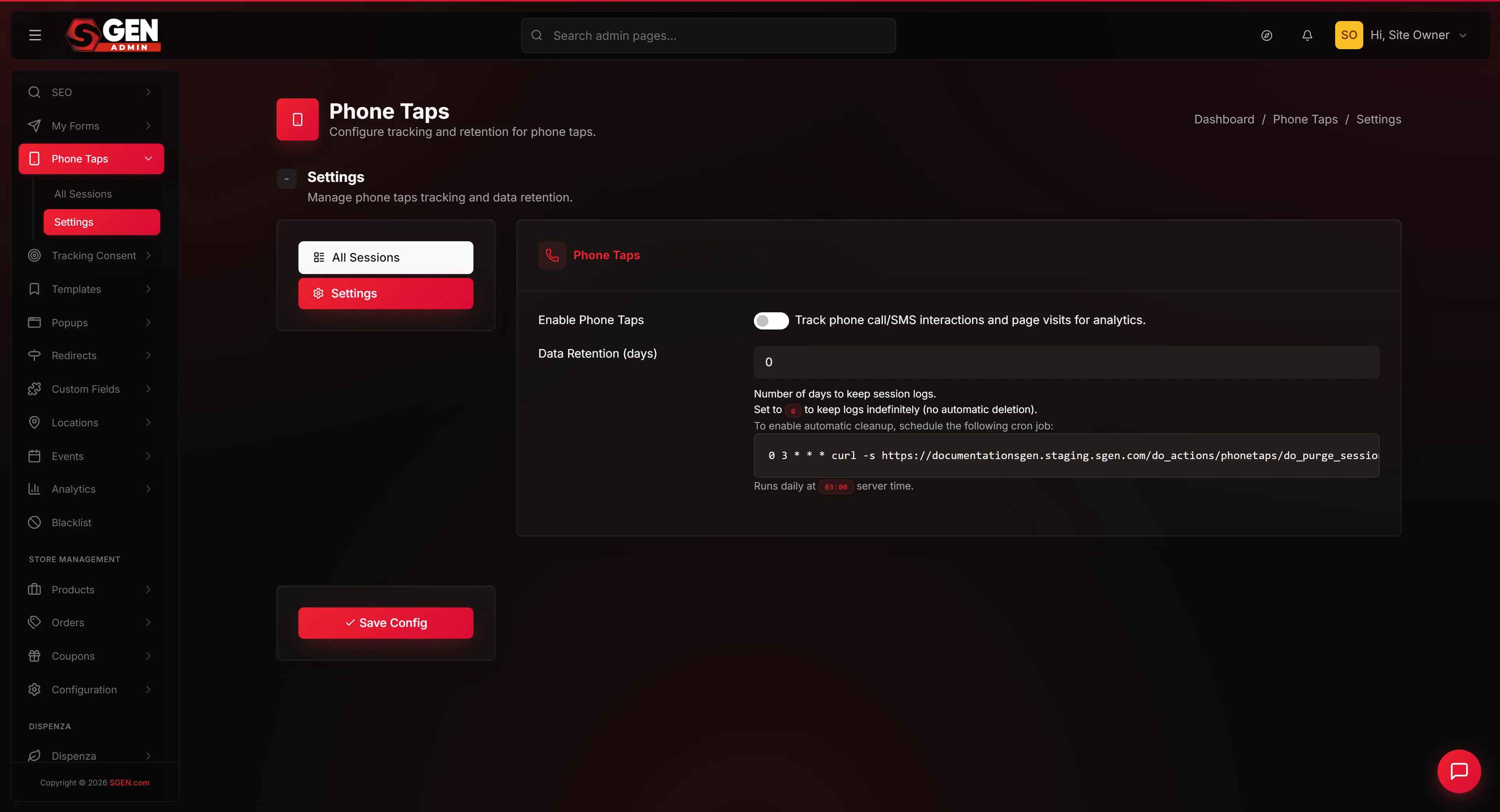
The settings page loads in a three-column layout: a left sidebar with quick-nav buttons (All Sessions, Settings), a center panel with the settings form, and a right sticky panel with the Save Config button.
The form has two fields: Enable Phone Taps (toggle) and Data Retention (number, in days). Below the retention field, a help block and a copy-paste cron command appear.
Steps — Enabling tracking and setting retention
The flow has four short stages: review the current state, set the toggle, set retention, save.
1. Review the current state of your settings
When you load the page, the form reflects the current settings.
- The Enable Phone Taps toggle is either on (checkbox checked) or off (unchecked).
- The Data Retention field shows the current day count, or 0 if retention is "keep forever."
Glance at both before changing anything.
2. Set the Enable Phone Taps toggle
Click the toggle to switch tracking on or off.
- Toggle on (checked): new phone-tap rows will be written as visitors tap your tel: and sms: links. Existing rows are unaffected.
- Toggle off (unchecked): new phone-tap rows will not be written. Existing rows remain in your call log until purged.
For most sites, this toggle is on permanently. Disabling is rare and intentional — typically for a privacy audit or a brief operational pause.
3. Set the Data Retention day count
Enter a positive integer in the Data Retention field.
| Value | Meaning |
|---|---|
| 30 | Short retention; suitable for high-volume sites with strict storage-limitation policies. |
| 90 | Quarter-long; common for teams that run quarterly campaign reviews. |
| 180 | Half-year; a reasonable default for most small and medium businesses. |
| 365 | Annual; suitable for sites doing year-over-year trend analysis. |
| 730 | Two years; for low-volume sites where long data history matters. |
| 0 | Keep forever — no automatic deletion. |
Choose the value that matches your records policy. If unsure, use 180. If you previously set 0 and want to start enforcing retention, change to a positive number — the next purge will clear rows older than that count.
4. Click Save Config
Click the Save Config button in the right sticky panel. The form submits, persists the settings, and reloads.
After reload, the form should show the values you set. If the values match, the save was successful. If the page reloads but shows old values, try again or refresh and re-enter.
5. Confirm the cron command on your server (if applicable)
Below the retention field, the page displays a cron command for your server (a single line beginning with 0 3 * — daily at 03:00 server time).
If your hosting plan gives you shell access, copy the command and paste it into your crontab. Confirm with your provider if you do not have shell access.
The retention day count you set in step 3 is only enforced if this cron is running. Without it, retention is a no-op and your call log will grow without bound.
What success looks like
After saving, you should see:
- The page reloads with the toggle and retention field showing the values you set.
- No error banner appeared.
- If you toggled Enable on, new visitor taps after the save will appear in your call log.
- If you toggled Enable off, no new rows will be added; existing rows remain.
- If you changed retention, the new value takes effect on the next scheduled cron run (within 24 hours).
What to do if it does not work
- Save Config does not seem to do anything. Make sure you changed a field first. If a genuine change still does not save, refresh and reconfirm.
- Page reloads but shows old values. Refresh once more. If the values still show the old state, re-enter and save again. If a second save also fails, contact your administrator.
- Tracking still shows enabled after toggling off. Confirm the toggle is unchecked after reload. If new rows are still appearing despite an unchecked toggle, your public-side script may have a stale cached copy — hard-refresh your public site.
- Retention not enforcing. Retention depends on a daily cron job. If it is not installed or not running, retention is a no-op. Check with your hosting provider and confirm the cron command on the settings page is in place.
- Rows older than my retention day count are still in the list. The purge runs once daily at 03:00 server time, not instantly. Wait until the next cycle has run.
- Set retention to 0 expecting "delete immediately" but nothing happened. In this panel, 0 means "keep forever." To enforce deletion, set 1 (one day) or higher.
- Cron command shows a wrong domain. The command builds the URL from your site's base URL setting. If the base URL is misconfigured, contact your administrator.
- Retention field accepted a non-numeric value. The system reads non-numeric values as 0 (keep forever). Re-enter as a clean integer and re-save.
- Anything looks inconsistent. Open a fresh browser tab. Browser state from a prior session occasionally interferes.
Examples
| Scenario | Action | Result |
|---|---|---|
| First-time enable | Toggle on + set 365 days + Save Config | Tracking starts immediately; rows accumulate for up to one year. |
| Tighten to comply with GDPR | Change retention from 365 → 90 + Save Config | Next purge removes rows older than 90 days; takes effect within 24 hours. |
| Temporary disable for privacy audit | Toggle off + Save Config; re-enable after audit | Data gap during audit; no rows deleted; tracking resumes on re-enable. |
| Loosen retention for trend analysis | Change retention from 90 → 730 + Save Config | Rows accumulate on a two-year rolling horizon. |
How retention works under the hood
- Retention runs daily, not instantly. Saving a tighter retention does not delete anything immediately. The next scheduled purge cron will execute the new policy.
- The purge runs at 03:00 server time. Hard-coded. If your server is in UTC and you are in Pacific time, the purge runs at 20:00 your time the previous day.
- Retention is computed from each row's last-event timestamp. A row is eligible for purging when its last-event timestamp is older than the retention day count.
- Large purges process in batches. Thousands of rows are processed a few thousand at a time. A very large backlog may take a few cron cycles to fully drain.
- Retention does not export before deleting. Rows are hard-deleted. Run an export before the purge if you need a record of what will be removed.
- Retention is independent of bulk delete and single-row delete. These three deletion paths do not affect each other.
- Retention does not write a per-row audit trail. The aggregate count of rows removed per cron run may be logged; per-row detail is not.
A note on the "keep forever" choice
Setting retention to 0 is legitimate for low-volume sites where a permanent record is useful. The trade-off: the call log grows without bound. On low-volume sites a few hundred rows over years is trivial; on high-volume sites, unbounded growth eventually causes performance issues on the list page. Monitor your call-log size periodically. If the list loads slowly, switch to a finite retention.
If your business is regulated under any storage-limitation framework (GDPR, CCPA, HIPAA, etc.), confirm with your legal team that "keep forever" is allowed for this kind of data.
Frequently asked questions
- Does disabling tracking delete my existing data? No. Disabling stops new writes. Existing rows remain. To clean those up, use single-row delete, bulk delete, or tighten the retention day count.
- Does enabling tracking start writing immediately? Yes, as soon as the next visitor taps a tel: or sms: link, a row will be written.
- Can I set different retention for different kinds of phone taps? No. Retention is a single global day count.
- Can I set retention to less than one day? Retention is in days, minimum 1. No sub-day support.
- What if I set retention to a very high number, like 99999? Effectively the same as 0 — no row will ever age out.
- Can I temporarily disable retention without changing the day count? No. To pause retention, set the day count to 0 and restore it when ready.
- Does the retention purge log when it ran? The cron logs to your server's standard log files. The admin does not show this directly.
- What if I change retention right before a cron run? Whatever value is saved when the cron starts is what gets enforced. Save at least an hour before 03:00 server time if timing matters.
- Can I export my call log before disabling tracking? Not from this panel directly. Your administrator can pull a database export.
- Is the toggle remembered across browser sessions? Yes. The setting is server-side. The toggle state persists for all admins until somebody changes it.