
How to browse and filter your phone tap call log
⏱ ~10 min read · quick-answer above the fold · full reference below.
In short. Go to Dashboard → Phone Taps in the sidebar. The list shows one row per visitor session — each row captures device, landing page, last event, and timestamp. Use the filter pills (All / This week / This month) to scope by recency. Use the search box to find a session key, landing-page slug, or UTM value. Click any session-key link to open the full detail view for that session. Hover a row to reveal View and Delete Permanently actions. The list does not auto-refresh — reload manually when watching for new rows. If the list is empty, check that Phone Taps tracking is enabled in Settings and that the public-site tap script is loaded.
On this page: Column reference · Browsing steps · Common use cases · What NOT to use this for · Troubleshooting · Connected features
Scope
This reference covers the Phone Taps list page — filtering by period and source, searching by session key, reading column data, and using row hover actions. Bulk deletion is covered in the bulk-delete reference. Session detail is covered in the view-session-detail reference.
What is this for?
When a visitor on your site taps a tel: or sms: link, the tracking script captures device, landing page, referrer, UTM tags, and a session key — and writes one row into your call log. The Phone Taps list page renders that log: paginated, filterable, searchable, and built for at-a-glance scanning. It is also the starting point for session detail, bulk delete, and weekly reviews.
Column reference
| Column | What it shows | Notes |
|---|---|---|
| Session Key | Unique identifier for the visitor session (e.g. sess_a18f3c). | Click to open the detail view for that row — the primary way to drill into a session. |
| Device | Visitor's device classification derived from their User Agent string (e.g. "Mobile · Chrome · iOS"). | Useful for spotting mobile vs desktop patterns at a glance. |
| Landing Page | The URL the visitor first arrived at during this session (e.g. /contact, /wholesale). | Helps attribute which pages are driving inbound call interest. |
| Last Event | Most recent event captured for the session — typically phonetap (visitor tapped a tel: or sms: link) or pageview. | A phonetap value is the primary signal of interest; pageview-only rows indicate the visitor browsed but did not tap. |
| Timestamp | When the most recent event for the session was captured. | List is sorted by this column descending — most recent at top. Not sortable by other columns. |
Good use cases
The list page supports a wide range of admin workflows. The most common ones:
- A daily glance to see what is happening.
Open Phone Taps. Glance at the top rows. Confirm that traffic is flowing as expected. Click into anything that looks unusual. Close the page. Two minutes from start to finish.
- A weekly review of inbound-call activity.
Filter to "This week," scan the rows, identify the highest-value sessions (paid-search hand-raises, wholesale-page taps, ad-driven leads). Click into each detail view to confirm the context. Note the standout sessions for your weekly report.
- Attribution analysis for a recent campaign.
Search for a UTM parameter or campaign URL in the search box. Walk the filtered list to see how that campaign drove inbound calls.
- Tracking validation after a theme deploy or content change.
After deploying a new homepage or contact-page layout, fire the tap script yourself from a test phone. Watch the list for the test row to appear. Click into the detail view to confirm the data captured matches what you expected.
- Source-of-truth lookup for a customer support case.
A customer wrote in mentioning an interaction at a specific time on a specific page. Use search and filter pills to find the matching row. Open the detail view to corroborate.
- Bulk maintenance prep.
Before bulk-deleting a known noise cluster, use search and filter to narrow the list to just those rows. Walk the visible list to confirm. Then proceed to the bulk-delete workflow.
- Pre-export filtering.
Before pulling a CSV of phone-tap data for an outside report, use the filter pills to scope the data to the relevant time window.
- Sanity check on tracking coverage.
Open the list. Confirm there are recent rows. Verify the row count makes sense relative to your site's traffic. If the number looks off, investigate before assuming the data is correct.
- Stakeholder walkthrough.
Project the list during a marketing or sales review meeting. Walk the team through how phone-tap data flows in and how to use it.
What NOT to use this for
A few cases where the list page is the wrong tool.
- Do not use the list as a CRM lookup tool.
Phone-tap rows are anonymous. There is no link to a customer record, no email, no name. If you need to identify a specific person, the list cannot help you.
- Do not assume the list is real-time.
The page renders the data captured up to the last write. If a visitor is currently active on your site, additional rows or events may be written after you opened the list. Refresh to see them.
- Do not edit a row from the list.
The list is read-and-act-on, not edit. There is no inline edit, no annotation, no flag. If you need to track context about a row, the detail view is read-only too — copy the data into your CRM or notes tool instead.
- Do not assume the list count matches your dashboard tile count exactly.
Some dashboard tiles refresh on a cache schedule and may show slightly stale numbers. The list itself is fresh. Trust the list count over the dashboard tile count when investigating discrepancies.
- Do not use the list to validate that the public-side tap script is firing.
Use a controlled test (open your own browser, tap a known link, wait for the row to appear) rather than guessing from list state.
- Do not assume an empty list means "tracking is broken."
An empty list might mean tracking is disabled in Settings, the public-side script is not running on your site, the retention purge cleared everything older than the threshold, or you genuinely have no recent traffic. Each is a different failure mode.
- Do not navigate away mid-action.
If you have ticked rows for bulk delete and you click into a session's detail view in another tab, your selection state may not be there when you return. Complete one workflow before starting another.
Fields
The list page displays these columns and controls. See also the ### Column reference section above for full column detail.
| Column / control | What it shows or does |
|---|---|
| Session key | Unique alphanumeric ID — click to open the Session Detail view |
| Timestamp | Date and time of the phone-number tap event |
| Source | UTM source attributed to this session |
| Device | Mobile, tablet, or desktop |
| Period filter pills | Narrow to All / Today / This week / This month / Custom range |
| Source filter | Filter by a specific UTM source value |
| Search (session key) | Contains-match text input for the session key column |
| Row checkbox | Select for bulk action |
| Bulk action — Delete Permanently | Deletes all selected rows, no undo |
How this connects to other features
The list page is the central hub. Several other parts of the admin connect into and out of it.
- Phone tap detail view — every row's session-key column is a link to the detail view. The list is the discovery surface; the detail view is the deep-dive.
- Single-row delete — the per-row hover action (Delete Permanently) lives on each row of the list. For one-off cleanups, the row-level delete is the right tool.
- Bulk delete — the per-row checkboxes plus the "Action For Selected" dropdown plus the Apply button — together they make bulk delete possible. The list is where bulk delete happens.
- Retention purge — for clearing out old data on a schedule, the retention purge runs based on a day count set in Settings. The list reflects the result of each retention sweep.
- Phone Taps settings — the global enable toggle and retention day count live there. Disabling tracking does not retroactively delete existing list rows; bulk delete or retention is how you clean those up.
- Public-site tap script — the JavaScript that writes phone-tap rows when visitors click your tel: and sms: links. The list is what you see in the admin; the public script is what produces the rows.
- Phone Taps dashboard tiles — your dashboard's summary cards derive aggregate numbers from the same call log the list shows. The list shows row-level detail; the dashboard shows totals.
- Site analytics tools — if you also run a third-party analytics platform, your phone-tap counts there should roughly match the list count for the same window. Discrepancies are usually due to consent gating, ad-blocker rejection of the third-party script, or differences in what each tool counts as a "session."
- Visitor consent banner — if your site uses one, your tap-logging script should respect the consent state before firing. The list shows only sessions where the script wrote data; declined-consent sessions never reach the list.
Before you start
- Enable Phone Taps. In Phone Taps Settings, confirm the Enable Phone Taps toggle is on. If it is off, no new rows are written and the list will be stale or empty.
- Confirm the tap script is loaded. The list only shows what the public-site script captures. If your theme or Custom Codes does not include the tap-logging script, no rows are written even with tracking on.
- Account for retention. Rows older than your retention day count have been purged. If you are looking for an older session and cannot find it, check the retention setting in Phone Taps Settings.
- Start with a fresh tab if state looks off. Filter and search state persist in the URL. If you are unsure whether leftover state is interfering, open a clean tab.
Where to go
Sidebar: Dashboard → Phone Taps.
The page loads with the most recent sessions at the top, paginated 20 rows per page by default.
If you have URL filters from a prior session (e.g. "show only this week"), they will be reflected in the URL and the active filter pill.
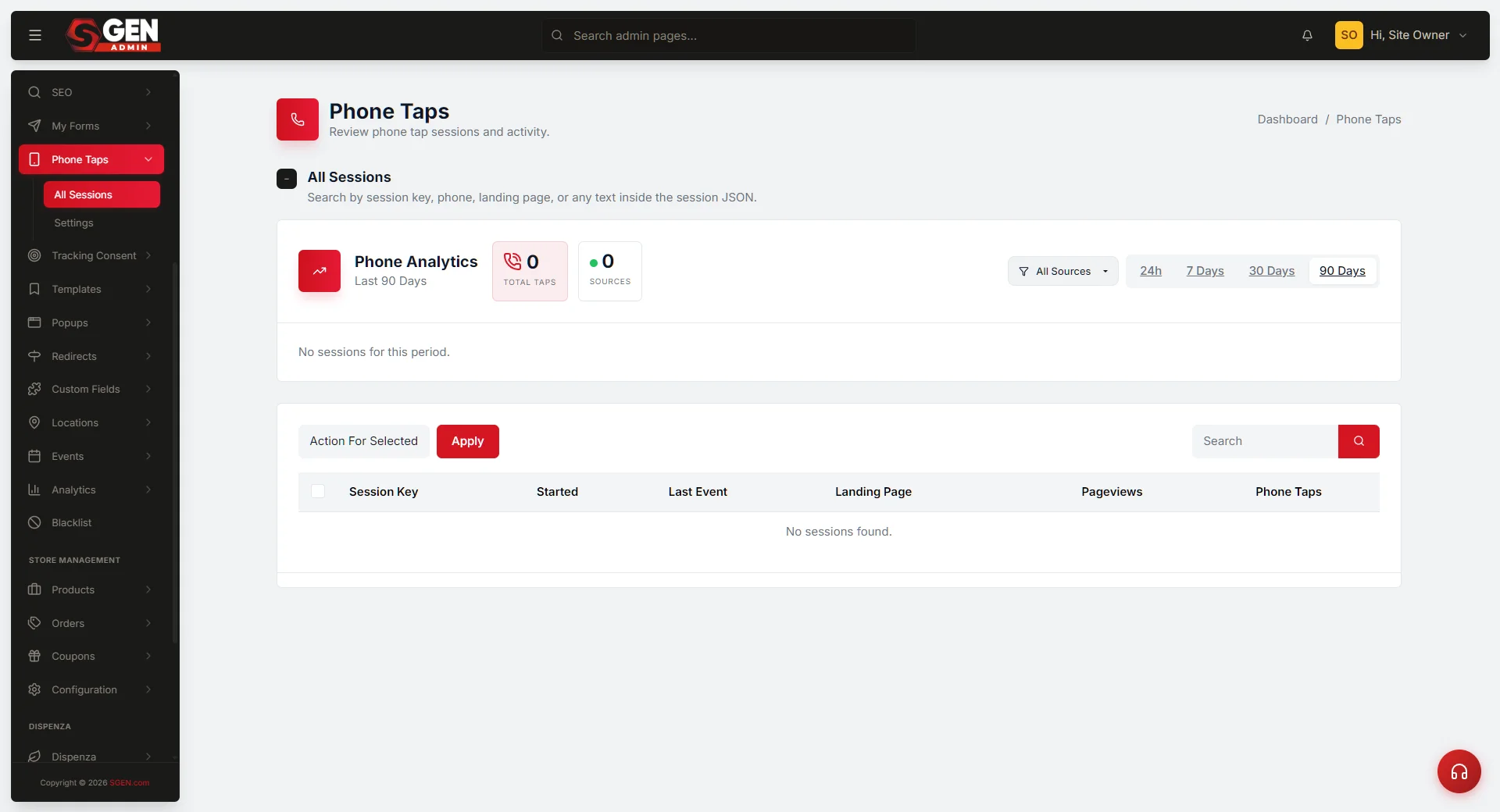
If you have no rows yet, the page renders an empty-state message ("No sessions found.") instead of the list.
Steps — Browsing the list
The flow is straightforward. The list is meant to be scannable from the moment you open it.
1. Open the Phone Taps list page
From your sidebar, click Phone Taps.
The list loads. The most recent sessions sit at the top.
The page header reads "Phone Taps." Below the header, a subtitle reads "Review phone tap sessions and activity."
Below the subtitle, a row of filter pills offers quick scoping by recency: All, This Week, This Month.
Below the filter pills, the list itself appears as a table with columns: Session Key, Device, Landing Page, Last Event, Timestamp (and a checkbox column at the leftmost).
If your site has many phone-tap rows, pagination links appear at the bottom of the table.
2. Use the filter pills for quick recency scoping
The filter pills are the fastest way to narrow the list.
Click "This week" to scope to rows captured in the last seven days.
Click "This month" to scope to rows captured in the last thirty days.
Click "All" to return to the full list.
The active pill is highlighted. The count shown next to each pill label reflects how many rows fall into that bucket.
Filter changes reload the page. Your search, if any, is preserved across filter changes.
3. Use the search box for specific lookup
The search box sits at the top right of the table.
Type a fragment of a session key, a UTM parameter value, a landing-page slug, a referrer URL — anything that might appear in the session metadata.
Press Enter or click the magnifying-glass button.
The list reloads, filtered to rows matching the search term.
Search is permissive — it matches against the full session metadata for each row. Partial matches work.
If your search returns zero rows, an empty-state message appears instead of the list.
To clear the search, empty the search box and press Enter, or click "All" in the filter pills.
4. Read the row content
Each row in the list shows a snapshot of one visitor session.
- Session Key — the unique identifier for the session. Click it to open the detail view.
- Device — the visitor's device classification (e.g. "Mobile · Chrome · iOS"). Derived from the visitor's User Agent string.
- Landing Page — the URL the visitor first arrived at.
- Last Event — the most recent event captured for the session (typically "phonetap" or "pageview").
- Timestamp — when the most recent event was captured.
Glance at multiple rows at once to spot patterns. Several rows from the same landing page in a short time window? Clusters of mobile traffic from a specific time of day? A row whose UTM tags caught your eye?
Click any session-key column to open the detail view for that row.
5. Use row hover actions for quick navigation
Hover over a row.
Two actions appear at the right edge of the row: View and Delete Permanently.
Click View to open the detail view (same as clicking the session-key link).
Click Delete Permanently to remove the row from your log (use carefully — this is a hard delete).
Row hover actions are the fastest way to act on a single row without leaving the list page.
6. Walk pagination if your list is long
At the bottom of the table, pagination links let you walk page by page.
Click a page number to jump there.
Click First or Last to jump to the start or end of the paginated set.
Pagination preserves your filter pill and search state across pages.
7. Refresh the list to see new rows
The list does not auto-refresh.
If you are watching for a new row to appear (e.g. while validating tracking after a deploy), refresh the page manually.
For most workflows, refreshing once at the start of your session is enough.
What success looks like
After loading the list page, you should see the following.
- A page header reading "Phone Taps" with a subtitle "Review phone tap sessions and activity."
- A row of filter pills (All, This week, This month) with non-zero counts shown for the buckets that match your data.
- A table with the columns Session Key, Device, Landing Page, Last Event, and Timestamp.
- One row per recent visitor session, sorted by most recent at the top.
- A search box at the top right of the table.
- An "Action For Selected" dropdown above the table with at least one option (Delete Permanently).
- Pagination links at the bottom if your row count exceeds 20.
- Row hover actions (View, Delete Permanently) appearing when you mouse over a row.
- The page loads cleanly with no error banner.
If the list is empty, the page should show an empty-state message ("No sessions found.") instead of an empty table.
What to do if it does not work
A few common snags.
- The list is empty even though I know my site has phone-tap traffic.
Check Phone Taps Settings — make sure Enable Phone Taps is on. If it is off, no new rows are being written. Re-enable, wait for some new traffic, then refresh the list.
Also check whether your retention day count is very low. If retention is set to 1 or 2 days, anything older has been purged.
Also confirm the public-side tap script is loaded on your site. If your theme or Custom Codes does not include it, the script never fires.
- The list shows rows but the counts on filter pills are zero.
Filter pill counts may take a moment to recalculate after a recent action (e.g. a bulk delete). Refresh the page.
- My search is not finding a row I know exists.
Try a shorter search term. Search matches against the session metadata, but exact-match on long strings can fail if there is any whitespace or case difference. Try a five-character substring of the session key instead.
Also confirm the row has not been deleted. Open the All filter pill and walk the recent rows to see if the row is there.
- The page loaded but the layout looks broken.
Hard-refresh (shift+click refresh in your browser). Stylesheets occasionally fail to load. If the layout is still broken after a hard-refresh, contact your administrator.
- Pagination is taking a long time to load.
If you have a very long list, pagination calls can be slow. Try filtering with the pills or search before paginating, to reduce the working set.
- A row I deleted earlier is still showing in the list.
Refresh the page. If the row is still there, the deletion may not have completed. Re-attempt.
- The filter pill counts do not match the list count.
Filter pill counts are generated from the same call log as the list, but in some installs they cache for a few seconds. Wait a moment and refresh.
- Test on a fresh browser tab if anything looks weird.
Browser state from previous sessions occasionally interferes. A clean tab usually clears it up.
Examples
The following scenarios show the most common ways to use the Phone Taps list page.
Weekly review
Filter to "This week." Scan the rows — most will be mobile traffic from your main call-to-action pages. Click the session-key link on anything that stands out (e.g. paid-search sessions on your wholesale page) to open the detail view. Copy notable session keys into your weekly report. Six minutes from open to close.
Tracking validation after a deploy
Tap a tel: link on your own live site from a test device. Open Dashboard → Phone Taps and filter to "Today." The fresh row should appear at the top within a minute or two. Click the session-key link to confirm landing page, device, and tap label all match. If the row is there with correct data, tracking is healthy.
Attribution dispute
Filter to "This month" and search for the UTM source your agency uses. Walk the filtered list and click into sessions whose landing page does not match the agency's targeted pages — the detail view will show UTM tags that may have been double-counted. Noting specific session keys turns a number disagreement into a concrete audit trail.
Bot cluster cleanup
During a weekly review, watch for rows with near-identical timestamps in a short window, no referrer, and headless-browser User Agent strings. Search by the landing page URL to isolate them. Click one detail view to confirm the pattern. Then tick the suspicious rows and use the bulk-delete workflow to remove them.
Tips for daily and weekly use
- Use filter pills before search. Pills are faster for recency scoping. Reach for the pill first, then narrow with search if needed.
- Click into the detail view freely. It loads fast and gives full session context — click anything that looks interesting.
- Watch for clusters. Near-identical rows in a short window are usually bot traffic, internal QA, or a single visitor who tapped multiple times. The detail view distinguishes them.
- Trust the list count over the dashboard tile. Dashboard tiles refresh on a cache schedule. The list is fresh on every page load.
How list state persists
Filter pill and search state persist in the URL — bookmark a filtered list URL to return to that view directly. Pagination also persists in the URL. Selection state (ticked checkboxes) does NOT persist across page reloads — re-tick if you reload.
Frequently asked questions
A small set of questions that come up around the list page.
- Can I bookmark a filtered list?
Yes. Filters and search are reflected in the URL. Bookmark the URL to come back to the same filtered view.
- Can I share a list URL with a teammate?
Yes. Paste the URL into chat. Your teammate must be signed in as an admin to view it.
- Can I sort by a column other than Timestamp?
No. The list is fixed-sorted by timestamp descending. To find rows by other criteria, use search and filter.
- Why are some recent rows missing?
If your retention day count is set very low, recent rows older than that count may already have been purged. Check Phone Taps Settings for your current retention.
- Why does the row count differ between the list and the dashboard tile?
The dashboard tile refreshes on a cache schedule. The list is fresh on every page load. Trust the list.
- Can I export the list to CSV?
Not from the list page directly. Your administrator can export from the database.
- Does the list show every event, or one row per session?
One row per session. Each row aggregates all events from that session into a single line. The detail view shows the per-event timeline.
- Why is my list empty?
Several possibilities: tracking is disabled in Settings, the public-side script is not loaded, retention has purged everything, or you genuinely have no recent traffic. Check each in turn.