
SGEN Performance reliability overview
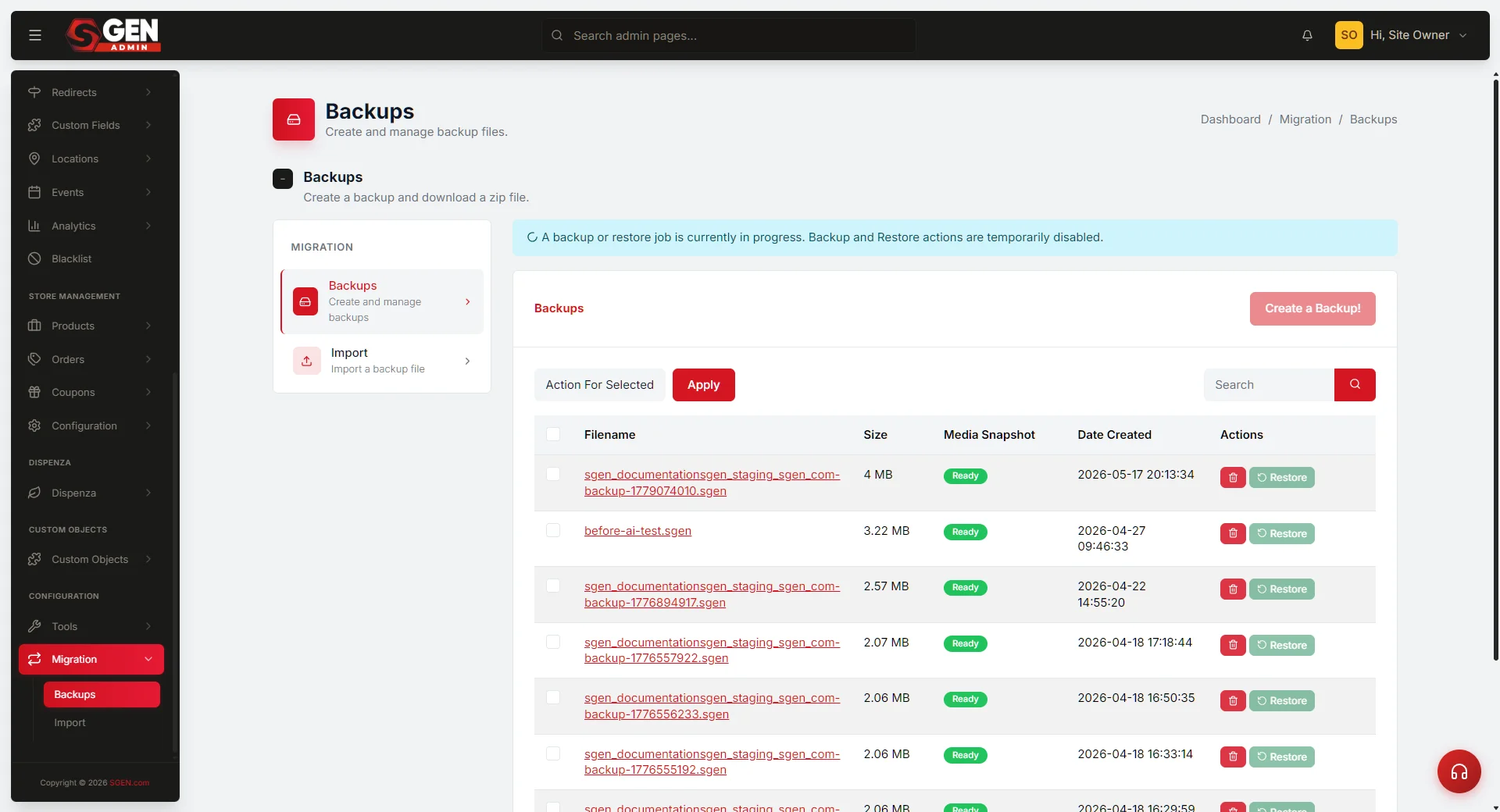 Backups panel — the backup library (rows with timestamp, type scheduled/manual, size, integrity status), the 'Back up now' control, and restore-preview entry point." loading="lazy" style="width:100%;max-width:900px;height:auto;border-radius:8px;border:1px solid #e5e7eb;display:block;margin:12px 0">
⏱ Quick answer below · full page ≈ 5 min · skim the bold lead-ins to move faster.
In short. Your site's reliability comes down to two things you can act on: backups and status checks. Before any major change, trigger a manual backup at Settings → Backups — you'll get a verified snapshot you can restore from. When something looks wrong, checkstatus.sgen.comfirst to distinguish a platform-wide incident from a site-specific issue. During a standard maintenance window, your published pages stay live for visitors; only admin editing may pause briefly. The dashboard header shows your site's current availability state; a score above 80 in Site Vitals means your homepage is loading healthily.
That's the gist — everything below is the same idea in depth.
On this page: Right page? · Examples · Signals and controls · Where to find it · Good use cases · Common questions
Examples — what reliability looks like in practice
The following scenarios cover the three availability states a site owner is likely to encounter during the life of their SGEN site.
Example 1: Routine — site fully available.
Your site is serving visitors normally. Pages load, orders process, contact forms submit. In the SGEN admin dashboard, the site status indicator shows a green Available state. No action is needed.
Example 2: Planned maintenance window — site stays up.
SGEN schedules a platform maintenance window. You receive a notification in advance by email and inside the SGEN admin. During a standard maintenance window, your published site remains visible to visitors — the maintenance applies to the SGEN platform layer, not to your published pages. Admin functionality may be limited during the window: publishing, editing, and file uploads may be temporarily unavailable. The maintenance window ends; full admin functionality resumes.
Example 3: Pre-launch backup — restore point before a risky change.
You are about to launch a major catalogue refresh: new product pages, a navigation overhaul, and a colour scheme change. Before starting, trigger a manual backup from Settings → Backups. The backup produces a verified snapshot. The launch proceeds. A colour scheme change introduces a conflict with a homepage embed. Rather than debugging live, restore from the pre-launch snapshot using restore preview — confirm it shows the expected state, then commit. The live site returns to the known-good state. Debug the conflict in staging and relaunch cleanly.
Fields — reliability signals and controls reference
The table below describes each reliability-related signal or control a site admin can observe or configure from the SGEN admin.
| Signal or control | Where it lives | What it tells you or does |
|---|---|---|
| Site status indicator | Admin dashboard header | Green = site available. Amber = reduced availability or active maintenance. Red = platform incident affecting your site. |
| Platform status page | status.sgen.com | Real-time platform health. Check here first when you suspect a platform issue. Separate from your site's own status. |
| Backup library | Settings → Backups | Every snapshot stored for your site. Each row shows creation time, type (scheduled or manual), size, and integrity status. |
| Backup schedule toggle | Settings → Backups → Schedule | Enable or disable the automatic backup schedule. Set cadence (daily / weekly / monthly) and retention window. |
| Manual backup trigger | Settings → Backups → "Back up now" | Creates a snapshot immediately, outside the schedule. Use before any risky change. |
| Restore preview | Settings → Backups → select snapshot → Preview restore | Loads the snapshot into a staging view without touching your live site. Confirm before committing. |
| Full restore | Settings → Backups → select snapshot → Restore | Replaces the live site with the snapshot. One-way. Take a pre-restore snapshot first. |
| Maintenance notification | Email and admin notification panel | Sent in advance of planned maintenance windows. States the window time, scope, and whether visitor-facing pages are affected. |
| Integrity status indicator | Backup library row | Green = snapshot is checksum-verified and ready to restore. Flagged = snapshot failed integrity check on creation or restore attempt. |
Where to find it — where this lives in the admin
Reliability-related controls are split across two areas of the SGEN admin.
Settings → Backups
The Backups panel is the primary reliability control surface. It has three views:
- Backup library — every snapshot stored for your site, sorted newest first. Shows timestamp, type, size, and integrity status for each entry.
- Schedule settings — cadence, next scheduled backup time, retention window. This is where you enable or change the automatic schedule.
- Restore controls — select any snapshot from the library to access preview restore or full restore. Integrity status is shown before either option is accessible.
Admin dashboard
The main admin dashboard shows the site status indicator in the header. This reflects the platform's view of your site's current availability. It is not the same as the public SGEN platform status page — the dashboard indicator is scoped to your site.
Platform status page
status.sgen.com is the public platform health page. It is independent of the SGEN admin — you can reach it even if the admin is unreachable during a platform incident. It shows current operational status for each SGEN service component and lists any active or resolved incidents.
Good use cases
Reliability concepts are relevant in three common situations.
Pre-change risk reduction. Before any significant operation — content migration, theme update, integration change, bulk edit — take a manual backup and check the platform status page. A verified snapshot before the change means you have a clean restore point if the change goes wrong. This is the single highest-value habit for any active site admin.
Platform issue triage. When your site behaves unexpectedly, the first step is to distinguish a platform issue from a site-specific issue. Check status.sgen.com. If there is an active incident affecting your service components, the issue is on the platform side and the team is already working it. If the status page shows all-green, the issue is likely site-specific — check your recent changes, your custom code, or your integration configuration.
Compliance or audit preparation. If your organisation needs to demonstrate backup discipline — cadence, retention window, restore path tested — the Backups panel provides the library view. Each snapshot entry records its timestamp, type, and integrity status. The audit trail records every restore event, including who triggered it and which snapshot was used. These two surfaces together answer most compliance questions about data protection.
What NOT to use this for
- Do not use this page to find infrastructure SLA data. SGEN does not publish uptime percentages or infrastructure redundancy specifications in the customer documentation. If your procurement or compliance process requires contractual SLA data, contact your SGEN account representative directly.
- Do not treat the admin dashboard status indicator as the authoritative platform health signal. The dashboard indicator reflects what the platform knows about your site's state, but it may lag behind the platform status page during fast-moving incidents. For the authoritative real-time signal, use
status.sgen.com. - Do not use backups as a substitute for version control on individual pages. The backup and restore system is a full-site snapshot tool. For rolling back a single page to a previous draft, use the Stage and Live page versioning system. Restoring a full snapshot to undo a single page change is a heavy instrument for a precise task.
- Do not expect admin functionality during a maintenance window. Standard maintenance windows preserve visitor-facing availability but may pause admin operations (publishing, file uploads, editing). Plan maintenance-sensitive work around the notified window.
How this connects to other features
Reliability overlaps with several adjacent SGEN systems. Each handles a distinct scope.
| System | Scope | How it relates to reliability |
|---|---|---|
| Backup and restore | Full-site snapshots, restore path | The primary data-protection layer a site admin controls. Covered in depth at Backup and Restore. |
| Disaster recovery | Platform-level recovery planning | Infrastructure redundancy, recovery objectives, incident escalation. Covered in the Disaster Recovery Overview. |
| Performance and caching | Page speed, CDN, cache layers | Affects perceived reliability — a slow site feels unreliable. Covered in the Performance and Caching Overview. |
| Environment model | Staging vs production | Understanding which environment visitors are using matters during maintenance. Covered in the Environment Model. |
| Stage and Live | Per-page version history | For per-page rollback, not full-site restore. The lighter-weight complement to full backups. |
| Audit log | Action-by-action record | Every restore event is recorded in the audit log. The log is not overwritten by a restore. |
Common questions {#faq}
The questions site owners ask most often about reliability, with the short, practical answer for each.
How do I tell if SGEN is having a problem or it's just my site? Check the status indicator first. A platform-wide issue shows there and affects more than one site. If the status reads healthy but a single page looks wrong, the cause is more likely something specific to that page — a recent edit, a broken link, or a browser cache holding an old copy.
What happens to my site during a maintenance window? In most maintenance windows your published site stays up and visitors keep loading pages normally. What may pause briefly is admin work — saving or publishing changes. When a window will affect the live site, you are notified ahead of time.
Will I lose my content if something goes wrong? Your published content is protected by backups. A manual backup captures a full snapshot you can restore from, and per-page version history lets you step back individual pages. Creating a backup before any major change is the single best habit for protecting your work.
My site feels slow — is that a reliability problem? A slow site and an unavailable site are different things, though both feel unreliable to a visitor. Slowness is usually a performance question — large, unoptimized images are the most common cause. The Performance and Caching Overview covers the levers you control.
Who do I contact if the status looks wrong? If the status indicator and your own checks disagree — the status says healthy but your site is clearly down for visitors — reach your SGEN contact with the specific URL and what you are seeing. Concrete detail gets a faster answer than "the site is down."
How often should I create a backup? Create a backup before any major change — a redesign, a bulk content edit, a theme or settings change you are unsure about. For routine work, a backup before each significant editing session is a sound habit. Every backup is a deliberate action you start; there is no fixed schedule you have to remember.
Does a maintenance window mean my site goes offline? Not in most cases. Maintenance usually affects the admin side — saving and publishing — while your published pages keep serving visitors. If a window is expected to take the live site offline, that is communicated in advance rather than left for you to discover.
See also
- Backup and Restore architecture overview — full snapshot model, restore modes, integrity checks, and step-by-step setup
- Disaster Recovery Overview — platform-level recovery planning, incident escalation
- Performance and Caching Overview — cache layers, page speed controls, CDN behaviour
- Environment Model — staging vs production, what visitors see, change promotion
- Staging and Versioning Overview — per-page version history, Stage and Live promotion
- SGEN Glossary — definitions for
.sgen, snapshot, restore preview, maintenance window, availability