
Backing up and restoring your SGEN site
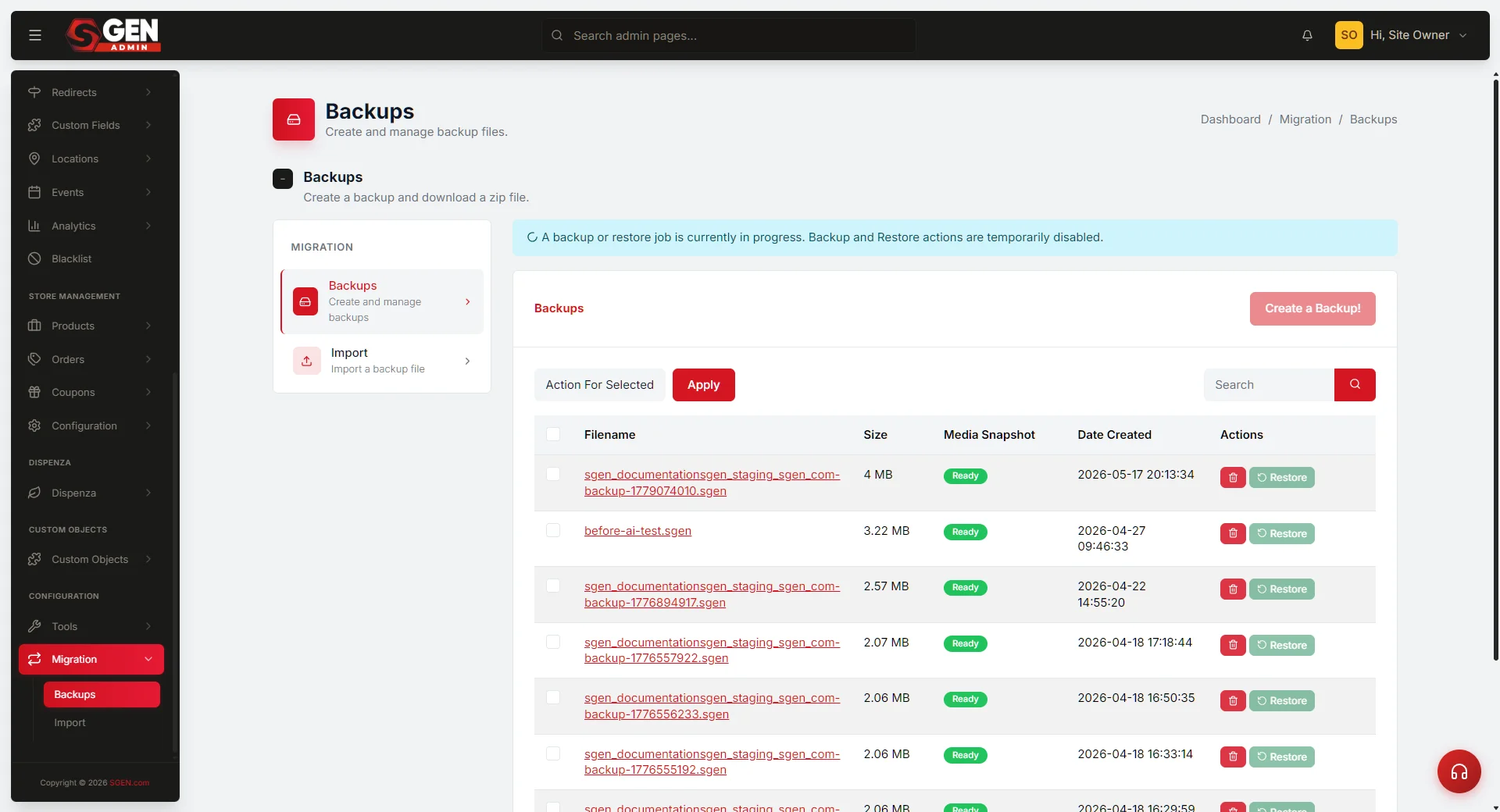 Backups screen: backup library table with Back up now button and Rename/Download/Restore/Delete row actions" loading="lazy" style="width:100%;max-width:900px;height:auto;border-radius:8px;border:1px solid #e5e7eb;display:block;margin:12px 0">
⏱ Quick answer below · full page ≈ 9 min · skim the bold lead-ins to move faster.
The overview answer. Every SGEN site can be backed up to a single.sgenfile that captures everything — pages, posts, products, settings, media, and theme state. Before any major change, go to Migration → Backups and click Back up now. The backup takes about 30 seconds. Rename it something memorable (e.g.pre-spring-launch-2026.sgen) and download a copy off-site. To recover, find the backup row, click Restore, confirm the modal — the site returns to exactly the state it was in when you took the snapshot. Restoring replaces the whole site, so take a fresh backup first if you want a way back.
That's the gist — everything below is the same idea in depth.
On this page: What this covers · Backup anatomy and file naming · Fields and options · Where to find it · Good use cases · Related features
Your complete reference for protecting your site and getting it back when something goes wrong.
Every SGEN site can be backed up to a single .sgen file that captures everything: pages, posts, products, settings, media, and theme state. That file is your safety net. When something goes wrong — a bad bulk edit, a theme change that breaks the layout, an import that overwrites content you needed — you restore from the backup and your site returns to exactly the state it was in when the snapshot was taken.
This page is the site-owner reference for that system. It covers what a backup is, where to find the backup tools, how to create a snapshot, how to restore from one, and the habits that make the system work in practice.
For the underlying technical model — checksum verification, retention tiers, restore modes, the architecture of the .sgen format — see the SGEN Backup and Restore Architecture Overview. That page is the model. This page is the working reference.
What is this for?
This page answers the practical questions every site owner needs answered before something goes wrong:
- Where do I go to create a backup?
- What does the backup file contain?
- How do I restore my site from a backup?
- What does a
.sgenfilename look like, and what does it mean? - Which situations is backup-and-restore the right tool for, and which is it the wrong tool for?
- What habits keep a site genuinely protected?
Who this is for. Any SGEN site owner or administrator who manages their own site and wants a clear, complete answer to "how do I protect my site and recover it?" You do not need technical knowledge to use SGEN backups. You need to know where the tools are and what they do.
What this is not. This page does not cover per-page version history (that is Stage and Live), audit logging, or platform-level infrastructure redundancy. Those are separate systems with separate pages. This page covers what you, the site owner, can do yourself through the SGEN admin.
Scope — what this covers
This reference covers the site-owner backup-and-restore surface: the tools you control directly from your SGEN admin dashboard.
In scope:
- Creating a manual backup on demand
- The
.sgenbackup file — what it is, what it contains, how it is named - Browsing your backup library (the list of saved snapshots)
- Renaming a backup so it is easy to identify later
- Restoring your site from a backup
- Downloading a backup for off-site storage
- Backup habits and when to create a manual snapshot
Out of scope on this page:
- Per-page version history. Stage and Live is the tool for rolling back a single page. Backups are whole-site. If you want to undo one page change without reverting everything else, use Stage and Live, not a backup.
- Audit logging. The audit trail records who did what and when. It is not a restore tool. Restoring from a backup adds a restore event to the audit trail — it does not clear or overwrite it.
- Technical backup model. Checksum verification, retention ceilings by plan tier, the internal archive structure, and restore preview mode are all covered in the Backup and Restore Architecture Overview.
- Platform-level redundancy. What SGEN does at the infrastructure level to protect site data is separate from what you configure in your admin. Contact your SGEN account contact for questions about infrastructure-level data protection.
Examples — backup anatomy and file naming
The .sgen backup file
Every backup produces a single file with the .sgen extension. The file is a structured archive: all of your site's content, settings, and media in one package that SGEN's restore tool recognizes and can apply.
File naming. SGEN names backup files using this pattern:
`` sgen_``
For a site at yoursite.com, a backup created on May 29, 2026 at 03:00 UTC looks like this:
`` sgen_yoursite.com-backup-20260529030012.sgen ``
The timestamp is in YYYYMMDDHHMMSS format (UTC). You can rename the file in your backup library — recommended, so you can identify it at a glance later. Renaming changes the label only; the archive contents are unchanged.
Good renamed examples:
`` pre-spring-launch-2026.sgen before-theme-update-may.sgen monthly-archive-2026-05.sgen ``
What a backup contains. A .sgen file captures the full operational state of your site at the moment the backup runs:
| Layer | What is captured |
|---|---|
| Content | Every page, post, blog entry, and custom object — including drafts and scheduled items |
| Media | Every uploaded file: images, videos, documents, and attachments |
| Site settings | All settings: SEO defaults, analytics configuration, domain settings, member roster, custom roles |
| Custom objects | Every custom content type, including field schemas and stored records |
| Theme and layout | The active theme, SG-Builder layouts, and any site-level design customizations |
What a backup does not contain:
| Not captured | Why |
|---|---|
| Analytics event history | Visitor data lives in the analytics layer, not the site's operational state |
| CDN and server cache | The cache rebuilds automatically from restored content |
| Audit log history | The audit trail is append-only and is not overwritten by a restore |
| External automation jobs | Third-party integrations that schedule their own jobs are not part of the snapshot |
Example: Your Store backup library
Your Store creates a backup before every significant change and renames each one with a meaningful label. Their backup library on a typical week:
The renamed rows — pre-spring-launch-2026.sgen, before-theme-update-may.sgen, monthly-archive-2026-04.sgen — are the ones Your Store created right before a significant change. Those are the rows they would reach for if a restore were needed.
Reference — fields and options
Backup library row
Each row in the backup library shows the following:
| Field | What it holds | Example |
|---|---|---|
| Filename | The archive name. Default is the SGEN naming pattern; can be renamed at any time. | sgen_yoursite.com-backup-20260529030012.sgen |
| Size | Archive size on disk. Reflects all content and media in the snapshot. | 52.1 MB |
| Created | How long ago the snapshot was taken. | 2 hours ago / yesterday / 3 days ago |
| Actions | What you can do with this backup: Rename, Download, Restore, Delete. |
Create backup
When you trigger a manual backup, SGEN shows you the site name and an estimated size based on current content. There is no configuration required — click Back up now and the backup runs. A success confirmation appears when it completes:
Restore confirmation
Every backup row has a Restore action. Before the restore runs, SGEN shows a confirmation that names the backup, the date it was created, and a clear reminder that the restore replaces your current live site:
Before confirming a restore, do these three things:
- Take a fresh backup of your current site (a restore you regret with no pre-restore backup has no recovery path)
- Confirm the filename and date match the snapshot you intended
- Let other team members know — the restore replaces everything immediately
Where to find it — where this lives in SGEN
Backup and restore tools live under Migration in your SGEN admin sidebar.
Admin path: your-site.com/sg-admin/migration/backups
Sidebar navigation: Migration → Backups
What you see when you arrive:
- Panel header with a total backup count and the Back up now button
- A search box to filter by filename
- The backup library table, newest snapshot first
- Pagination if you have more than 10 backups stored
Access requirements by action:
| Action | Requires |
|---|---|
| View the backup library | Administrator |
| Create a backup | Administrator |
| Restore from a backup | Administrator |
| Rename or delete a backup | Administrator |
| Download a backup | Administrator |
If a team member needs backup access but cannot see the Migration panel, the site owner needs to grant the Administrator role to that member.
Good use cases — when to create a manual backup
Before any of the following, take a snapshot:
- Swapping or updating your theme
- Running a bulk import or bulk edit on products, posts, or customers
- Giving a new administrator access to your site
- Changing payment, checkout, or shipping configuration
- Starting a significant content project — seasonal relaunch, new product catalogue, site redesign
- Connecting a new integration that will write data to your site
- Running any action that says "this cannot be undone" anywhere in the admin
Example 1: Before a seasonal launch.
Visitor B (Your Store's marketing manager) is about to upload new product photography, update descriptions for the spring collection, and switch the homepage banner. Before touching anything, she goes to Migration → Backups and clicks Back up now. The snapshot completes in about 30 seconds. She renames it pre-spring-launch-2026.sgen and downloads a copy to the team's shared drive.
Two days into the launch work, a bulk product edit accidentally clears the product details field on eight products. Visitor B opens the backup library, finds pre-spring-launch-2026.sgen, and restores it. The site returns to its pre-launch state. The team restarts from the backup with corrected data.
Example 2: The monthly archive habit.
Visitor A (Your Store's site administrator) has a recurring first-of-the-month routine:
- Go to Migration → Backups
- Click Back up now
- Rename to
monthly-archive-YYYY-MM.sgen - Click Download and save to the team's cloud storage folder
Example 3: Recovering from a theme problem.
Visitor C (Your Store's part-time developer) applies a theme update that breaks the homepage layout on mobile. The theme rollback through the admin UI does not fully restore the custom layout settings. Visitor C goes to Migration → Backups, finds before-theme-update-may.sgen — taken 20 minutes before the update — and clicks Restore. He confirms the modal, the restore runs, and the site is back to the pre-update state in about a minute. He then re-plans the theme update on a staging copy before applying it to the live site.
What NOT to use backup-and-restore for
- Rolling back one piece of content. A restore replaces everything. If one blog post has a typo, fix the typo directly — restoring the whole site is not the right scope for that.
- Undoing a restore you already ran. Restoring is one-way. The only "undo" for a restore is another backup, which is why taking a fresh snapshot before any restore is required practice.
- Transferring your site to a different platform. Restoring a
.sgenfile only works within SGEN. For cross-platform migration, a separate process is needed. - Partial recovery. A backup is the entire site or nothing. If you need "just the products back to how they were," a full restore brings everything back — including any other changes made since the backup was taken.
Disaster-recovery drills and off-platform copies
For teams with compliance requirements or mission-critical operations, two practices extend the baseline backup model.
Disaster-recovery drills. An untested backup is theoretical. Run a recovery drill annually or semi-annually: pick a realistic scenario (accidental delete, data corruption), restore from a representative backup point to a staging environment, measure the time from "issue detected" to "site restored," and document gaps. The drill produces a confirmed Recovery Time Objective and a procedure update each cycle. Teams that have rehearsed the path handle a real incident in minutes rather than hours.
Off-platform copies. For sites where platform backups alone are insufficient — regulatory requirements, organizational policy, or high-stakes content — maintain your own off-platform copies. Periodically export via Migration → Backups → Download and store in your own secure storage (cloud or encrypted local drive). Test these exports for restorability — confirm they can be re-imported. Off-platform copies protect against scenarios where platform backups themselves are unavailable.
Communicating a restore. When a restore affects visible site state, tell your team what was restored and why. If visitor-facing content reverted, notify affected visitors (for example, "we restored an earlier version — if you submitted a form between [time] and [time], please resubmit"). Log the event in your team's operations notes so future-you has a clear record.
See also — related features and pages
Backup and restore is one part of a broader set of tools for protecting and managing your site:
| Tool | What it does | When to use it |
|---|---|---|
| Backup and restore (this page) | Full site snapshot in a single .sgen file | Before a major change; when you need to roll back to a known-good state |
| Stage and Live | Per-page version history; promote a draft or roll back one page | When you need to undo changes on a specific page without affecting the rest of the site |
| Audit log | Append-only record of who did what and when | Tracing a change to the person who made it; compliance review |
| Migration — Import | Bring a .sgen file into your site | Moving a site with support guidance — always take a backup before importing |
Pages in this cluster:
- Backup and Restore Architecture Overview — the technical model: checksum verification, restore preview mode, retention tiers by plan, and the complete troubleshooting reference for backup failures and restore errors.
- Staging and Versioning Overview — how SGEN handles per-page version history and page-level rollback.
- Environment Model — the relationship between your live site, staging environment, and preview surfaces.
- Multi-site Architecture Overview — how backups work in a portfolio context (backups are per-site; there is no portfolio-wide snapshot).
- Operations: Back up and restore your site — the step-by-step how-to guide for configuring your backup schedule, running a manual backup, and completing a full restore.
What a .sgen backup captures
| Layer | Captured? | What is captured / why not |
|---|---|---|
| Content | Yes | Every page, post, blog entry, custom object including drafts and scheduled items |
| Media | Yes | Every uploaded file: images, videos, documents, attachments |
| Site settings | Yes | SEO defaults, analytics config, domain settings, member roster, custom roles |
| Custom objects | Yes | Every custom content type including field schemas and stored records |
| Theme and layout | Yes | Active theme, SG-Builder layouts, site-level design customizations |
| Analytics event history | No | Visitor data lives in the analytics layer, not operational state |
| CDN and server cache | No | Rebuilds automatically from restored content |
| Audit log history | No | Append-only; not overwritten by a restore |
| External automation jobs | No | Third-party integrations are not part of the snapshot |