
Theme Customization in SGEN
You do not need to switch themes to change how your site looks. The Theme Editor gives you direct control over typography, color palette, spacing, and button styles — the foundational layer of your site's visual design. For anything the Theme Editor does not expose, Custom CSS covers the gap. This guide covers both tools, in the right order.
Theme Editor first
Start every visual change in the Theme Editor. It manages global typography and palette with the correct specificity — no conflicts, no manual overrides for what it already controls.
Custom CSS fills the gaps
Blockquote borders, table header colors, page-specific overrides — anything the Theme Editor does not expose is a targeted Custom CSS rule. Keep it scoped, keep it commented.
Preview before every save
Theme Editor changes apply globally and immediately. The preview mode shows your change on the live theme before saving — use it for every typographic or color adjustment.
What this is for
This guide is for site owners and marketing teams who want to align their SGEN site's visual design with their brand guidelines — without touching theme code, without installing a plugin, and without switching themes. It is also useful if you have already made changes in the Theme Editor but find that some elements are not changing as expected. That is usually a specificity issue — this guide covers how to diagnose and fix it.
Good use cases
Theme customization via the Theme Editor and Custom CSS covers these common situations.
Colors
Match the brand palette
Your brand primary and secondary colors are set in the Theme Editor's color palette controls. Every element that inherits from the primary color — buttons, links, headings — updates together.
Typography
Set the site font
The default theme ships with a sans-serif heading font. Set a serif (for example, Playfair Display from Google Fonts) in the Theme Editor's typography controls and every heading on every page updates without touching individual pages.
Buttons
Adjust global button shape
Brand guidelines may call for a specific border radius. The Theme Editor exposes a button border-radius control. One change, applied once, carrying to every button across the site.
Scoping
Override one page
A seasonal campaign landing page may need a different hero background color after global styles are set. This is a Custom CSS job — one scoped rule using body.page_id-N, one page, no effect on others.
What not to do
These are the common mistakes that create technical debt or break styles in unexpected ways.
Do not switch themes to adjust styles
Switching themes replaces the entire visual foundation — all SG-Builder sections, all Theme Editor settings, all Custom CSS — with the new theme's defaults. If you are happy with your layout and want to adjust colors or fonts, use the Theme Editor.
Do not edit theme files directly
SGEN theme files are managed by SGEN and are updated as part of platform maintenance. Direct edits are overwritten when themes are updated. The Theme Editor and Custom CSS are the paths that survive theme updates.
Do not use Custom CSS for what the Theme Editor covers
Adding a Custom CSS override on top of a Theme Editor control creates a specificity conflict that makes future maintenance harder. Use the Theme Editor first. Use Custom CSS for what remains.
Do not use
body.page-<slug> for page-specific CSSThe slug-based class is removed from the body when a page is set as the site's homepage. Always use body.page_id-N for page-specific Custom CSS scoping. The ID is permanent.
Before you start
Have these things ready before opening the Theme Editor.
Colors
Have hex codes ready
If your brand has a defined color palette — primary, secondary, accent — have the hex codes ready before you open the Theme Editor. SGEN's color pickers accept hex values directly.
Fonts
Know which fonts you are using
The Theme Editor supports Google Fonts selection. If you are using a self-hosted font or a variable font, Custom CSS is the path for that. For most commercial font choices, the Google Fonts selector covers them.
Backup
Note current settings first
The Theme Editor does not have undo or rollback. Before making a significant change — heading font, primary color — note the current value so you can restore it if the result does not look right.
Scope
Decide global vs. page-specific
Global changes go in the Theme Editor. Page-specific changes go in Custom CSS. Knowing this upfront prevents writing a Custom CSS override for something the Theme Editor handles more cleanly.
Steps — Customize your theme
These steps cover setting global typography and color in the Theme Editor, then writing a targeted Custom CSS override for a style the Theme Editor does not expose. The example uses Your Store, an apparel brand running a standard SGEN theme.
1
Open the Theme Editor and preview your current settings
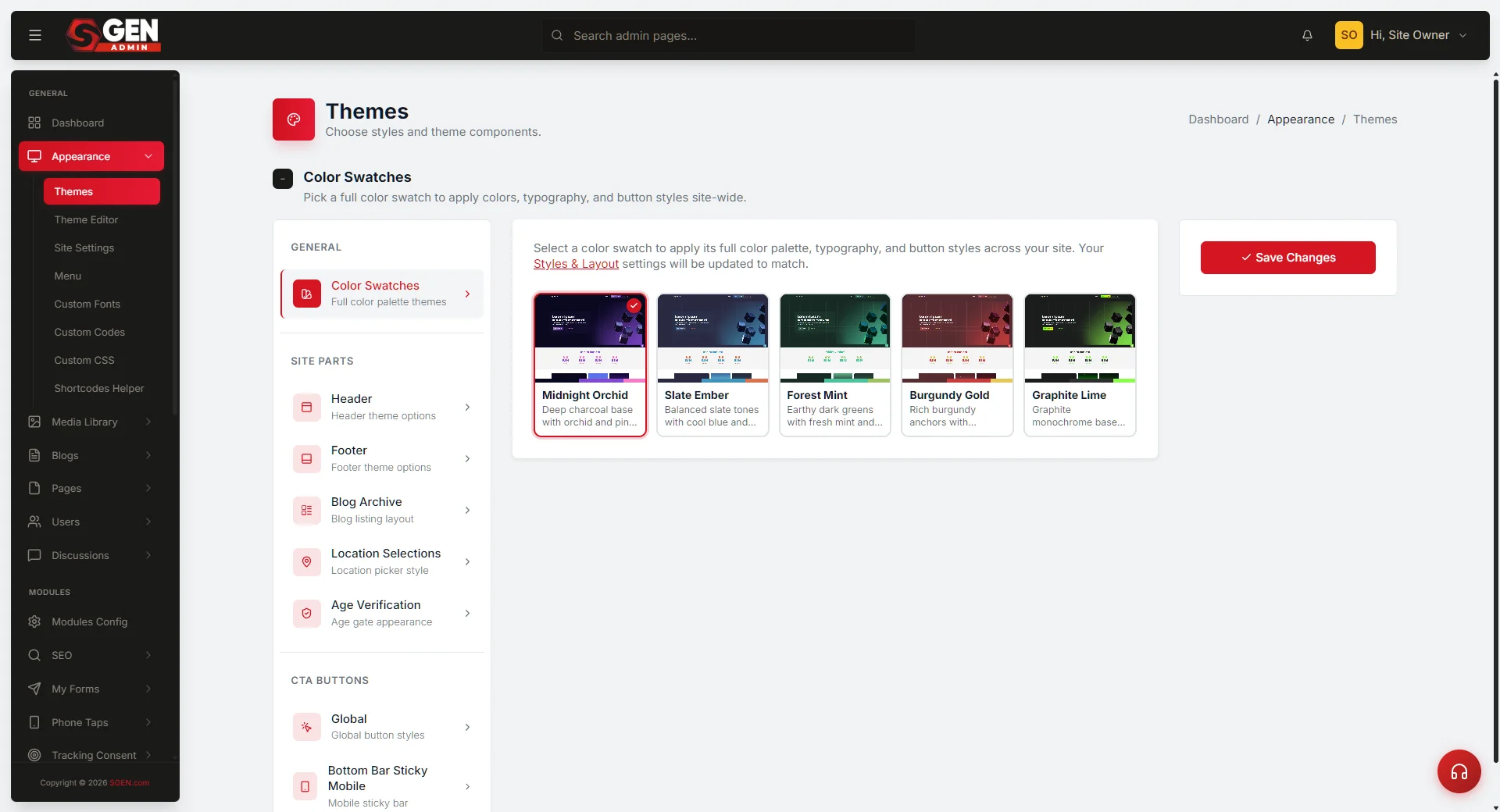
Go to Appearance in the left sidebar of your SGEN dashboard, then click Theme Editor. The editor opens with sections for typography, colors, buttons, and spacing. Before making any changes, click Preview to see your site with the current settings — this is your baseline. Open each section to understand the full scope of what is configurable before touching any values.
2
Set the color palette
Open the Colors section. For each color field, click the swatch or picker icon, then enter the hex code directly (for example, #5C3A1E for Your Store's brand primary) or use the color picker. Set primary, secondary, and accent to your brand values. After setting all colors, click Preview before saving. Color changes are global and immediate — the preview is worth using. SGEN uses the primary color for CTA buttons, active navigation states, and link colors.
3
Set typography
Open the Typography section. Set the heading font family (Your Store uses Playfair Display from Google Fonts for a serif heading). Set the body font family (Inter is a clean default for body text). Set the body font size base and line height. These settings update every heading and every paragraph on every page without touching individual pages. Preview before saving.
4
Adjust button styles
Open the Buttons section. Set the primary button border radius, padding, font weight, and text transform. Your Store uses 4px border radius (slightly rounded), 12px/24px padding, weight 600, and no text-transform. After setting button styles, use the preview to confirm they look correct on a page that has a CTA button visible. Background color inherits from the primary color set in step 2.
5
Set spacing and container width
Open the Spacing section. Set container max-width (1200px is a common setting — content does not stretch beyond this on wide monitors), default section padding top and bottom (the baseline that SG-Builder sections can override per section), and column gap (the default gap between columns in multi-column layouts). Preview after each change.
6
Save Theme Editor settings and verify
After setting typography, colors, buttons, and spacing, click Save. The changes apply globally and immediately. Open the live site in a private browser window and check: headings render in the correct font, body text is at the correct base size, buttons show the correct background color with the border radius you set, links show the correct color, and section spacing looks consistent. If anything looks wrong, return to the Theme Editor, adjust, and preview before saving again.
7
Write Custom CSS for styles the Theme Editor does not expose
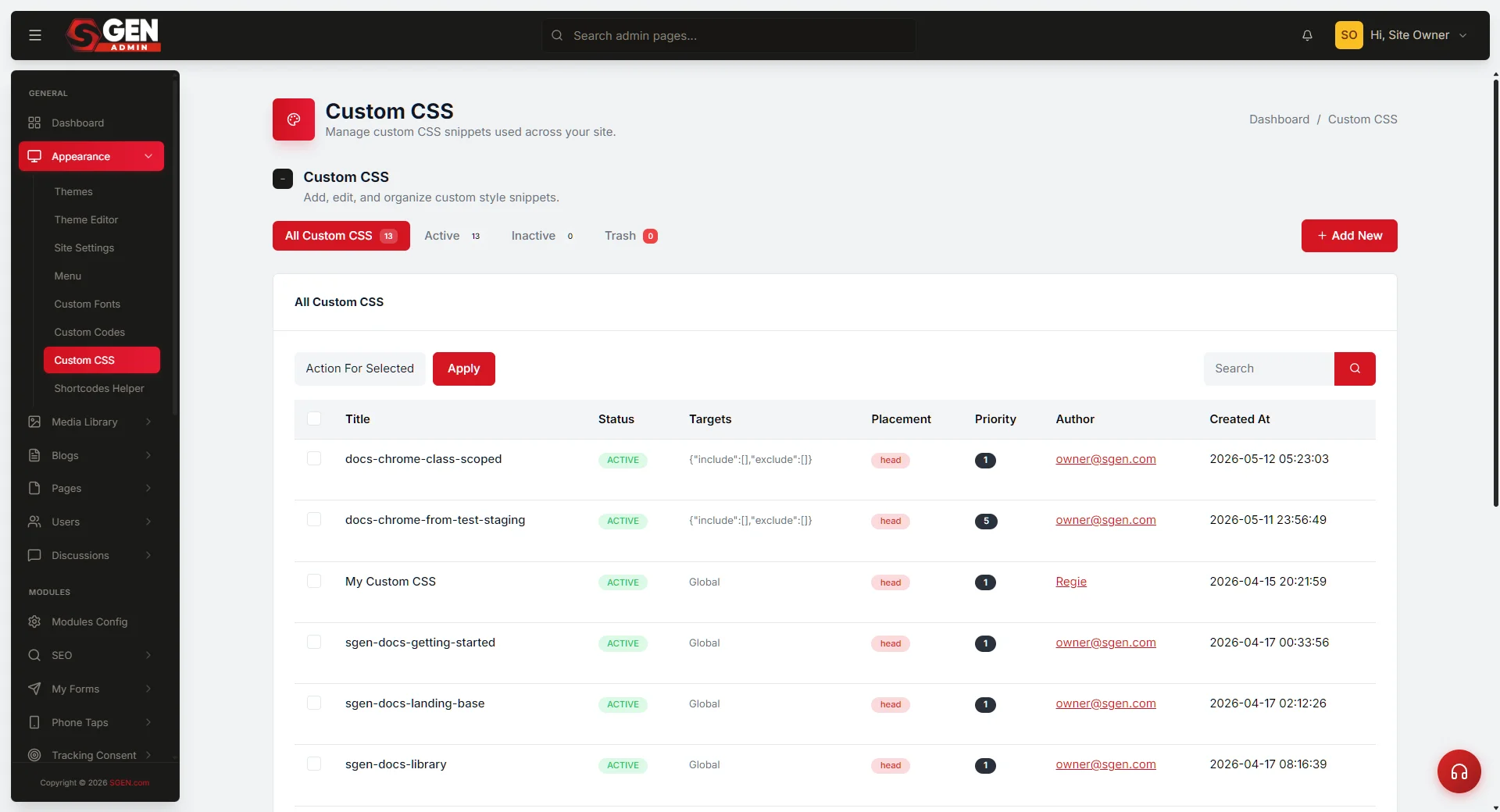
After the Theme Editor settings are saved, identify any remaining style gaps. Go to Custom CSS in the left sidebar. Write a targeted rule for each remaining gap. Use comments to document what each rule is for. Scope every rule correctly — global rules apply everywhere, page-specific rules use body.page_id-N.
/* Blockquote — brand-aligned left border and italic styling */
blockquote { border-left: 3px solid #5C3A1E; font-style: italic; color: #5C3A1E; padding-left: 1.25rem;
}
/* Seasonal campaign page (page_id-42) — hero section background override */
body.page_id-42 .hero-section { background-color: #2C1A0E;
}
Example syntax — confirm exact selector names against the live editor before publishing.
What success looks like
When theme customization is complete and working correctly, these things are true.
Typography matches brand
The site's heading font matches your brand typography on every page. Body text is at the correct base size and line height.
Colors are correct everywhere
The primary, secondary, and accent colors are correct across all pages. Buttons show the correct color and hover state on every page.
Spacing is consistent
Section spacing is consistent and appropriate for the content density. Container max-width is correct at wide viewports.
Custom CSS is clean and scoped
Custom CSS overrides are applying to the correct elements without affecting other pages. Every rule has a comment explaining its purpose.
What to do if it does not work
Common issues after making Theme Editor or Custom CSS changes, and how to fix them.
Fonts
Heading font is not changing
Open the live site in a private browser window and hard-refresh (Shift + reload). If the font is still the old one, open the browser inspector on a heading element and check which font-family rule is applying. A Custom CSS rule may be overriding the theme font — remove or update it.
Colors
Primary color not applying to buttons
Open the browser inspector on a button. Check whether a Custom CSS rule or inline style is overriding the theme's color variable. If a previous override is taking precedence, update it to use the new color or remove it and let the theme control the button color.
Scoping
Custom CSS applying to wrong pages
Confirm you are using body.page_id-N for page-specific scoping. Without the page ID prefix, a rule applies globally. Verify the page ID in the dashboard URL when editing the page.
Updates
Styles reverted after a theme update
SGEN theme updates can reset Theme Editor settings on affected controls. After any theme update, open the Theme Editor and verify your typography, color, and button settings. Re-apply any that were reset. Custom CSS is not affected by theme updates.
Heads up — The Theme Editor preview is an approximation. Custom CSS rules and third-party scripts that run on the live site do not always render in the editor preview. A private browser window is the authoritative view — use it as the final check after every save.