
Help Widget: add SG-Helper to your site
The Help Widget (SG-Helper) is a lightweight chat bubble that sits in the bottom-right corner of your site. Visitors click it, type a question, and get a reply sourced from your knowledge base — no page navigation required. This guide covers pasting the embed snippet in Custom Codes, setting the one required attribute, and confirming the widget is live.
One script tag
The entire widget is a single <script> element. Paste it into a Custom Codes footer block and set data-api-url — that is the complete installation.
Shadow DOM — no style conflict
The widget mounts inside its own Shadow DOM. Your theme CSS cannot affect it and its CSS cannot affect your theme. No widget-specific CSS work is needed on the SGEN side.
Pause without editing code
To stop the widget temporarily, toggle the Custom Codes block Inactive. Toggle it back to Active when you are ready. The snippet stays intact — no copy-paste required.
What is the Help Widget
The Help Widget gives every page on your site a self-service help layer. When a visitor hits a question — "how do I reset my password?", "where is my order?" — they click the launcher bubble instead of leaving or filing a support ticket. The widget searches your knowledge base and streams a direct answer, with optional links to full documentation pages for deeper reading.
Architecture
Thin client, your server
No language model key lives in the page bundle. The widget is a thin client that forwards questions to your own knowledge-base server at data-api-url and displays the reply. The widget loads from the SGEN CDN as a single self-contained file (~1.4 MB, smaller when gzipped).
Delivery
Script embed or browser extension
The widget is also available as a browser extension for users who want help surfaced in their browser toolbar. Both delivery modes — embedded script and browser extension — share the same knowledge-base backend.
Widget attributes
All widget settings are data- attributes on the script tag. There is no separate settings screen in the SGEN admin panel.
Required
data-api-url
Base URL of your knowledge-base server. No trailing slash — the widget appends its own API paths. Missing this attribute causes the widget to load and show the launcher bubble, but clicking it produces no content. The browser console logs "Missing required data-api-url".
Optional
data-proxy-url
Alias for data-api-url. Used only when data-api-url is absent. Prefer data-api-url.
Optional
data-docs-base
Base URL for converting relative doc paths in replies to clickable full URLs. Defaults to https://documentation.sgen.com. Set to your own docs site if you host docs separately.
Optional
data-sgen-base
Base URL of your SGEN site. Used for internal links in replies. Set to your site's root URL.
<!-- Minimum required --><script src="https://cdn.sgen.com/sgen-widget.js" data-api-url="https://YOUR-KB-SERVER.example.com" defer></script><!-- All optional attributes --><script src="https://cdn.sgen.com/sgen-widget.js" data-api-url="https://YOUR-KB-SERVER.example.com" data-docs-base="https://docs.yoursite.com" data-sgen-base="https://yoursite.com" defer></script>Replace https://YOUR-KB-SERVER.example.com with the actual base URL of your knowledge-base server before saving.
Good use cases
The Help Widget works best when visitors have questions and your knowledge base has answers. Here are the situations where it delivers the most value.
Self-service support
Your site sells a product or service with common how-to questions. Instead of a static FAQ page, the Help Widget answers in context on whatever page the visitor is currently viewing — without navigating away.
Reducing first-contact support volume
Your support team fields the same questions every week. Add those answers to your knowledge base as published articles, embed the widget, and let it answer them before a ticket is filed.
Documentation portals
Your SGEN site is your documentation. The widget lets visitors ask free-form questions across all articles rather than scanning a table of contents.
Onboarding flows
A visitor arrives at your onboarding page and immediately has questions. The widget is available before they have to go looking for a contact form.
Internal knowledge bases
You run a staff portal on SGEN. The widget gives your team instant access to internal docs without leaving the page they are working on.
Before you start
Confirm the following before pasting the embed snippet.
Server
KB server is running and reachable
Your knowledge-base server must be running and reachable from the public internet. The widget calls your server on every visitor interaction — if the server is unreachable, the widget loads the launcher but cannot serve suggestions or replies.
URL
You have the base URL ready
This is the value for data-api-url. It is the base origin only — no trailing slash, no path. Example: https://kb.yoursite.com
Access
Role allows Custom Codes
Your role in SGEN allows saving and publishing Custom Codes. If you cannot see the Custom Codes menu item, ask your site admin to confirm your permissions.
Site
Site is published
Your SGEN site is published and accessible via its public URL. Step 5 (verification) requires loading a live page — an unpublished site cannot be verified.
Steps
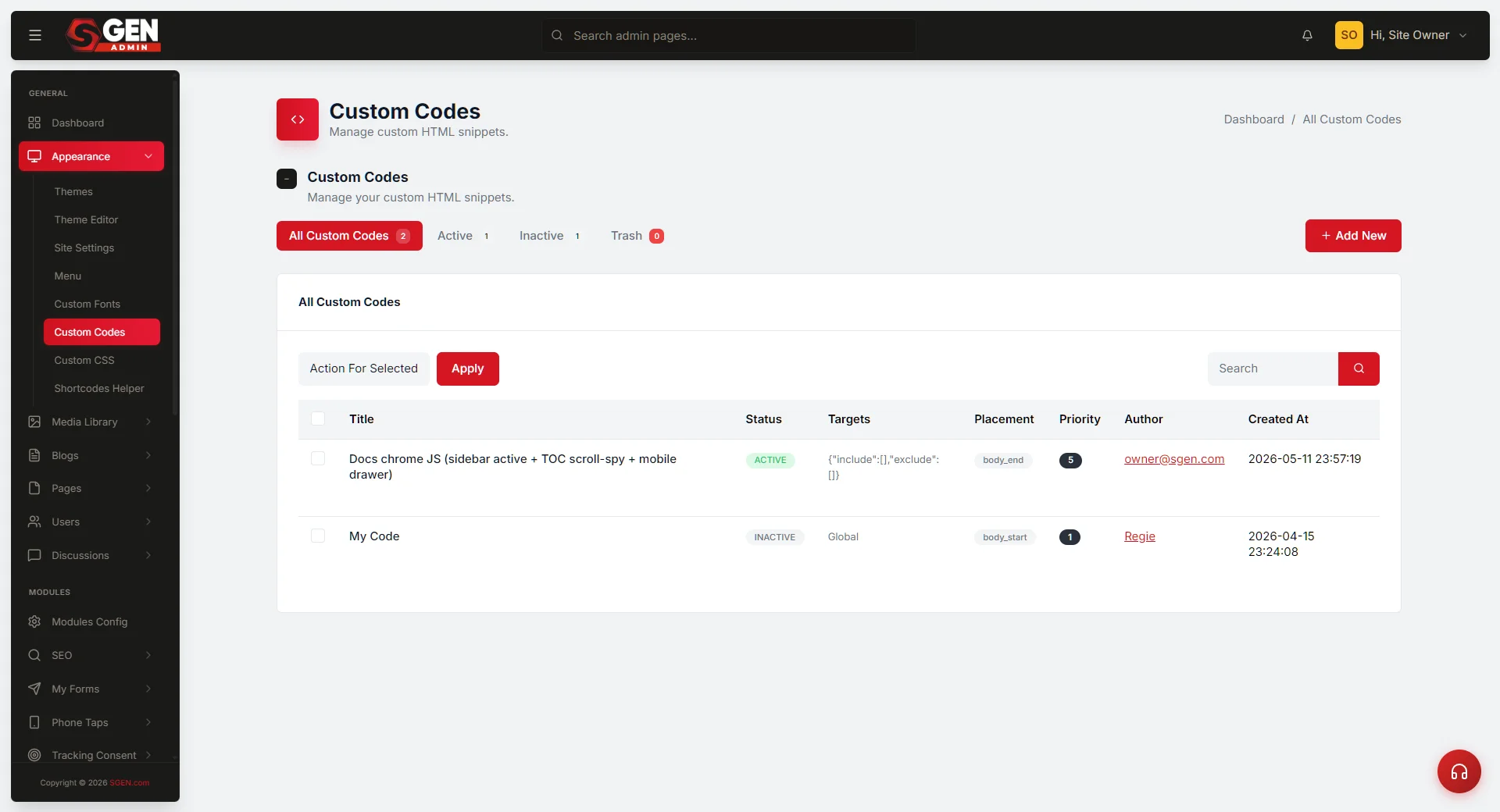
Navigate to Custom Codes at /sg-admin/custom_codes to begin. All widget configuration happens in the attributes of the script tag you paste there — the Help Widget has no dedicated settings screen in the SGEN admin panel.
1
Open Custom Codes and create a new code block
Go to /sg-admin/custom_codes in your SGEN admin panel. Click Add New to open the code editor.
Give the block a clear name — for example, SG-Helper Help Widget. A recognisable name makes the block easy to find and disable later without opening the snippet.
Set Placement to Footer (before the closing body tag). The widget script must load from the footer. If placed in the <head>, the script runs before <body> exists and the widget silently fails to mount.
Set Status to Active.
2
Paste the embed snippet and set data-api-url
Paste the following into the code field. Replace https://YOUR-KB-SERVER.example.com with the actual base URL of your knowledge-base server.
<script src="https://cdn.sgen.com/sgen-widget.js" data-api-url="https://YOUR-KB-SERVER.example.com" defer></script>data-api-url is the only required attribute. It tells the widget where to send questions and where to fetch starter suggestions from.
Do not add a trailing slash to the URL. The widget appends its own path segments — a trailing slash will double the slash.
3
Add optional attributes if needed
If your replies contain relative doc links that should open as full URLs, add data-docs-base. If your replies contain internal links to pages on your site, add data-sgen-base. Both are optional — the widget works without them.
<script src="https://cdn.sgen.com/sgen-widget.js" data-api-url="https://YOUR-KB-SERVER.example.com" data-docs-base="https://docs.yoursite.com" data-sgen-base="https://yoursite.com" defer></script>4
Save and publish the code block
Click Save. The code block is saved.
Click Publish (or confirm the block is Active and publish the page the code block is attached to). The widget will not appear on your live site until the block is active and published.
5
Verify the widget is live
Open any published page on your site in a browser. A round launcher bubble should appear in the bottom-right corner of the page.
Click the launcher bubble. The chat window opens and starter suggestions load from your knowledge-base server. Loaded starter suggestions confirm that the widget is reaching data-api-url successfully.
Type a test question and send it. A reply should stream back within a few seconds. A streaming reply confirms the full path: browser → widget → your knowledge-base server → widget → browser.
What success looks like
After completing the steps above, all of the following are true.
Launcher bubble is visible
A launcher bubble appears in the bottom-right corner of every published page on your site.
Suggestions load on open
Clicking the bubble opens the chat window and starter suggestions load from your knowledge base.
Questions get replies
Typing a question and sending it returns a streamed reply sourced from your knowledge base.
Widget updates itself
The CDN file is served with a no-cache policy — browsers revalidate via ETag on every page load. When the SGEN team ships a widget update, your embed snippet picks it up on the next page load without any action on your part.
What to do if it does not work
Work through these checks in order — most issues resolve at the first or second step.
The launcher bubble does not appear
The code block was not saved, was not published, or placement was set to Head instead of Footer. Open Custom Codes, find the block, confirm it is Active, confirm placement is Footer, and publish the page.
The bubble appears but starter suggestions do not load
data-api-url is missing, empty, set to an incorrect value, or your knowledge-base server is not reachable from the public internet. Open the code block, confirm the attribute is present with the correct URL and no trailing slash. Confirm your server is running and accessible.
The widget opens but questions get no reply
Your knowledge base may have no published articles, or your server is rejecting requests. Confirm articles are published (not in draft) in your KB dashboard. Confirm your server is sending cross-origin response headers for your site's domain.
The browser console shows "Missing required data-api-url"
The attribute is absent from the script tag. Open the code block and add data-api-url="https://YOUR-KB-SERVER.example.com" directly on the <script> element.
The widget appeared once but stopped showing
Check whether the code block is still Active in Custom Codes. If someone toggled it Inactive, the launcher bubble disappears immediately. If the block is Active, confirm your knowledge-base server is responding — a server outage affects replies but does not remove the launcher bubble, so a missing bubble almost always means a code block issue.
Examples
Three common scenarios showing how to configure and manage the widget in practice.
Scenario
Product site replacing a static FAQ
Your site sells software. Your support team answers the same ten installation and licensing questions every week. Load those answers into your knowledge base as published articles and embed the widget in the footer of every page. Visitors on your pricing page ask "does this work on Linux?" and get a direct answer from your docs before they leave.
<script src="https://cdn.sgen.com/sgen-widget.js" data-api-url="https://kb.yourproduct.com" data-docs-base="https://docs.yourproduct.com" defer></script>Scenario
Documentation portal with free-form search
Your SGEN site is a developer documentation portal with 80 published articles across five topic areas. Navigation works for readers who already know what they want. The Help Widget handles readers who do not. A reader on your "Authentication" article asks "how do I rotate my API key?" — the widget searches across all 80 articles and streams the answer with a link to the full article.
<script src="https://cdn.sgen.com/sgen-widget.js" data-api-url="https://api.yourdocs.com" data-docs-base="https://yourdocs.com" data-sgen-base="https://yourdocs.com" defer></script>Pausing the widget during a knowledge-base refresh
Your knowledge base needs a content update before a product launch. You do not want visitors receiving outdated answers during the window when articles are being revised. Open Custom Codes, find the SG-Helper Help Widget block, and toggle its Status to Inactive. The launcher bubble disappears from your site on the next page load. The snippet is preserved exactly as configured. When the content refresh is complete, toggle the block back to Active and publish. No script changes, no configuration rework, no copy-paste required.
Heads up The widget does not contain a language model. If
data-api-url points at a server with no published articles, the widget loads the launcher but has nothing to answer from. Build your knowledge base first — add the widget after your articles are published.