
How to add a new custom code to your site
⏱ ~2 min read · steps are under a minute once you have your snippet copied.
In short. Custom Codes let you paste a vendor-supplied snippet — Google Analytics, Meta Pixel, a chat widget, a font link — into one place and have it run on every public page of your site. Open Custom Codes → + Add New, fill in four fields (Title, Code snippet, Placement, Priority), set Status to Active or Inactive, and click Create a Code. Done. The snippet is now injected into every public page at the placement you chose.
On this page: What this is for · Scope · Field reference · Steps · What NOT to use this for · Troubleshooting
How to add a new custom code to your site
Custom Codes are short snippets of HTML or JavaScript that you paste into your site once and have run on every public page. They're how you wire up Google Analytics, Meta Pixel, Hotjar, a chat widget, a Google Tag Manager container, or any third-party script your vendor tells you to "paste into the head of your site."
The most important thing to know before you start: a custom code is global. Once Active, it runs on every public page — not just the one you were on when you saved it. For a single-page script, use that page's own Custom Header Code field instead.
What is this for?
| Category | Common tools |
|---|---|
| Analytics & tracking | Google Analytics 4, Plausible, Fathom, Mixpanel, Adobe Analytics |
| Marketing pixels | Meta Pixel, Pinterest Tag, LinkedIn Insight Tag, TikTok Pixel |
| Session recording | Hotjar, Microsoft Clarity, Mouseflow, LogRocket |
| Tag managers | Google Tag Manager, Tealium |
| Chat widgets | Intercom, Drift, Tawk.to, Crisp, LiveChat |
| Sitewide CSS | Hide elements, override colors, add banners |
| Web fonts & resources | Google Fonts links, third-party CSS libraries |
Scope
What this covers:
- Filling the Add New form: Title, Code snippet, Placement, Priority, Status.
- Choosing Active (immediately live on every public page) or Inactive (saved but not running).
- Setting priority within a placement slot.
- Placement validation: Head rejects block-level HTML elements.
What this does not cover:
- Editing an existing snippet — use the Edit row-action on the listing.
- Duplicating — open the existing snippet in Edit, copy the code, add new.
- Per-page targeting — all Active snippets run on every public page, no URL conditions.
- Bulk adding — each snippet is added one at a time.
Reference
| Field | Required | Default | Notes |
|---|---|---|---|
| Title | Yes | — | Min 2 chars. Internal only — visitors don't see it. |
| Code snippet | Yes | — | Head placement rejects block elements (<div>, <p>, <iframe>). |
| Placement | Yes | Head | Head / Body Start / Body End. |
| Priority | No | 1 | Load order within placement. 1 = highest (loads first). |
| Status | Yes | Inactive | Active = live on all pages immediately. Inactive = saved only. |
Before you start
Have ready before you click Add New:
- The snippet on your clipboard, exactly as the vendor sent it — don't clean it up or re-indent it. Most "analytics not working" tickets trace back to a hand-retyped snippet with one missing quote.
- Which placement to use. Most analytics and pixel scripts → Head. Chat widgets → Body end (so they don't block page render). Announcement banners → Body start. Vendor docs usually specify; if not, Head is the safe default.
- A recognizable title. Visitors never see it, but "Hotjar — main site" saves you ten minutes later when you have eight tracking snippets and can't remember which is which.
- A way to verify after saving. Analytics vendors have browser extensions (Google Tag Assistant, Meta Pixel Helper). Chat widgets: visit your site in a private window and check the bubble appears.
If you're not sure the snippet is safe, save it as Inactive — it costs nothing and stays invisible to visitors until you activate it.
Where to go
Open the dashboard sidebar → Custom Codes → + Add New at the top right. Direct path: /sg-admin/custom_codes/add_new.
Steps — Add your first custom code
1. Open the Add New form
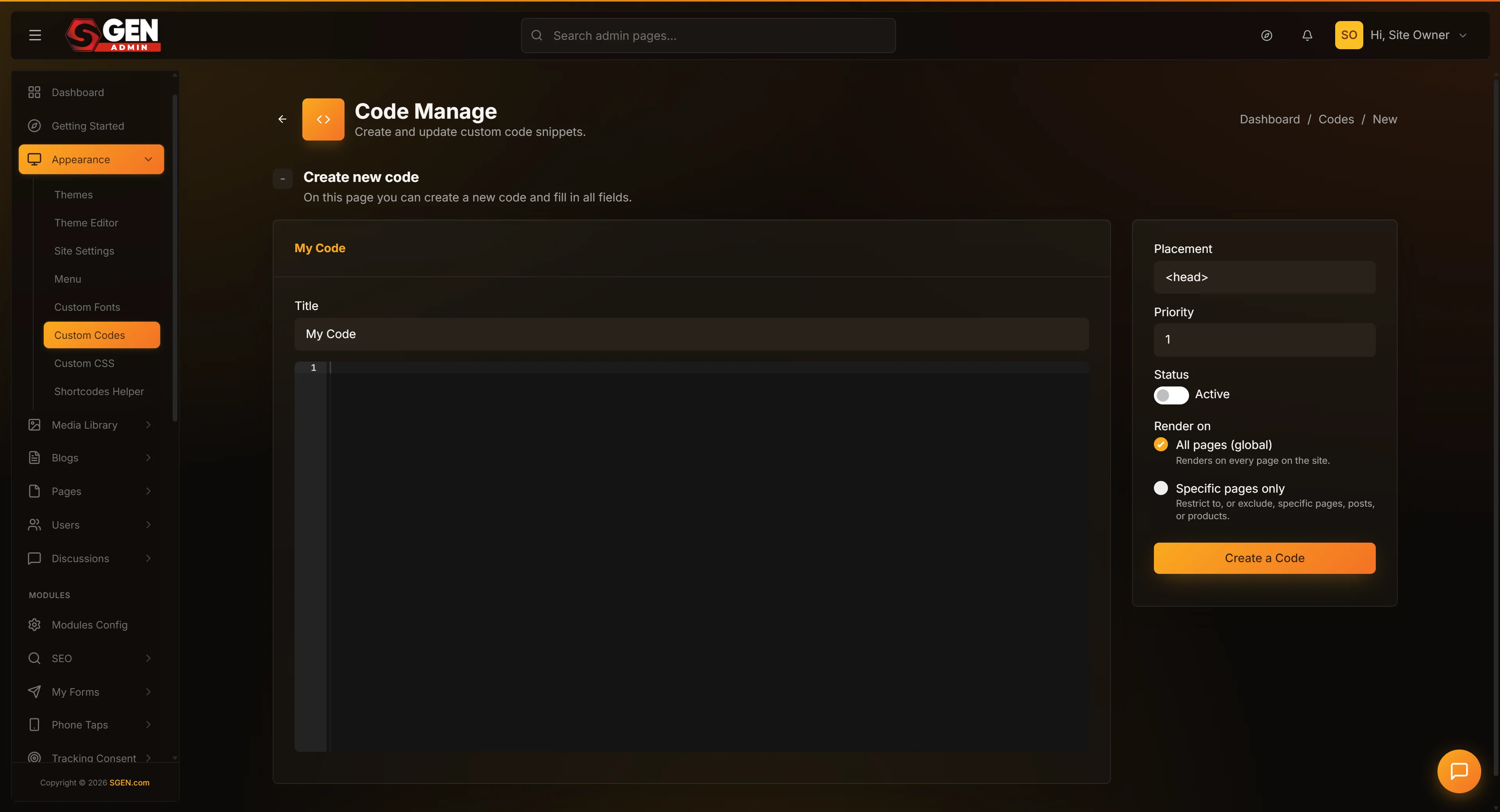
From the Custom Codes list, click + Add New at the top right. The form opens with these fields: Title, Code snippet (code editor with syntax highlighting), Placement (dropdown, defaults to Head), Priority (number, defaults to 1), and Status (Active/Inactive toggle, defaults to Inactive). Nothing is saved until you click Create a Code.
2. Replace the title with something recognizable
Change "My Code" to a label that describes both the vendor and the purpose — "Google Analytics 4 — main property" or "Hotjar — checkout recording." Avoid "Tracking" or "Code 1"; six months later when you have eight snippets, you'll want specifics.
3. Paste the snippet into the Code editor
Click inside the Code snippet editor and paste (Ctrl+V / Cmd+V). Paste as-is — don't strip whitespace or re-indent. The syntax highlighting is cosmetic only and doesn't affect what's saved.
4. Choose the right placement
- Head — loads inside
<head>, before any visible content. Right for analytics, tracking pixels, custom fonts, and most third-party scripts. The default; correct 80% of the time. - Body start — loads just after
<body>opens. Use for GTM's<noscript>fallback or sitewide announcement banners. - Body end — loads just before
</body>. Best for chat widgets and late-loading scripts that shouldn't block render. Intercom and Drift both recommend this.
Head placement validator: Head rejects block elements (<div>, <p>, <iframe>). If you see a validation error after saving, switch to Body start or Body end.
5. Set priority and click Create a Code
Priority (1–999): lower = loads earlier within the same placement. For most snippets, leave it at 1. Only change it when one tracker must load before another (rare).
Status: flip Active if you're ready to go live immediately. Leave Inactive to save and review before turning it on — a safe default for first-time adds.
Click the blue Create a Code button. The page reloads onto the edit view of the same snippet (URL gains /edit/<id>) — that's the confirmation the save succeeded.
What success looks like
The page header changes from "Create a new code" to "Update a code." Your snippet appears in the Custom Codes list with the title, placement, priority, and status you set.
If you set it Active, open your site in a private browser window and view source — search for a unique string from your snippet (your GA4 ID, your Pixel ID) to confirm it's injected at the right placement.
Vendor verification tools are faster than reading raw HTML:
- Google Analytics 4 — Google Tag Assistant extension
- Meta Pixel — Meta Pixel Helper extension
- Hotjar — Hotjar's "verify install" page
- Chat widgets — visit the site in a private window; check the bubble appears
What NOT to use this for
- One specific page only. Custom Codes is global — every Active snippet runs on every public page. For a single-page script, edit that page directly (Pages → Custom Header Code field).
- Form-submission handlers. SGEN's built-in Forms feature handles submissions, validation, and notifications. A third-party form script here conflicts with the built-in handler.
- Theme styling. Colors, fonts, spacing, and general look-and-feel belong in Theme Editor or Custom CSS — not Custom Codes.
- E-commerce checkout scripts (unless the vendor explicitly says to paste here). Stripe, PayPal, and similar integrations have their own integration points; pasting their scripts here can break checkout.
- Heavy per-page scripts. Custom Codes runs on every page load. A large script here slows the entire site. Put page-specific scripts on that page only.
- Secrets or passwords. Everything in Custom Codes appears in your site's public HTML. Analytics IDs are fine (they're public anyway), but database passwords, secret tokens, and admin credentials must never go here.
How this connects to other features
- Custom CSS — for sitewide styling (colors, spacing, fonts), prefer Custom CSS in the Appearance area. There's overlap — both can hold style — but Custom CSS gives a cleaner editing experience for pure stylesheets.
- Pages → individual page custom code — every page has its own optional Custom Header Code field. Use that for single-page scripts. Custom Codes is for sitewide scripts.
- Google Integration settings — for GA4 specifically, there's a dedicated Google Integration panel that lets you paste just your GA4 ID without writing the full snippet. Both work; Google Integration is faster for plain analytics; Custom Codes is more flexible for customized snippets.
- Forms → integrations — to send form submissions to Mailchimp or Zapier, use Forms → Integrations, not Custom Codes.
- Appearance → Header / Footer — header and footer chrome templates have their own custom code areas for layout-specific snippets.
What to do if it does not work
Work through these in order — earlier checks catch the most common problems.
- Check the status. Confirm the snippet is Active in the Custom Codes list. Inactive snippets don't run on the public site.
- Check the placement. If you're searching for the snippet in the wrong section of your page source, you won't find it. View source and search for a unique string from your snippet.
- Check for caching. SGEN caches public pages. Hard-reload (Ctrl+Shift+R / Cmd+Shift+R) or wait a minute. If you have a CDN, purge its cache too.
- Check the Head validator. Head placement only allows tags legal in HTML
<head>—<script>,<style>,<meta>,<link>. A snippet with<div>or<p>will be rejected; switch placement to Body start or Body end. - Verify your vendor ID. Most "snippet is on the page but tracking isn't working" issues are a wrong ID. Open the saved snippet and compare the ID character-by-character against your vendor's admin panel.
- Test in a private window. Some snippets behave differently for logged-in admins (e.g., your own visits may be excluded from analytics). Always test as a real visitor.
- Title too short. If saving fails with "Title must be at least 2 characters," expand the title. Single-character titles are rejected.
If none of these resolves it, contact support with the snippet title and the page URL you tested on.
Next steps
- Manage your list — sort, filter, deactivate, and trash old snippets: see the Manage Custom Codes guide.
- Edit an existing snippet — change a measurement ID or swap an old script: Edit an existing custom code.
- Remove a snippet permanently — Delete a custom code.
- Sitewide stylesheets without JavaScript — Custom CSS in Appearance is a more focused alternative.