
How to restore a template from Trash
⏱ 30-second answer below · full page ≈ 8 min · skim the bold lead-ins to move faster.
In short. Click Templates in your sidebar → Trash filter pill → find the row → click Restore. The template returns as a Draft (never Publish, even if it was Published before). To make it live again, open the Edit page and flip Status to Publish. That's it — nothing in Trash is gone forever unless you use Delete Permanently.
On this page: What it does · Reference tables · Steps — single · Steps — bulk · Troubleshooting
How to restore a template from the Trash tab
Restore is the recovery action for any template you've sent to Trash. It lives on each row of the Trash tab — the rightmost filter pill on the Templates list. One click brings the trashed template back as a Draft, ready to edit, publish, or re-place on your pages.
What is this for?
Restore flips a template's status from Trash to Draft. The template moves out of the Trash bucket and back into your Drafts list. It never left the database — it was just held in a different bucket.
You'll know it worked when the row disappears from the Trash tab immediately. The Trash count drops by one; the Drafts count rises by one; the All Templates count stays the same.
A restored template doesn't render on your public site until you publish it. Pages that reference the template's shortcode show empty space until you open the Edit page and switch Status to Publish. This is by design — it gives you a chance to review before going live.
Restore runs immediately with no confirmation prompt and is reversible: if you restored by mistake, trash it again from the Templates list.
What it covers
This page covers the Restore action for trashed templates: navigating to the Trash tab, restoring a single template via the row action, what status the template returns to (Draft), verifying the restore succeeded, and bulk-restoring multiple templates at once.
Reference
| Property | Before restore | After restore |
|---|---|---|
| Status | Trash | Draft |
| Visible on public site | No | No (Draft — must be Published separately) |
| Shortcode | Exists but renders empty | Exists and renders empty (until Published) |
| Tab location | Trash tab | Draft tab and All Templates tab |
| Row actions | Restore / Delete Permanently | Edit / Duplicate / Trash / Export |
| Restore method | When to use |
|---|---|
| Row action → Restore | Single template |
| Bulk → select rows → Move to Publish | Multiple templates — restores and publishes in one step |
| Bulk → select rows → Move to Draft | Multiple templates — restores to Draft |
Examples
Example 1: Recover a campaign template trashed by mistake. You trashed the "February Flash Sale" template while cleaning up but realize it's still embedded on two product pages. Click the Trash tab, find the template, click Restore. It returns to Draft. Open the Edit page, set Status to Publish, save — the shortcode starts rendering on the product pages again.
Example 2: Bulk-restore three promo templates after a campaign restart. Three promo templates were trashed at campaign end. The campaign relaunches. Go to the Trash tab, check all three rows, select Move to Publish in the bulk dropdown, click Apply. All three return to Published status — shortcodes render again sitewide.
Example 3: Verify a restored template before re-publishing. Restore "Old Campaign Template" to Draft. Open the Edit page, review and update the copy, then flip Status to Publish. The staged review in Draft prevents stale content from going live on restore.
Good use cases
Restore is the right action whenever you sent a template to Trash and later want it back.
- Reviving a seasonal campaign template. Trashed the Earth Day promo after April? Restore it next spring — same shortcode, same pages, just update the copy for the new year.
- Recovering from a wrong-row Trash click. Accidentally trashed the Wholesale CTA? Open Trash, click Restore, then open the Edit page and flip Status to Publish. Total recovery: about 90 seconds.
- Pulling a deprecated template back for reference. Restore it (it goes to Draft, not Publish — nothing renders publicly), copy the content you need, then trash it again to keep your Drafts tab clean.
- Restoring templates after rolling back a redesign. Trashed old-design templates during a redesign that gets reverted? Bulk-restore from the Trash tab, then publish each one. The original design comes back on any page with those shortcodes.
- Reviving a Draft experiment. An old hero experiment from last quarter is newly relevant? Restore it and use it as-is, refine it, or duplicate it as a starting point.
What NOT to use this for
- Don't expect Restore to bring a template back as Publish. Restore always sets status to Draft. If the template was Published before trashing, you'll need to open its Edit page and switch Status back to Publish manually.
- Don't use Restore to undo a permanent deletion. Templates bulk-Delete-Permanently'd from the Trash tab are gone. Restore only works on templates still in the Trash bucket.
- Don't expect Restore to undo edits made before trashing. Restore brings back the version that was in Trash — the post-edit version, not any earlier revision.
- Don't use per-row Restore for large batches. For five or more templates, use the bulk-action toolbar: select rows with the checkboxes, pick Move to Draft, and apply.
- Don't Restore a template if the shortcodes have been removed from its pages. Restore + Publish makes the template renderable, but if the shortcode was deleted from the page while the template was trashed, you'd need to re-paste the shortcode too.
- Don't Restore just to peek. If you only need to see what's in a trashed template, Restore it (goes to Draft — nothing renders publicly), open the Edit page to look, then trash it again. But be intentional — casual Restore-and-leave adds clutter to your Drafts tab.
How this connects to other features
- Trash action — The counterpart to Restore. Together they form a reversible soft-delete cycle, non-destructive until you bulk-Delete-Permanently from the Trash tab.
- Bulk-action toolbar on the Trash tab — Lets you Restore many templates at once via Move to Draft.
- Status select on the Edit page — After Restore, open the Edit page and switch Draft to Publish to make the template live again. The Update a Template button commits the change.
- Templates list filter pills — Each Restore moves a template from the Trash count to the Draft count; All Templates stays the same.
- Pages and posts that reference the template — Pages keep showing empty space until you publish the restored template. Once Published, every page with the shortcode renders on its next visit.
- Delete Permanently — The opposite of Restore. Once run, the template is gone for good. Use it for true cleanup only after you're certain you won't need to restore.
Before you start
Before clicking Restore, run through this checklist to avoid the most common follow-up mistakes.
- Confirm what the template is for. Check the Trashed date in the row — a template labeled "April Promo Strip" could be from this year or three years ago. If the title isn't clear, click Edit on the row to preview the content before deciding.
- Decide whether you'll publish after Restore. If yes, plan to open the Edit page immediately after and flip Status to Publish. If you only want it back for review, Draft is the right destination and no further action is needed.
- Check whether the pages still have the shortcode. If you removed the shortcode from pages while the template was in Trash, Restore alone won't bring back the visual — you'd need to re-paste the shortcode too.
- Check whether the content is still current. A year-old template may reference outdated dates, prices, or copy. Plan to edit before publishing.
- For five or more templates, use the bulk-action workflow — select rows, pick Move to Draft, apply. Per-row Restore is fine for one or two.
Where to go
Click Templates in your dashboard sidebar. At the top of the list, click the Trash filter pill (rightmost of the four pills). The list now shows only trashed templates; each row has Restore and Delete Permanently as the two row actions.
If you don't see the Trash filter pill, your Trash bucket is empty — the pill only appears when at least one template has Trash status.
Direct URL: the Trash tab lives at /sg-admin/templates?status=trash.
Steps — Restoring a single template
1. Open the Trash tab
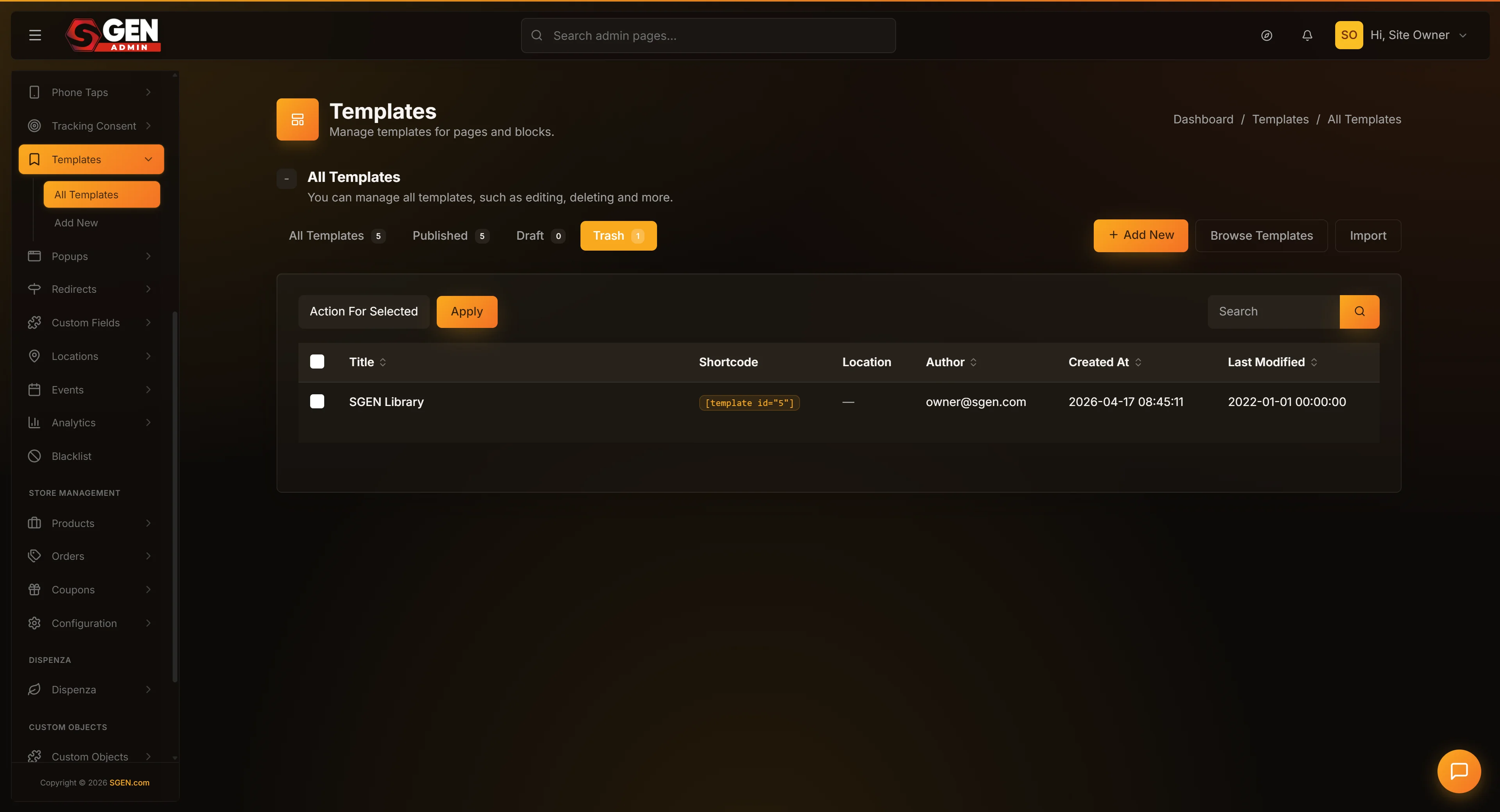
Click Templates in your dashboard sidebar. Click the Trash filter pill at the top of the Templates list. The list now shows only trashed templates. If the pill isn't visible, the Trash bucket is empty — nothing to restore.
2. Find the template you want to restore
Scroll to find the row. Use the search field for a substring match against the template title if the list is long. If you're not 100% sure it's the right template, click Edit on the row first to review the content, then use your browser's Back button to return.
3. Click Restore
Click the Restore link on the row. The action runs immediately — the row disappears from the Trash tab. The Trash filter pill count drops by one; the Draft pill count rises by one. Switch to the Drafts filter pill to confirm the template is back near the top of the list.
4. Decide if you want to publish the restored template
If the template was Published before trashing and you want it to render on pages again, open its Edit page. Find the Status select on the right rail (currently set to Draft), switch it to Publish, and click Update a Template. The template now renders on every page that references its shortcode. Verify in a private browser window.
If the template was a Draft before trashing, no further action is needed.
Steps — Restoring multiple templates at once
For five or more templates, the bulk-action workflow is faster.
1. Open the Trash tab
Templates in the sidebar → Trash filter pill at the top of the list.
2. Select the templates you want to restore
Click the checkbox on each row you want to restore. Use the master checkbox in the column header to select or deselect all visible rows. The page header shows the selection count.
3. Pick Move to Draft from the bulk-action select
Open the Bulk Actions select above the table and pick Move to Draft (the bulk-restore option). Click Apply. The page reloads; all selected rows have moved from Trash to Draft. The Trash pill count decreases; the Draft pill count rises by the same amount.
4. Open and publish each restored template that should be live
No bulk-publish action exists. Open each restored template from the Drafts tab in turn and flip Status to Publish on the Edit page. For most restoration scenarios the per-template step is a small price for the safety of forcing review before any template goes live.
What success looks like
A successful Restore on a single template produces these signals:
- The row disappears from the Trash tab immediately.
- The Trash filter pill count decreases by one.
- The Draft filter pill count increases by one.
- The All Templates filter pill count stays the same.
- Switching to Drafts shows the restored template near the top.
To verify end-to-end, open the restored template's Edit page — the title, content, and metadata are exactly as they were when you trashed it; only the status has changed (now Draft). If you also ran the Publish step, hard refresh a public page that uses the shortcode (Ctrl+F5 on Windows, Cmd+Shift+R on Mac) to bypass the browser cache and confirm the content is back.
What to do if it does not work
- Row stayed visible after clicking Restore. Refresh the Trash tab. If it's still there, a popup blocker may have intercepted the request — try the click again.
- Can't find the template in the Drafts tab after restoring. Check you're on the Drafts pill, not All Templates. The restored template appears near the top sorted by Modified date. If it's still missing, switch to All Templates and search for the title.
- Public pages still show empty space after Restore + Publish. Open the Edit page and confirm Status is set to Publish (not Draft). Then hard refresh the public page (Ctrl+F5 / Cmd+Shift+R) to clear the browser cache.
- Restore seems to take a long time. Restore is nearly instant. If it takes more than five seconds, wait 10 seconds and refresh — the action may have already completed.
- Trash filter pill not visible. Trash bucket is empty. The pill only appears when at least one template has Trash status.
- "Template not found or already restored" message. Another tab or admin may have already acted on this template. Refresh the Trash tab; switch to Drafts or All Templates to find it.
- Restored content looks wrong. Restore brings back the version that was current at the moment of trashing — not any earlier revision. There is no version history surfaced in the SGEN templates area.
- Restored too many templates by mistake. Switch to the Drafts tab, identify the ones you didn't mean to restore, and trash them again from the row actions. The cycle is reversible.
Tips
- Restore always returns Draft, never Publish. If you want a previously-published template to render on pages again, you have one more step: open the Edit page and flip Status to Publish.
- Use Restore as a "peek" for trashed templates. Restore → open Edit page to inspect → trash again if you don't want to keep it. Nothing renders publicly while the template is in Draft.
- Use bulk-restore for five or more templates. Per-row Restore is fine for one or two. For larger batches, use the bulk-action toolbar's Move to Draft option.
- Verify on a public page after Restore + Publish. Open a private browser window and refresh a page that should show the template. Empty space means the template is still Draft; the content appearing means it's live.
- Use the Trashed date as a freshness cue. Templates trashed recently are usually safe to Restore + Publish without changes. Templates trashed a year ago are more likely to need content review first.
Next steps
- How to edit an existing template — open the Edit page to refine content, change status, or rename the restored template.
- How to send a template to Trash — the per-row Trash action that puts templates into the Trash bucket Restore recovers from.
- How to navigate the Templates list — the bulk-action toolbar that runs Restore (as Move to Draft) for multiple templates at once.
- How to copy a template with the Duplicate action — clone a recovered template if you want a working copy without affecting the restored original.
Template state before vs after Restore
| Property | Before restore | After restore |
|---|---|---|
| Status | Trash | Draft |
| Visible on public site | No | No (Draft — must be Published separately) |
| Shortcode | Exists but renders empty | Exists and renders empty (until Published) |
| Tab location | Trash tab | Draft tab and All Templates tab |
| Row actions | Restore / Delete Permanently | Edit / Duplicate / Trash / Export |