
How to copy a template with the Duplicate action
⏱ 60-second answer below · full page ≈ 8 min · skim the bold lead-ins to move faster.
In short. The Duplicate action is a per-row button on the Templates list. Click it on any template row and SGEN forks the template into a fresh draft — same content, new ID, title appended with " (Draft)", and you're taken straight to the edit page. The original is untouched. Use it to experiment safely before touching a live template, to seed variations from a proven layout, or to take a snapshot before a risky rewrite. The duplicate is always a Draft until you publish it.
On this page: What Duplicate does · Reference table · Steps · Good use cases · What NOT to use it for · Troubleshooting · Next steps
What is this for?
Duplicate creates a fresh copy of an existing template. The new copy gets the same content, a title with a "(Draft)" suffix, status set to Draft, and you (the current admin) as its author. After clicking Duplicate, you're redirected to the edit page of the new copy, ready to start editing.
What Duplicate does not do: link the duplicate to the original. Once duplicated, the new template is fully independent — edits to the original don't propagate to the duplicate, and vice versa. There is no "forked from" relationship tracked anywhere in SGEN; the duplicate is simply a new template whose initial content matches the original at the moment of the click.
The action is available on every row of the Templates list, alongside Edit, Trash, and Export. It runs immediately — there is no confirmation dialog. You are redirected to the edit page of the new draft within one to two seconds.
What it covers
This page covers the Duplicate row action on the Templates list: how to find the action, what the duplicate contains on creation, how its title and shortcode differ from the original, and the typical workflows where duplication is the right starting point.
| Covered on this page | Not covered here |
|---|---|
| How to trigger the Duplicate action | How to edit the template after duplicating — see Edit an existing template |
| What the duplicate contains at creation | How to publish a Draft template — see the Status field on the edit page |
| How the new shortcode differs from the original | How to bulk-export templates — see Import / Export |
| Common workflows (fork, variation, snapshot, seeding) | Template versioning (SGEN has no built-in version history) |
Reference
| Property | Original template | Duplicate |
|---|---|---|
| Title | e.g. "Wholesale CTA" | "Wholesale CTA (Draft)" |
| Status | Whatever it was (Published/Draft) | Always starts as Draft |
| Shortcode | | New ID: Err: Template not found! |
| Content | Unchanged | Identical copy of original at time of duplication |
| Author | Original author | Current admin performing the duplicate |
| Created at | Original date | Timestamp of duplication click |
| Workflow | Why duplicate (not edit original) |
|---|---|
| A/B test a new footer design | Keeps live footer intact while staging variant as Draft |
| Seasonal variant of an existing block | Preserves the base template for non-seasonal use |
| Restructure a template before publishing | Experiment in Draft; swap when ready |
| Backup before a major content change | Draft snapshot preserves original content without an export |
| Multi-site starter kit | Duplicate on source, export, import on destination; originals untouched |
Limitations
- No link to the original. Once created, the duplicate is a fully independent template. There is no "forked from" relationship stored in SGEN. Edits to the original do not propagate to the duplicate, and vice versa.
- No version history. The duplicate is not a version of the original — it is a separate template record. SGEN has no built-in template version history. For snapshots over time, use the Export / Import feature to save JSON backups.
- Template type metadata. Some SGEN versions copy the template type (e.g., Header, Footer, Block) along with the content; older versions may not. Always verify the template type on the duplicate's edit page before publishing it.
- No audit trail. SGEN does not record which template was duplicated to create this one, or who triggered the Duplicate action. The author and creation date are set to the current admin and current timestamp.
- Shortcode is always new. The duplicate receives a new template ID, so its shortcode (
Err: Template not found!) is different from the original's. Pages that reference the original do not automatically pick up the duplicate.
Examples
Forking the Wholesale CTA for a rewrite. You want to test a tighter version of a CTA that's live on three pages. Open Templates, find the Wholesale CTA row, click Duplicate. SGEN creates "Wholesale CTA (Draft)" and takes you to its edit page. Rename it to "Wholesale CTA — Tightened", rewrite the content, then paste the new shortcode (Err: Template not found!) into one page to test. If the rewrite wins, copy its content over the original and save — all three pages update. Trash the duplicate. The original was never touched until you were ready.
Seeding a promo variation from a previous campaign. The April Promo Strip worked well — clean layout, clear dates, simple CTA. Open Templates, find the April Promo Strip row, click Duplicate. Rename the new draft "May Promo Strip — Mother's Day", swap the dates, the offer, and the link target. The layout stays identical; only the content changes. Publish the draft and paste its shortcode into the homepage to replace the April strip. Both templates exist independently with their own IDs.
Good use cases
- Fork before a risky edit. The template is live on multiple pages. Editing it directly changes those pages immediately. Duplicate first, experiment on the copy, swap when ready.
- Seed variations from a proven layout. April Promo Strip worked well. Duplicate it, rename to "May Promo Strip", swap dates and copy, publish. The May version inherits the layout; both are independent.
- A/B test two versions. Duplicate the Newsletter Signup Invite, rename the copy to "Variant B", change the headline, publish it, then paste each shortcode onto different pages to test conversion.
- Snapshot before a major change. Before rewriting the Footer Address Block, duplicate it. The draft sits as a recovery option — no digging through Trash or running a JSON export to undo.
- Multi-site starter kit. Duplicate the templates you want to seed, run a bulk Export, import on the destination site. Trash the duplicates when done; the originals are untouched.
What NOT to use this for
- Don't expect Duplicate to maintain a link to the original. After duplicating, the new template is fully independent — no "fork of template X" relationship is tracked anywhere.
- Don't use Duplicate as a versioning system. A duplicate is a new template whose initial content happens to match — not an old version. For versioning, use weekly bulk Exports as snapshots (see the Import / Export guide).
- Don't expect Duplicate to copy media or page references. Content and HTML copy verbatim; image URLs carry over. But the duplicate has a new ID, so pages using the original's shortcode don't automatically pick up the duplicate.
- Don't duplicate when Edit would do. If you intend changes to flow to live pages, click Edit on the original. Duplicate is for cases where the original should keep existing unchanged.
- Don't use Duplicate as a "delete and replace" pattern. If you want to replace a template entirely, edit it. If you want to retire it, trash it. Duplicate is for cases where the original should keep existing alongside the new copy.
- Don't expect a "duplicated by" record. SGEN sets the duplicate's author and creation date to you and now, but there's no audit trail back to the original.
How this connects to other features
| Action | When to use |
|---|---|
| Add New | Start blank; unique new template |
| Duplicate | Start from an existing template's content |
| Edit | Modify original in place; changes propagate to pages |
| Trash | Clean up duplicates that didn't work out |
| Export / Import | Multi-site seeding — combine with Duplicate to preserve originals |
Status note: The duplicate is always created as Draft. To make it render on public pages, publish it from the edit page — then paste its new shortcode into a page.
Pages and shortcodes: pages still reference the original template by its ID. The duplicate has a new ID and a different shortcode. To use the duplicate in a page, paste its new shortcode (visible on the duplicate's edit page) into that page. The original shortcode keeps rendering the original on all other pages.
Before you start
Decide whether you want a duplicate or whether Edit is the right call. If you intend to change the live behavior of the template, edit it.
For team sites: agree on a naming convention for duplicates before clicking. The default "(Draft)" suffix tells nobody why the duplicate exists — rename immediately to something like "Wholesale CTA — Variant B (May 2026 test)". Forgotten duplicates accumulate clutter.
For multi-site work: run an Export of the source template before duplicating. The export is a clean recovery net separate from the duplicate.
Where to go
The Duplicate action lives on the Templates list, not on the edit page.
- Log in to your SGEN admin.
- Click Templates in the left sidebar. The Templates list opens and shows all templates across all statuses (Published, Draft, Trash).
- Use the search box to find a specific template by name, or use the status tabs (All Templates / Published / Draft) to filter.
- Hover over any row to reveal the action set: Edit, Duplicate, Trash, Export.
- Click Duplicate on the row you want to copy.
Duplicate is not available from inside the template edit page — you must go back to the list to use it.
Steps — Duplicate a single template
Three steps to fork an existing template into a new draft.
1. Find the template's row on the Templates list
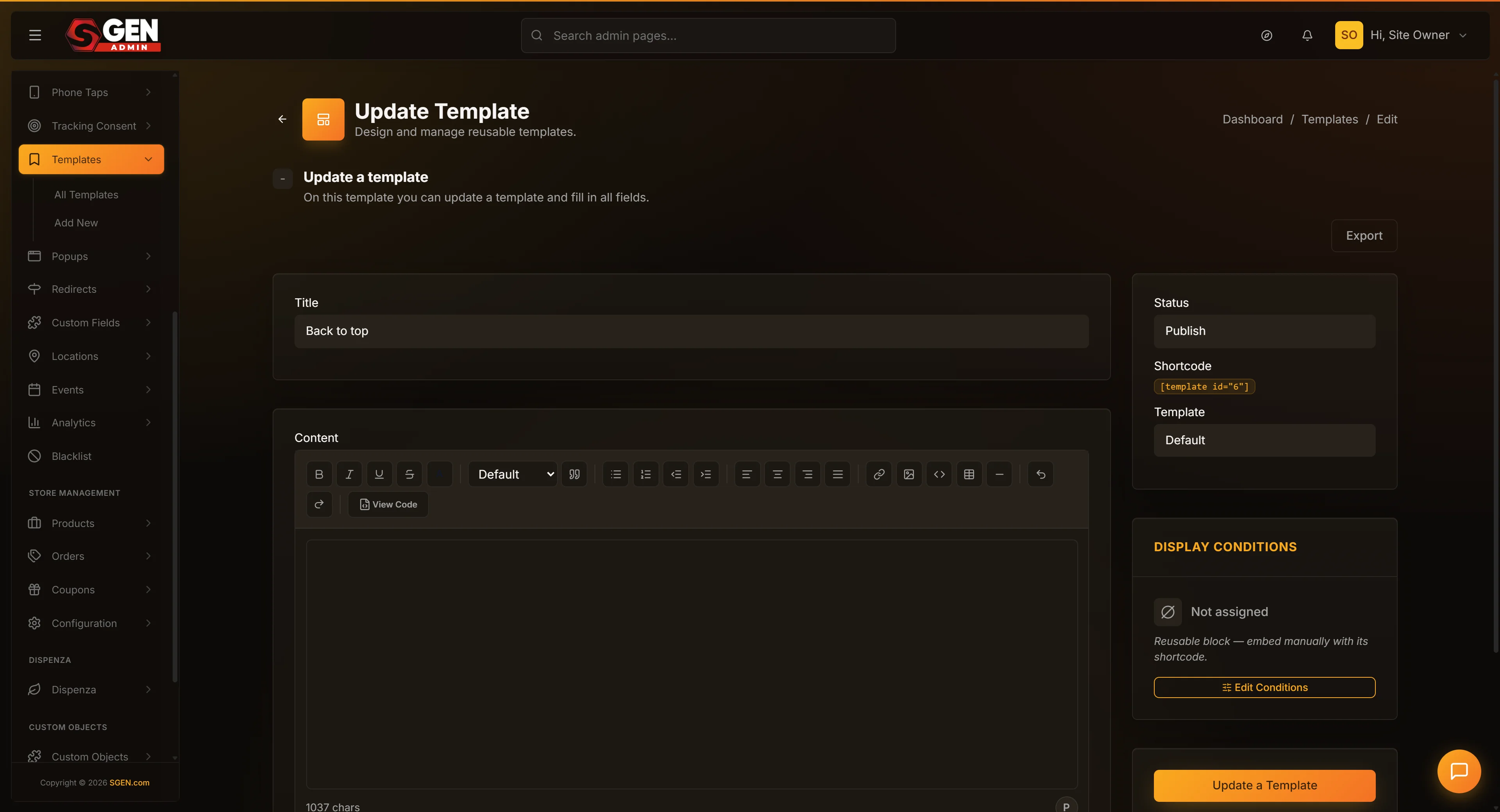
Open Templates in the sidebar. Use the search box or the status tabs to find the template you want to duplicate. Hover over the row to reveal the action set: Edit, Duplicate, Trash, Export.
2. Click the Duplicate action
Click Duplicate. SGEN creates a new template with the same content, status set to Draft, and a title equal to the original's title plus " (Draft)". You're redirected to the edit page of the new duplicate.
3. Verify and customize the duplicate
On the new duplicate's edit page, verify three things:
- The Title field shows your original template's title with " (Draft)" at the end. Rename it now if you want a more descriptive name (e.g., "Wholesale CTA — Variant B").
- The Content field has the original template's content copied verbatim. Make whatever changes you want for this variant.
- The Status dropdown shows "Draft." Leave it as Draft for experimentation; flip to Publish when the variant is ready to render on live pages.
Click Update to save your changes. The duplicate is now a fully independent template with its own lifecycle.
What success looks like
A successful Duplicate has four signs:
- After clicking Duplicate, the page navigates within a second or two to the edit page of the new template.
- The edit page shows a title like "Wholesale CTA (Draft)" — the original's title plus " (Draft)" suffix.
- The content field has the original template's content copied verbatim. The status dropdown shows "Draft."
- Returning to the Templates list shows the new duplicate as a fresh row. The All Templates count and the Draft count have both gone up by 1.
Also verify on the duplicate's edit page that the Template Type field matches the original. Some SGEN versions carry this metadata through the Duplicate action; others may leave it blank. Set it manually if needed before publishing.
If after clicking Duplicate you're not redirected to a new edit page, the duplicate may have failed. Refresh the Templates list and check whether the new row appeared anyway. If it did, click Edit on the new row to continue. If not, click Duplicate again — network glitches are the most common cause.
What to do if it does not work
- Duplicate didn't redirect me to a new edit page. Refresh the Templates list. If the new duplicate appeared as a row anyway, click Edit on it. If no new row appeared, the click may have been intercepted by a browser extension or network issue — try again.
- The duplicate has the wrong title. SGEN appends " (Draft)" to the original's title. Rename from the edit page. Some teams adopt a convention like "
— " instead. - The duplicate's content is missing or different from the original. Check the original template's edit page — if its content looks correct, contact support with both template IDs. If the original's content also looks wrong, the problem is upstream of Duplicate.
- The duplicate's status is Published instead of Draft. Flip it back to Draft via the Status dropdown immediately, then verify on the public site that nothing is rendering twice.
- The new template's shortcode doesn't work in pages. The duplicate has its own new shortcode (different from the original's). Use the new template's ID shown on the duplicate's edit page.
- I clicked Duplicate by mistake. Trash the duplicate. Click Templates, find the row (Draft with " (Draft)" in the title), hover, click Trash.
- The duplicate doesn't carry the same template type. Some SGEN versions don't copy template type metadata. Check the duplicate's edit page and set it manually if needed.
- I can't find the duplicate on the Templates list. Click the Draft tab ��� the duplicate is always created as Draft. Search for the original's title to find the copy.
Tips
- Rename the duplicate immediately. The default "(Draft)" suffix tells nobody why it exists. Rename within the first minute to something like "Wholesale CTA — Variant B (May 2026 test)" or "Footer — Pre-Move Snapshot". Better names mean less confusion in three months.
- Plan the duplicate's lifecycle when you create it. Decide before you click: will you publish, trash after an experiment, or keep as a snapshot? Forgotten duplicates accumulate as silent clutter in the Templates list.
- Set a calendar reminder for snapshot duplicates. If the duplicate exists as a backup, set a reminder to trash it after the recovery window has closed. Without a deadline, snapshots drift indefinitely.
- Duplicate published templates, not draft ones. Duplicating a published template gives you a parallel-to-live draft to experiment on. Duplicating a draft just doubles your draft clutter without a live original to fork from.
- Use Duplicate instead of manual copy-paste. Manually creating a template with Add New and pasting content carries the risk of missing content or pasting into the wrong field. Duplicate is one click with the content guaranteed to match.
- Don't duplicate just to read the content. Click Edit instead — it's a lighter operation that doesn't create a new database record.
- Communicate team duplicates. A note in your team channel — "I'm duplicating Wholesale CTA to test a tighter version" — prevents another admin from wondering why there's a new draft or trashing it accidentally.
Next steps
The most common actions after duplicating: rename and edit the copy, publish it when ready, or trash it if the experiment didn't work out.
- How to navigate the Templates list — find the template you want to duplicate.
- How to edit an existing template — modify your duplicate after creating it.
- How to send a template to Trash — clean up duplicates that didn't work out.
- How to create a new template — alternative to Duplicate when you want to start blank.
- How to use the Import / Export page for templates — combined with Duplicate for multi-site seeding.
Short-circuit path: if you just want to use the duplicate in a page right now, go to the page editor, remove the original's shortcode, and paste the duplicate's new shortcode (visible in the Shortcode field on the duplicate's edit page). The page will render the duplicate's content. The original continues rendering on all other pages that still reference it.
Clean-up reminder: once a duplicate has served its purpose — whether the experiment concluded, the snapshot window has closed, or the seeding is done — go back to the Templates list, find the row (it will be in the Draft tab if unpublished), hover, and click Trash. Keeping the Templates list tidy makes it easier to find active templates quickly.