
How to restore a trashed page
⏱ 30-second answer below · full page ≈ 4 min
In short. Open Pages → Trash tab, hover the row you want, click Restore, confirm. The page moves to your Drafts tab with everything intact — title, URL, content, images, SEO settings. It is not live yet. Open it from Drafts and click Publish when you are ready.
On this page: When to use it · Steps · What success looks like · Troubleshooting · Example · Tips
How to restore a trashed page
What is this for?
Use this when you trashed a page and want it back — accidentally, or to revive it for a refresh. The restore action works one row at a time, from the Trash tab on your Pages list. The page returns as a Draft; you decide when to publish it.
The action is reversible. If you change your mind, trash the page again. Trashed pages stay in the Trash tab indefinitely until someone permanently deletes them, so a page you trashed months ago can still be recovered as long as it is still listed there.
Good use cases
- You trashed the wrong page by accident — recover it before you forget which one. The most common reason to use this action.
- You want to refresh an old retired page — restore, edit, and republish under the same URL. The original URL carries over, preserving any SEO value.
- A team member trashed a page that you needed — restore it from the Trash tab. Every admin on your team can see and restore the same Trash tab.
- Cleaning up your Trash tab — restore the pages you want to keep, then permanently delete the rest with confidence.
What NOT to use this for
- A permanently deleted page — once a page is permanently deleted from the Trash, it cannot be recovered through this guide.
- Restoring a specific older version — for that, use Page Revisions on the page's Edit screen.
- Blog posts, events, or other content types — each has its own Trash tab and restore action on its own list view. This guide covers Pages only.
- Bulk-restoring many pages at once — use the bulk action menu at the top of the Pages list. Full detail: Bulk-manage your pages.
How this connects to other features
- Trash tab — the row must still be there for restore to work. If the Trash has been emptied, the page is permanently gone.
- Drafts tab — after restore, the page lives here until you publish it. It is not visible to site visitors until you click Publish.
- Page Revisions — a different feature. Use it to roll back a specific saved version of a page that is still live, not to recover a trashed page. Full detail: View and restore page revisions.
- URL slug and SEO — if another page was created with the same slug while yours was in the Trash, the restored page may come back with a numeric suffix. See the troubleshooting section below.
- Site search and sitemap — once published, the page appears in your sitemap and site search automatically the next time they regenerate.
Before you start
- You must be logged in as an admin user.
- The page must still appear in the Trash tab — if it is not there, it may have been permanently deleted.
- If someone else trashed the page, check with them before restoring — there may have been a reason it was retired. A quick check-in avoids re-publishing something that should stay off the site.
Where to go
In your admin sidebar, click Pages. On the Pages list, click the Trash tab at the top. A number next to each tab shows the count for that state. If Trash shows zero, there is nothing to restore.
Steps — Restore a single page
1. Open the Trash tab
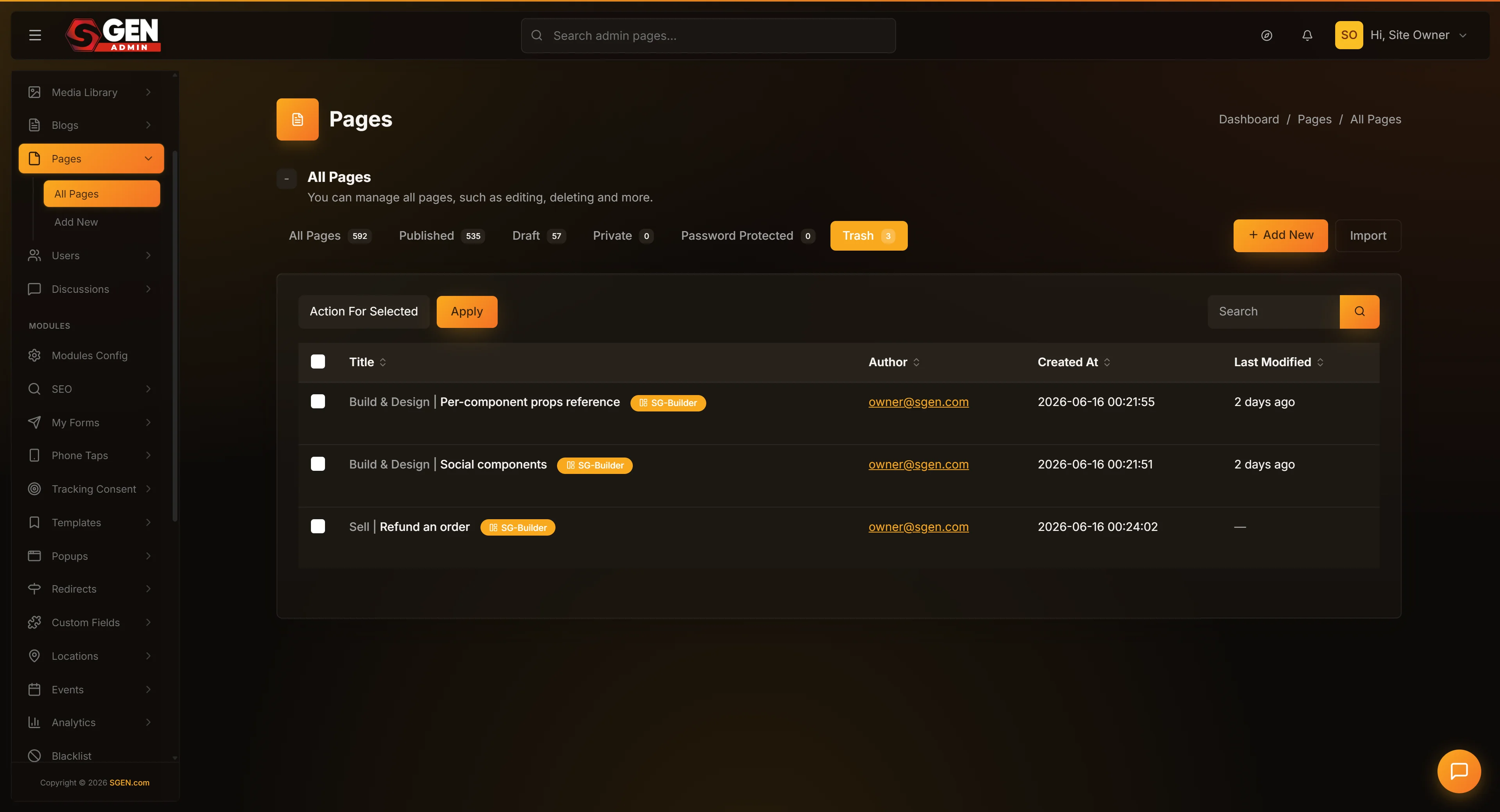
In your admin sidebar, click Pages, then click the Trash tab near the top of the list. You will see every page that has been trashed but not yet permanently deleted. Use pagination at the bottom if the list spans multiple pages.
2. Find the page you want to restore
Scroll to find the row, or use the search field to filter by title. You can sort by the Date trashed column to surface the most recent entries first. Confirm you have the right row — the action affects only that one page.
3. Click Restore on the row
Hover the row and click Restore when it appears inline. A confirmation modal opens — click Yes to proceed. The confirmation step prevents accidental restores when you are moving quickly.
4. Confirm the row has moved
The row disappears from the Trash tab and a success notice appears at the top of the screen. Click the Drafts tab to verify — the page should be at or near the top with all original content intact.
What success looks like
A success notice appears at the top of your Pages list. The row disappears from the Trash tab and reappears in Drafts. When you open it, all original content is preserved — title, slug, body, banner image, and SEO settings. The page is not yet visible on your public site until you click Publish.
What to do if it does not work
- The Restore button does nothing when I click it — your session may have timed out. Try logging out and back in, then try again. Browser extensions like ad-blockers can also interfere with admin actions in rare cases — try disabling them or using a different browser if the issue persists.
- The page comes back but the URL is different — if a new page has been created with the same URL slug while your page was in the Trash, the restored page will come back with a numeric suffix on its slug, like
about-your-store-2. To fix this, open the restored page in the editor and either rename it to a slug that is free, or rename the conflicting page first to free up the original slug. - I restored my page but my public site still shows a "page not found" error — restored pages always come back as Drafts, not Published. Open the page from the Drafts tab, scroll to the publish controls on the right, change the status to Published, and click Save. Your page will then be live again at its original URL.
- I cannot find the page in the Trash tab — your page may have been permanently deleted. Once a page has been permanently deleted from the Trash, it cannot be restored through this guide. Check with your administrator or with team members who may have access to a database backup.
- The wrong page came back, or a different kind of content came back — contact support. In the meantime, you can re-trash the wrongly restored row from its native list view (Pages, Blog, Events, or Custom Objects).
- The restored page is missing some images or files — uploaded media is stored separately and is not affected by trashing a page. If an image is missing, it may have been deleted from the Media library separately. Check your Media library for the original file and re-link it if necessary.
- The restored page's "Last modified" date looks wrong — when a page is restored, the system preserves the original modification date from before the page was trashed. This is intentional. If you want to update the modified date, open the page, make a small edit, and save.
}}
Example: accidentally trashed page recovery
A team member was clearing old drafts and accidentally trashed the live "About Your Store" page instead of the stale draft beside it. They opened Pages, switched to Trash, found the row, and clicked Restore. The page moved to Drafts. They opened it, confirmed everything was intact, and clicked Publish. The page was back live in under three minutes.
Tips
- Check before you empty. Scan the Trash tab before permanently deleting anything — the tab count badges tell you at a glance how many pages are in each state.
- Read it before you publish. A restored page may have outdated information from when it was retired. Give it a quick review while it is in your hands.
- Prefer Draft over Trash for recurring pages. If you restore the same page regularly, keep it as a Draft instead — it stays out of the public view but is easy to find without the Trash route.
Next steps
- Restore a specific older version of a live page — View and restore page revisions
- Restore or manage multiple pages at once — Bulk-manage your pages
- Trash a page — How to trash a page