
Set a page as your homepage
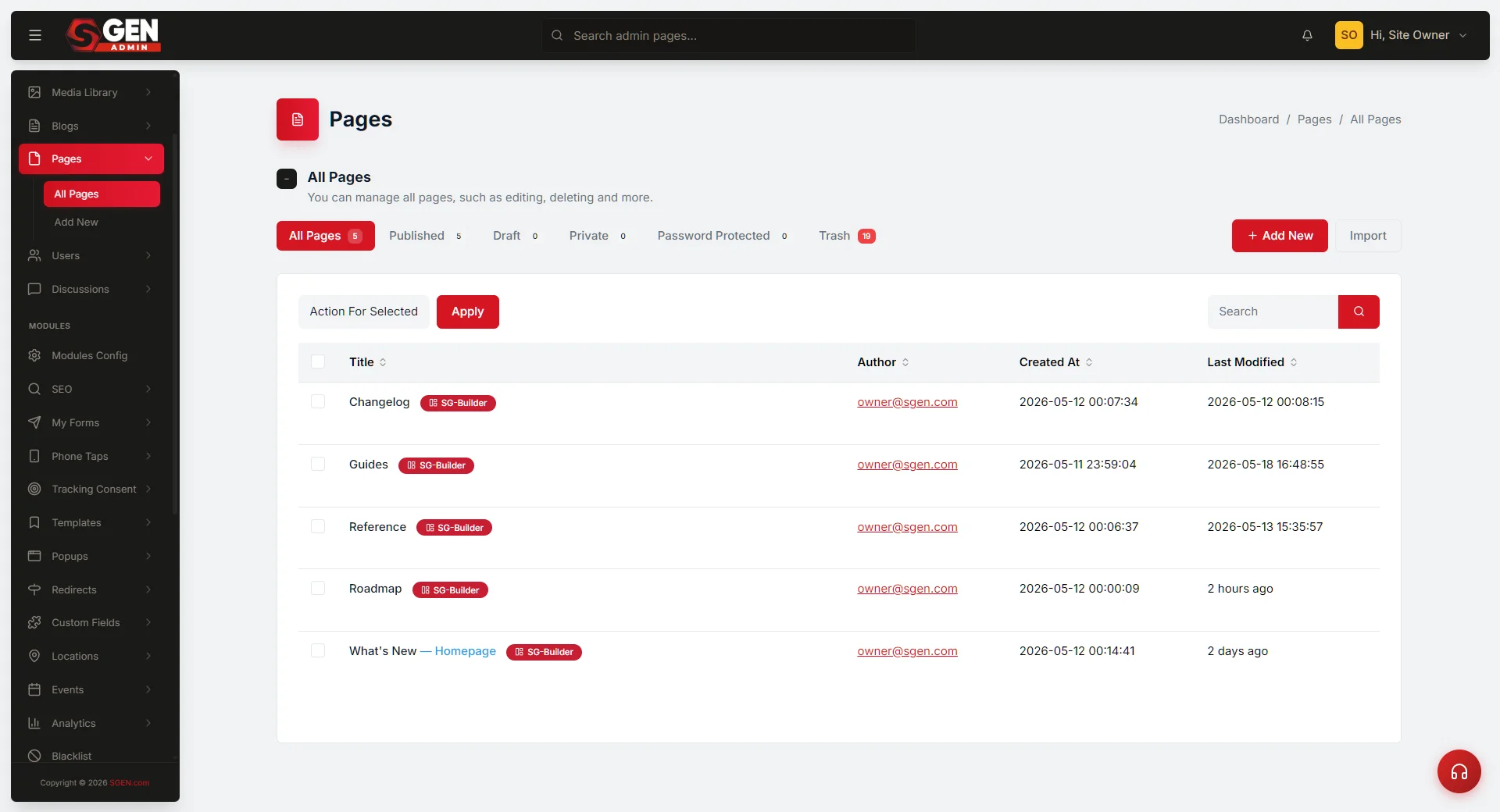 All Pages list with the Set as Homepage row-action on a hovered row and the HOMEPAGE badge in the Role column on the current homepage" loading="lazy" style="width:100%;max-width:900px;height:auto;border-radius:8px;border:1px solid #e5e7eb;display:block;margin:12px 0">
⏱ 30-second answer below · full page ≈ 5 min · skim the bold lead-ins to move faster.
In short. Every SGEN site has one page at the root URL. The Set as Homepage row-action on any published page in Pages → All Pages swaps it instantly — no confirmation, no scheduled delay, live on the next request. Only published pages are eligible. The previous homepage stays in your Pages list at its own slug. Plan the click; there is no undo prompt.
On this page: How to do it · Use cases · What NOT to do · Connected features · Troubleshooting
How to pick which page renders at the root URL of your site
Every SGEN site has one page that renders at the root URL — the address visitors land on when they type your domain with no path. The Set as Homepage row-action lets you swap which page sits there. The change is immediate the moment you click.
The action lives on the Pages list. Hover any published page row and click Set as Homepage — that's it. There is no separate publish step, no confirmation prompt, no scheduled-effective-date field. Immediacy is the feature's strength and its risk: a planned launch-day swap is a one-click finish to weeks of build work; a misclicked swap on a live site sends visitors to the wrong page until someone notices.
The discipline that matters: only published pages can be set as homepage, and the action takes effect instantly.
The page currently marked HOMEPAGE in the Role column has the action hidden — it is already the homepage. Every other published page shows Set as Homepage. Drafts and trashed pages do not show the action because they cannot be the homepage.
What is this for?
Set as Homepage answers one question: which page do visitors see when they type your domain?
| Scenario | What you do |
|---|---|
| Launch day — replace the placeholder with the finished homepage | Publish the new page, click Set as Homepage |
| Seasonal campaign — point the root at a Black Friday or sale landing page | Swap in on campaign morning; swap back when it ends |
| Rebrand cutover — the new design is built as a separate page | Swap on rebrand day; old homepage stays in the list for rollback |
| A/B test — two homepage candidates, measure for two weeks each | Swap manually at the start of each window; compare metrics |
| Holding page — a product issue or maintenance window needs a root-URL statement | Build, publish, swap; swap back when resolved |
Scope: only Pages can be the homepage. Blog posts, event detail pages, custom-object detail pages, and archive listings cannot — they live at their own URLs by design. If you need a feed-style homepage, build a Page that uses the Latest-Posts widget and set that page as homepage.
Good use cases
Launch day. Your team has finished and published the new homepage. Open Pages → All Pages, find the row, click Set as Homepage. The list reloads with the HOMEPAGE badge on the new row. Visit your domain — the new homepage loads.
The canonical link still points at the page's own slug for SEO purposes:
Seasonal campaign. On the morning your sale starts, open Pages → All Pages, find the campaign landing page, click Set as Homepage. The root flips for the duration. On the day the campaign ends, find the regular homepage row and click Set as Homepage to swap back. The campaign page stays at its own URL for any emails or social posts that linked directly — only the root changes.
Rebrand or A/B test. Both the old and new homepage are published. Swap on rebrand day; the old page stays at its own slug for rollback. For an A/B test, set one as homepage on Monday, track metrics for two weeks, swap to the other, compare, pick the winner. This is rough A/B testing — SGEN does not split traffic in real time — but sufficient for most decisions.
After clicking Set as Homepage, a confirmation flash names the page that took over:
What NOT to use this for
- Do not use it to preview. The action commits immediately on the public site. To preview, open the page's own URL in a browser first.
- Do not set a draft as homepage. The action only appears on published pages. Publish the page first, then click Set as Homepage.
- Do not flip homepage repeatedly during peak traffic. Each flip is immediate. Pick a low-traffic window — early morning, before campaign emails go out.
- Do not use it for content scheduling. There is no "go live at 9 AM" field. Set a calendar reminder and click manually at the target time.
- Do not set a page as homepage and later trash it without reassigning. If the homepage page is trashed, the root URL may show a fallback or "Page Not Found" until you set a new homepage.
- Do not assume SEO meta tags update automatically. The new homepage's own SEO title, description, and Open Graph image become the root URL's meta tags. Confirm these are launch-ready before the swap.
- Do not use it to hide the previous homepage. Setting a new homepage does not unpublish the previous one — it stays at its own slug. Move it to Draft or Trash separately if you want it offline.
How this connects to other features
- Bulk-edit your post list — only Published pages can be set as homepage. Use the bulk toolbar or the page-edit form to flip a Draft to Published first. Full detail: Bulk-edit your post list.
- Customize post-type URL slugs — the homepage keeps its own slug after the swap. The root URL and
yourdomain.com/both render the same page. Full detail: Customize post-type URL slugs. - SEO → Sitemap — the sitemap lists every page at its slug-based URL. The homepage swap does not change sitemap entries.
- SEO → Open Graph + meta tags — the new homepage's meta tags become what social platforms display when the root URL is shared. Re-check before the swap. Full detail: Set blog archive SEO defaults.
- Menu Builder — primary nav menus with a "Home" link pointing at
/continue resolving correctly after the swap. No menu update needed. - Custom Codes — tracking pixels that fire on the root URL keep firing (the URL hasn't changed). Conversion tags configured on the previous homepage's slug will not fire on the new root unless you reconfigure them.
- Activity log — homepage changes are recorded so a multi-admin team can audit who set which page and when.
Before you start
- You are signed in as an Administrator.
- The page you want to set as homepage is already Published — confirm in the page-edit form.
- You have reviewed the page at its own URL and confirmed content, images, and CTAs are launch-ready.
- The page's SEO title, description, and Open Graph image are set — these become the root URL's meta tags.
- You have an off-peak window picked. The change is immediate.
- You have noted the previous homepage's slug in case you need to swap back.
Where to go
- Open the left navigation.
- Click Pages → All Pages.
- The Pages list loads with every page on the site. Published pages show Set as Homepage on hover; the current homepage shows a HOMEPAGE badge instead.
The breadcrumb reads "Dashboard / Pages" — confirm you are on the Pages list, not the Blog list. Set as Homepage does not appear on blog rows; blog posts cannot be the homepage.
If you do not see Pages in the left navigation, your role does not have access. Ask an Administrator to swap the homepage on your behalf.
Steps — Set a page as the homepage
1. Make sure the page is Published
Open the page-edit form for the page you want as homepage. Confirm the Status field shows Published. If the status is Draft, click Publish to flip it. The Set as Homepage action only appears on published pages.
2. Open Pages → All Pages
The Pages list loads with the current homepage marked HOMEPAGE in the Role column. Every other published page shows Set as Homepage on hover.
3. Find the row for the page you want to promote
Use the search box if your site has many pages — type a few characters of the page title and the list narrows. Confirm you have the right row before continuing — clicking Set as Homepage on the wrong row sends visitors to the wrong page immediately.
4. Click Set as Homepage on the row
The action commits immediately �� there is no confirmation prompt. A green flash confirms the change:
If you clicked the wrong row, find the correct page and click Set as Homepage on it to swap back immediately.
5. Confirm the badge moved
The Pages list reloads. The HOMEPAGE badge has moved to the row you clicked. The previous homepage row no longer carries the badge but shows Set as Homepage as an available action again.
6. Verify the live root URL
Open your domain in a new browser tab. Hard-refresh (Ctrl+Shift+R / Cmd+Shift+R). The new homepage loads at the root. Read through once — confirm the hero, lead image, primary CTA, and navigation all render as expected.
7. (Optional) Spot-check Open Graph on social
Paste the root URL into a social-media compose window or a meta-tag inspector to confirm the Open Graph card shows the new page's title, description, and image. If the card shows the previous homepage's content, the social platform has cached the meta tags — wait a few hours or use the platform's "scrape again" tool to refresh.
What success looks like
- The HOMEPAGE badge has moved to the row you clicked.
- The previous homepage row drops the badge and shows Set as Homepage as an available action again.
- Visiting your domain loads the chosen page on the next request.
- The browser tab title matches the chosen page's title.
- The Open Graph card shows the chosen page's meta tags once the platform's cache refreshes.
- The chosen page's own URL still works in addition to the root — both render the same page.
- The previous homepage is still reachable at its own slug.
- The activity log shows a "Homepage updated" entry with the timestamp and user.
- Primary nav menus still resolve correctly.
- Analytics pageviews on the root URL keep flowing without interruption.
What to do if it does not work
- Set as Homepage does not appear on a row. The page is not Published. Open the page-edit form, flip status to Published, save, return to Pages list.
- The root URL still shows the old homepage. Hard-refresh your browser. CDN and edge caches may take a moment to invalidate.
- The chosen page renders with broken images. The page renders at the root exactly as it does at its own slug. Fix the images in the page-edit form, then re-check the root URL.
- The browser tab title still shows the old title. Hard-refresh clears the browser's cached title.
- Open Graph card still shows the old homepage. Use the platform's "scrape again" or "refresh preview" tool to force a re-fetch.
- The root URL returns "Page Not Found". The homepage page may have been trashed after the swap. Check the page's status; restore it from the Trash tab, or set a different page as homepage.
- The activity log does not show the update. Reload the activity log page — the entry appears on the next load.
- The previous homepage shows duplicate content. Both pages live at their own URLs. If you want the previous one offline, move it to Draft or Trash separately.
- My role cannot see Set as Homepage. Only Administrators (and roles with homepage-edit permission) can set the homepage. Ask an Administrator to make the change.
- A tracking pixel stopped firing after the swap. The pixel was configured on the previous page's slug. Open Custom Codes and reconfigure it to fire on the new homepage's slug or on the root URL directly.
Next step
- Customize post-type URL slugs — set the URL prefix for your archives so no archive slug conflicts with the root.
- Set blog archive SEO defaults — confirm the new homepage's SEO meta tags are launch-ready before the swap.
- Bulk-edit your post list — flip the previous homepage to Draft if you want it offline after the swap.