
The post body is unchanged — only the URL prefix moved. Readers who bookmarked /blog/10-tips-for-styling-your-canvas-tote-bag now hit a 404; add a Redirect from /blog/* to /journal/* to keep those bookmarks working.
Customize post-type URL slugs for your blog, events, and custom-object archives
⏱ 60-second answer below · full page ≈ 8 min · skim the bold lead-ins to move faster.
In short. The Post-type settings screen lets you rename the URL prefix for your blog, events, or any custom-object archive — changing/blogto/journal, for example. The change is immediate on Save and rewrites every post URL at once. Always pair the slug change with Redirect rules in the same session — every inbound link to the old prefix returns a 404 until a redirect catches it. Set your slug once at launch and treat it as permanent.
On this page: What this controls · Good use cases · Steps — Change slug · Steps — Verify · Steps — Redirects · What not to do · Troubleshooting
How to change the /blog prefix to /journal (or /articles, or anything else)
Every content type on your site lives under a URL prefix. Out of the box, blog posts sit under yoursite.com/blog/.., events under yoursite.com/my-events/.., and any custom objects under their default slugs. The Post-type settings screen lets you rename those prefixes — once, site-wide — when your brand's editorial voice does not match the defaults.
This is a launch-day decision, not a weekly tweak. Every URL a visitor bookmarks, every inbound link from a partner, every shortlink in a press release is built on the slug you save here. The change is immediate on Save, with no separate publish step. Treat the slug change and the Redirect rules as one piece of work.
What is this for?
Post-type settings control the URL prefix for every post of a given type. Changing the blog slug from blog to journal rewrites /blog/my-first-post to /journal/my-first-post site-wide on the next page load. The screen also sets the archive page title, archive description, posts per page, and the default category for new posts with no category picked.
The Blog Settings form has five fields. Here is what it looks like mid-rebrand from the default blog prefix to a custom journal prefix:
The same form, with different labels, appears under Events → Settings and inside each custom object's own settings panel.
The fields you see and the way Save behaves are identical across all three.
Per-post slug fields (the trailing <post-slug> part of every URL) live inside each post's own editor and are not affected by this screen.
This screen controls the prefix only.
Three example slug changes
These three patterns cover the majority of why people open this screen. Each is a one-time setup that pays back across every post you publish afterward on the new prefix. Most rebrands change the slug and the archive title in the same save.
Here is what each post-type's slug looks like before and after a rebrand:
The count on each pill is your redirect table size — every old URL you care about needs a Redirect rule pointing to the new prefix. Plan the migration in this order: slug change first, then Redirects, then sitemap submission. Any other order leaves a gap where visitors hit 404s.
Good use cases
Example 1: Rebrand "blog" as "journal" on launch day. Your site is launching and the marketing team wants the blog at yourdomain.com/journal/ — "blog" feels too casual for the brand. Open Blog → Settings, change the URL slug to journal, set the archive title to "Journal", save. Every existing and future blog post now lives under /journal/... URLs in the press kit work immediately:
Example 2: Localise the events archive. Your site runs a Spanish-language version. The default my-events prefix looks wrong for a Spanish audience. Open Events → Settings, change the URL slug to calendario, save. Every event's public URL changes to yourdomain.com/calendario/.. immediately. Custom-object slugs follow the same pattern — open the object's own Settings page, change the slug, save.
Example 3: Pair the slug change with Redirects so old inbound links keep working. This is the routine pattern, not the exception. Before you save the new slug, note every existing public URL you care about (or export the Blog list as JSON). After saving, old /blog/.. URLs return a 404. Open Settings → Redirects and add a permanent redirect for each old URL to the new /journal/.. equivalent. The site does not auto-create redirects because every site owner makes a different choice — some want a clean break, others want every old URL preserved.
After Save, the green confirmation flash names the field group and a timestamp so you have a paper trail in a multi-admin team:
Example 4: Adjust archive page size on a content-heavy site. If you publish multiple times a week, the default Posts per page can make the archive feel sparse. Change it to 12 or 24 so visitors see a full archive without clicking "Older posts" repeatedly.
What the routing change looks like under the hood
The slug field is the single source of truth for the URL prefix. Once you save, every request to /journal or /journal/<post-slug> routes to the blog handler, and every request to the old /blog returns a 404 unless a Redirect catches it. The page source of every blog post updates its canonical link tag to the new prefix on the next request:
Per-post slugs are not affected. A post titled "10 Tips for Styling Your Canvas Tote Bag" keeps its 10-tips-for-styling-your-canvas-tote-bag per-post slug across the rebrand — only the prefix in front of it changes. This shapes your Redirect rules: you map prefix-to-prefix (/blog/<x> to /journal/<x>) and the per-post slug <x> carries through unchanged. To rename a specific post's URL, open that post's own editor and change the URL Slug field there.
What NOT to use this for
- Do not change the slug on a busy published site without a plan for Redirects. Inbound links from Google search results, social media, and partner sites all break the moment you save. Plan the migration: save the new slug, immediately add Redirects for every important old URL, submit the updated sitemap to Google Search Console. If you cannot commit to that, do not change the slug.
- Do not change an individual post's URL here. This screen controls the prefix for every post of one type. Individual post slugs are edited inside each post's own edit screen under the URL Slug field.
- Do not use Post-type settings to schedule URL changes. There is no "effective date" field. The change is immediate on save.
- Do not change the slug to something that collides with an existing page. If you already have a page at
/journal, setting the blog slug tojournalmeans the archive and the page fight for the same URL. The page usually wins and visitors never reach the blog archive. Pick a different slug, or rename the conflicting page first. - Do not change the slug to match another post-type's slug. Setting
events.slug = blogwhileblog.slug = blogputs two post types at the same URL. Only one wins and the other is unreachable. - Do not pick a slug shorter than three characters. Single-letter or two-letter prefixes (
/b,/n) read as filler URLs to search engines and get downweighted. Pick a real word. - Do not change the slug repeatedly. Each change adds a generation of stale inbound links that all need their own Redirects. Treat slug changes as launch decisions, not iteration.
- Do not change the slug while a press release or campaign is mid-flight. External links you cannot control will break. Wait until the campaign cycle ends.
- Do not change the slug to a reserved word.
admin,api,sg-admin,wp-admin,assetsare reserved by SGEN's routing — saving one of these breaks parts of the admin panel.
If you find yourself wanting to change the slug for the third time in a year, the slug is not the problem — the editorial direction is.
Pause the rebrand, lock the slug in, and revisit only at the next major site refresh.
How this connects to other features
- Redirects — the single most important companion to a slug change. Every old URL you care about needs a Redirect to the new equivalent, or Google-indexed pages return a 404 for weeks. Plan Redirects in the same session as the slug change.
- SEO → Sitemap — after a slug change, your sitemap changes. Open SEO and confirm the sitemap has regenerated before you submit to Google Search Console.
- Pages — if a page uses the old slug in its content (internal
<a href="/blog/..">links), those stop working. Search Pages content for the old slug and update it to the new one. - Blog / Events list — the per-post View link on each row uses the configured slug. After a save here, View on any blog post opens the new URL.
- Custom objects — every custom-object post type has its own Settings page with the same five fields. Custom-object slugs work the same way as blog and events slugs.
- Global SEO — the Site Title and Title Separator on Global SEO fill in the placeholder tokens used inside the archive Page Title default. Slug changes do not touch those.
- Menu Builder — if your site nav has a hardcoded link to
/blog, that link still points at the old prefix after a slug change. Open Menu Builder and update the URL. - Custom Codes — any tracking pixel or analytics tag that fires only on
/blog/URLs needs its trigger updated to/journal/after the change.
Before you start
- Signed in as Administrator. The form is only editable by admins — other roles see it read-only.
- Slug is decided and stable. Each change adds a generation of stale inbound links. Confirm with the marketing team before saving.
- Old URLs are listed. Export the Blog list or note every public URL you care about before the change — you need them to write your Redirect rules.
- Off-peak window. Slug changes are immediate. Visitors who land between Save and your first Redirect save will briefly see a 404.
- Rollback note ready. Write down the current slug before you change it so you can revert in one save if needed.
Where to go
- Open the left navigation.
- Click Blog → Settings for the blog URL slug. For events, click Events → Settings. For custom objects, open the object's own Settings page.
- The Post-type settings form loads with every field pre-filled with the current live values — there is no draft state.
Confirm the breadcrumb reads "Dashboard / Blog / Settings" before you start typing. Custom-object settings live under a different breadcrumb and have a slightly different field set.
Steps — Change the URL slug
1. Decide the new slug
Write it down first. Slugs are lowercase letters, numbers, and hyphens only. Spaces and special characters auto-convert to hyphens on save. Common safe choices: journal, articles, stories, resources, insights, news.
Test the slug out loud — say "yourdomain.com slash journal" before you commit. If it does not roll off the tongue, pick a different word.
2. Open Blog → Settings
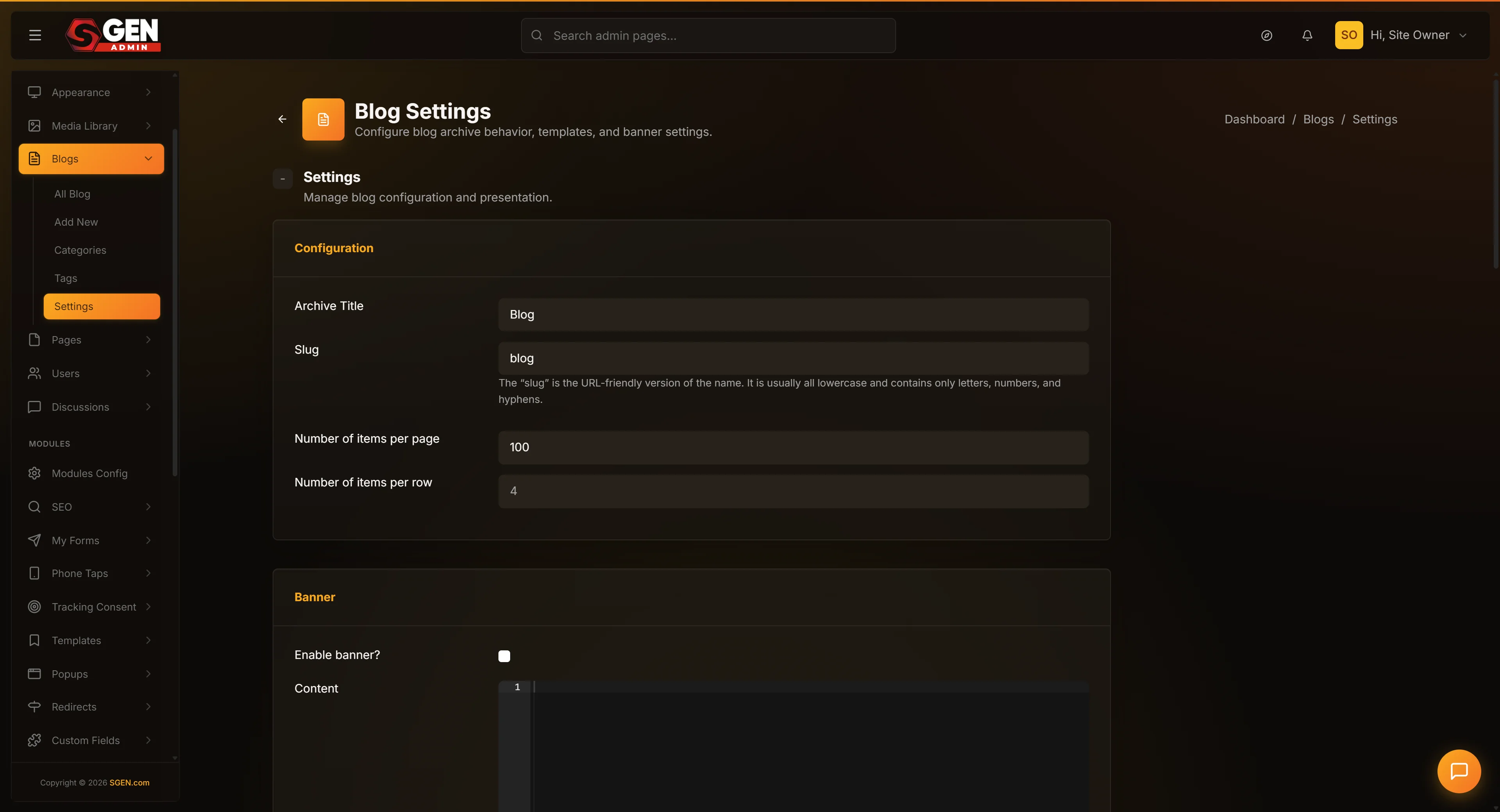
You land on the post-type settings form. Every field is pre-filled with the current live values.
If the form looks empty, your role does not have access — ask an Administrator to make the change for you.
3. Update the URL slug field
Type the new slug. No leading slash. No trailing slash. Lowercase letters, numbers, and hyphens only.
If you type Journal (capital J) the form lowercases it to journal on save. If you type My Journal (with a space) the form converts it to my-journal on save.
4. Update Archive title and Archive description (optional)
The archive title is the heading shown at /<slug>/ (for example /journal/). The description sits under it. Change these if "Our Blog" no longer fits the rebrand.
The archive title appears on the public archive page in a large heading; the description appears underneath in body text. Both are also picked up by Open Graph cards if a visitor shares the archive URL.
5. Set Posts per page
How many posts show on each page of the archive. A typical range is 10 to 24. For image-heavy archives, keep this lower (8–12) to reduce load time; for text-only archives, 24–36 is fine.
6. (Optional) pick a Default category
New posts with no category automatically land here. Leave blank until you have built out your category list — you can set it later.
7. Click Save
The page reloads with a green flash "Post config has been successfully updated!" Double-check the slug spelling before saving. Saving journals (plural) instead of journal (singular) means all old URLs AND new URLs are wrong — each extra save adds another generation of stale links to clean up. The save banner names the field group ("Blog Post Config") and a timestamp so multiple admins can track whose change landed.
Steps — Verify the change on your public site
1. Open your archive URL in a new tab
Visit yoursite.com/<new-slug> (for example yourdomain.com/journal). Every blog post should be listed with the new archive title at the top.
If the page does not load, the slug may collide with an existing page — see Step 4 of "What to do if it does not work."
2. Click one post
Confirm the URL in the address bar uses the new prefix. The post's content should be unchanged — same title, same body, same comments.
3. Try the OLD URL
Visit yoursite.com/<old-slug> (for example yourdomain.com/blog). You should get a 404 page. This is expected — that is the moment to pivot to Redirects.
If you see the old archive still loading, hard-refresh (Ctrl+Shift+R or Cmd+Shift+R). Some browsers cache routing for a few seconds.
4. Check the sitemap
Visit yoursite.com/sitemap.xml. Every blog URL should now use the new prefix. If older URLs still appear, wait a few minutes for SGEN to regenerate the sitemap on its own schedule.
Steps — Pair with Redirects (mandatory for published sites)
Without Redirects, every link from Google, social media, and partner sites lands on a 404 until Google re-crawls your index — which can take weeks. Before you start writing Redirects, the reminder looks like this:
The modal above is illustrative — SGEN does not pop a confirm before save, so the discipline is on you to remember the redirect pairing. Build the habit: every slug change starts a Redirects task on the same to-do list.
1. Open Redirects
Left nav → Settings → Redirects, or go directly to /sg-admin/redirects.
2. Add a redirect for the old archive
From: /blog. To: /journal. Type: Permanent (301). Save.
This catches anyone who linked to the archive root — partner sites that say "see their blog" with a link to /blog will now land on /journal.
3. Add redirects for high-traffic individual posts
Run through your top ten most-visited blog posts. For each, add a 301 redirect from /blog/<slug> to /journal/<slug>. The individual post slugs do not change — only the prefix.
If you have a long tail (hundreds of older posts), you can either:
- write a wildcard redirect from
/blog/(.*)to/journal/$1if your Redirects panel supports wildcards, or - export the Blog list, generate the redirect rules in a spreadsheet, and paste them in one batch.
4. Let Google know
Open SEO → Sitemap, confirm the sitemap lists /journal/.. URLs, and submit it to Google Search Console. The transition takes days to weeks to settle in search results. While Google catches up, your 301 Redirects handle every click on an old result — visitors land on the new URL without noticing anything moved.
What success looks like
- Blog Settings saves with a green flash naming "Blog Post Config" and the save timestamp.
yoursite.com/<new-slug>loads the blog archive with the new archive title.yoursite.com/<new-slug>/<post-slug>loads an existing post with the new prefix in the address bar.- The old
/<old-slug>/<post-slug>URL returns a 404 — or is caught by a Redirect if you added one. - Every View button on the Blog list opens the new URL.
/sitemap.xmllists every blog URL under the new prefix.- Page source shows
<link rel="canonical">pointing at the new URL. - Open Graph cards for shared blog URLs show the new prefix.
- Internal links in other posts either use the new prefix or are caught by your Redirect rules.
What to do if it does not work
- Save succeeded but old URLs still work. Hard-refresh your browser (Ctrl+Shift+R or Cmd+Shift+R) and try again; some browsers cache routing for a few seconds. CDNs in front of your site may also cache for longer — wait a few minutes or purge the CDN cache if you have access.
- New URL returns 404. Double-check the slug spelling. If it is correct but the archive does not load, the slug may be colliding with a page — rename or trash the conflicting page, then re-save Blog Settings.
- Some but not all posts moved. All posts move at once. If some seem missing, they may be in Draft or Trash and not in the public archive — open Blog → All Posts and check their status.
- Old URLs still 404 even after saving Redirects. Confirm the redirect source is exactly
/blog/<slug>(no trailing slash, leading slash present) and the target is/journal/<slug>. Redirects match URL paths, not regex by default unless your Redirects panel has a wildcard option. - The settings form rejected my slug. Slugs must be lowercase letters, numbers, and hyphens. Spaces and special characters convert on save, but reserved words (
admin,api) may be rejected. Pick a different word. - The save banner appeared but the slug did not change. The form posts as a partial payload were known to fail under earlier versions. If you see the green flash but the URL slug still reads the old value after reload, re-open the form, change the field again, and save with all fields filled in (do not leave any blank).
- Google still shows the old URLs in search results. Google refreshes its index on its own schedule, often days to weeks after a 301. Use Google Search Console to request a re-crawl if you need it faster. The Redirect handles every click in the meantime.
- Two posts seem to have swapped URLs. The per-post slug is unchanged across a prefix migration — only the prefix moves. If a specific post looks wrong, open its editor and check the URL Slug field there.
- The archive title still says "Our Blog" after save. Archive title is a separate field from URL slug. Both update on save, but the archive title field needs its own value typed in. Re-open Blog Settings and change the Archive title field, save again.
- Internal links inside post bodies still point at
/blog/... Those were hardcoded by an author. Use Pages and Blog content search to find every/blog/reference and replace it with/journal/, or rely on your Redirect rules to catch them.
Next step
- Manage site redirects — write the companion Redirect rules for every old URL. Do this immediately after saving the new slug.
- Set blog archive SEO defaults — set the meta description and permalink pattern that sits alongside the slug.
- Export and import posts as JSON — export the Blog list to build your redirect checklist before cutover.