
How to edit a template SGEN
⏱ 60-second answer below · full page ≈ 8 min · skim the bold lead-ins to move faster.
In short. Every change to a template — content, title, status, visual layout — happens on its Edit page. Open Templates → All Templates, click the row title, and the Edit form loads with all current values pre-filled. For Default-mode templates, edit in the rich text editor and click Update a Template. For SG-Builder templates, click Edit with SG-Builder to open the canvas, then Publish Changes. Changes go live on the public site the moment you save — no secondary publish step. One edit propagates to every page that uses the template, whether via Appearance site chrome or a Err: Template not found! shortcode embed.On this page: Reference — fields · Before you start · Where to go · Steps · What success looks like · What to do if it does not work · Good use cases · What NOT to use this for · How this connects
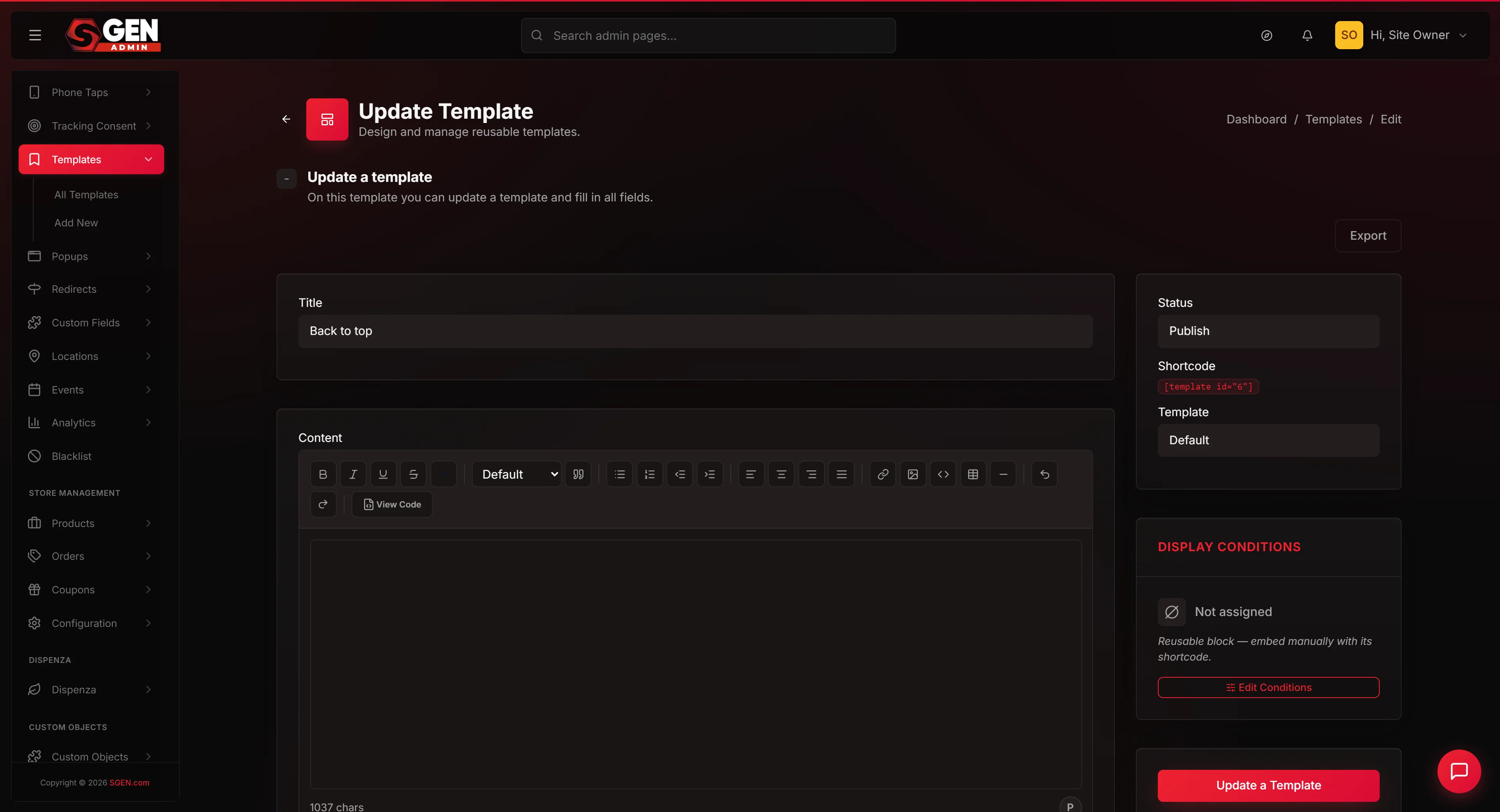
The Edit page is the single entry point for updating a template's content, title, or status. It is also the gateway into SG-Builder for visual templates — clicking Edit with SG-Builder opens the full canvas. From here you can also move a template to Trash and grab its shortcode.
Why it matters. One save here propagates to every location the template appears — Appearance site chrome (header, footer, mobile menu) and every Err: Template not found! shortcode embed simultaneously. There is no separate publish step.
Reference — Template fields
| Field | Type | Notes |
|---|---|---|
| Title | Text | Display name shown in the Templates list, Appearance dropdowns, and shortcode popovers. Never shown on the public site. Renaming does not change the shortcode ID. |
| Status | Radio (Published / Draft) | Published = live and rendering everywhere. Draft = hidden from the public site and from Appearance assignment dropdowns. Change takes effect on the next page request — no cache delay. |
| Template | Select (Default / SG-Builder) | Sets the editor mode. Do not switch modes on a template already in use — each mode stores content in a different internal format and switching can blank the public output. |
| Content | Rich text / Code view | Available in Default mode only. In SG-Builder mode this area is locked; use the Edit with SG-Builder button instead. |
| Shortcode | Read-only display | Shows Err: Template not found!. The numeric ID is assigned at creation and never changes regardless of title or status edits. Copy and paste into any page, post, or product description. |
Before you start
- You are signed in to SGEN as an Administrator.
- You know which template you want to edit. If not, first Browse your templates list and confirm the correct row by title and ID.
- If the template is assigned as site chrome (Header / Footer / Mobile Menu in Appearance): any save pushes live immediately. Have your public site open in another tab so you can hard-reload and verify the change the moment it lands.
- For SG-Builder mode: if you're not comfortable with the canvas, start on a Draft copy of the template so you can experiment without touching the live version.
- For templates embedded via shortcode on published pages: know which pages use the template before making a status change. A flip to Draft affects all of those pages simultaneously — every embedded shortcode renders nothing until you flip back to Published.
Where to go
- Open the left navigation.
- Click Templates → All Templates to reach the list.
- Click the row's title (for example "Footer Template 2026") OR hover the row and click the Edit row action.
- The URL becomes
/sg-admin/templates/edit/and the Edit form loads with all current values pre-filled.
You can also navigate directly to /sg-admin/templates/edit/ if you already know the template's numeric ID.
How to edit a template — Steps
Steps
1. Confirm you're editing the right template
The top of the Edit page shows the template's title next to Update Template. Cross-check the title against what you intended, and verify the numeric ID in the URL bar. If you opened the wrong template, click Templates → All Templates in the left nav to return to the list.
The sidebar shows Author (who created the template), Created (the original creation date), Last modified (the most recent save timestamp), and the Shortcode block showing Err: Template not found! — this ID never changes regardless of renames. The top right of the Edit page also has an Export button that downloads this single template as a JSON file — useful before making major structural changes.
2. Update the Title if renaming
The Title field holds the template's display name. It appears in the Templates list, in Appearance dropdowns, and in the shortcode popover — but is never shown to readers on the public site. Clear the existing title and type the new one.
Good naming pattern: include the function, context, and year if this is a versioned update — for example "Footer Template 2026," "Blog Post Outro — Newsletter CTA," "Mobile Menu — 2026."
The shortcode does not change when you rename. stays regardless of what the title says. Every page that embeds the shortcode continues to work without any update to those pages.
3. Update the Status if changing visibility
The Status radio in the sidebar has two options:
- Published — the template is live. Its shortcode renders on any page that embeds it, and it appears as an option in Appearance assignment dropdowns.
- Draft — the template is hidden from the public site. Its shortcode renders nothing on public pages, and it does not appear in Appearance dropdowns. Use Draft to take a template offline temporarily while keeping it accessible in your workflow.
Both changes take effect on the next public page request — no delay, no cache grace period.
4. Update the Content (Default mode only)
For Default mode templates, the rich text editor is available directly on the Edit page. Type or paste your changes, or click View Code in the toolbar to edit raw HTML. Images can be inserted via the Image button, which opens the Media Library picker.
For SG-Builder mode templates, the content area is locked and shows the Edit with SG-Builder button instead. Skip to Step 5.
Do not change the Template dropdown (editor mode) on a template already in use — switching modes can blank the public site output. See What NOT to use this for for the full explanation.
5. Save (one of two paths)
Default mode, or title/status-only update on any template:
Click Update a Template at the bottom of the form. A green banner appears: "A template has been successfully updated!" The Modified timestamp in the sidebar updates to the current time.
SG-Builder mode, to edit the visual layout:
Click Edit with SG-Builder. SGEN saves the current Title and Status values from the Edit form, then redirects you to the full-viewport canvas. Drag components, edit styles per breakpoint using the breakpoint switcher at the top of the canvas, adjust content. When finished, click Publish Changes in the top-right corner. Navigating away without clicking Publish Changes drops any uncommitted canvas work — the template row still exists with the previously-saved content, but the new layout changes are lost.
6. Copy the shortcode if embedding elsewhere
The sidebar shows a Shortcode block with Err: Template not found!. Click the copy icon or select the text and use Ctrl+C (Cmd+C on Mac). Paste into any page's content body, blog post content, or product description to embed the template inline at that location.
Shortcodes are stable for the life of the template. Renaming, updating content, or changing status never changes the shortcode. Only a hard delete followed by re-creation of the template row produces a new ID.
7. (Optional) Move to Trash
If the template is retiring, click Move to Trash in the sidebar. A confirmation modal appears before anything is moved.
Click Move to Trash in the modal to confirm. The template is restorable from the Trash tab for 30 days. After 30 days, or if a bulk Delete Permanently action is run, the template is gone and cannot be recovered.
Warning: if the template is assigned as site chrome in Appearance, moving it to Trash blanks the site footer, header, or mobile menu immediately on every public page. Always swap the Appearance assignment to a different template first — go to Appearance → Footer (or Header, or Mobile Menu), pick a replacement, save — then return here to Trash the old one.
What success looks like
- The Edit form saved without errors — a green banner reads "A template has been successfully updated!"
- The Modified timestamp in the sidebar updates to "just now" or today's date and time.
- Site-chrome assignment: the footer, header, or mobile menu shows updated content on every public page on the next reload.
- Shortcode-embedded template: every page that embeds
Err: Template not found!shows the new content on the next reader visit. - Status flip to Draft: the template's shortcode renders nothing on public pages.
- Moved to Trash: the row disappears from All Templates and Published tabs and reappears on the Trash tab.
- SG-Builder edits: clicking Publish Changes in the canvas returns a success state.
What to do if it does not work
- Green banner appears but the public site still shows old content. Hard-reload the public page (Ctrl+Shift+R on Windows, Cmd+Shift+R on Mac). Your browser may be serving a cached version. If old content persists after a hard reload, confirm the template's Status is Published and the Appearance assignment still points to this template.
- "Error: Invalid JSON content. Please refresh the page and try again." An SG-Builder template was saved while the canvas was empty. Refresh the Edit page and click Edit with SG-Builder. Verify at least one component is present in the layout, then use Publish Changes from within the canvas rather than Update a Template on the Edit form.
- The Edit page shows "404: Data not found." The template ID does not exist or has been permanently deleted. Check the Trash tab on the Templates list. If it's absent from Trash, the template is unrecoverable — contact support if the deletion was unintentional.
- After Update a Template, the page lands on a different admin section (for example Locations or Pages). The template IS saved — this is a known redirect quirk. Navigate manually to Templates → All Templates and confirm your row shows the updated Modified timestamp.
- Clicking Edit with SG-Builder redirects back to the Edit form instead of opening the canvas. Check that the Template dropdown shows SG-Builder — if it shows Default, change it and click Update a Template to commit the mode change first, then click Edit with SG-Builder again.
- SG-Builder canvas opens but shows an empty layout, even though the template had content. The editor mode may have been accidentally switched at some point — SG-Builder cannot parse plain HTML stored from Default mode. Do not click Publish Changes from the canvas (that would overwrite the existing HTML content with an empty layout). Close the canvas, flip the Template dropdown back to Default, click Update a Template, and your HTML content will be restored.
- Move to Trash works but the public site footer or header is now blank. The template was still assigned as site chrome in Appearance when it was trashed. Go to the Trash tab, click Restore on the template row, then navigate to Appearance → Footer (or Header, or Mobile Menu) and re-save the assignment to confirm it's pointing to the restored template.
Good use cases
Example 1: Update a footer with new social links. Your site just launched a TikTok account and retired Twitter. Open Templates → All Templates, click the Footer Template 2026 row title. Since the footer uses SG-Builder, the content area shows Edit with SG-Builder — click it. In the canvas, find the social icons row, swap the Twitter icon for TikTok, update the Instagram URL, add the TikTok link. Click Publish Changes. Open your site in another tab and hard-reload — updated social links appear in the footer on every page sitewide.
Below is the Edit form for Footer Template 2026 in SG-Builder mode. The sidebar shows the shortcode, the active author, the creation date, and a warning that this template is assigned as the live site footer — any save propagates to every page immediately.
Example 2: Archive a seasonal banner without deleting it. The Holiday Banner template ( Mapped hierarchy of the SGEN reference library. Use the left navigation tree to open a section, module, or workflow. The right panel loads the selected item's scope, role, data, and step-by-step flow. Complete header setup from template selection to CTA buttons.Reference Map
SGEN Platform Library Workflow Core Workflow
What it does
Workflow Steps
Hierarchy Path
Found In
What it offers
Related Areas
Implementation Notes
The Templates list reflects the status shift immediately:
Example 3: Swap a CTA line across all blog posts at once. Your Blog Post Outro template reads "Join our list." Open the Blog Post Outro — Newsletter CTA Edit page (Default mode). In the rich text editor, update the line. Click Update a Template. Every blog post embedding shows the new wording on the next page load — no per-post edits required.
The shortcode you paste once at the bottom of any blog post's content body:
Example 4: Redesign a footer safely with zero downtime. The current Footer Template 2026 is live. Rather than edit it directly, duplicate the row from the Templates list — this creates "Footer Template 2026 (copy)" as a Draft. Open the copy's Edit page, click Edit with SG-Builder, rebuild the footer layout. Publish the canvas, then go to Appearance → Footer and swap the assignment to the new copy. Verify your site shows the new footer on a hard-reload. Finally, open the old Footer Template 2026 row and click Move to Trash.
After the swap, the Templates list reflects the new state:
What NOT to use this for
- Don't switch the editor mode on a template that's in use. The Template dropdown lets you flip between Default and SG-Builder on an existing template, but each mode stores content in a different internal format. If you flip Default → SG-Builder on a template that has HTML content, SG-Builder renders it as an empty canvas — the public site now shows nothing where it used to show the old HTML. If you need a different mode, duplicate the template first and build the new version from the copy. Never switch the mode on a live footer, header, or mobile menu template.
- Don't edit the active Footer, Header, or Mobile Menu template without a staging plan. The moment you click Update a Template or Publish Changes on a template assigned as site chrome, every public page re-renders with the new version on the next load. There is no "deploy to staging first" button. Safer workflow: duplicate the active template, edit the copy in Draft status, temporarily swap the Appearance assignment to the copy to preview it, confirm it looks right, then commit.
- Don't use Move to Trash as a "save and return later" pattern. Trash is for retiring templates you intend to remove permanently. To take a template offline temporarily, set Status = Draft instead — it keeps the template in your list and lets you flip back to Published with one click.
- Don't move to Trash a template still assigned as site chrome. Moving to Trash while a template is the active Header, Footer, or Mobile Menu blanks those regions on every public page immediately. Always swap the Appearance assignment to a different template first, confirm the swap on the live site, then Trash the old one.
How this connects to other features
- Templates list — Browse your templates list — the Edit page is reached by clicking a row title on this list, or by the Edit row action on hover. After saving, the list reflects the new Modified timestamp and any status change in the filter-tab counts.
- SG-Builder — for SGB-mode templates, Edit → Edit with SG-Builder opens the full visual canvas. Drag components, edit styles per breakpoint, click Publish Changes to commit. Navigating away without clicking Publish Changes discards uncommitted canvas work.
- Appearance → Header / Footer / Mobile Menu — see Apply a template as site chrome. Any edit to an assigned template propagates to the live site on the next page load — every public page simultaneously.
- Pages / Blog content — if the template is embedded via
Err: Template not found!on any page or post, those pages re-render with the new content on the next reader visit. One template edit propagates everywhere the shortcode appears. - Media Library — images embedded inside a template come from Media. If you rename or replace a media file, any template that references it reflects the change automatically.