
Browse your templates list
⏱ 30-second answer below · full page ≈ 8 min · skim the bold lead-ins to move faster.
In short. The Templates list at Templates → All Templates is the central inventory of every reusable site-chrome fragment on your site — footer, mobile menu, newsletter block, anything you want to reuse. Each row has a status (Published / Draft / Trash), a shortcode like On this page: Reference tables · Steps · What success looks like · Troubleshooting · Examples · FAQs
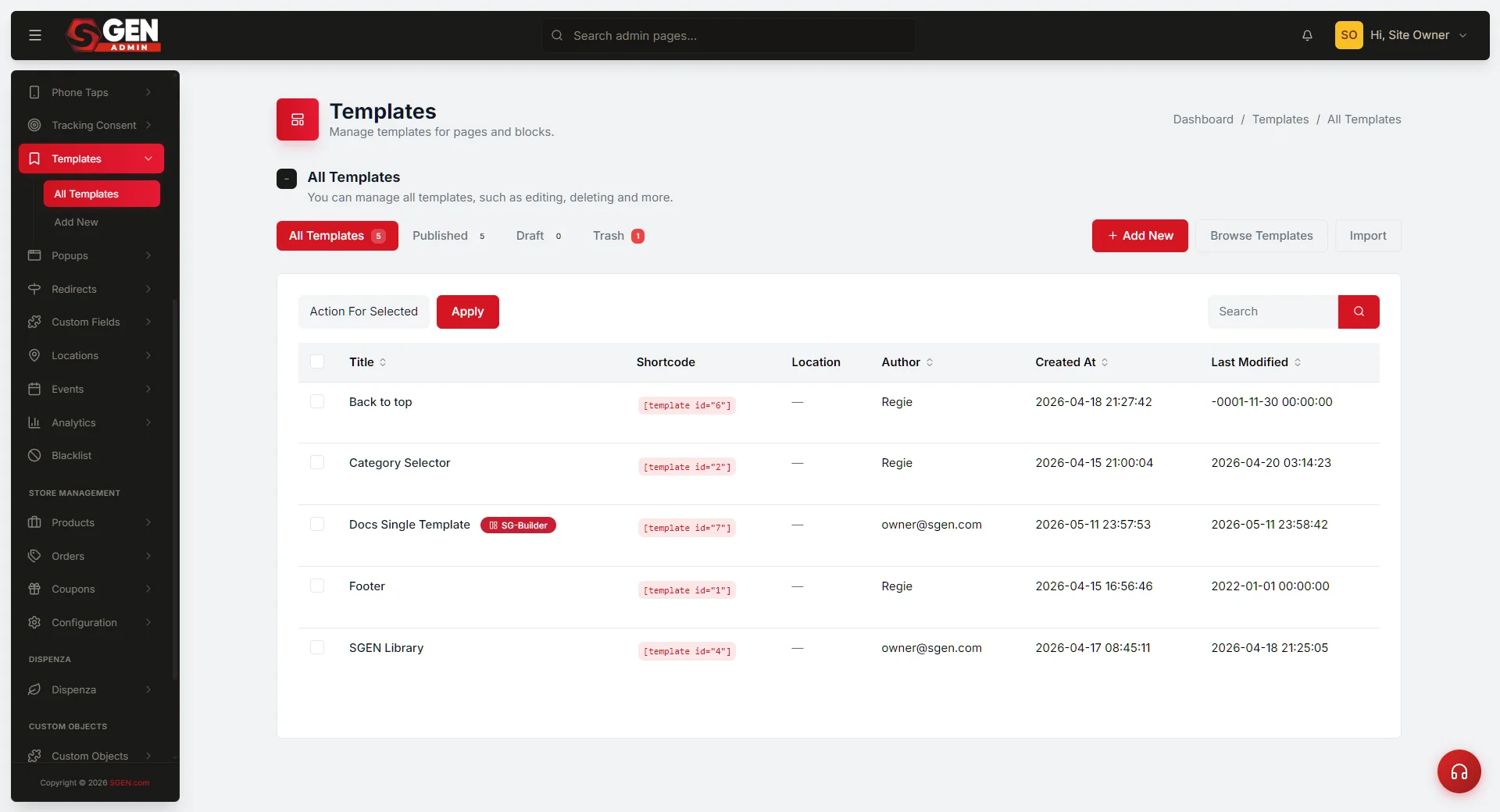
How to find a reusable site-chrome template, filter by status, search, and bulk-update several at once
The Templates area is where every reusable chunk of site chrome on your SGEN site lives — footer, mobile menu, the block you stamp under every blog post. When marketing asks "can you swap out the social links in the footer," the Templates list is where you land first.
What is this for?
The Templates list is the central inventory of every reusable template your site uses. Each row is one template — named, status-tagged (Published / Draft / Trash), authored by somebody, and assigned a shortcode like that you paste into any page or post to render that template in place. Every future edit to the template propagates automatically everywhere the shortcode appears — no page re-editing needed.
What it covers
The Templates list covers every template on your SGEN site regardless of status — Published templates actively rendering, Draft templates in progress, and Trash templates awaiting cleanup. It does not cover Appearance assignments (which template is active in each chrome slot), page-level shortcode placement, or template content editing. Those live on separate admin pages.
Specifically, the list covers:
- Status management (Published / Draft / Trash) per template and in bulk
- Title and shortcode identification for embedding
- Per-row actions: Edit, Duplicate, Move to Trash, Export
- Bulk actions: Move to Publish, Move to Draft, Move to Trash, Delete Permanently
- Title-based search scoped to the active status tab
Reference
| Column | What it shows | Notes |
|---|---|---|
| Title | The template's internal display name | Clickable — opens the Edit page. Not shown on the public site. |
| Shortcode | Err: Template not found! — the embed tag | Copy and paste into any page, post, or product body. ID never changes after creation. |
| Author | The admin account that created the template | Read-only in the list; not editable from here. |
| Created At | When the template row was first saved | Does not update on edit. No "Modified" column in the list view. |
| Bulk action | When available | Effect |
|---|---|---|
| Move to Publish | All / Draft / Trash tabs | Flips selected templates to Published. Shortcodes render immediately. |
| Move to Draft | All / Published / Trash tabs | Hides from public site. Shortcodes render nothing. |
| Move to Trash | All / Published / Draft tabs | Soft-deletes. Recoverable from Trash tab via Restore. |
| Delete Permanently | Trash tab only | Hard-deletes from database. Irreversible. |
Good use cases
Morning footer audit. Open the Published tab, find the footer template, check the Created At column. One glance confirms it's the current version. Click the title if something needs editing.
Find a template by name. Type a keyword into the search box and click the magnifier. The list refilters to titles containing that term — combine it with a status tab to search inside Draft only. Bookmark the filtered URL (e.g. /sg-admin/templates?s=footer) for repeat visits.
Spring cleaning drafts. Click the Draft filter pill, tick the rows for campaign templates that never launched, pick Move to Trash, click Apply. Both move to Trash — recoverable until you visit the Trash tab and Delete Permanently.
Retire a dated template. Once the team confirms no pages embed the shortcode for a trashed template, open the Trash tab, tick the row, pick Delete Permanently. The shortcode stops resolving and the row is gone.
What NOT to use this for
- Don't trash an active footer, header, or mobile menu from this list. Templates assigned as site chrome in Appearance have no "live" marker here. Trashing one blanks that slot on every public page immediately — always confirm in Appearance first.
- Don't use this list to choose which template renders as site chrome. That assignment lives in Appearance. A Published template only renders publicly when referenced via the Appearance assignment or a shortcode on a page.
- Don't rely on Delete Permanently as an undo path. Once permanently deleted, the row is gone. Any shortcode referencing that ID stops rendering silently — no warning, no fallback. Use the Trash tab as your safety net.
- Don't use this list as a change log. The list shows Created At only. For edit history, check the template's content directly — the list has no history view.
- Don't expect search to find content inside a template. Search matches the title only, not the template body. Open templates individually if you need to locate content within them.
How this connects to other features
- Appearance → Header / Footer / Mobile Menu — the assignment surface.
Templates are created and stored here; which template renders as site chrome is chosen in Appearance. Treat this page as the catalog and Appearance as the activation switch. See Apply a template as site chrome.
- Pages / Blog content — any page, blog post, or product description can embed a template by pasting its shortcode (
) into its content.
When readers hit that page, the shortcode expands into the template's HTML. Trashing the template breaks that shortcode silently on every page that uses it. See Create a new template for how shortcodes are assigned.
- SG-Builder — templates created with the SG-Builder editor mode open into the full visual builder when you click Edit.
See Edit an existing template for how the visual editor fits in.
- Import / Export — the top-right Import/Export button opens a panel for bundling templates as backup files for transfer between sites.
Per our latest testing, per-template Export drops Draft and Trash rows and strips meta — use it only as a coarse backup tool and verify results after.
Before you start
- You are signed in to SGEN as an Administrator.
- You have the Templates item in your admin sidebar (not all roles see this — it is an admin-level feature).
- If you plan to Move to Trash or Delete Permanently, confirm whether the affected templates are assigned as your active Header, Footer, or Mobile Menu in Appearance first.
- For bulk actions: know which rows you want to act on before you start.
Bulk actions apply to every ticked checkbox at once, in one click, with no per-row confirmation.
Where to go
- Open the left navigation.
- Click Templates → All Templates.
This takes you to /sg-admin/templates/.
- You'll see the list view with four filter pills across the top: All Templates, Published, Draft, Trash.
Steps
1. Pick a filter tab
Along the top of the list, four filter pills let you narrow the view:
- All Templates — every template except those in Trash.
- Published — templates that are live and available via shortcode or site chrome.
- Draft — work-in-progress; not rendered anywhere on the public site.
- Trash — retired templates. Restore or Delete Permanently from this tab.
Each pill shows a live count next to its label. On your business' admin, with three live templates, two drafts, and one retired banner, the pills read: All Templates (6) · Published (3) · Draft (2) · Trash (1).
2. Search for a specific template
The search box sits at the top-right of the toolbar. Type a term and click the magnifier icon. The list reloads scoped to titles matching that term. The filter pill you had active stays active — "search inside Draft only" is a two-step: click Draft, then type and search. The search bar and active status pill combine — SGEN returns rows that match both conditions at once.
3. Hover a row to see per-row actions
Under each row's title, hover to reveal:
- Edit — open the edit form.
- Duplicate — clone the row as a new Draft with "(Draft)" appended to the title.
Use this when you want to experiment on a copy without risking the live version.
- Move to Trash (on Published / Draft rows) or Restore (on Trash rows).
- Export (on Published / Draft) — download the template as a backup file.
See the Import / Export doc for caveats.
- Delete Permanently (on Trash tab only).
4. Bulk-act on multiple rows
Tick the checkboxes for the rows you want to act on, then pick an action from the Action for Selected dropdown at the top of the table, and click Apply. Actions available:
- Move to Publish — Draft → Published.
- Move to Draft — Published → Draft.
- Move to Trash — Published or Draft → Trash.
- Delete Permanently — Trash only; only visible when the Trash tab is active.
Clicking Apply reloads the list scoped to the new status. Bulk trash redirects to ?status=trash; bulk publish to ?status=publish. You should see each moved row on the destination tab after the reload.
What success looks like
- The page loads at
/sg-admin/templates/and shows a table of rows + four filter pills with counts. - Clicking a filter pill changes the URL to
?status=and scopes the rows accordingly. - Typing in the search box and clicking the magnifier scopes the rows to matching titles.
- Each row shows a clickable title, the template's shortcode (e.g.
), the author, and "N days/weeks/months ago" for creation time. - Row hover reveals per-row action links: Edit, Duplicate, Trash, Export.
- Bulk actions reload the list with the acted-on rows on the destination tab, and a confirmation flash appears at the top of the page.
What to do if it does not work
- The list shows "No items were found!" when you know there are templates.
Check the URL for an active ?status= filter — you may have Trash or Draft selected and the list is correctly showing "no rows in this tab." Click All Templates to reset.
- Bulk Apply does nothing.
Check that you ticked at least one checkbox and picked an action from the dropdown (not the default "Action for Selected" placeholder). If both are set and nothing happens, reload the page; if it recurs, contact support.
- A template disappeared after a bulk trash, but the site footer is now blank.
That template was assigned as your active footer in Appearance. Go to Templates → Trash tab, find the row, click Restore. Then go to Appearance → Footer and re-save to confirm the assignment still points at the restored template.
- Search finds nothing for a template I know exists.
The search matches the title field only. If you named the template "Untitled 47" but remember it as "Spring Banner," the search won't find it. Scan the list manually, or filter by date, or open the Trash tab — the row may have been moved there by a previous bulk action.
- The row Export downloads an empty or near-empty file.
Per our latest testing, Export omits Drafts and Trash items and strips custom meta. Use Export for Published templates only, and verify the file size before trusting it as a backup. For a full-site backup use the site-wide Migration tool instead.
Examples
Example 1: Audit the full template inventory before a site refresh. A teammate opens Templates and reads the All Templates tab: six rows across three statuses — which three are live, which two are in progress, which one is safe to remove — all in one view:
The two Draft rows get flagged for the design team — worth finishing or safe to remove before the refresh.
Example 2: Bulk-retire two campaign drafts after a cancelled campaign. An editor opens the Draft tab, ticks both draft rows, picks Move to Trash, clicks Apply. Both move to Trash — Draft count drops from 2 to 0, Trash rises from 1 to 3. Shortcodes for both templates render nothing on public pages — no visible change.
If marketing revives the campaign next quarter, opening the Trash tab and clicking Restore brings both rows back as Draft, ready to continue.
Example 3: Publish a finished draft and confirm the shortcode is live. Design approved the Newsletter CTA draft this morning. An editor hovers the row in the Draft tab and clicks Move to Publish. The row moves to Published; the shortcode is now active and renders on every blog post where it was already embedded. Published (2) becomes Published (3); Draft (2) becomes Draft (1).
The six your business templates and their shortcodes at this point:
`` Mapped hierarchy of the SGEN reference library. Use the left navigation tree to open a section, module, or workflow. The right panel loads the selected item's scope, role, data, and step-by-step flow. Complete header setup from template selection to CTA buttons. → Footer Template 2026 (Published — assigned in Appearance as site footer) → Newsletter CTA (Published — embedded at foot of each blog post) Err: Template not found! → your business Blog Post (Published — author bio block on post pages) `` → your business Single Product (Trash — shortcode renders nothing) Err: Template not found! → your business Shop Archive (Trash — shortcode renders nothing) Reference Map
SGEN Platform Library Workflow Core Workflow
What it does
Workflow Steps
Hierarchy Path
Found In
What it offers
Related Areas
Implementation Notes
↑ Back to Top → Holiday Banner (Trash — shortcode renders nothing)
A Draft or Trash template's shortcode renders nothing on public pages — no error, no blank box, just silence. This makes it safe to leave shortcodes in place on pages while iterating on a template behind the scenes. When the template flips to Published, the shortcode starts rendering everywhere it appears — no page re-editing needed.
Empty state
A brand-new SGEN site shows an empty Templates list with a prompt to create your first template. Click + Add New to open the create form.
Tips
- Audit the template list before any redesign.
Run through All Templates first: confirm which templates are Published and actively assigned in Appearance, which are Draft and still being built, and which in Trash are safe to remove. A 5-minute scan prevents the "footer went blank" problem that comes from deleting an assigned template.
- Name templates for function, context, and year.
"Footer Template 2026" is findable 18 months from now. "Template 3" or "Copy of Footer" is not. Include the function, the context, and a year when this is a versioned update.
- Use Duplicate before testing changes.
Duplicate the live template, edit the duplicate in Draft, test on a hidden page. Promote the duplicate to Published and swap the Appearance assignment when satisfied. The original keeps rendering everywhere until the swap.
- Leave shortcodes in pages while drafting.
Draft template shortcodes render as silence on the public site — not as errors. Paste Err: Template not found! into a page today and the block appears the moment you flip that template to Published, with no page re-edit needed.
FAQs
Q: Can I rename a template without breaking the shortcode? Yes. The shortcode uses the template's ID number, not its title. Rename the template freely — all existing Err: Template not found! embeds on pages keep working. The ID never changes after the template is created, even if the title changes many times.
Q: How long does a trashed template stay recoverable? Indefinitely, until a site admin opens the Trash tab and clicks Delete Permanently on that row. There is no time-based auto-purge — trashed templates sit in the Trash tab until someone explicitly removes them.
Q: Does Duplicating a template copy it to Published or Draft? Duplicate always creates a Draft. The copy is safe to edit without affecting the live version. Flip it to Published from its Edit form once you're satisfied with the result.
Q: What happens to shortcodes on pages if I Delete Permanently? The shortcode tag stays in the page body but renders nothing — no error shown to visitors, just an empty space. You must manually remove the shortcode from each page if you want that space cleaned up entirely.
Q: Can two pages share the same template shortcode? Yes. Any number of pages can embed Err: Template not found! and every one of them renders the same template. Update the template once and every page reflects the change on the next request — no per-page editing required.
Q: Is there a limit to how many templates a site can have? No hard limit is enforced by SGEN. In practice, sites with more than 50 templates benefit from a consistent naming convention — without it, the list becomes hard to navigate even with the search box.