
Pick a theme in SGEN
⏱ 60-second answer below · full page ≈ 6 min · skim the bold lead-ins to move faster.
In short. Open Appearance → Themes, click a Color Swatch card, click Save Changes. Every button, link, heading, and background on your site repaints to that palette — no per-page edits, no rebuild. The same panel has seven sibling tabs (Header, Footer, Blog Archive, and more) so you can set a different chrome preset on each surface independently. Changing a swatch also merges its defaults into Styles & Layouts — note your custom hex values before switching.
On this page: What the Themes panel does · Good use cases · Steps · What success looks like · Troubleshooting
How to re-skin your SGEN site with a color swatch
What is this for?
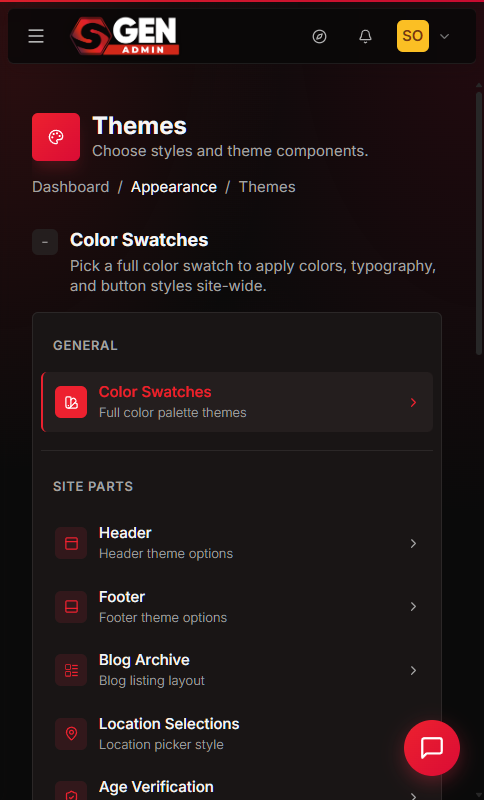
The Themes panel holds eight "chrome" presets in one place: the main palette (Color Swatches) plus seven optional presets for Header, Footer, Blog Archive, Location Selector, Age Verification, Global Buttons, and Bottom Bar Sticky Mobile. Picking a preset is "apply this full look instantly" — it is not the place for one-off colour tweaks.
Good use cases
- Brand relaunch — you are rolling out a new palette and want every page to update in one step, not page by page.
- Seasonal campaign skin — you want the blog or footer to carry a campaign look for a limited window, then switch back.
- Restoring a known-good look — someone edited Styles & Layouts by hand and the site looks wrong; re-picking the original swatch resets it cleanly.
- Multi-surface customisation — you want a different look on the blog landing page from the rest of the site; pick one swatch for Color Swatches and a different preset on the Blog Archive tab.
Scope
The Themes panel covers the Color Swatches tab and its seven sibling chrome tabs. Color Swatches apply a coordinated palette sitewide (every button, link, heading, hero background). The seven sibling tabs — Header, Footer, Blog Archive, Location Selector, Age Verification, Global Buttons, Bottom Bar Sticky Mobile — let you pick a chrome preset for that one surface without touching the others. Any tab's preset can be saved independently; you are not forced to change all eight at once. This doc does not cover per-token colour tuning (that lives in Styles & Layouts) or per-page CSS overrides (that lives in Custom CSS).
The panel below shows the current configured state of all eight chrome slots on a typical site — each slot displays the preset name currently applied:
Examples
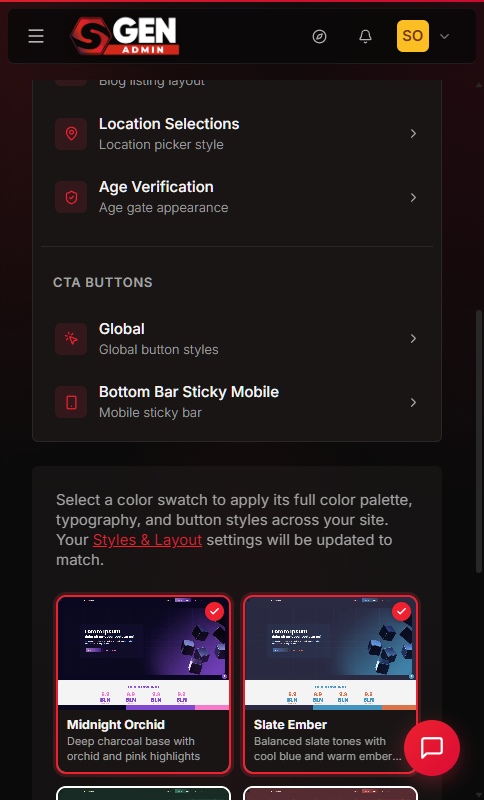
Example 1: Brand relaunch in one click. Your site is rolling out a moodier brand palette. Open Appearance → Themes, pick Slate Ember from the Color Swatches grid, click Save Changes. Every button, link, heading, and hero on yourdomain.com repaints to the new primary (#4394BE) and accent (#2A2A42) within one reload:
Here is how the public home hero renders after the Slate Ember swatch is active:
Example 2: Match chrome presets to a campaign. Your site needs a warmer skin for the blog index during a product launch, without touching the rest of the site. Click the Blog Archive tab inside Themes, pick the Magazine Warm preset, Save. Only /blog/* inherits the new look. The Save Changes flash confirms which slots wrote:
Example 3: Restore a known-good look after a hand-edit went wrong. Someone on the team edited Styles & Layouts by hand and the site homepage now shows the wrong accent colour on CTAs. Open Themes, re-pick the intended swatch (for example Burgundy Gold), click Save. The preset's defaults re-merge onto Styles & Layouts and the site repaints to the known-good look. The Themes grid header then shows the restored active swatch:
Reference
| Chrome tab | What it controls | Saves independently |
|---|---|---|
| Color Swatches | Full site palette — every button, link, heading, background | Yes |
| Header | Header chrome preset (layout + colours + CTA placement) | Yes |
| Footer | Footer chrome preset (column layout + colours) | Yes |
| Blog Archive | Blog landing-page layout (list / card-grid / magazine) | Yes |
| Location Selector | Multi-location picker chrome | Yes |
| Age Verification | Age-gate splash screen style | Yes |
| Global Buttons | Default button shape applied sitewide | Yes |
| Bottom Bar Sticky Mobile | Floating CTA bar on phone screens | Yes |
Each row saves independently. Picking a Color Swatch also merges its defaults into Styles & Layouts — the other seven tabs do not touch Styles & Layouts.
What NOT to use this for
- Do not use Color Swatches as a colour palette picker. Swatches aren't cosmetic-only — picking a different swatch rewrites parts of your Styles & Layouts. If you customised button backgrounds or link colours by hand, they may be overwritten. Use Styles & Layouts → Global Colors for fine-grained colour edits, or — for a single accent colour you want to keep pinned — add a small override to Appearance → Custom CSS so a future swatch change can't undo it:
``css / Keep your site's primary CTA colour pinned no matter which swatch is active / :root { --color-primary: #6F4E37; --color-primary-hover: #5A3E2B; } body .btn-primary, body a.btn-primary { background: var(--color-primary); color: #fff; } body .btn-primary:hover, body a.btn-primary:hover { background: var(--color-primary-hover); } ``
- Do not rely on the Themes page's active indicator on brand-new sites. On fresh installs the panel may render "Midnight Orchid" as checked while the public site renders a different palette. If the colours look wrong, re-pick your intended swatch and save to force the match.
How this connects to other features
- Styles & Layouts — picking a swatch rewrites parts of Styles & Layouts (typography/colors/buttons). Back up hand-tuned values before you switch swatches.
- Media Library — your logo and brand imagery live in the Media Library; the theme references them but does not host them.
- Custom Codes / Custom CSS — for overrides that a swatch can't express, layer a Custom CSS rule on top instead of editing the preset.
- Templates — the active header / footer / mobile menu templates (site chrome) wrap every page the swatch repaints.
Before you start
- You are signed in to SGEN as an admin with Appearance access.
- You know that a swatch change affects every page; there is no per-page preview before Save.
- If you have hand-tuned button / link colours, record the hex values first — a swatch change may overwrite them.
Where to go
- Open the left navigation.
- Click Appearance → Themes. The page opens on the Color Swatches tab. Seven sibling tabs sit above the cards:
Preview: Themes subtabs — a screenshot of this screen will be added here.
Steps
1. Pick a swatch
Each card is a pre-built palette. Click a card to select it; the active card gets a red check:
Preview: Color Swatches picker — a screenshot of this screen will be added here.
2. Save Changes
Scroll to Save Changes. The site repaints on next reload.
Preview: Save Changes button — a screenshot of this screen will be added here.
Heads up — swatches also reset fine-grained colours. Changing a swatch merges the preset's defaults into Styles & Layouts. If you previously hand-picked a button accent colour, the new swatch's default may win.
SGEN shows a confirmation prompt before applying a swatch that will overwrite Styles & Layouts values:
3. (Optional) Pick chrome presets on the sibling tabs
If you want a different look for the Header, Footer, Blog Archive, Location Selections, Age Verification, Global Buttons, or Bottom Bar Sticky Mobile, click the matching tab and pick a preset there. Each tab saves independently.
After saving one or more chrome tabs, the status row at the top of the panel updates to confirm which slots are active:
What success looks like
What to do if it does not work
- I clicked Save and the public site did not change. Hard-reload (Ctrl+Shift+R) — CSS can be cached in the browser for up to an hour.
- My custom button colours are gone after a swatch change. Expected — a swatch merges the preset's defaults onto Styles & Layouts. Re-apply your hex values in Styles & Layouts → Global Colors and → Button Styles.
- My admin shows one swatch checked but the site renders another. Re-pick your intended swatch on the Themes page and click Save Changes to force the match.
Next step
- Configure the header (logo, nav, CTAs)
- Configure the footer (columns + widgets)
- Configure the mobile menu (drawer)
- Customize global styles (typography, colors, buttons, layout, accessibility)
- Build a navigation menu (menu builder + locations)
- Manage widgets (paragraph, image, embed, code)
- Use shortcodes ( etc.)