
Social Share Buttons for Blog Posts
Blog posts now ship with native social share buttons — Twitter, Facebook, LinkedIn, and copy-link — built into the SG-Builder blog template. One toggle in Blog Settings turns them on across every published post. No plugin, no extra script tag.
What's new
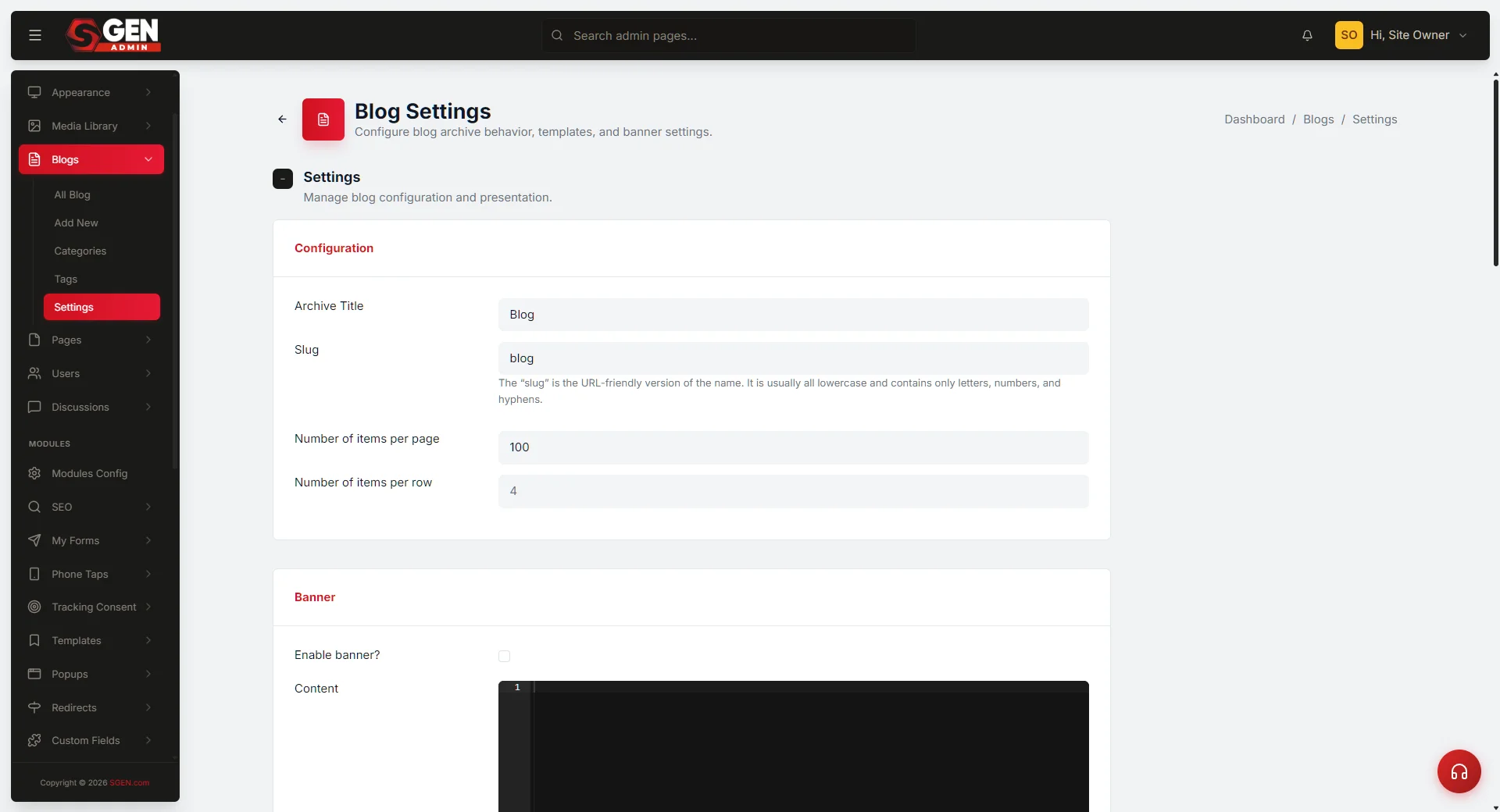
A new Social Share section now lives under Blogs → Settings. Six fields give you full control over which networks appear and what heading sits above them.
Toggle
Enabled
Single master switch. On = buttons render below every blog post. Off = no buttons, no script load.
Networks
Twitter, Facebook, LinkedIn, Copy link
Each network is an independent toggle. Turn off the ones you don't want without touching the others.
Label
Heading above the buttons
Defaults to "Share". Customize the heading to match your site's tone — or remove it entirely by clearing the field.
Scope
All published posts
No per-post configuration. Enabling once applies to every published blog post on the site automatically.
How to set it up
Six steps from Blog Settings to live share buttons.
1
Open Blog Settings
In the admin sidebar go to Blogs → Settings, or navigate directly to /sg-admin/blog/settings.
2
Find the Social Share section
Scroll down the settings page until you reach the Social Share section.
3
Set Enabled to on
Flip the Enabled toggle. This activates the whole feature — nothing renders until this is on.
4
Choose your networks
Toggle the four networks you want visible: Twitter, Facebook, LinkedIn, and Copy link. Each is independent.
5
Edit the label (optional)
The Label field defaults to "Share". Update it if that wording doesn't fit your site's tone.
6
Save
Save the settings page. Buttons appear on every published blog post automatically — no per-post configuration, no shortcode to insert.
Where it fits
Part of the SG-Modules content layer, delivered through the SG-Builder blog template.
Surface
Blog Settings panel under Blogs → Settings. The buttons render as part of the post layout — same scoped component system as the rest of the editor.
Who it is for
Site owners and content managers who publish blog content and want readers to share posts without installing a separate plugin.
Default state
Disabled by default on existing sites. New sites created after this release inherit the same default-off state. You opt in when you want it.
No plugin tax
The buttons render server-side as part of the post layout — not via a client-side widget. Copy-link uses the browser's native clipboard API with no third-party telemetry.
Heads up If you already have a custom share block inside a post body, leave it in place. The Social Share section adds buttons below the post — it does not replace any inline blocks you placed manually.