
SGEN in 5 minutes
⏱ 5-minute read · then a 15-minute hands-on orientation in your own dashboard.
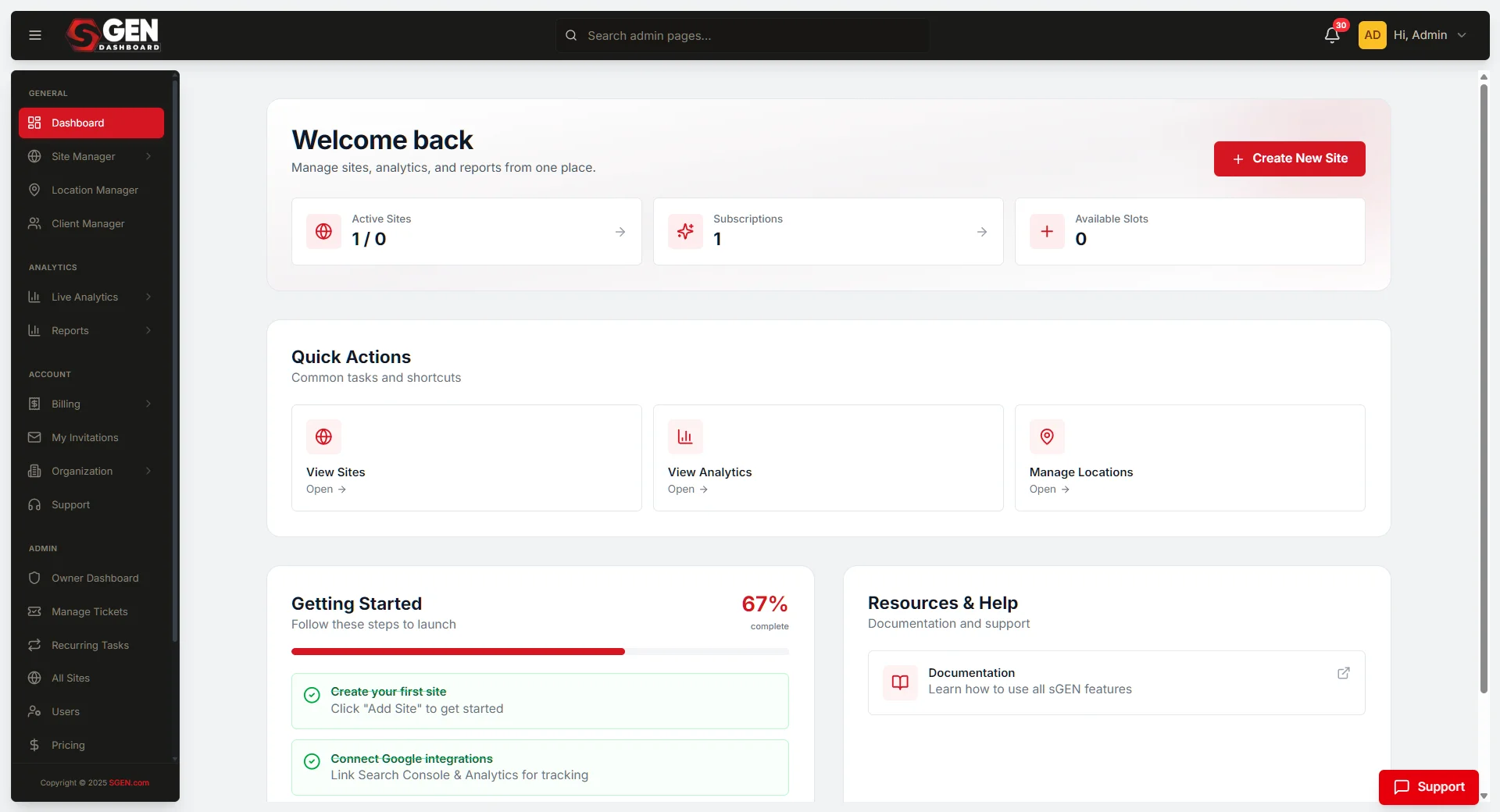
The 5-minute answer. SGEN is a website platform where your whole team edits content without touching code. The left sidebar is the map: Pages holds every URL, Blog is your publishing engine, Forms captures leads, Media stores assets you reuse everywhere, Custom Objects handles structured content like team members and product catalogs, and Settings holds your domain, SEO defaults, and brand config. Nothing goes live until you click Save or Publish — so you can explore freely. The orientation below: log in, scan Pages, scan Blog, check Forms for missing notification emails, confirm your SEO defaults aren't blank, then write down your first three real tasks.
New to the platform itself? Read What is SGEN first for the surface-by-surface model — this SGEN in 5 minutes page is the hands-on lap inside your dashboard.
Two things to hold in your head before you start the lap. First, nothing is public until you publish it — your work lives in a private Sandbox, search engines are blocked from it, and a page only reaches visitors when you publish it or promote the whole site to a live domain. So you can click around with zero risk of breaking anything live. Second, what you see depends on two things: your role and your plan. Your role decides which sections you can open; your plan decides which features are switched on. SGEN is modular — your base plan (the Foundation Pack) covers hosting, SSL, and the dashboard, and the visual builder, forms, SEO tools, and analytics are included on every plan. If a section is missing or locked, it is almost always one of those two reasons, not a bug.
How to get oriented in SGEN
This is a read-only lap — you're understanding what you have before you change anything. Fifteen minutes now saves hours later. One thing to know up front: your role decides what you can see. Admins see everything; editors and contributors see less. If a section is missing, your role probably doesn't include it — not a missing feature — every plan includes all 23 modules.
It helps to know the shape of the platform while you walk it. SGEN organizes into four named layers, and you'll see these names throughout the docs:
| Layer | What it is | Where you meet it |
|---|---|---|
| SG-Dashboard | Account control — your sites, plan, team, and billing | The multi-site dashboard you sign into |
| SG-Core | The essentials every site needs — pages, posts, media, menus, users | The left sidebar of each site's admin |
| SG-Modules | Built-in features included on every plan — forms, SEO, analytics, ecommerce | Sections available on every plan |
| SG-Builder | The visual, drag-and-drop page editor | Opened from any page or post record |
You don't need to memorize this. The point is that the sidebar you're about to scan is mostly SG-Core, the dashboard above it is SG-Dashboard, and every section is available on every plan. For the full vocabulary, see Key concepts in 10 minutes.
Steps — get your bearings
1. Log in and read the sidebar
Open yoursite.com/sg-admin (or the link your account owner sent). Note every section in the left sidebar — Pages, Blog, Forms, Media, Custom Objects, Settings. The sections you can see tell you what your role has access to.
2. Scan Pages
Click Pages. Read the titles, slugs, and status (Published or Draft). This is your site's core structure. Confirm the pages you expect — home, about, contact — are there; open anything you don't recognize.
3. Scan Blog
Click Blog. Look at the categories, publication dates, and status of each post — that tells you how active the blog has been. Open a draft if there is one; drafts are often planned content that stalled.
4. Check Forms
Click Forms. For each form, confirm a notification email is set in Mail Settings — a form without one collects leads silently. A published form showing zero submissions usually isn't embedded on any page yet.
5. Check Settings — domain & SEO defaults
Click Settings. Note the site name, domain, and SEO defaults. If the defaults are blank or still say "SGEN Site," they were never configured — set your real site name and a one-line description of what your site does.
6. Write down your first three tasks
After the lap, pick three concrete tasks — not everything, three. For example: update the homepage hero, publish a blog post, set the contact-form notification email. Then open the matching step-by-step guide for each.
What success looks like
You're oriented when you can say:
- I've confirmed my role and what I can access.
- I've seen the Pages list and know what pages exist.
- I've seen the Blog and know what's published vs draft.
- I've checked which Forms are live and which have notification emails.
- I've noted the domain and SEO defaults.
- I have three concrete first tasks, each with its guide bookmarked.
If something's off
- The sidebar looks different from this guide. Two causes, in order of likelihood: your role, or your plan. Roles like Editor and Author see fewer sections than an Administrator; and every feature — the visual builder, forms, SEO tools, analytics — is on every plan. Ask your account owner which role you have.
- Your changes aren't on the live site. Check you clicked Save or Publish, and that the content isn't still in Draft — drafts aren't visible to visitors. Remember nothing reaches the public until you publish it, so a Saved-but-Draft page is working exactly as designed.
- A page or feature in a guide isn't where it says. No feature is gated behind a purchase. If the SEO fields, the form builder, or the analytics reports aren't there, check your role permissions — check sgen.com/pricing or your billing settings. Otherwise, search Settings and the sidebar for the equivalent, or contact support.
See also
- What is SGEN — the platform definition, surface by surface.
- SGEN in 90 seconds — the even-shorter exec summary.
- For your role — the reading path for your job.
The four SGEN layers
| Layer | What it is | Where you meet it |
|---|---|---|
| SG-Dashboard | Account control — your sites, plan, team, and billing | The multi-site dashboard you sign into |
| SG-Core | The essentials every site needs — pages, posts, media, menus, users | The left sidebar of each site's admin |
| SG-Modules | Built-in features included on every plan — forms, SEO, analytics, ecommerce | Sections available on every plan |
| SG-Builder | The visual, drag-and-drop page editor | Opened from any page or post record |