
Stripe payments update your orders automatically — verifying the link is healthy
⏱ 60-second answer below · full page ≈ 8 min · skim the bold headings to move faster.
In short. When a customer pays with a card, Stripe processes the charge and automatically notifies your SGEN store via a background channel called a webhook. Your order moves from Pending → Completed on its own — you do not touch it. The daily check is a 3-minute scan: open Orders → Pending, compare the count against your Stripe Dashboard, and investigate any order stuck longer than 10 minutes. If you find stuck orders, manually flip them to Completed (after confirming the Stripe charge succeeded) and open a support ticket with the order numbers and Stripe payment IDs. Everything on this page is point-and-click — no technical background needed.
On this page: Order statuses · Daily 3-step check · What healthy looks like · Troubleshooting · Next steps
How to keep your orders in sync with Stripe payments
What is this for?
When a customer pays at your SGEN store with a credit card, the payment goes through Stripe. Stripe processes the charge and notifies your store automatically — that notification is the webhook. Your order moves from Pending to Completed without any action from you.
You set up Stripe once and the connection runs continuously. This page covers how to confirm the connection is healthy and what to do when it is not.
Scope
| In scope | Out of scope |
|---|---|
| Reading order statuses (Pending, Completed, Failed, Refunded) | Setting up a Stripe account or enabling payment methods |
| Recognizing a stuck Pending count | Configuring webhook URLs or signing secrets yourself |
| Manual status correction for a single stuck order | Developer-level webhook testing or log inspection |
| Escalating to support with the right order details | Stripe fee schedules or payout timing |
| Morning reconciliation check against Stripe Dashboard | Fulfillment, shipping, or post-payment workflows |
Reference
| Status | What it means | What causes it |
|---|---|---|
| Pending | Payment received by Stripe; store not yet notified | Normal for seconds-to-minutes; abnormal after 10+ minutes |
| Completed | Stripe notified store; order confirmed | Healthy webhook delivery |
| Failed | Payment not collected; order abandoned | Customer did not complete checkout, or card declined |
| Refunded | Money returned to customer via Stripe | You issued a refund in Stripe (manual status update may be needed) |
| Stuck Pending | Payment succeeded in Stripe; store still shows Pending after 10+ minutes | Webhook delivery interrupted; escalate to support |
| Signal | What to do |
|---|---|
| Pending count climbing and not clearing | Compare against Stripe Dashboard; open support ticket with order numbers |
| Order stuck Pending > 10 min, Stripe shows success | Manually flip to Completed, add to support ticket |
| Refund issued in Stripe, order still shows Completed | Manually flip to Refunded via Update Status |
| Failed count spiking suddenly | Check Stripe for declined cards or a gateway issue |
Examples
The Stripe link works like a doorbell. Stripe rings it every time a payment event fires — a customer pays, a card declines, a refund goes out. Your store hears the bell and updates the order list. When the bell is wired correctly, you barely think about it. When it is broken, orders pile up in a waiting state and customers wonder if their purchase went through.
A healthy store has a small steady Pending count (seconds-to-minutes turnover), a growing Completed count, and modest Failed and Refunded tails. When the webhook is healthy, the Pending tab clears within a minute of the customer finishing checkout.
Order #4825 has been Pending for 6 minutes — on the edge of normal, still acceptable. If it stayed Pending for an hour, investigate. A mix of Completed, Refunded, and Failed in the same view is normal on any healthy day.
Good use cases
- Morning revenue check — confirm your Completed count for the day matches what Stripe shows for the same date range.
- Spot a stuck payment — catch a Pending order before the customer contacts you asking "did my order go through?"
- Verify a refund flowed through — confirm a refund you issued in Stripe is reflected on the order list.
- Post-key-rotation verification — after rotating your Stripe keys, use the order list as the simplest live test that the new keys are working.
- Onboard a new admin — walk a new team member through the morning check so they have a clear procedure if something looks off.
What NOT to use this for
- Not a developer tool. Do not use this page to test the webhook from a developer console — that is not admin work. If you suspect a problem, contact support.
- Not the source of truth for money. Stripe is the source of truth for payments; SGEN reflects it. If the two ever disagree, Stripe wins.
- Not a substitute for monitoring. If your store is mission-critical, set up alerting in Stripe Dashboard so you hear about delivery failures by email rather than discovering them on your morning check.
- Do not share your Stripe signing secret in chat, email, or screenshots — treat it like a password.
How this connects to other features
- Stripe gateway settings — the link only works when your Stripe keys and webhook signing secret are configured under Settings → Ecommerce → Payment → Stripe. If you rotate your Stripe keys, you must also update the signing secret, or every payment will get stuck on Pending.
- Stock and inventory — when an order moves to Completed via the webhook, stock moves from Reserved to Sold. A stuck connection means reservations pile up while counts look right.
- Email notifications — your order-confirmation email fires when the order moves to Completed. A stuck webhook means a stuck confirmation, which is often what the customer notices first.
- Refunds — as of April 2026 there is a known display lag where refunds issued in Stripe do not flip the order to Refunded automatically. See the troubleshooting section for the manual workaround.
- Reporting and analytics — orders stuck on Pending are excluded from your same-day revenue numbers. End-of-month totals self-correct once resolved, but daily reporting can mislead in the short term.
- Abandoned-cart cleanup — your store's automatic cleanup job moves long-Pending orders to Failed. During an outage, this can falsely fail orders the customer already paid for. After resolving an issue, check the Failed tab for orders that should be Completed.
Before you start
You will need:
- An admin login for your SGEN store.
- Access to your Stripe Dashboard at dashboard.stripe.com (the same Stripe account whose keys are configured in your store).
- A current order to look at — ideally one that paid in the last few minutes, so you can watch it move from Pending to Completed.
Best time to run the check: 30–60 minutes after your typical first-order-of-the-day. By then, the morning's earliest customers have either succeeded or failed and the picture is representative of how the link is performing today.
A healthy Completed order shows a "Stripe payment: Confirmed via webhook" row with a timestamp. If you click into a Pending order and see "Stripe payment: not yet received" while Stripe Dashboard shows the charge succeeded, the link is having a problem for that order.
Where to go
- SGEN admin order list: Dashboard → Orders
- Stripe gateway settings: Dashboard → Settings → Ecommerce → Payment → Stripe
- Stripe webhook config: Stripe Dashboard → Developers → Webhooks (your store's page entry — shows the page URL, subscribed events, recent delivery attempts, and signing secret)
If you have multiple stores under one Stripe account, make sure you are on the right page in Stripe. Each SGEN store has its own page URL and signing secret, even if they share a parent Stripe account.
Steps
Spend three minutes once a day during your morning revenue check. The first time feels slow; by the third or fourth day it is muscle memory.
1. Open your order list and scan the Pending tab
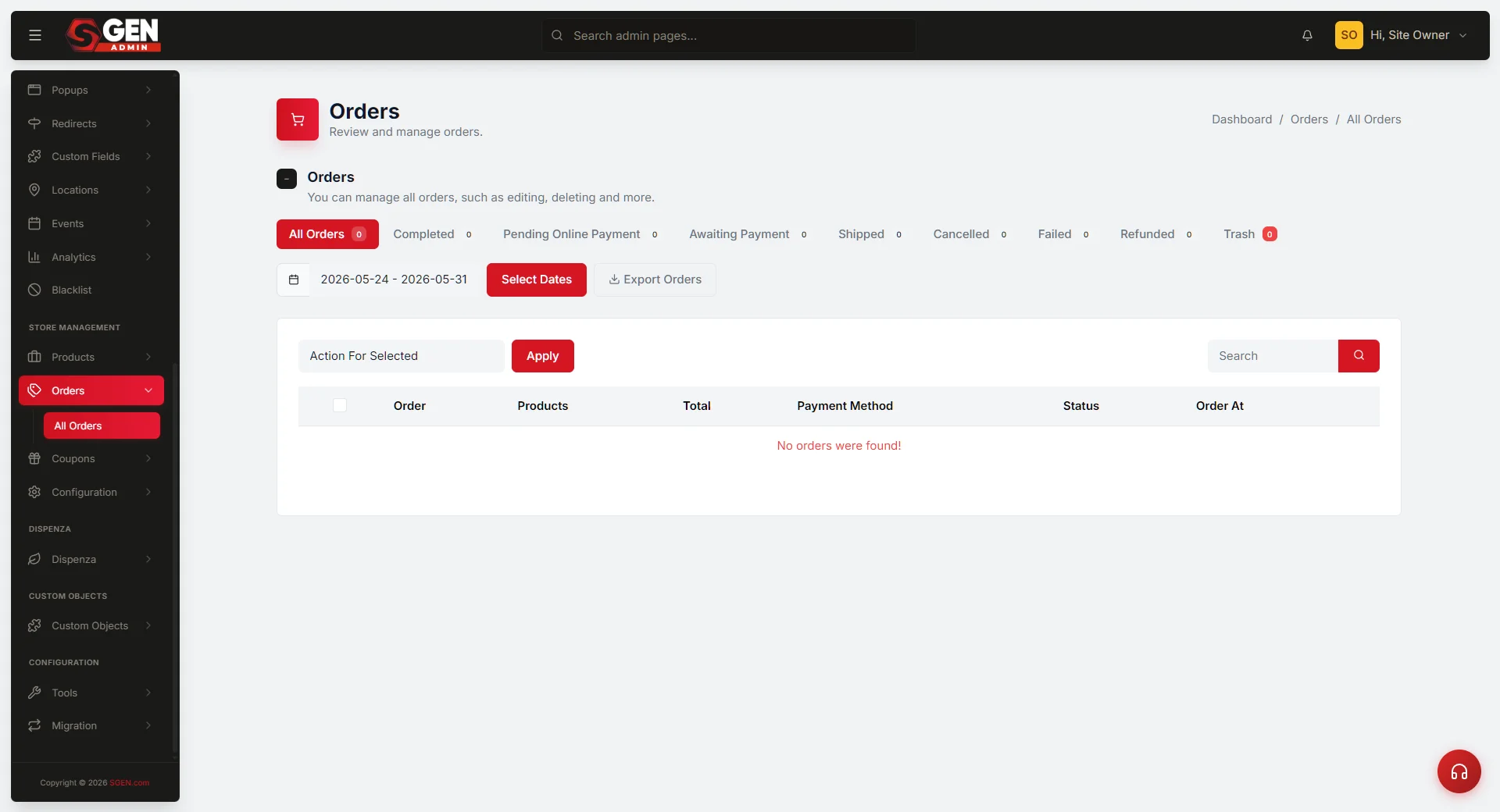
Go to Orders in your SGEN admin and click the Pending tab. Note the count.
On a healthy day this number stays small — typically under 10, rarely above 20 even at peak. Orders spend 30 seconds to 2 minutes on Pending before the confirmation fires and bumps them to Completed. If the Pending count is double or triple your usual baseline and not clearing, continue to step 2. If you have never noted your baseline, today is a good day to start — write it down as something like "Pending typical: 3–8, alert at 15+."
2. Compare against Stripe Dashboard for the same time window
Open Stripe Dashboard in another tab and go to Payments, filtered by today. Count successful payments.
If Stripe shows 50 successful payments and your SGEN Completed count is 38, your Pending count should be about 12. If SGEN Pending is significantly larger than that gap — and orders have been stuck for more than 10 minutes — something is wrong. A small lag is expected during high-volume hours; the mismatch to look for is persistent and sizable. If numbers match, you are done. If they do not match, continue to step 3.
3. Pick one Pending order and look at it in detail
Click into one of the Pending orders. Note the customer email and order total. Switch to Stripe Dashboard and search Payments by that email. Compare the amount.
- Matching successful Stripe charge found: the customer paid, but the notification did not reach your store. This is a connection issue — open a support ticket including the order number and Stripe payment ID.
- No matching Stripe charge: the customer started checkout but never completed payment. Normal — the order will move to Failed after your store's automatic cleanup runs (typically 24 hours).
4. If you found stuck orders, document and escalate
Open a support ticket with subject "Stripe payment delivery delayed — N orders stuck Pending." Include for each stuck order: SGEN order number, customer email, order total, timestamp placed, and the matching Stripe payment ID from step 3. The more detail you provide, the faster support can resolve the issue.
After submitting the ticket, you can manually move each confirmed-paid stuck order to Completed via Update Status in the order detail — but only if you confirmed the Stripe charge succeeded in step 3.
Use the primary action to confirm with Stripe before doing anything. Only use "Mark as Failed" if Stripe confirms no charge succeeded.
What success looks like
In your healthy day-to-day:
- Customer clicks Pay at checkout.
- Order appears in your Pending tab within seconds.
- Within 30 seconds to 2 minutes, the order moves to Completed.
- Stock counts update; customer receives their confirmation email.
- End-of-day Completed count for the date matches the Stripe successful-payments count for the same date, dollar for dollar.
A subtler success indicator: customers stop contacting you to ask "did my order go through?" A spike in those contacts over a week is worth investigating even if your order list looks roughly right.
When the link is healthy, this page appears on the customer's screen within seconds of clicking Pay. When it is unhealthy, the customer sees a charge on their bank app but no confirmation — and they reach for the Contact Support button.
What to do if it does not work
Most problems fall into one of four buckets.
Bucket A — Pending count keeps climbing and orders are not moving to Completed. The most common symptom. Stripe is not delivering payment confirmations. The most frequent cause: someone rotated your Stripe keys and forgot to also rotate the webhook signing secret. Open a support ticket with subject "Stripe payment stuck — orders piling up on Pending" and include a screenshot of your Pending tab.
Bucket B — A single order is stuck while the rest are flowing. Unusual. Likely a transient network issue at the moment Stripe tried to deliver for that one order. Manually update the order to Completed via Update Status — but only after confirming the matching Stripe charge succeeded.
Bucket C — A refund you issued in Stripe is not showing as Refunded on your order list. Known limitation as of April 2026. The money is returned to the customer correctly; only the display on your admin is affected. Manually update via Update Status → Refunded. Support has flagged this and a fix is on the engineering backlog.
Bucket D — Stripe Dashboard shows delivery succeeded but the order list still shows Pending. The message reached your store but something inside the store rejected it — typically because the order ID attached to the payment did not match any order in your store. Open a support ticket with the Stripe payment ID; support can investigate and either link the payment to the right order or refund it.
Escalate immediately (do not wait for tomorrow's check) when: more than 30 orders have been Pending for more than 1 hour AND Stripe Dashboard shows a recent delivery problem. That combination means customers are likely already noticing.
Example — Morning revenue check. The store owner opens Orders and sees 7 Pending, 1,162 Completed. Stripe shows 1,165 successful payments today — so 3 should be Pending, not 7. They dig in: 3 of the 7 are recent (under 5 minutes, normal). The other 4 have been Pending over an hour. They click the oldest, find a successful Stripe charge from 1 hour 12 minutes ago, and open a support ticket with all 4 order numbers and Stripe payment IDs. Support resolves within 20 minutes — they manually move the 4 orders to Completed and rotate the signing secret. Pending drops back to 3. Total time: 15 minutes. Without the daily check, the problem might have run two or three more days before surfacing.
Refund display lag. When you issue a refund through Stripe, the customer gets their money. But the order does not auto-flip to Refunded on your admin (known limitation, April 2026). Open the order, click Update Status, choose Refunded. A useful habit: a weekly Monday sweep comparing your Stripe Dashboard refunds list against your SGEN Refunded tab — about 5 minutes — keeps displays current and prevents the customer-contact loop.
Next steps
- See the Order management customer doc for how to open an order, change its status manually, and resend confirmation emails.
- See the Ecommerce settings → Payment customer doc for how to rotate your Stripe keys and signing secret safely.
- See the Refunds customer doc for the workflow when a customer requests a refund.
- See the End-of-month reconciliation customer doc for matching SGEN order totals against your Stripe payout statement.
- See the Customer order history customer doc for what your customer sees when an order is Pending vs Completed vs Refunded.
- See the Stock and inventory customer doc for how the Reserved-to-Sold transition is triggered by the same payment events covered here.
Order status reference
| Status | What it means | What causes it |
|---|---|---|
| Pending | Payment received by Stripe; store not yet notified | Normal for seconds-to-minutes; abnormal after 10+ minutes |
| Completed | Stripe notified store; order confirmed | Healthy webhook delivery |
| Failed | Payment not collected; order abandoned | Customer did not complete checkout, or card declined |
| Refunded | Money returned to customer via Stripe | You issued a refund in Stripe (manual status update may be needed) |
| Stuck Pending | Payment succeeded in Stripe; store still shows Pending after 10+ minutes | Webhook delivery interrupted; escalate to support |