
Payment Gateways
⏱ ~6 min read · what a payment gateway is, where to set one up, how to connect Stripe and PayPal, and what to check when a payment fails.
In short. A payment gateway is the service that securely takes card and other payments at your store's checkout and sends the money to you. You connect one or more in your site admin under Store → Configuration → Payment Gateways. SGEN supports Stripe for card payments and PayPal as a second option — you can run both side by side so shoppers choose at checkout. Credentials are kept securely, every order surfaces in the Orders area, and you can switch a provider off while keeping others on so checkout stays open. The provider holds the funds; SGEN records the order.
On this page: What a payment gateway is · Where to set it up · Connect Stripe · Connect PayPal · Where transactions surface · Dependency posture · Troubleshooting · Vocabulary · Related reading
What a payment gateway is
Payment gateways are the connected services that take payment at checkout — each one accepts the customer's card or account details, confirms the funds, and routes the money to you. In SGEN they turn a store into one that can take orders: without a connected gateway, a customer can fill a cart but not complete a purchase.
The gateway handles the transaction flow — the customer submits payment, the provider authorizes it, captures it, and handles any refund later. Throughout, the provider holds the funds; SGEN's job is to record the order and its state so you can see what happened from your admin.
Each site can have one or more providers connected at once. Running two — say Stripe for cards and PayPal alongside it — gives shoppers a choice at checkout, and it means that if one provider has a problem, the other can keep your store taking orders.
A note on credentials: the keys you paste in when connecting a provider are stored securely, and the platform reuses the connection for each transaction without asking you to re-enter them.
Where to set it up
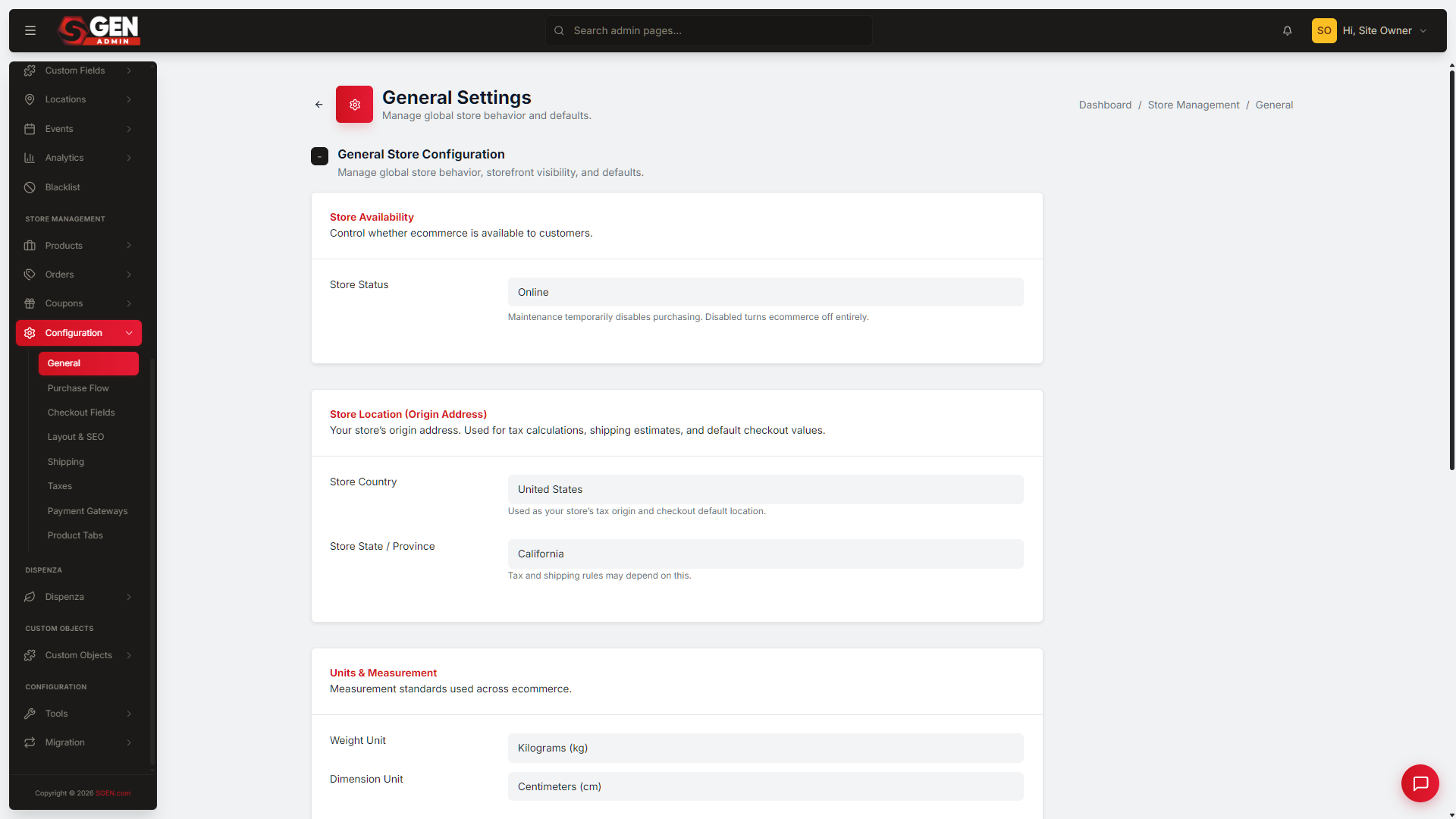
Payment connections live in your site's admin under Store → Configuration → Payment Gateways. (Checkout itself — the fields a customer fills in and the flow they go through — is configured separately under Store → Configuration → Checkout.)
To reach the Payment Gateways screen: from your SGEN Dashboard, open Site Manager, find your site, and log in to its admin; then go to Settings → Store Management → Payment Gateways. From there you enable and configure each provider you want to offer.
Connect Stripe
Stripe handles card payments. To connect it:
- Sign in to your Stripe dashboard and copy your API keys.
- In your site admin, open Store → Configuration → Payment Gateways.
- Enable Stripe and paste your keys into the Stripe fields.
- Click Save Changes.
- Place a test order through your storefront to confirm payments go through.
That last step matters — a test order is the difference between "I entered the keys" and "money moves through to me."
Connect PayPal
You can run PayPal next to Stripe so shoppers pick at checkout. To connect it:
- In the admin sidebar, open Settings → Store Management → Payment Gateways.
- Scroll to the PayPal section and set PayPal Enabled to Yes.
- Set Mode to Sandbox to test first, or Live when you're ready for real orders.
- Paste your Sandbox Client ID and Sandbox Secret into the sandbox fields, and your Live Client ID and Live Secret into the live fields. Both pairs come from your app in the PayPal developer dashboard.
- Click Save Changes.
- Open your storefront in another tab, add a product to the cart, and go to checkout — you should see both the card (Stripe) form and a Pay with PayPal button as separate options.
Sandbox vs. Live mode
Sandbox lets you run end-to-end test orders without moving real money — use it to confirm the flow works before you open the store. Live processes real payments from real customers. Switch from Sandbox to Live (and make sure the live credentials are filled in) when you're ready to start taking orders.
Where transactions surface
Transaction state surfaces inside the admin Store Management across two panels.
| Panel | What you see |
|---|---|
| Orders module | Every transaction the connected gateways processed — status (authorized, captured, refunded, failed), amount, customer, timestamp. |
| Payment Gateways config panel | Per-provider summary: recent volume, refund count, failure rate. Provider health at a glance without leaving SGEN. |
Dependency posture
Payment gateways depend on each connected provider being available and credentials staying valid.
| State | What happens |
|---|---|
| Healthy | Transactions process within the provider's normal latency. Authorizations succeed at the expected rate. Refunds complete cleanly. |
| Unhealthy | Transactions queue or fail. The configuration panel surfaces the unhealthy state per provider. You can disable the affected provider while keeping others active to keep checkout open. |
Examples
Stripe and PayPal side by side. Enable Stripe for card payments and PayPal alongside it. Both appear in the Payment Gateways panel and both surface their orders in the Orders area, and at checkout the shopper sees the card form and a Pay with PayPal button as two choices.
A provider goes unhealthy mid-day. One provider starts failing. The configuration panel surfaces the unhealthy state. You disable that provider temporarily — leaving the other on so checkout stays open — and sort out the problem with the provider before re-enabling it.
Troubleshooting
- A test order won't go through. Recheck the credentials you pasted in. For Stripe, confirm the API keys match your Stripe dashboard; for PayPal, confirm the Client ID / Secret pair matches the mode you're in (sandbox keys with Sandbox mode, live keys with Live mode).
- PayPal isn't showing at checkout. Confirm PayPal Enabled is set to Yes and that you clicked Save Changes, then reload the storefront. The Pay with PayPal button appears as a separate option next to the card form.
- Real payments aren't processing after testing. You may still be in Sandbox mode. Switch the provider to Live and make sure the live credentials are filled in.
- Orders aren't appearing. Orders surface in the Orders area of Store Management — check there first. If a payment failed, the order's status reflects that rather than the order being missing.
- My provider isn't listed. Check which gateways your store offers on the Payment Gateways screen. If the one you need isn't there, contact SGEN support.
Vocabulary cross-reference
| Term | Meaning |
|---|---|
| Payment gateway | The connected payment-processing provider. |
| Provider | The per-gateway service the connection points at. |
| Authorization | The approval step that confirms funds are available. |
| Capture | The step that moves the authorized amount from the customer to the merchant. |
| Refund | The reverse-direction transaction that returns funds. |
Related reading
- Integrations Overview — parent reference area.
- Email and SMTP — sibling integration covering order-confirmation mail.
- SG-Admin Overview — where Store Management modules live.
- SG-Dashboard Overview — account-tier surface for SGEN-side billing (separate concern).