
How to organize your events with categories
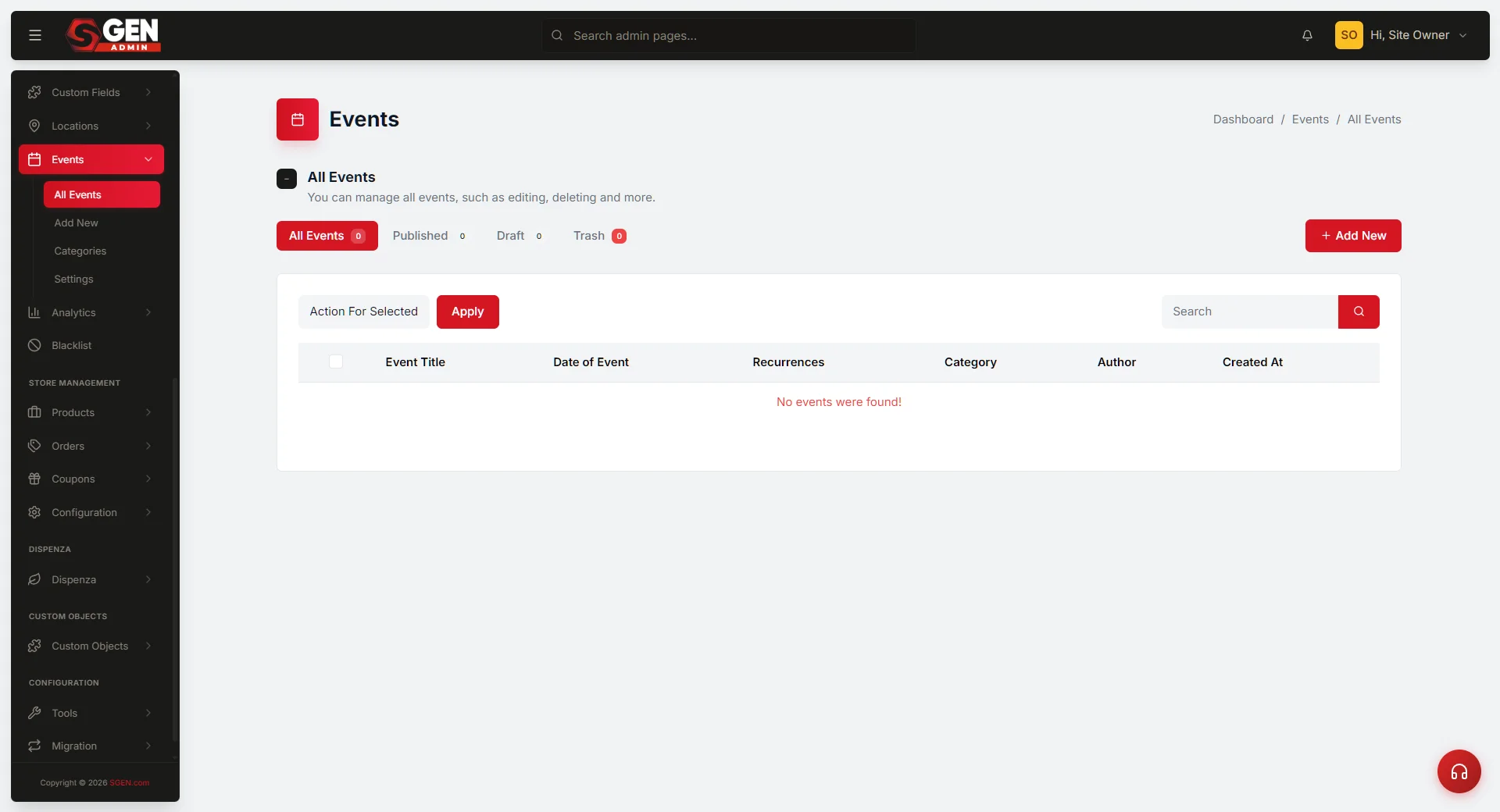 Event Categories: two-column screen — Create/Update category form (Name, Slug, Description, Thumbnail) left, paginated category table right" loading="lazy" style="width:100%;max-width:900px;height:auto;border-radius:8px;border:1px solid #e5e7eb;display:block;margin:12px 0">
⏱ ~1 min answer below · full page ≈ 5 min · skim the bold lead-ins to move faster.
In short. Event Categories are the top-level buckets visitors use to filter your events calendar — "Workshops," "Tastings," "Open Studios." Each category has a Name (visible publicly), a Slug (used in the filter URL /my-events?category=), an optional Description, and an optional Thumbnail. Manage all categories from Events > Event Categories in the admin. Create categories before events — every new event requires one. Categories are flat (no parent/child hierarchy). Deleting a category un-categorizes its events permanently; re-categorize first.On this page: What a category is · Add a category · Edit a category · Delete a category · What success looks like · Troubleshooting
What is this for?
The Event Categories screen is where you create, edit, and remove the top-level groupings that organize your events. Categories like "Workshops," "Tastings," or "Festivals" give visitors a way to browse all events on one topic and enable the filter dropdown on the public /my-events archive.
The screen is a two-column layout: on the left, a Create Category form (or Update Category form when editing a row); on the right, a sortable, paginated table of every existing category with per-row View / Edit / Delete actions. Most admins visit during initial site setup, then only when adding a new top-level grouping or renaming one. A typical events calendar has 3–8 categories.
Scope
Event Categories are top-level groupings you assign to individual events. They are flat — no parent/child hierarchy. Each category has four fields; Name and Slug are required.
| Field | Required | What it does |
|---|---|---|
| Name | Yes | Public-facing label (e.g. "Workshops", "Tastings") |
| Slug | Yes | URL-safe form used in the filter URL: /my-events?category=workshops |
| Description | No | Text shown on the category archive page (theme-dependent) |
| Thumbnail | No | Image shown on the category archive page (theme-dependent) |
Categories appear on archive cards and enable the filter dropdown on the public /my-events archive. When you create an event and assign it to a category, the event becomes reachable from the category's archive page at /my-events?category=.
Good use cases
| When | What to do |
|---|---|
| New site setup — no categories exist and events can't be saved without one | Create 3–6 top-level categories here first, then start creating events |
| New event type — a new program doesn't fit any existing category | Add the new category here, then assign it when creating the events |
| Overlapping categories — two categories cover the same ground | Re-categorize events into one, then delete the now-empty duplicate |
| Rename for searchability — analytics show visitors use a different term | Edit the Name here; if you also change the Slug, add a redirect immediately |
| Add thumbnails — the events archive looks plain without hero images | Edit each category and pick a landscape image from the Media Library |
What NOT to use this for
- Do not use this screen to assign categories to events. That is done on the event Edit form's Category picker. This screen only manages the list of categories themselves.
- Do not use this screen for hierarchical (parent/child) categories. Categories created here are flat — every category is top-level. If you need a hierarchical structure, encode it in the name: "Workshops - Beginner - Intro."
- Do not casually delete a category that has events assigned. Every event in that category becomes uncategorized and the public archive URL returns Not Found. Re-categorize events first, then delete.
- Do not use this screen for site-wide events settings. The events archive title, items-per-page, and default URL prefix live at Events > Settings.
- Do not use this screen as a tagging system. Categories work best as a small, stable set of mutually-exclusive buckets. For cross-cutting labels like "Featured" or "Member-Only," use Custom Fields or event Title prefixes instead.
- Use simple keywords when searching. The search box works best with a single alphanumeric word. If it returns nothing, use your browser's Find on Page (Ctrl+F / Cmd+F) on the visible table instead.
- Do not click the search submit button if you intend to navigate back. On this version, the search submit can route you to a different admin area. Click Event Categories in the left navigation to return, or visit
/sg-admin/event_categoriesdirectly.
How this connects to other features
- All Events list — the Category column shows what each event is assigned to. Full detail: Events index.
- Edit an existing event — re-categorizing an event happens on its Edit form, not here. Full detail: Edit an existing event.
- Blog Categories and Page Categories — each post type has its own categories list; they do not share with Events.
- Media Library — the Thumbnail field opens the Media Library picker. Upload the category hero photo there first, then pick it on this screen.
- Redirects — when you change a Slug, the old URL
/my-events?category=returns Not Found. Add a redirect from the old slug to the new one under Redirects. - Public events archive — categories surface as a filter dropdown at the top and as a label on each event card.
Before you start
- You are signed in to SGEN as an admin with access to the Events area.
- For initial setup: have a written list of 3–8 categories. Names, descriptions, and (if you want them) thumbnail images uploaded to the Media Library.
- For category renames on a live site: plan to add a redirect for each renamed slug immediately after the rename so inbound links keep working.
- For category deletion: re-categorize events first, or accept that they will become uncategorized after the delete.
- Pick names that are short and clear. "Workshops" reads better on a public archive than "Educational Workshops and Hands-On Classes."
Where to go
- Open the left navigation in the SGEN admin.
- Select Events to expand the sub-menu.
- Click Event Categories. You land at
/sg-admin/event_categories.
How to add, edit, or delete event categories
Steps to add a new event category
1. Open the Event Categories screen
From the left navigation, click Events > Event Categories. The page renders with two side-by-side cards: on the left, a Create new category form; on the right, a table of every existing category with View / Edit / Delete actions on each row.
If this is a brand-new site, the table reads "No categories were found!" and the Create form is ready for your first entry. If categories already exist, the table shows them paginated 20 per page.
2. Fill in the Create new category form
The left card has four fields:
- Name (required) — the human-readable category name. What visitors see. 2 to 50 characters. Examples: "Workshops," "Tastings," "Open Studios," "Festivals."
- Slug (optional) — the URL-safe form of the name. Leave blank and SGEN auto-derives it from Name. To set a custom slug, use only lowercase letters, numbers, and hyphens.
- Description (optional) — a one or two sentence summary. Shown on the public category archive page (theme-dependent).
- Thumbnail (optional) — pick an image from the Media Library. Click Select cover image to open the picker.
3. Click Save Category
The primary red button at the bottom of the form reads Save Category. Click it. SGEN inserts the new category, generates the slug if you left it blank, and reloads the page with a green success flash. The new category appears in the table on the right. The Create form clears, ready for the next entry.
4. Repeat for additional categories
Most sites need 3–8 categories. Repeat steps 2 and 3 for each one. Common starting categories:
- Workshops — hands-on classes
- Tastings — demos, samplings, release events
- Open Studios — tours, gallery walks
- Festivals — annual celebrations, seasonal events
- Webinars — online events
- Special Events — anything that does not fit the above
Once your starter set is saved, start creating events.
Steps to edit an existing category
1. Find the category in the table
The right column shows every existing category in a paginated table. Sort or scroll to find the one you want. If your list is long, type a single keyword into the search box. If the search does not return what you expect, use your browser's Find on Page (Ctrl+F / Cmd+F) to scan the visible table instead.
2. Click Edit on the row
Hover the row. Three actions appear: View (opens the public category archive), Edit (opens the category in the form on the left), and Delete (opens a confirmation modal). Click Edit.
The left card switches from "Create new category" to "Update a category" with all fields pre-populated.
3. Make your changes
Update Name, Slug, Description, or Thumbnail. A few notes specific to Edit:
- Changing the Name updates what visitors see on the public archive immediately.
- Changing the Slug changes the public URL. Pair every Slug change with a redirect in Redirects from the old slug to the new.
- Description and Thumbnail changes update the public category archive page (theme-dependent).
4. Click Update Category
Click Update Category. SGEN saves your changes and reloads with a green success flash. The form switches back to "Create new category." To exit edit mode without saving, click Cancel or click outside the form.
Steps to delete a category
1. Find the category in the table
Scroll or filter to find the row you want to delete.
2. Click Delete on the row
Hover the row. Click Delete. A confirmation modal appears: "Are you sure? This will delete the category and any events in this category will become uncategorized."
3. Confirm
Click Confirm Delete. The category is removed and the table re-renders without the deleted row.
What happens to events in the deleted category: they remain in the system but their Category field goes blank. The public category archive at /my-events?category= returns Not Found. The events still appear on the All Events list and the main events archive — only the category-filtered archive disappears.
For a clean deletion: open the All Events list first, filter by the category you intend to delete, re-categorize those events to a different category, then return here and delete the now-empty category.
What success looks like
When a category save succeeds:
- A green success flash appears at the top of the page.
- The table re-renders with the updated or new row.
- The form clears (Create mode) or stays in Update mode until you click Update Category or Cancel.
- For new categories: the Category picker on the event create/edit form now includes the new category.
- For renamed categories: the Category column on the All Events list shows the new name.
When a category delete succeeds:
- A green success flash appears at the top of the page.
- The table re-renders without the deleted row.
- The Category picker no longer includes the deleted category.
- The public category archive at
/my-events?category=returns Not Found.
To verify, open /my-events?category= in a private/incognito window and confirm the new Name, Description, and Thumbnail render correctly.
What to do if it does not work
- Save Category is greyed out. The Name field is empty or shorter than 2 characters. Enter a Name of at least 2 characters and try again.
- "Slug must be alphanumeric with hyphens." Remove spaces, uppercase letters, and special characters from the Slug field. Or leave Slug blank and let SGEN auto-derive it from Name.
- You typed a Slug that already exists. SGEN auto-appends
-2,-3to keep slugs unique. If you want the clean slug, find the older category that has it, change its slug first, then set yours. - The Thumbnail picker did not save your selection. Confirm you clicked the image in the Media Library modal AND clicked the modal's confirmation button. Clicking outside the modal closes it without saving.
- Your edit saved but the public archive still shows the old Name. Try a private/incognito window or append
?cb=1to the URL to force a fresh fetch. - You changed the Slug and inbound links broke. Add a redirect from the old slug to the new one in Redirects.
- The search box returned no results. Try a simpler keyword (one word, no punctuation). If still nothing, use your browser's Find on Page (Ctrl+F) to scan the visible table.
- Search routed you to a different page. Click Event Categories in the left navigation to return, or visit
/sg-admin/event_categoriesdirectly. - You deleted a category by mistake. Categories are not soft-deleted — there is no undo. Recreate the category with the same Name and Slug. Events that were in the deleted category remain in the system but their Category column may show blank until you re-categorize them via the events Edit form.
Examples
Example 1: Setting up the events calendar from scratch
Your site is launching its events calendar. The event create form requires a Category — so create the category structure here first.
From the left navigation, click Events > Event Categories. The screen renders with an empty table and a clean Create new category form.
Type Name = Workshops. Leave Slug blank — SGEN auto-fills it as workshops. Add a Description and pick a Thumbnail if you have one ready. Click Save Category.
The form clears and the table now shows one row: Workshops. Repeat for Tastings, Open Studios, and Festivals.
Four categories defined — now visit Events > Add New to create the first event. The Category picker offers all four as selectable options.
Example 2: Renaming a category mid-year
Your team realizes visitors search for "Classes" more often than "Workshops." From the Event Categories screen, find the Workshops row. Hover, click Edit. Change Name from Workshops to Classes. Leave Slug as workshops — changing it would break the existing public URL and any shared links.
Click Update Category. The table shows Name = "Classes," Slug = "workshops." The public archive reads "Classes" everywhere, and inbound links to /my-events?category=workshops keep working.
If you also want to update the URL, change Slug to classes and immediately add a redirect under Redirects from /my-events?category=workshops to /my-events?category=classes.
Example 3: Cleaning up overlapping categories
Your site has both a "Samplings" category and a "Tastings" category with similar events.
Step 1: Open the All Events list. Filter by Category = Samplings. Edit each event to change its Category to Tastings, then save. Repeat until the Samplings filter shows zero events.
Step 2: Visit the Event Categories screen. Find the Samplings row. Hover, click Delete. Confirm.
Step 3: Add a redirect from /my-events?category=samplings to /my-events?category=tastings if old links exist.
Re-categorize first, then delete. Skipping step 1 means events become uncategorized.
How categories appear on the public site
Three places where category data surfaces publicly:
1. The events archive. At /my-events, a filter dropdown lets visitors filter by category. Options come from this screen.
2. Each event's public page. The category appears as a label or breadcrumb near the event title. Clicking it takes the visitor to the category-filtered archive.
3. The category archive page. At /my-events?category=, all events in that category render. The category Description shows as a page subtitle. The category Thumbnail shows as a hero image (theme-dependent).
Different themes render these surfaces differently. Some themes only use Name and Slug, ignoring Description and Thumbnail. Test your theme on a sample category before investing in long Descriptions or high-quality Thumbnails.
Slug format rules
The Slug field accepts lowercase letters, numbers, and hyphens. SGEN's auto-derivation from Name follows these rules:
- All letters lowercased.
- Spaces replaced with hyphens.
- Special characters (apostrophes, ampersands, periods, exclamation marks) stripped.
- Multiple consecutive hyphens collapsed to one.
- Leading and trailing hyphens stripped.
| Name | Auto-derived Slug |
|---|---|
Workshops | workshops |
Open Studios | open-studios |
Founder's Q&A | founders-qa |
Summer 2026: A Celebration! | summer-2026-a-celebration |
If you want the Slug to differ from the auto-derivation, type your custom Slug before saving. Slug uniqueness is enforced — if workshops already exists, SGEN auto-appends -2. Edit the saved category if you need a clean custom slug.
Why hierarchy is not exposed on this screen
SGEN's underlying database supports parent/child category relationships. The Event Categories screen does not expose a Parent select — every category created here is flat (top-level).
Two common workarounds:
1. Encode hierarchy in the Name. Use names like "Workshops - Beginner" and "Workshops - Advanced." The auto-derived Slugs become workshops-beginner and workshops-advanced.
2. Use event Titles as the sub-grouping. All events stay in "Workshops," and individual titles are prefixed: "Beginner Intro Workshop," "Advanced Skills Workshop."
For most events calendars, flat categories are sufficient. Reach for hierarchical workarounds only if you have more than 20 events and a clear two-level taxonomy that visitors rely on.
Vocabulary
| Term | Meaning |
|---|---|
| Category Name | What visitors see on archive cards and the filter dropdown. Keep it short (1–2 words). |
| Category Slug | The URL token used in the filter: ?category=. Auto-fills from Name but editable. |
| Category archive | A filtered view of /my-events showing only events assigned to that category. |
| Thumbnail | An image shown on the category archive page. Not the same as the event thumbnail. |
| Flat taxonomy | SGEN event categories are one level deep — there are no subcategories. |
| Delete (hard) | Deleting a category is permanent. There is no trash/restore. Events are not deleted — their category field goes blank. |
Next steps
- Edit an event you already created — see Edit an existing event.
- Browse all events on your site — see Events index.
- Set up redirects for renamed category slugs — visit Redirects in the left navigation.
Event category fields
| Field | Required | What it does |
|---|---|---|
| Name | Yes | Public-facing label (e.g. "Workshops", "Tastings") |
| Slug | Yes | URL-safe form used in the filter URL: /my-events?category=workshops |
| Description | No | Text shown on the category archive page (theme-dependent) |
| Thumbnail | No | Image shown on the category archive page (theme-dependent) |