
How to lock down your public site with a shared access key during pre-launch or staging
⏱ ~10 min read · full reference — use the mini-ToC below to jump to what you need.
In short. Site Protection puts a single shared access key gate in front of every page on your public site. Visitors without the key see a gate page; visitors who type the correct key browse normally. One toggle to enable, one toggle to disable — fully reversible, admin-only. Use it for pre-launch reviews and staging environments; it is not a per-person login or a substitute for real authentication.
On this page: What this is for · Scope · Good use cases · What NOT to use it for · Connections to other features · Before you start · Where to go · Steps — Turn on Site Protection · What success looks like · Troubleshooting · Examples · Tips · FAQ · Vocabulary · Checklists
What is this for?
The Site Protection tool puts a lightweight password gate in front of your public site. When Site Protection is on, anyone who visits your site must type a shared access key before they can see any content. Visitors without the key see a gate page instead of your homepage. Visitors who type the correct key continue browsing normally.
This is a quick, low-friction way to seal off a public site for a small invited audience. It is not a real authentication system — there is no per-person login, no audit log, no expiry, no role-based control. It is one shared key that all authorized visitors use. Think of it as a doorbell on a private apartment, not the security system of a bank.
The two most common uses are pre-launch (hide a finished build from the public while a design team and client give final feedback) and staging (keep a test copy of your live site invisible to search engines and random visitors).
Scope
Site Protection applies to every page on the public site, all at once. There is no per-page or per-section variant — the gate is either on for the whole site or off. For gating a single page, use the per-page visibility setting in the page editor instead.
The admin dashboard (at /sg-admin/) is not affected. Admins log in with their normal credentials and access all admin pages regardless of whether Site Protection is on.
Site Protection is intended for temporary states: pre-launch review windows and ongoing staging environments. It is not designed to serve as a permanent access control mechanism for a live business site.
Good use cases
- Pre-launch review. A new site is fully built but not yet announced. The design team and client need to walk through it together before the public launch. Site Protection gives only invited reviewers access.
- Staging environment. A copy of the live site runs at a separate URL for testing changes before applying them to production. Site Protection keeps the staging copy invisible to search engines and random visitors.
- Agency client preview. A freelance designer or agency operator shows a finished build to a client before going live. Share the URL and the key; the client reviews and signs off; turn protection off for launch.
- Internal cross-team feedback. A design is not ready for customers but far enough along for internal review. Site Protection makes sharing the URL safe — only people with the key can see anything.
- Beta program (small scale). A new product section is ready for a small set of invited beta participants but not the general public. Beta participants receive the URL and key.
- Emergency incident response. A suspicious pattern of traffic warrants sealing off the public site quickly while you investigate. Site Protection toggles in seconds and is fully reversible.
What NOT to use this for
- Customer authentication. Site Protection is one shared key for everyone, with no audit log and no expiry. It is not a substitute for a real customer-account login system.
- Sensitive content protection. A single shared key leaks, gets written down, and ends up in email threads. For genuinely sensitive content (legal documents, confidential pricing, personal information), use a real authentication system or keep the content off the public site entirely.
- Long-term search-engine prevention. Site Protection blocks search engines while it is on, but repeated toggling may leave inconsistent index entries. For long-term search-engine control, use proper SEO tools — robots.txt, noindex meta tags.
- Hiding individual pages. Site Protection is all-or-nothing — every page is gated, or none is. Use per-page visibility in the page editor to hide a single page.
- Permanent gate for a live business. A site behind Site Protection is invisible to search engines, organic traffic, and anyone without the key. That is correct for pre-launch and staging, but wrong for an ongoing public business.
- Per-user activity tracking. There is no audit log of who visited or when. Everyone with the key arrives anonymously. Use a real login system if you need per-person tracking.
- Replacing Maintenance Mode. Maintenance Mode is the right tool for taking the site fully offline temporarily. Site Protection limits access to an invited audience but keeps the site fully functional behind the key.
How this connects to other features
- Tools > Maintenance Mode — Maintenance Mode replaces the public site with a coming-soon or maintenance page for everyone, including team members; admins can still log in to the dashboard. Use Maintenance Mode to take the site fully offline; use Site Protection to limit access to invited reviewers.
- Tools > Optimization — when Site Protection is on, the page cache is bypassed for the gate page. Once a visitor enters the key, normal caching resumes. No special configuration needed.
- Pages > Per-page visibility — every page has its own visibility setting (public, private, password-protected). Site Protection sits above all of these and gates the whole site. Per-page and site-wide protection complement each other.
- SEO settings — when Site Protection is on, the site is invisible to search engines. Indexing resumes when protection turns off, but there may be a delay before search engines re-crawl. Time the toggle accordingly if you have a launch date.
- Custom Codes — analytics scripts capture page views from visitors who entered the correct key. Visits to the gate page itself are typically captured separately if your analytics is configured for it. Test analytics behavior on a staging copy first.
- Settings > General — site title, favicon, and global SEO defaults all continue to apply behind the gate. Site Protection only controls who can see the public site.
Before you start
You must be logged in as an admin. The Site Protection page is in the Tools menu, which is admin-only — editor and marketing roles do not see Tools at all.
Choose a strong, unique access key before turning protection on. A passphrase of three to five common words separated by hyphens works well — long enough to resist guessing, easy enough for reviewers to type without copy-pasting. Do not reuse any password from another system.
Plan how you will communicate the key securely to authorized reviewers. A password manager is best for sensitive cases; a direct message in your team chat is fine for low-stakes pre-launch reviews. Do not post the key in a public channel or public ticket.
Know the URL of your public site. The gate page replaces the homepage at the same URL. After typing the key, the visitor lands on the page they were trying to reach.
Schedule a toggle-off date. Site Protection on indefinitely is rarely the right state for a public business. Put the launch date in your team calendar before you enable protection.
Where to go
- Dashboard > Tools > Site Protection
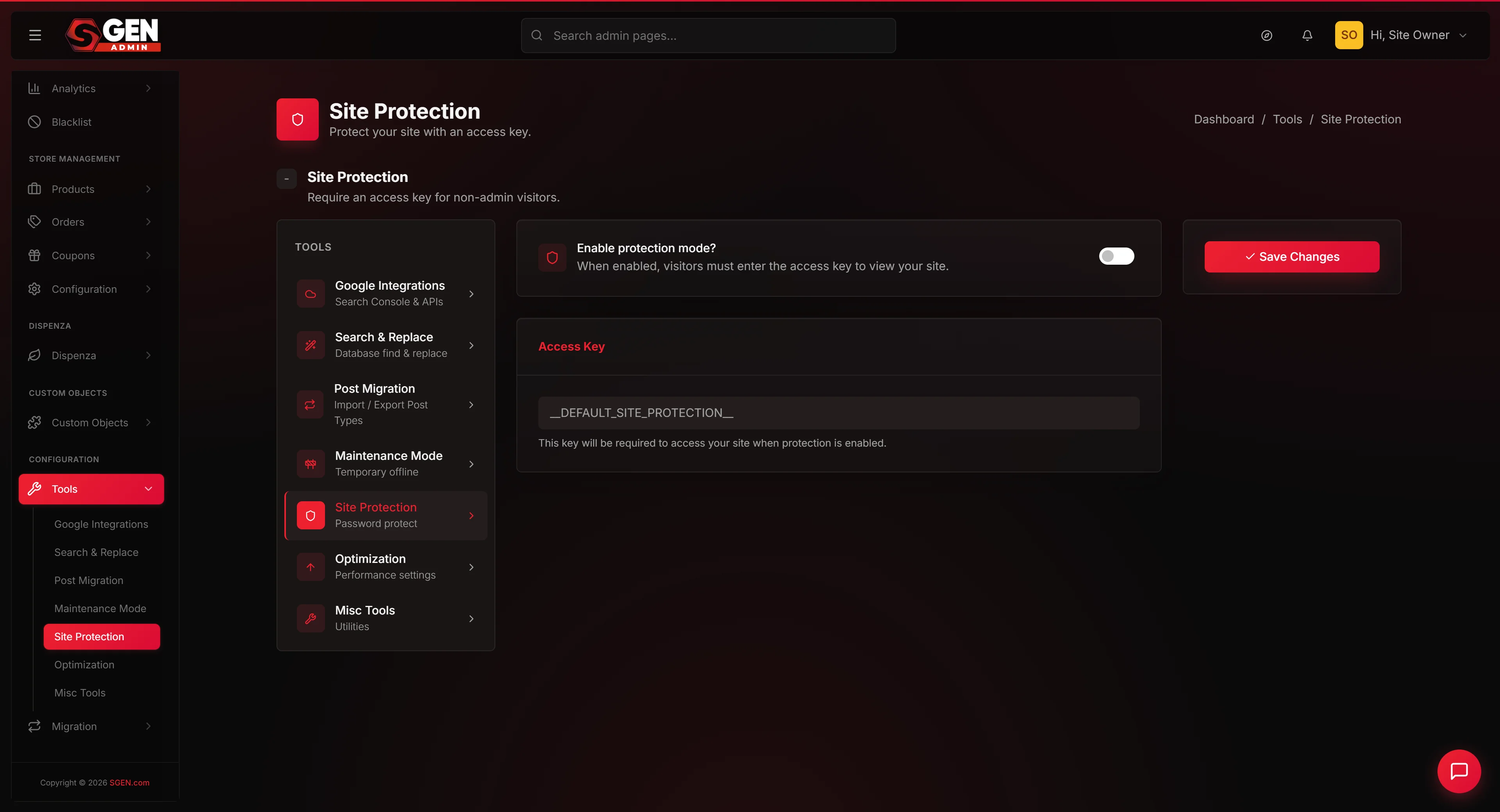
The Tools menu lives in the left sidebar of your admin dashboard. Click Tools, then click Site Protection. The page opens with one card containing the toggle and the access key field, plus a Save button.
Steps — Turn on Site Protection for a pre-launch review
1. Open Tools > Site Protection
In your admin dashboard, click Tools in the left sidebar. The Tools sidebar opens. Click Site Protection.
The body of the page shows one card with two settings: a toggle labelled Enable protection mode and a text input labelled Access Key. Below them is a Save button.
If Site Protection is missing from the Tools sidebar, your role does not have admin permissions. Ask an admin colleague to make the change.
2. Choose your access key
Pick a passphrase that is long enough to resist guessing, memorable enough that reviewers can retype it without copy-pasting, unique to this purpose, and easy to type on mobile keyboards (use letters, numbers, hyphens, underscores — avoid ^, ~, \, |). For example: yourstore-launch-spring-2026.
3. Type the access key into the Access Key field
The Access Key field is a masked input — you see dots instead of characters, which keeps the key safe during screen shares. Type the passphrase carefully. If you make a typo, click into the field, select all (Ctrl+A on Windows, Cmd+A on Mac), delete, and retype.
4. Toggle Enable protection mode on
Click the Enable protection mode toggle. The change is staged but not saved yet.
5. Save the change
Click Save. A green confirmation banner appears: "Site Protection settings saved." Site Protection is now enabled. Every visitor to your public site will see the key-entry gate until they type the correct key.
If the confirmation banner does not appear within ten seconds, refresh the page and check whether the toggle is still on. If the toggle has reverted to off, retry the save.
6. Test in a private browser window
Open a private window — Incognito in Chrome, Private in Firefox, InPrivate in Edge. Visit your public-site URL. The gate page should appear, not your homepage.
Type your access key and click Submit. The gate accepts the key and the page redirects to your homepage. Browse a few more pages — they all load normally.
Close the window, open a fresh private window, and type the wrong key. The gate should reject it and show the gate again. You have now confirmed all three behaviors: gate appears for visitors without the key; correct key unlocks the site; wrong key is rejected.
7. Communicate the key to your reviewers
Send the URL and the key to your authorized reviewers. Use a secure channel — a password manager is best for sensitive cases; a direct message in team chat is fine for short-term pre-launch reviews. Keep a list of who received the key in case you need to rotate it later.
8. Plan the launch toggle-off
Add the launch date to your team calendar. On launch day, return to Tools > Site Protection, toggle Enable protection mode off, and Save. The site becomes public immediately.
What success looks like
When Site Protection is on, your public site is invisible to anyone without the key. Visitors navigating to your site see only the gate page. Search engines that crawl the site see the same gate.
When a reviewer types the correct key, the gate accepts it and they land on your homepage. From that point, they browse every page normally — navigation, forms, links all work exactly as if protection were off.
When a visitor types an incorrect key, the gate page appears again. When you turn Site Protection off on launch day, all visitors access the site with no gate, and search engines begin re-crawling over the next days.
What to do if it does not work
- The gate page does not appear when I visit my public site. Refresh your private browser window — your earlier session may have unlocked the gate. If the gate still does not appear in a fresh private window, return to Tools > Site Protection and confirm the toggle is on. If it is, save again and retest.
- The gate appears but rejects the correct key. Confirm the key on the Site Protection page matches what you are typing. If the key was saved with a typo, the gate will reject what you think is the correct key. Retype the key carefully, save, and retest.
- A reviewer cannot get past the gate even with the key. The most common cause is a copy-paste that included a trailing space. Ask the reviewer to retype the key by hand instead of copy-pasting.
- The Save button does nothing when I click it. Refresh the page and check whether the toggle shows your latest change. If the toggle has reverted, take a screenshot and contact support.
- My homepage shows up directly without the gate, but the gate appears on internal pages. This is unexpected — protection should be all-or-nothing site-wide. Take a screenshot and contact support.
- Search engines are still showing my old content after I enabled Site Protection. Search-engine index changes take days or weeks to reflect. Old indexed content may persist for a while even after the site is fully gated. If you need results to disappear urgently, use a sitemap-based de-indexing request through your search console.
- The Site Protection page is missing from the Tools sidebar. Confirm you are logged in as an admin. If you are an admin and the sidebar item is still missing, refresh the page and try again.
- I want to change the key without removing protection. Visit Tools > Site Protection, type the new key, save, and confirm in a private browser window. Communicate the new key to your reviewers and retire the old one.
- A reviewer is locked out and cannot reach me. Share the key with at least two trusted contacts on the review team, document where the key is stored (a password manager entry visible to a small group), and post a contact route in the launch ticket so locked-out reviewers know who to ping.
Examples
The examples below show how different teams apply Site Protection in practice.
Example 1: Your Store's pre-launch review
Your Store has a brand-new site ready for client review. All pages, blog posts, and product pages are built — but the launch is scheduled for May 12 and the client wants to walk through the site with the design team first.
The site owner visits Tools > Site Protection. She picks yourstore-launch-spring-2026 as the access key, types it in, turns on Enable protection mode, and clicks Save. The success banner appears. She tests in an Incognito window: the homepage URL shows the gate page; the correct key unlocks it; a wrong key is rejected. She sends an email to the design team, the client, and three internal stakeholders with the URL, the key, the launch date, and a request for feedback in the launch ticket.
Over four days, eleven people walk through the build and three leave detailed feedback. The design team incorporates the changes. On May 12 at 09:00, the site owner toggles Enable protection mode off and saves. The gate disappears. The site is public.
Example 2: Your Store Wine — staging environment for ongoing testing
Your Store Wine maintains a staging copy of their live site at a separate URL for testing new product launches, layout changes, and integrations. Site Protection has been on continuously for two years, with the key stored in the team's shared password manager.
When the team tests a new feature on staging, each team member types the key once per browser session. Search engines see the gate and index nothing. Once a quarter, the site owner rotates the staging key — picks a new passphrase, updates the Site Protection settings, updates the password manager entry, and notifies the team. Each rotation takes five minutes.
Example 3: Your Store Studio shows a client work-in-progress build
Your Store Studio is an agency operator showing an 80-percent-complete build to a client before a stakeholder meeting. The operator enables Site Protection with the key client-preview-april-2026 and emails the client: URL, key, and a note explaining the site is behind a temporary key for the review. After the meeting, the build continues. The client revisits occasionally between the meeting and launch day to check progress. On launch day, the operator turns Site Protection off.
The agency adds Site Protection to their standard client-onboarding checklist for every future build — it prevents the common "I saw the homepage was broken" problem caused by clients stumbling onto an in-progress build.
Example 4: Your Store Wholesale considers — then rules out — Site Protection for a beta program
Your Store Wholesale wants to give beta participants access to a new product section while keeping the rest of the site fully public. They ruled out Site Protection because it is all-or-nothing site-wide, and they only wanted the new section gated.
They used per-page password protection in the page editor instead — each new product page set to password-protected with a unique password per beta participant. Site Protection stays off. Their runbook now includes the decision rule: gate the entire site → use Site Protection; gate a single page → use per-page password protection; real customer login → build a real auth system.
Example 5: Your Store pauses public access during a security incident
Your Store detects a suspicious scraping pattern against their pricing pages. The site owner visits Tools > Site Protection, types incident-pause-2026-may-04, enables protection, and saves. Within seconds, the public site is gated and every scraping request hits the gate page instead.
She investigates over ninety minutes, determines the source was a partner's misconfigured price-aggregation tool, contacts the partner, and confirms the scraping stopped. She then disables Site Protection. Total public-facing gate time: 92 minutes. She updates the runbook to include "Site Protection toggle as fast emergency response" for similar future incidents.
Tips and tricks
- Always test in a private browser window after enabling. Your normal browser may have an existing session that bypasses the gate. A private window guarantees you see what a fresh visitor sees.
- Choose a memorable key. Reviewers retype the key multiple times during a review cycle. A passphrase like
yourstore-launch-spring-2026is far more usable than a random character string. - Communicate the key over a secure channel. A password manager entry shared with a small group is best. Avoid public channels and screenshots that include the key.
- Plan the toggle-off date before you enable protection. Without a clear date, sites can quietly remain behind the gate longer than intended. Add it to your calendar the same day you enable.
- Rotate staging keys quarterly. A key that has been active for years has been seen by many people, some of whom no longer need access. A five-minute rotation keeps staging hygiene healthy.
- Tell your team before enabling. A colleague who unexpectedly sees the gate while mid-edit needs the key. A brief heads-up avoids confusion.
- Document the key location in your launch ticket. Locked-out reviewers can retrieve it themselves instead of filing a help request.
- Test from multiple devices. Some teams catch gate usability issues by testing on a phone — phone keyboards make some keys harder to type.
Frequently asked questions
Will my admin dashboard still work when Site Protection is on?
Yes. Site Protection only affects the public site. The admin dashboard at /sg-admin/ is unaffected — you log in with your normal admin credentials as usual.
Will visitors who already entered the key need to re-enter it on every page?
No. Once a visitor enters the correct key, the system remembers their session and they browse normally. The session typically lasts as long as the browser tab is open. Closing and reopening the tab usually requires re-entering the key.
Can search engines crawl my site when Site Protection is on?
No. Search-engine crawlers see the gate page like any other visitor without the key. They cannot index any of your real content.
What happens to my SEO when I turn Site Protection off?
Search engines will resume crawling and indexing over the next days and weeks. For an upcoming launch, turn off Site Protection at least a few days before you need full search visibility, if possible.
Can I have different keys for different people?
No. Site Protection is one shared key for everyone. For per-person access with the ability to revoke individual users, build a real authentication system.
Can I see who has typed the key?
No. There is no audit log. Everyone arrives at the gate and continues anonymously. Use a real login system if you need per-person tracking.
What happens if the key leaks?
The key gives access to whoever knows it. If you suspect a leak, change the key immediately — visit Tools > Site Protection, type a new key, save, and communicate the new key to authorized reviewers. The old key stops working as soon as you save the new one.
Will Site Protection slow down my site?
The gate page is a small, fast-loading static page for blocked visitors. For visitors who are past the gate, browsing speed is unchanged. The performance impact is negligible.
Can I turn Site Protection off remotely from a phone?
Yes. The Tools > Site Protection page is responsive and works on phones and tablets. As long as you can log in to the admin dashboard, you can toggle protection.
Is the access key visible to other admins?
The Access Key field is masked with dots so the key is not visible at a glance. Other admins can see the field but not read the actual characters. Any admin can change the key by typing a fresh value and saving.
Can a non-admin enable Site Protection?
No. Editor and marketing roles do not see Tools at all. If you need this change and do not have admin access, ask an admin colleague.
What is the difference between Site Protection and Maintenance Mode?
Site Protection puts a key on the front door — invited visitors browse the site normally. Maintenance Mode replaces the public site with a coming-soon page for everyone with no way through. Use Site Protection for an invited audience; use Maintenance Mode to take the site fully offline.
Vocabulary
The following terms are used throughout this page.
| Term | Meaning in this context |
|---|---|
| Site Protection | The SGEN feature that gates the entire public site behind a single shared access key. Enabled and disabled with one toggle in Tools > Site Protection. |
| Shared access key | The passphrase visitors type on the gate page to unlock the site. One key for all authorized visitors — no per-person credentials. |
| Gate page | The page visitors see before they enter the correct key. Appears instead of the homepage; shows a key-entry form. |
| Enable protection mode | The toggle on the Site Protection settings card. When on, the site is gated. When off, the site is fully public. |
| Pre-launch review | A temporary protected state where the site is fully built but not yet public. Invited reviewers receive the key; the general public sees only the gate. |
| Staging environment | A copy of the live site at a separate URL used for testing before changes are applied to production. Typically kept permanently behind Site Protection. |
| Maintenance Mode | A separate SGEN tool that takes the entire public site offline with a coming-soon page. Different from Site Protection — no invited-reviewer path. |
| Per-page visibility | A page-level setting in the page editor that hides or password-protects individual pages. Complements Site Protection, which applies to the whole site. |
Common mistakes to avoid
- Reusing a customer password as the access key. The key is shared with multiple reviewers. Reuse creates real risk if the key leaks.
- Posting the key in a public channel or ticket. Once posted publicly, the key has effectively leaked. Use private direct messages or password managers.
- Forgetting to test in a private browser window. Your own browser may have a cached session that bypasses the gate. A private window is the only honest test.
- Leaving Site Protection on indefinitely without a planned toggle-off date. Sites can drift quietly behind the gate longer than intended. Always pick a target date for going public.
- Confusing Site Protection with Maintenance Mode. Site Protection = invited reviewers can browse; Maintenance Mode = site fully offline for everyone.
- Sharing the key with too many people. The key is only as private as the smallest trusted group. Share with people who need it.
- Treating Site Protection as a security tool for sensitive content. It is a lightweight gate, not a real authentication system. For sensitive content, use a proper auth system.
- Forgetting to communicate the toggle-off to your team. When you turn off Site Protection, the site immediately becomes public. Coordinate with teammates who may be mid-edit on a page.
- Skipping the post-toggle-off test. After disabling Site Protection, confirm the gate is gone — visit the public URL in a private browser and confirm the homepage loads directly.
Pre-protection checklist
Before turning on Site Protection, walk through this list.
- Choose an access key. Long, memorable, unique to this purpose. Do not reuse any existing password.
- Confirm where the key will be stored (a password manager entry is best).
- List the authorized reviewers who will receive the key.
- Plan the communication channel (password manager, secure message, private email).
- Plan the launch date for turning Site Protection off.
- Notify your team that protection is about to be enabled.
- Open Tools > Site Protection.
- Type the access key into the Access Key field.
- Toggle Enable protection mode on.
- Click Save.
- Wait for the success banner.
- Test in a private browser window: confirm the gate appears, the correct key unlocks the site, and a wrong key is rejected.
- Communicate the key to authorized reviewers via the planned secure channel.
- Log the toggle-on time and planned toggle-off date in your team log.
- Set a calendar reminder for the toggle-off date.
Post-launch checklist
When you turn off Site Protection on launch day, walk through this list.
- Confirm with your team that the launch is going ahead as planned.
- Open Tools > Site Protection.
- Toggle Enable protection mode off.
- Click Save.
- Wait for the success banner.
- Test in a private browser window: confirm the gate is gone and the homepage appears directly.
- Test from a phone too — some teams have caught launch issues by also testing on mobile.
- Notify reviewers that the key has been retired and the site is now public.
- Log the toggle-off time in your team log.
- Watch for the first organic visitor in your analytics — confirms the launch worked.
- Take a fresh backup capturing the post-launch state.
Next steps
- Read the Maintenance Mode guide to learn how to take your site fully offline temporarily.
- Read the Tools menu overview to see every utility in the Tools section, including Misc Tools and Optimization.
- Read the Pages > Per-page visibility guide to learn how to gate individual pages with their own passwords, which complements site-wide protection.
- Read the Backup and Restore guide for the backup workflow that pairs naturally with launch toggles.
- Read the Optimization guide to learn how cache, minify, and lazy-load settings interact with Site Protection.
- Read the Custom Codes guide to learn how analytics scripts behave with the site behind the gate.