
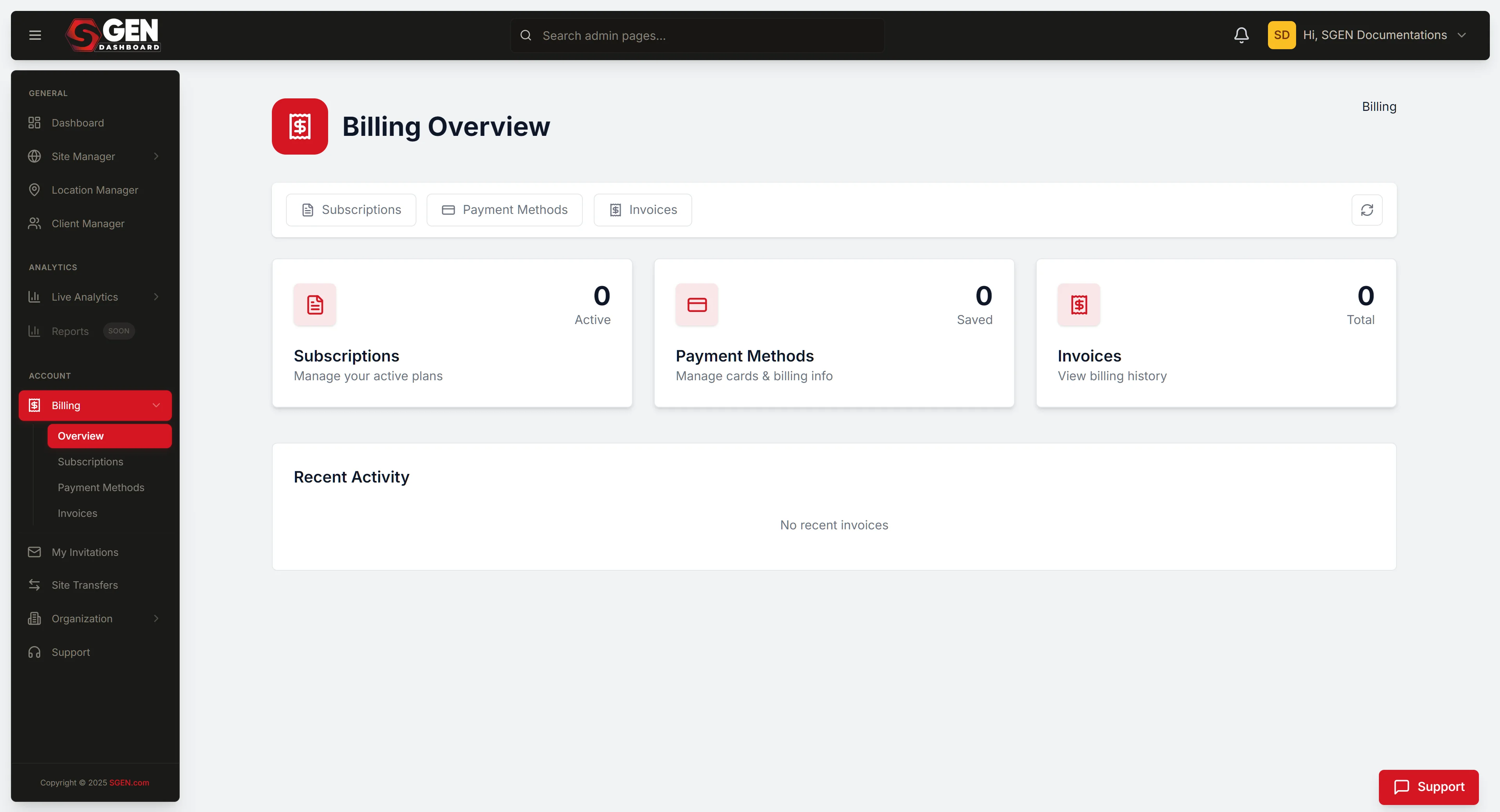
Manage billing, subscriptions, and invoices
Billing in SGEN is fully self-service. Your plan, payment method, and invoice history are all managed in one place inside your own account — no support request needed for routine changes. This reference explains what each billing area does and where to find it.
Account-level billing
Billing covers your entire account — your plan and your live sites — on a single invoice. Not per-site.
Four areas, one section
Overview, Subscriptions, Payment Methods, and Invoices all live inside SG-Dashboard → Billing.
Self-service by default
Routine changes — plan upgrades, card updates, invoice downloads — don't require the SGEN team. You do them yourself.
Where to find billing
Sign in to SG-Dashboard and open Billing from the ACCOUNT group in the left-hand navigation. The section opens on the Overview area by default. Subscriptions, Payment Methods, and Invoices are reached from the same Billing section.
The four billing areas
Inside Billing you'll find four areas. Each covers a distinct part of your subscription.
Overview
See what you're paying for
A summary of your active plan name, live-site count, and next billing date. The fastest way to confirm your current billing state before making a change.
Subscriptions
Change your plan and add-ons
Where you change plan, switch between monthly and annual billing, and change your live-site count. Any prorated charge or credit is shown before you confirm.
Payment Methods
Keep your card current
Where the card on file is stored and updated. Add a new card or replace the existing one here. Changes take effect on the next billing cycle.
Invoices
Download billing history
Your complete billing history. Each entry shows the date, amount, and what the charge covered. Download individual invoices as PDFs for accounting or VAT records.
Subscriptions
From Billing → Subscriptions you can change your plan, switch billing cycle, and change your live-site count. How to use it:
Change plan or billing cycle
Open Billing → Subscriptions. Choose the change — use the change-plan control for a plan or cycle change. Review the prorated amount on the confirmation screen, then confirm. The update takes effect and is reflected on your next invoice.
Monthly vs annual billing
Monthly charges each month at the standard rate. Annual covers 12 months upfront and saves about 15% compared with paying monthly. Switching cycle takes effect at your next renewal date.
Auto-renewal
Your subscription renews automatically at the end of each billing period using the card on file. No separate confirmation is sent before the renewal charge. Cancel from Subscriptions before the renewal date if you need to stop.
Every module included
All 23 modules — including Forms, Page Builder, SEO & Performance, and Attributions — are included on every plan. There are no add-ons to buy, nothing to remove, and no per-feature line items on your invoice.
Multi-site pricing
SGEN pricing is one plan, priced by how many live sites you run. Multi-site bundle discounts apply automatically as you add sites — no coupon code needed. See sgen.com/pricing for current rates.
Payment Methods
From Billing → Payment Methods you can review the card currently on file, add a new card, or replace the existing one.
Update your card
Open Billing → Payment Methods. Review the card on file, enter the new card details, and save. The new card becomes active immediately and is used for the next billing cycle. Update before the renewal date if the current card is about to expire.
Accepted payment methods
For a confirmed list of accepted card types and payment processors, see sgen.com or contact the SGEN team — accepted methods may vary by region.
If a payment fails
SGEN will attempt to notify you. The most common fix is to update the card on file before the next retry. If a charge looks incorrect, contact the SGEN team via the Support area in your dashboard before initiating a bank dispute — most billing issues resolve without a chargeback. Filing a chargeback without contacting SGEN first may be governed by your Terms of Service.
Invoices
From Billing → Invoices you can find and download your full billing history.
Download an invoice
Open Billing → Invoices. Use the date and description to identify the charge. Download — the invoice saves as a PDF suitable for accounting or expense submission.
What's on an invoice
Each invoice reflects charges active during that billing period: base plan, and an additional site charge if you run more sites than your plan covers limit are active.
VAT, tax, and company receipts
Whether invoices include VAT or tax breakdowns is governed by SGEN's billing terms. For your specific tax situation or a custom invoice format for your company's accounting system, contact the SGEN team or see sgen.com.
Tasks that need the SGEN team
Some billing arrangements fall outside the standard self-serve settings. For these, reach out to the SGEN team:
Pause
Pausing billing temporarily
A self-serve subscription-pause feature isn't available in the standard billing settings. Contact the SGEN team if you have a temporary-pause requirement.
Per-site invoices
Per-site invoicing for clients
Billing is account-level — individual per-site invoices for passing costs to separate clients aren't generated automatically. For agency or enterprise arrangements, contact the SGEN team.
Enterprise
Enterprise or custom-quote plans
Enterprise plans with custom site counts and dedicated support aren't available through self-serve checkout. Start the conversation from sgen.com/pricing or the Support area in your dashboard.
Access
Account owner requirement
Billing is only accessible to the account owner. Team members invited to specific sites don't see account-level billing. Confirm your account role with the account owner if you can't see the Billing section.
Troubleshooting
Common issues and what to do about them.
Overview shows no data or a blank plan field
Reload the page. If plan information still doesn't appear, the account may not have an active subscription — check whether your trial has expired, or contact SGEN support.
Can't see Subscriptions, Payment Methods, or Invoices
Billing is only accessible to the account owner. Team members invited to specific sites don't see account-level billing. Confirm your account role with the account owner.
Card update shows an error on save
Verify the card number, expiry date, and security code. Try a different browser or disable extensions that interfere with form inputs. If the error persists, contact the SGEN team.
Invoice download is blank or won't open
Try downloading from a different browser, and disable any in-browser PDF preview so the file downloads directly. If still unusable, contact the SGEN team with the invoice date so a replacement can be provided.
A plan change didn't take effect
Check the Overview area for the updated plan name and next billing date. Changes apply immediately on confirmation — if the old plan still shows, refresh. If it still hasn't updated, contact the SGEN team with the date and time of the attempted change.
Heads up You must be the account owner to view or change billing. Team members with site-only access won't see the Billing section in SG-Dashboard.
What to do next
The four billing areas
| Area | What it does | Use it to |
|---|---|---|
| Overview | See what you're paying for | Confirm active plan name, live-site count, and next billing date before making a change |
| Subscriptions | Change your plan and add-ons | Change plan, switch monthly/annual billing, change live-site count (prorated charge/credit shown before confirm) |
| Payment Methods | Keep your card current | Store and update the card on file; add or replace a card (takes effect next billing cycle) |
| Invoices | Download billing history | View full billing history with date, amount, and charge detail; download individual invoices as PDFs |