
Connect a domain with DNS
Connect a domain with DNS
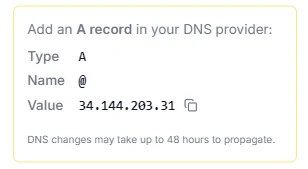
Open your site's DNS settings in SG-Dashboard. Under DNS Setup Instructions, SGEN lists the records to add — A records for your root (@) and www, both pointing at 34.144.203.31. Add them at your registrar, then click Check DNS. Once they resolve (up to 48 hours), your site shows DNS configured and SSL active, and serves on your domain over HTTPS — no certificate to buy.
SGEN lists the records to add: an A record for @ and one for www, both with Value 34.144.203.31. An A record sends your domain straight to SGEN.
Click Check DNS in the A Record Checker and SGEN verifies your domain. Once your records resolve, the site shows DNS configured and SSL active. DNS changes can take up to 48 hours to propagate.
Force HTTPS is Always On, and SGEN secures connected domains. There is no certificate to buy or install — once the domain resolves, the site loads with a padlock.
What this page covers
Use this page when you are pointing a domain you own at an SGEN site — your root domain (yourdomain.com) and www, or a subdomain that runs its own SGEN site. The connection works by DNS A records: you point your domain at SGEN's address, confirm it with the built-in Check DNS, and SGEN serves your site over HTTPS.
It does not cover: domain registration (SGEN does not sell domains), email routing (mail records live in your DNS provider and are not affected), or arbitrary redirect rules (your canonical www-vs-non-www choice is set on this page; other redirects are best handled at your registrar).
For a first-time custom-domain launch walkthrough, see Set up a custom domain.
Before you start
Confirm these four items before you open the DNS settings.
Custom-domain DNS is available on a paid site. A sandbox site shows "Coming Soon" in its DNS settings.
You can sign in and edit DNS records for the domain — usually at your registrar (Namecheap, GoDaddy, Cloudflare, Google Domains), sometimes a separate DNS host.
You are signed in with admin access to the SGEN site you are connecting the domain to.
A records on @ and www, both pointing at 34.144.203.31. Each has a copy button.
Step 1 — Add the A records at your registrar
In SG-Dashboard, open your site and go to its DNS settings. Note the two Required A Records under DNS Setup Instructions — each has a copy button. Then sign in to your DNS provider, open the DNS records area for the domain, and add both.
Type A · Name @ · Value 34.144.203.31
Type A · Name www · Value 34.144.203.31
Use 300 seconds while setting up so changes spread quickly. Raise it once the domain is stable.
Use the provider's ALIAS, ANAME, or CNAME-flattening on @ instead — as long as it resolves to 34.144.203.31, the check passes.
Where the DNS records area lives in common providers:
Dashboard → domain → DNS → Records
Domain list → Manage → Advanced DNS
My Products → DNS → Manage Zones
DNS → Custom records
Hosted zones → select zone → Create record
Step 2 — Run the DNS check
Back on the DNS settings page, in A Record Checker, click Check DNS. SGEN verifies your domain and confirms whether it is correctly configured. If the records have not spread yet, give it time and click Check DNS again — DNS changes can take up to 48 hours to propagate, though they often complete much sooner.
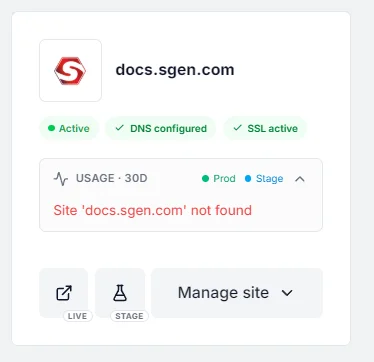
Once your records resolve, the site shows its status:
Your domain is pointing at SGEN.
SGEN has secured the domain over HTTPS — no certificate to buy or install.
Step 3 — Set your preferred domain and confirm HTTPS
Under Canonical Rules, choose your Preferred Domain — whether the site serves on www or the bare domain. Force HTTPS is Always On, so every visit is secured automatically.
With the status reading DNS configured and SSL active, open your domain in a fresh browser tab. The site loads on your domain with a padlock in the address bar. If the padlock does not appear within a short while of the status turning green, wait a little and reload. If it persists, contact support — certificate setup is handled by SGEN.
What success looks like
After the records propagate, all of the following should be true:
The A Record Checker confirms your domain is configured.
The site status shows both, and the site loads over HTTPS with a padlock.
The address bar stays on your domain — no bounce back to the default address.
For a move-in, traffic now reaches SGEN and the old platform no longer serves the domain.
What to do if it does not work
The most common causes are a record that has not yet propagated or one entered with the wrong value. Work through the relevant item below.
Give DNS time to propagate (up to 48 hours), then click Check DNS again. Look your domain up in a public DNS lookup tool and confirm both @ and www resolve to 34.144.203.31.
Confirm both A records point at 34.144.203.31 and that no leftover record from a previous host is still in the zone. Delete stale records and save.
HTTPS settles shortly after DNS resolves. Wait a little and reload in a fresh tab. If it persists once the status reads SSL active, contact support — certificates are handled by SGEN.
A subdomain that runs its own SGEN site needs that subdomain set as the site's domain, then its A record pointed at 34.144.203.31 the same way.
A high TTL on the old record (for example 86400, a full day) means caches hold the previous value for that long. Wait out the window; lower the TTL before future changes.
Good to know
Handled for you — Force HTTPS is Always On, and the site shows SSL active once the certificate is in place. Nothing to buy or install.
Set your canonical name under Canonical Rules → Preferred Domain. Other redirect rules are best handled at your registrar today, or ask support.
Record summary
Quick reference for the records to add.
Host: @ · Value: 34.144.203.31
Host: www · Value: 34.144.203.31
ALIAS / ANAME / CNAME-flattening on @ resolving to 34.144.203.31
Host: <subdomain> · Value: 34.144.203.31
86400) can take up to a day to switch over fully.