
How to save a backup of your site
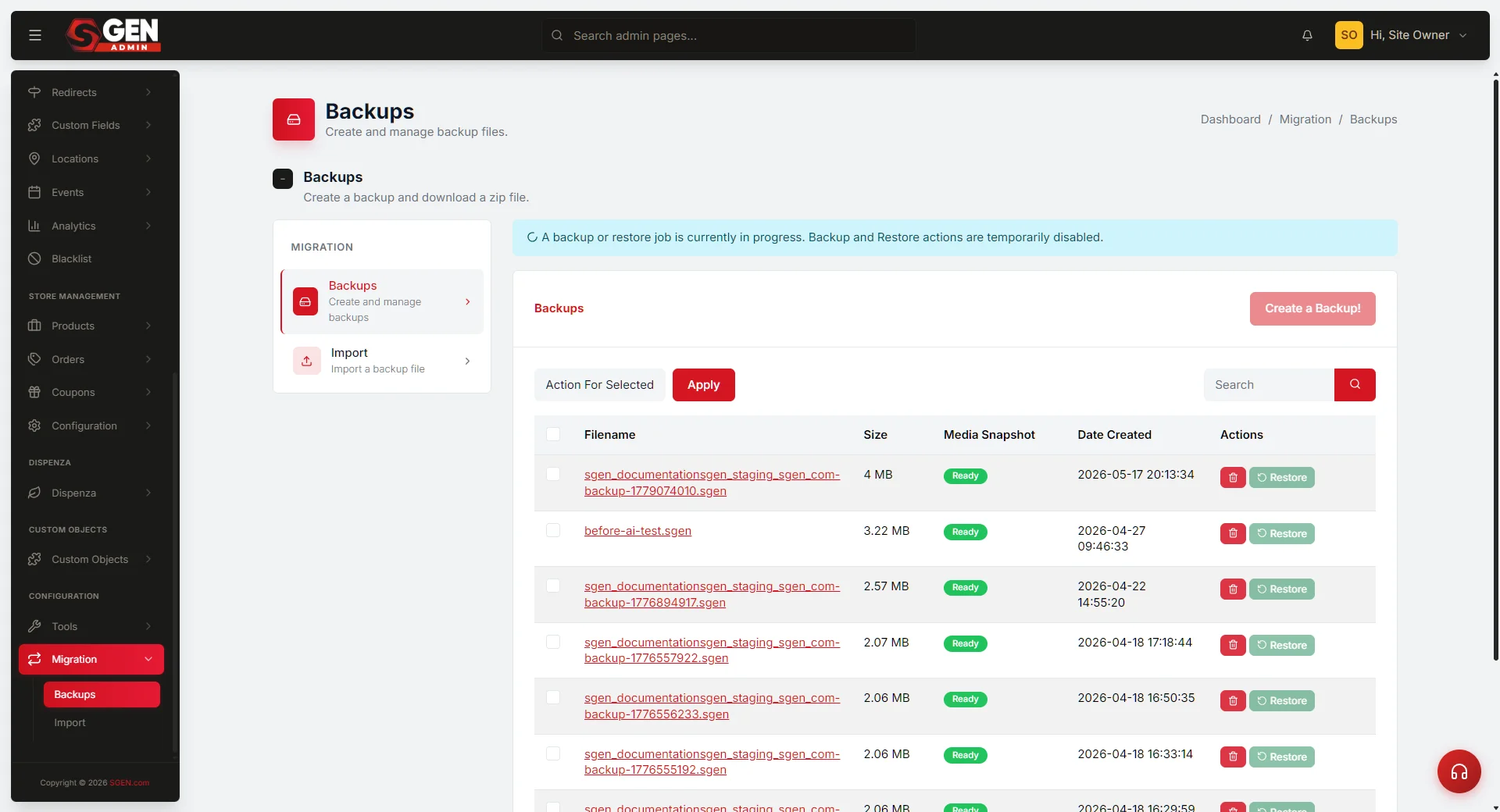 Backups screen — the backups list with the 'Create a Backup!' button at top and the per-row Rename / Download / Delete actions." loading="lazy" style="width:100%;max-width:900px;height:auto;border-radius:8px;border:1px solid #e5e7eb;display:block;margin:12px 0">
⏱ ~3 min read · quick-answer above the fold · full reference below.
In short. Go to Migration → Backups in your sidebar. Click Create a Backup! once. Wait for the green success banner — the new archive appears at the top of the list. Rename it right away (click Rename next to the row) to something like pre-fall-launch-2026. Then click Download and save the file to your own computer or cloud storage. That download is your real safety net — backups stored only on the server are lost if the server fails. There is no automatic schedule; every backup exists because someone clicked the button.On this page: When to save a backup · Steps · What NOT to use this for · Troubleshooting · FAQs · Keeping the list tidy
What is this for?
A backup is a single file that captures the state of your entire site at one moment — every page, post, product, customer record, setting, and uploaded image bundled into one downloadable archive.
If something goes wrong — a theme change you regret, a bulk edit that scrambled your catalog, a corrupted import — you can restore your site to the moment you saved the backup.
There is no automatic schedule. Every backup exists because someone clicked the button. If you have not made one recently, you do not have a recent backup.
Good use cases
Save a backup before any of these:
| Trigger | Why |
|---|---|
| Before a big change — theme swap, bulk edit, product import | Roll back if the result is not what you expected |
| Before someone new edits your site — new team member, freelancer | Weekly checkpoints while work is in progress |
| Before installing an add-on or running a migration | Import overwrites current state; you want a return path |
| At a project milestone — launch, seasonal refresh | "This is how the site looked then" snapshot |
| As a monthly habit | Monthly cadence covers most sites; weekly is better during active projects |
What NOT to use this for
Backups are reliable, but they have clear limits:
- Not a substitute for off-site storage. Backups live on the same server as your site. If the server fails, your backups can be affected too. Always download important backups to your own computer or cloud storage.
- Not an automatic safety net. Nothing happens unless you click the button. Set a recurring reminder.
- Not a partial save. A backup captures the entire site or nothing — no "products only" or "media only" option.
- Not version control for content. "What did this page look like last Tuesday?" is a different feature (page history / post revisions). Backups are whole-site snapshots.
- Not safe during heavy traffic. If your site is processing orders or a large import is running, save the backup during a quieter moment.
- Not reliable on very large media libraries. A multi-gigabyte media library can cause the backup to time out. Contact support if this applies to you.
- Not a sharing tool. Backup files contain customer data and settings — treat them as private.
How this connects to other features
Backups are the front door to a small set of related actions:
- Restore from backup — replaces your current site with the saved snapshot. Destructive — save a fresh backup before restoring an old one.
- Download a backup — every backup has a Download link. Use it to keep a copy off the server.
- Import an archive — applies a backup file from another SGEN site. Save a backup of your current site first.
- Rename a backup — changes the default filename (
Your Store-backup-1714387234.sgen) to something meaningful likepre-fall-launch-2026.sgen. Do this right after creating. - Delete / Bulk delete — frees up server storage. Download what you want to keep first.
Before you start
You need admin access with Migration visible in your sidebar. If you do not see it, contact your account contact to enable the backup feature.
Pick a quiet moment. The backup reads every page, post, product, and uploaded file. On a small site this takes seconds; on a large media library, a minute or longer. Avoid running backups during flash sales or while a bulk import is in progress.
Know where the file will live. The backup is saved to your site's server. Plan to download a copy to your own computer or cloud storage immediately after — on-server copies are vulnerable to the same events that could affect your site.
Where to go
In your admin sidebar, click Migration → Backups.
If you do not see Migration, your site does not have this feature enabled — reach out to your account contact.
}}
How to save a backup
Steps — save a backup right now
1. Open your Backups list
In your admin sidebar, click Migration, then click Backups.
You will see every backup you have already saved, most recent first. If this is your first backup, you will see a "Create your first backup" prompt instead.
2. Click "Create a Backup"
Click Create a Backup! at the top of the list (or Create your first backup file! if your list is empty).
Click it once. A second click starts a second backup, wasting time and disk space. The button may appear "thinking" for a few seconds — that is normal. Do not refresh the page or navigate away.
3. Wait for the success message
The page refreshes and shows a green banner: "A backup has been successfully created!"
A new row appears at the top of your Backups list with today's date and file size. If you see a red error banner instead, see What to do if it does not work below.
4. Rename it to something memorable
The default filename (
pre-fall-launch-2026.sgenbefore-theme-swap.sgenweekly-archive-2026-04-29.sgenbefore-import-supplier-csv.sgen
Short, lowercase, dashes — you will thank yourself when you need to pick one quickly from a list of fifteen.
5. Download a copy to your own computer
Click Download next to your new backup. Your browser saves a .sgen file to your Downloads folder. Move it somewhere safe — a regularly-backed-up folder, Dropbox, Google Drive, or an external drive.
A backup that lives only on the server is half a backup. A downloaded copy is what saves you when the on-server copy is also lost.
What success looks like
Three things happen right after a successful backup:
- A green "A backup has been successfully created!" banner appears at the top of the page.
- A new row appears at the top of your Backups list with today's date and time.
- The file size column shows a realistic number — typically a few MB to hundreds of MB depending on your media library.
Once you have renamed it and downloaded a copy, you have a real, durable safety net.
What to do if it does not work
Red error banner: "Something went wrong! Please try again later."
Wait one minute and try again. The most common cause is a temporarily busy server. If it fails three times in a row, contact support with: the exact time you tried, your site URL, a screenshot of the banner, and whether backups have worked before on this site.
No banner appeared and the backup is not in the list.
Refresh the Backups page (Ctrl+R / Cmd+R) and check the list. If the new backup is at the top, it worked — you missed the banner. If it is still not there, click Create Backup again.
Success banner appeared but the backup is missing from the list.
Hard-refresh (Ctrl+Shift+R / Cmd+Shift+R). If the backup still does not appear, contact support — the file may be on disk but the list is failing to read the directory.
The Create Backup button is greyed out or missing.
You may not have admin permissions for the Migration area. Check with your site owner, or contact support if you should have access.
Backups keep timing out on a large media library.
Multi-gigabyte media libraries can exceed the server's processing limits. Contact support and mention your media library size — they can adjust limits or arrange an alternative backup path.
Success banner appeared but the file size looks suspiciously small (under 1 MB).
A truncated archive is not usable for restore. Delete it and try again. If two attempts in a row produce tiny archives, contact support.
Tips for keeping your backups list tidy
Your backups list will grow over time. These habits keep it useful:
- Rename every backup right after creating it. Default filenames look identical at a glance.
- Download what you want to keep, then delete the server copy. Frees up storage and forces off-site copies.
- Periodically clean up. Once a quarter, delete backups more than a year old that you no longer need.
- Keep three tiers if you can: most recent (always), one weekly checkpoint (rotated), one monthly archive (long-term). Covers "I broke something today/this week/this month."
- Treat backups as private. They contain customer data and settings. Do not share them outside your team.
- Test a restore once. Restore an old backup on a staging copy and confirm everything is there. A backup you have never tested is a backup you do not know works.
Frequently asked questions
How often should I save a backup?
Monthly is a good baseline. Weekly is better if you are actively making changes. Save one immediately before any destructive action — regardless of when the last one was.
How long does a backup take?
Under a minute for most small to mid-size sites. Sites with large media libraries can take several minutes, and very large libraries can cause failures. Contact support if your site has a multi-gigabyte media library.
How big is a backup file?
Depends on your media. A mostly-text site is a few megabytes. A site with many high-resolution photos can be hundreds of megabytes or more. The size appears in the Backups list immediately after creation.
Can someone else download my backup?
Only people with admin access to your Backups list can download them. If you are concerned about backup security, talk to your account contact.
Can I share a backup with someone else?
Backups contain your customer data and settings — sharing them outside your team is a privacy concern. If you are migrating to another SGEN site or instance, work with support to do that safely.
Can I back up just my products, or just my media library?
No. A backup is the entire site or nothing. For a partial export — products only, customers only — contact support about your specific need.
What is the .sgen file extension?
A standard zip archive with a specific extension that SGEN's restore feature recognizes. You can open it with any zip tool to inspect the contents, but do not edit or repackage it — only the unmodified file is guaranteed to restore correctly.
If my site is deleted, are my backups deleted too?
Yes. Backups are stored on the same server as your site. If the site is deleted, the backups go with it. This is why downloading copies to your own storage is essential.
Next steps
- Restore from backup — the action that puts your site back to the state captured in the archive.
- Download a backup — keeping copies off the server is the single most important backup habit.
- Rename a backup — short, meaningful names make your list useful in six months.
- Delete a backup — when your list grows long, you will need this.
- Import an archive — if you are bringing in a backup from another SGEN site, save a backup of your current site first.
Set a recurring calendar reminder now: "First of the month — make a site backup." Thirty seconds a month is the price of peace of mind.