
Restore a deleted redirect rule
How to recover a redirect rule after it has been deleted
Redirect rules deleted with Delete Permanently are not held in a trash bin. There is no one-click undo. The only path back is re-importing the rule from a backup file, or rebuilding it by hand.
This guide covers both paths: recovering from a backup file and rebuilding a rule manually when no backup exists.
⏱ ~8 min read · prevention advice at the top · recovery steps below.
In short. Deleted redirect rules do not go to a trash bin in SGEN — Delete Permanently means permanently. If you have a CSV or JSON backup, go to Redirects → Import / Export, upload the file, preview the import, confirm, and the rule is live again. If you have no backup, rebuild the rule via Redirects → Add New. The fastest prevention: download a backup before any Delete Permanently run — see Download a backup of your redirect rules.
On this page: What this is for · Scope · Good use cases · What NOT to use this for · How this connects · Before you start · Where to go · Steps · Fields reference · What success looks like · Troubleshooting
What is this for?
Redirect rules get deleted for many reasons. A campaign cleanup, a bulk-management mistake, someone ticking too many rows at once. When a rule disappears, any URL that depended on it shows a "page not found" message or lands on unexpected content. Organic traffic following an old link, backlinks from other sites, shared URLs in emails — all of them break the moment that rule is gone.
This guide is for getting the rule back.
SGEN's Redirects area does not maintain a trash bin for deleted rules. The Delete Permanently action removes the rule immediately. Recovery relies entirely on a backup file — CSV or JSON — that was downloaded before the deletion occurred. If no backup exists, the rule must be rebuilt from memory or from an external record such as browser history, a spreadsheet, or a previous export.
The import flow is the same one used for bulk rule creation: upload the file, preview what will land, confirm. A single-row file restores a single rule. A full backup file restores every rule in the file — but rows that already exist in your current list are rejected: re-importing a rule that is already present fails with a "Conflicting redirect(s)" error rather than being silently skipped.
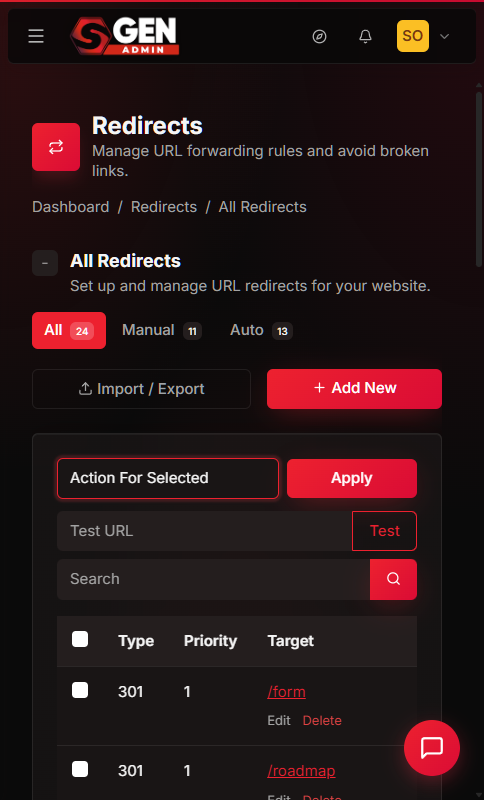
Preview: All Redirects — Your Store — a screenshot of this screen will be added here.
Scope
This guide covers two recovery paths for redirect rules deleted via the Delete Permanently action on the All Redirects page.
Path A — restore from a backup file. You have a CSV or JSON file exported from Redirects → Import / Export before the deletion. This guide walks you through uploading that file, reviewing the import preview, and confirming.
Path B — rebuild the rule manually. No backup file exists, but you know the original source URL, destination, and rule type from another record. This guide walks you through re-entering the rule via Redirects → Add New.
This guide does not cover:
- Deactivating a rule without deleting it (see Bulk-manage your redirect rules — use Move to Inactive).
- Editing a rule that still exists (see Edit an existing redirect rule).
- Creating a net-new redirect rule from scratch (see How to add a new redirect rule).
- Recovering a rule when neither a backup nor any record of the source URL exists — that requires a database-level restore, which is outside the scope of the admin interface.
Good use cases
- Accidental bulk delete.
You searched for one campaign path and accidentally ticked rows from a different campaign. You ran Delete Permanently before noticing. If you exported a backup within the last few days, upload it and the missing rules come back.
- Mistaken individual delete.
You clicked Delete on a single row thinking it was a different rule. The rule was simple — rebuild it manually via Add New.
- Post-migration cleanup regret.
You deleted a batch of rules after a content migration, then discovered a cluster of inbound links still pointed to those old paths. Restore from the export you took before the cleanup.
- Rules deleted by a teammate.
A colleague ran a bulk delete without realizing some rules were still driving live traffic. Use the last export file as your recovery point.
What NOT to use this for
- Pausing a rule temporarily.
If you want to stop a rule from firing without losing it, choose Move to Inactive from the bulk-action dropdown — not Delete Permanently. An inactive rule stays in the list and can be reactivated at any time. See Bulk-manage your redirect rules.
- Editing a rule that still exists.
If the rule is still in the list but misfiring, use the per-row Edit button. See Edit an existing redirect rule.
- Bulk-importing new rules.
The import flow described here is the same one used for bulk rule creation. If your goal is adding a new set of rules rather than recovering old ones, Import and export redirect rules in bulk covers the file format and conflict behavior in full.
- Recovering rules when neither a backup nor any source URL record exists.
Without a backup file and without any record of the original paths, recovery through the admin interface is not possible. Check browser history, server access logs, or any redirect tracking spreadsheets your team maintains — then re-enter the rules manually via Add New.
How this connects to other features
- Download a backup — the backup file is the only recovery artifact for deleted rules.
Download one before every Delete Permanently run. Full instructions: Download a backup of your redirect rules.
- Import / Export — the restore path runs through the Import tab of the same page used for bulk rule management.
Import and export redirect rules in bulk covers the file shape and column names in full detail.
- Bulk-manage redirects — Delete Permanently is one of three bulk actions on the All Redirects page.
Bulk-manage your redirect rules explains how Move to Inactive works as a reversible alternative before reaching for Delete Permanently.
- Add New — when no backup exists, rebuilding a rule via Add New is the fallback path.
How to add a new redirect rule covers every field in the form.
- Pages and Blog — retiring a page or blog post is the most common reason to create a redirect rule in the first place.
If a recently deleted redirect was covering a retired page, the underlying page may also need attention.
Before you start
Confirm which recovery path applies before proceeding.
Path A — backup file available. You have a CSV or JSON file exported from Redirects → Import / Export at some point before the deletion. The file contains at least the row for the rule you need to restore.
Path B — no backup file. You know the original source URL and destination from memory, browser history, a spreadsheet, or another record. You will recreate the rule via Redirects → Add New.
Path C — no backup and no record. The source URL is unknown. Recovery through the admin interface is not possible. Contact your support team to ask whether a deeper restore is available for your plan.
For Path A and Path B you need:
- Access to the SGEN admin area with permission to manage redirects.
- The source URL of the deleted rule — the old path you want to redirect from, without the domain.
- The destination URL — where the rule should send visitors.
- The redirect type (permanent or temporary) and original priority, if you recorded them.
Where to go
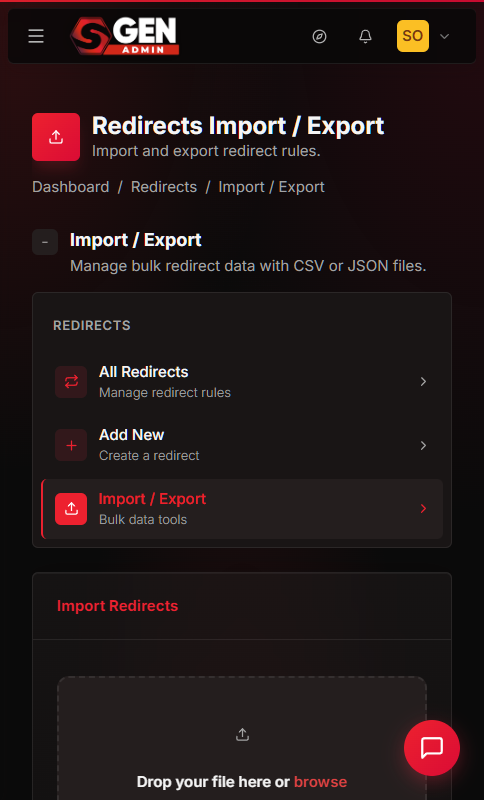
For Path A (re-import from backup): Sidebar path: Dashboard → Redirects → Import / Export → open the Import tab.
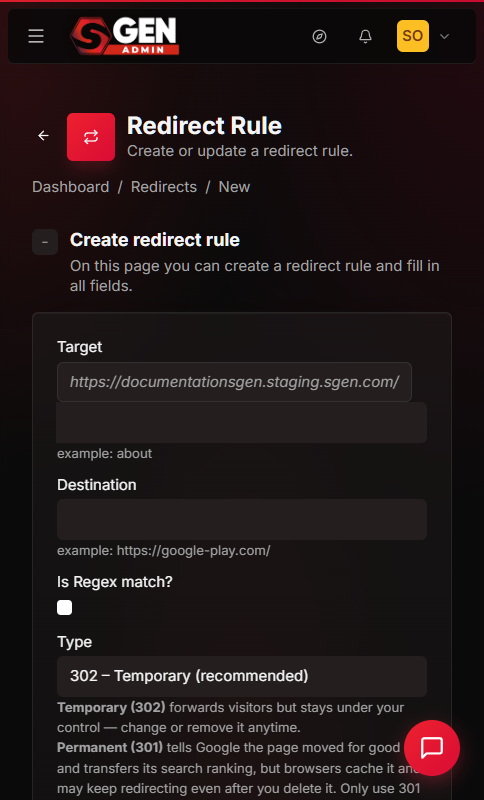
For Path B (rebuild manually): Sidebar path: Dashboard → Redirects → Add New.
Preview: Redirects — Import / Export — a screenshot of this screen will be added here.
Steps
The numbered steps below cover Path A — restoring from a backup file. Path B (rebuild manually) follows after Step 7.
1. Locate your backup file
Find the most recent backup CSV or JSON file on your computer or in your team's shared drive. Exported files are typically named with the export date, so the most recent date is the easiest one to spot.
If you regularly download backups before Delete Permanently runs, the most recent file before the deletion is the right one to use. If you have multiple files, use the one dated closest to — but before — the deletion event.
If no backup file exists, skip to the Path B — rebuild manually section below.
Preview: Export — take a snapshot before you import — a screenshot of this screen will be added here.
2. Open the Import / Export page
In the sidebar, click Redirects. On the Redirects area, open the Import / Export tab. The page shows an Export panel and an Import panel.
3. Upload your backup file
In the Import panel, click the file picker button. Select the backup CSV or JSON file from your computer. Once selected, the filename appears next to the button, confirming the upload.
Preview: Import — upload your backup file — a screenshot of this screen will be added here.
4. Review the import preview
After selecting the file, click Preview. The system reads the file and shows a table of every rule it found, with a status column indicating whether each row is new or already exists in your list.
Read the preview table carefully. When restoring a single deleted rule from a full backup file, you will see many rows marked as Already Exists and one row marked as New. Confirm the New row matches the source URL and destination of the rule you deleted.
Preview: Import preview — review before confirming — a screenshot of this screen will be added here.
5. Confirm the import
If the preview looks correct, click Confirm Import. The system adds any rows marked as New to your redirect rules. Rows marked as Already Exists are skipped (unless overwrite is on). After confirmation, the page redirects to the All Redirects list.
6. Verify the restored rule is active
On the All Redirects list, locate the restored rule. Check the Status column. If it shows Inactive, click the row's Edit button and toggle Status to Active, or use the bulk-action toolbar to Move to Active. An imported rule may land as Inactive depending on how the original backup was exported.
Check the Priority column. If the restored rule's priority conflicts with another existing rule covering the same source URL pattern, adjust it via the Edit form.
7. Test the restored rule
On the All Redirects page, find the Test URL box at the top of the list. Paste the source URL of the restored rule — the old path without the domain, for example /spring-2025-promo. Click Test.
The simulator should return a banner confirming which rule matched and where it would redirect. If the simulator does not show your rule, the rule may still be Inactive, or a higher-priority rule may be taking precedence.
Preview: Test URL — confirm the restored rule fires — a screenshot of this screen will be added here.
Path B — rebuild manually
Use this path when no backup file is available and you know the original rule details from another source.
1. Open the Add New form
In the sidebar, click Redirects → Add New.
2. Enter the rule details
Fill in Target (the source path, no domain), Destination (where visitors should land), Type (301 or 302), and Priority. Leave Status off while you verify. Click Create redirect rule.
Preview: Add New — rebuilding a deleted rule — a screenshot of this screen will be added here.
3. Activate and test
After saving, return to the All Redirects list. Toggle the rule to Active using the Edit form or the bulk-action toolbar. Use the Test URL box to confirm the rule fires as expected.
Fields
Fields referenced in both the Import form and the Add New form.
| Field | Where it appears | What it means |
|---|---|---|
| Target | Add New, import file | The source URL path the rule matches — no domain, leading slash included (e.g. /old-page). |
| Destination | Add New, import file | The URL visitors are forwarded to. Can be a path (e.g. /new-page) or a full URL. |
| Type | Add New, import file | 301 Permanent — tells browsers and crawlers this move is final. 302 Temporary — tells them the original URL may come back. |
| Priority | Add New, import file | Integer. Higher number wins when two rules would match the same source URL. Default is 0. |
| Status | Add New, per-row toggle | Active — rule fires on matching public requests. Inactive — rule is stored but ignored on public requests. |
| Is Regex? | Add New, import file | When on, the Target field is treated as a regular-expression pattern rather than a literal path match. |
| Overwrite existing | Import form only | When on, an imported row replaces any existing rule with the same source URL. When off, duplicates are skipped. |
What success looks like
After a successful restore, the All Redirects list shows the recovered rule with an Active status. The Test URL simulator returns a "Matched rule" result with the correct destination when you paste the source URL. Any visitor hitting the old URL is forwarded to the destination instead of landing on a 404 page.
The Hits and Last Matched columns for the restored rule start at 0 and Never. Historical hit counts from before the deletion are not recoverable — the data was removed with the original row.
Preview: All Redirects — Your Store — a screenshot of this screen will be added here.
What to do if it does not work
The import preview shows zero new rows. The backup file may have been exported after the rule was already deleted. Check the file's export date — often visible in the filename. Try an older backup file if one exists.
The rule appears in the list after import but the source URL still hits a 404 on the public site. Confirm the rule's Status is Active. Check that no higher-priority rule is catching the same source URL first — use the Test URL simulator. If the simulator shows the rule matching but the public site still returns a 404, a caching layer may be serving a cached response. Try a cache-bust URL in a private browser window.
The import throws a file format error. The CSV or JSON must match the column structure SGEN expects. A manually edited file may have introduced a column-name typo or extra blank rows. Re-export a fresh backup to get a clean template, copy the missing rule row into that file, and re-import.
The backup file contains the rule but import marks it as Already Exists. Another rule with the same source URL exists in your current list — possibly a replacement someone added after the deletion. Enable the overwrite option in the import form to replace the existing rule with the version from the backup, or manually edit the existing rule via its Edit button.
The restored rule fires but sends visitors to the wrong destination. The backup file may be older than the last edit made to the rule before it was deleted. Edit the restored rule via the per-row Edit button to correct the destination.
No backup file exists and the source URL is unknown. Recovery through the admin interface is not possible without knowing the source URL. Check browser history for URLs that previously redirected, check server access logs for 301 responses on the old path, check any redirect tracking spreadsheets your team maintains. Once you have the source URL, rebuild the rule via Add New. For database-level recovery, contact your SGEN support team — this may be available depending on your plan.
Examples
Example 1: Recovering a campaign landing page redirect after a bulk cleanup
A site admin was cleaning up expired campaign redirects. They searched for /promo-2024 to find old rules, accidentally left a checkbox ticked for /spring-2025-promo (the current campaign), and ran Delete Permanently. Within an hour, organic traffic to the spring 2025 campaign started landing on a 404.
The admin opened Redirects → Import / Export and uploaded the backup file from two days earlier. The preview showed one New row: /spring-2025-promo → /products/spring. They confirmed the import. The rule appeared in the list as Active. The Test URL simulator confirmed the rule fired. Organic traffic was restored to the correct destination within minutes.
Preview: Import — previewing one new row from full backup — a screenshot of this screen will be added here.
Example 2: Rebuilding a redirect manually when no backup exists
An admin retired a product page two months earlier and set up a redirect from /old-widget to /widgets/widget-pro. The redirect was deleted during a quarterly cleanup by a colleague who did not realize it was still handling inbound links from a trade directory listing. No backup file existed — the team had not been exporting before Delete Permanently runs.
The admin checked the trade directory listing and confirmed the old URL. They opened Redirects → Add New, entered /old-widget as Target, /widgets/widget-pro as Destination, selected 301 Permanent, set Priority to 5, and clicked Create redirect rule. After saving, they toggled Status to Active and used the Test URL simulator to confirm the rule fired correctly.
Preview: Add New — rebuilding /old-widget from trade directory record — a screenshot of this screen will be added here.
Example 3: Building the backup habit to make future restores trivial
After the incident in Example 1, the admin adopted a standing routine. Before any Delete Permanently run — even for a handful of rules — they open Redirects → Import / Export, click Export, select CSV, and save the file to a shared drive folder named Redirects Backups. The filename includes the date.
Two months later, a rule was accidentally deleted again. This time recovery took under two minutes: open Import / Export, upload the backup from the day before, preview, confirm.
The export step takes fifteen seconds. That fifteen seconds makes the difference between a two-minute fix and an unrecoverable loss.
Preview: Settings saved — a screenshot of this screen will be added here.
Related reading
- Download a backup of your redirect rules — export a backup before any Delete Permanently run.
- Import and export redirect rules in bulk — full detail on import file format, column names, and conflict handling.
- Bulk-manage your redirect rules — use Move to Inactive as a reversible alternative to deleting.
- How to add a new redirect rule — rebuild a rule manually when no backup exists.
- Edit an existing redirect rule — fix a rule's destination or type without deleting and recreating it.