
How to speed up your site with the Optimization tools
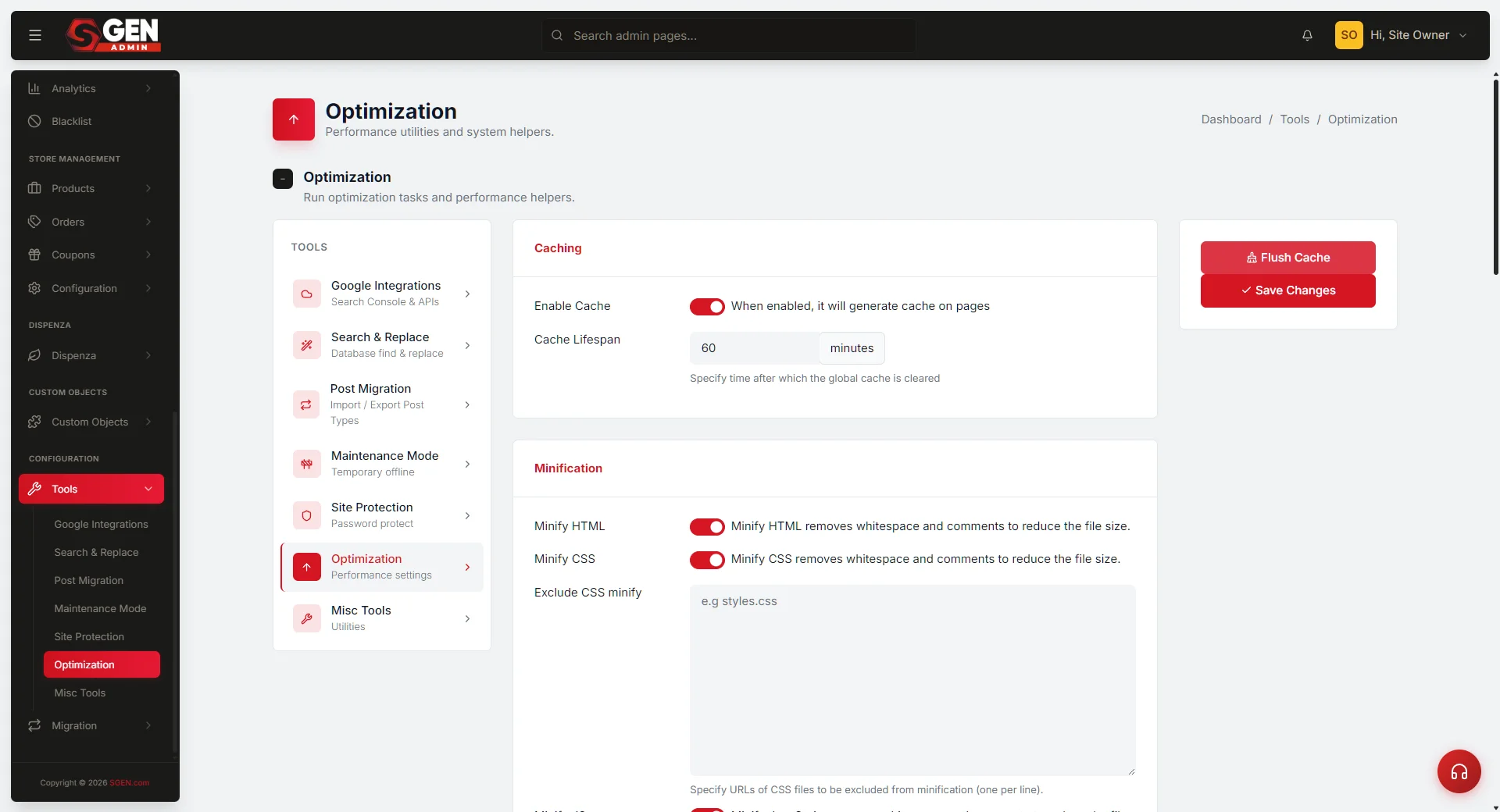 Optimization page: the stacked setting cards (Caching, Minification, CSS/JS Optimization, Lazy Loading, Media Preloading) with the right-rail Save Changes / Flush Cache pan" loading="lazy" style="width:100%;max-width:900px;height:auto;border-radius:8px;border:1px solid #e5e7eb;display:block;margin:12px 0">
⏱ ~5 min read · quick answer above the fold · full reference below.
In short. Go to Tools → Optimization. Turn on Cache (60-minute lifespan is a good default), Minify HTML/CSS/JS, and Lazy Loading (exclude your hero image). Click Save Changes, then Flush Cache. Test in a private browser window. Those three toggles handle the most impactful speed wins for most sites. Add Defer JS only after listing scripts that must run early (analytics, chat widgets, ad pixels) and putting them in the exclude list. Change one setting at a time, flush cache, and verify before moving to the next.
On this page: What it covers · Good use cases · Reference · Steps · Troubleshooting · Examples
What is this for?
The Optimization tools page controls the speed-and-performance features that make your site feel quick to visitors. It's one focused settings page with a handful of related behaviors: caching rendered pages, shrinking stylesheet and script files, deferring loading so the visible page paints first, lazy-loading below-the-fold images, and preloading critical media for instant first paint.
Speed matters. A page that takes one second to render feels snappy; four seconds feels broken. Visitors leave slow pages, and search engines factor in site speed. Optimization is how you keep your site fast as it grows in content and complexity.
Most settings on this page are toggles — each one controls a specific speed behavior. Underneath the toggles are text-area fields for fine-tuning: scripts to exclude from deferral, images to exclude from lazy loading, files to preload.
What it covers
The Optimization page covers six speed behaviors, each controlled independently.
Caching saves a rendered copy of every page. Repeat visitors are served the saved copy instantly rather than waiting for the server to rebuild the page. You set a lifespan (in minutes) that controls how long copies are kept before the system rebuilds them.
Minification removes whitespace, comments, and formatting from HTML, CSS, and JavaScript files so they download faster. Each has its own toggle. You can also exclude specific files from minification if they break when minified.
CSS Optimization defers stylesheet loading so the visible portion of each page can paint before stylesheets are fully downloaded. Useful on content-heavy pages; use carefully if your site relies on a custom font that must load before first paint.
JavaScript Optimization defers script loading and lets you exclude specific scripts that must run early — analytics, A/B testing tools, chat widgets, and ad pixels typically need early execution. Excluding them prevents optimization from breaking their functionality.
Lazy Loading delays image downloads until the visitor scrolls toward them. Only images visible in the viewport on first load are downloaded immediately. You can exclude specific images (typically your hero) from lazy loading so they appear instantly.
Media Preloading instructs the browser to fetch specific critical images with high priority before they're needed. Use for your primary above-the-fold hero image. Syntax: desktop: filename.jpg priority=high and mobile: filename-mobile.jpg priority=high, one directive per line.
Good use cases
- Launching a new site — enable caching, minification, and lazy loading as part of going live. These are the default speed wins every site should turn on.
- After a major redesign — re-tune settings when new design elements (hero video, custom font, complex animation) may need to be excluded from deferral or lazy load.
- A performance audit flagged your site — use Optimization to address the audit's recommended levers (defer CSS, preload critical media).
- Chasing a Core Web Vitals target — for example, getting Largest Contentful Paint under 2.5 seconds.
- Your site has grown and pages feel slower. Caching and minification become more important as content volume increases.
- You added a third-party script (analytics, chat, ad pixel) and want to add it to the JavaScript exclude-from-defer list.
- You replaced your hero image and want to preload it for instant first paint.
- A visitor reports seeing an old version of a page — the cache lifespan may be too long; flush and lower the lifespan.
What NOT to use this for
- Routine "fix-it-all" troubleshooting. Each toggle is targeted — understand what it does before turning it on or off. Random toggling rarely fixes a real performance problem.
- Recovering from a content mistake. Optimization doesn't undo wrong content. Fix content in the page editor.
- Replacing a thoughtful performance audit. Optimization is one tool. An audit identifies which levers are worth pulling first.
- Improving SEO ranking on its own. Speed is one SEO factor; content quality, link structure, and crawlability are others.
- Saving server-side bandwidth. Optimization reduces the files visitors download, not server-side resource use.
How this connects to other features
- Tools > Misc Tools — housekeeping utilities (clear post revisions, check the database). A different layer from Optimization entirely.
- Custom Codes — snippets that must run early (analytics, A/B testing, chat) belong in the JavaScript exclude-from-defer list on this page.
- Custom CSS — custom styles join your minified stylesheet bundle. If Defer CSS is on, custom styles defer along with everything else.
- Media library — hero images and lazy-load exclusions reference filenames from the media library. Keep filenames stable so optimization references stay valid.
- Appearance > Header — if your header uses a custom font or animation, test it after enabling Defer CSS to confirm rendering is correct.
- Settings > Site Performance — image format defaults and compression defaults live there, not here. The two pages complement each other.
Reference
The six settings cards on the Optimization page, with their fields and safe starting values.
| Card | Field | Type | Recommended starting value |
|---|---|---|---|
| Caching | Enable cache | Toggle | On |
| Caching | Cache lifespan (minutes) | Number | 60 |
| Minification | Minify HTML | Toggle | On |
| Minification | Minify CSS | Toggle | On |
| Minification | Minify JS | Toggle | On |
| Minification | Exclude from CSS minification | Text area | (empty) |
| Minification | Exclude from JS minification | Text area | (empty) |
| CSS Optimization | Defer CSS | Toggle | Off (enable only after testing custom fonts) |
| JavaScript Optimization | Defer JavaScript | Toggle | Off to start; On after building your exclude list |
| JavaScript Optimization | Exclude scripts from deferral | Text area | (your analytics, chat, A/B, ads — one filename per line) |
| Lazy Loading | Enable lazy loading | Toggle | On |
| Lazy Loading | Skip lazy load for these images | Text area | (your hero image filenames — one per line) |
| Media Preloading | Preload directives | Text area | (hero filenames with desktop:/mobile: prefix + priority=high) |
Right-rail panel:
| Action | When to use |
|---|---|
| Save Changes | After any toggle or field change |
| Flush Cache | Immediately after saving — always pair these two steps |
Before you start
- You must be logged in as an admin. The Optimization page is in the Tools menu, which is admin-only. Editor and marketing roles do not see it.
- Test on staging first whenever possible. Some toggles can have unexpected effects on specific scripts or pages.
- Change one setting at a time. If you toggle several at once and a page breaks, you won't know which toggle caused it.
- Know which scripts must run early before enabling Defer JS — analytics (Google Tag Manager, GA4), chat widgets, A/B testing tools, and ad pixels typically need to run before page interaction.
- Know which images are above the fold on key pages — homepage hero, top blog post banner, primary product page image. These are candidates for lazy-load exclusion and media preloading.
Where to go
Dashboard > Tools > Optimization
The Tools menu is in the left sidebar of your admin dashboard. Click Tools, then click Optimization in the Tools sidebar. The page opens with several cards stacked vertically — one per group of related settings.
Steps — Enable the default speed wins (caching, minification, lazy loading)
1. Open Tools > Optimization
In your admin dashboard, click Tools in the left sidebar, then click Optimization.
The page shows several cards: Caching, Minification, CSS Optimization, JavaScript Optimization, Lazy Loading, Media Preloading. To the right is a sidebar panel with Save Changes and Flush Cache buttons.
If Optimization is missing from the Tools sidebar, your role doesn't have admin permissions. Ask an admin colleague to make the change for you.
2. Enable caching
Find the Caching card. Turn on Enable cache. Set the cache lifespan to 60 minutes — long enough for repeat visitors to get instant loads, short enough for fresh content to appear within an hour of publishing.
Adjust from the default if needed: publish breaking news → lower to 15 minutes; content rarely changes → raise to 240 minutes.
3. Enable minification
Find the Minification card. Turn on all three toggles: Minify HTML, Minify CSS, Minify JS.
Minification removes whitespace, comments, and formatting from your HTML, stylesheets, and scripts so they download faster. It's one of the safest optimization wins — most sites see a 20–30 percent reduction in file size. Leave the exclude text areas empty unless a specific file breaks when minified.
4. Enable lazy loading
Find the Lazy Loading card. Turn on Enable lazy loading.
Lazy loading means images below the fold aren't downloaded until the visitor scrolls toward them, making first paint noticeably faster. Add your hero image filename to the exclude text area. The hero is above the fold on every page it appears — lazy-loading it causes it to pop in a fraction of a second late, which feels jarring. Excluding the hero gives visitors the smoothest experience.
Example exclude list (one filename per line): hero-desktop.jpg, hero-mobile.jpg, logo.svg.
5. Save Changes
Click Save Changes on the right-rail panel. A green confirmation banner confirms the settings are live.
If you don't see the banner, refresh and check whether the toggles are still in position. If they are, the save succeeded and the banner was missed. If they reverted, retry the save.
6. Flush the cache
Click Flush Cache on the right-rail panel, then confirm the prompt.
The success banner appears: "Cache cleared." Every cached page is discarded. The next visitor to each page gets a freshly rebuilt copy with the new optimization settings applied.
7. Test in a private browser window
Open a private browser window — Incognito in Chrome, Private in Firefox, InPrivate in Edge — and visit your homepage. As you scroll, below-the-fold images should load progressively. Visit two or three key pages and confirm the hero appears immediately on each.
8. Measure speed before and after
Run a third-party speed test — PageSpeed Insights (pagespeed.web.dev) is a free option from Google. Note Largest Contentful Paint, First Input Delay, and Cumulative Layout Shift. Compare against your pre-optimization baseline. Expected: faster LCP and similar or better CLS. If scores worsen, check PageSpeed Insights for the culprit (often an oversized image or a blocking script).
What success looks like
Your site loads visibly faster. The Caching card reports a cache hit rate of 90 percent or higher within a few hours. Visitors see the hero immediately and below-the-fold images appear smoothly as they scroll. Third-party speed tests show improved Largest Contentful Paint.
Your site continues to function exactly as before — custom scripts still run, forms submit, analytics capture page views. The only difference visitors notice is the snappier feel.
What to do if it does not work
- A specific page looks broken after enabling JavaScript deferral. Add that script's filename to the JavaScript exclude-from-defer text area. Save, flush, and retest.
- The homepage hero pops in late after enabling lazy loading. Add the hero filename to the lazy-load exclude text area. Save, flush, and retest in a private browser window.
- Visitors report seeing an old version of a page. The page cache may be holding a stale copy. Click Flush Cache. For a persistently stale page, make a trivial edit in the editor (add and remove a space) to trigger a rebuild for that specific page. Also advise the visitor to do a hard refresh (Shift-Click the browser refresh button).
- The cache isn't working — every visit feels slow. Confirm the Enable cache toggle is on. Save and flush. Test in a private browser window twice — the second visit should feel noticeably faster than the first.
- A custom font isn't loading after enabling CSS deferral. Turn Defer CSS off. If the font loads correctly with it off, leave it off — the speed gain from CSS deferral is modest and not worth a broken font.
- Lazy loading is making images appear blurry or cause layout shifts. Images need explicit width and height attributes to lazy-load smoothly. Check each affected image in the editor and confirm dimensions are set.
- The Save Changes button does nothing. Refresh and check whether the toggles still reflect your changes. If they do, the save succeeded and the banner was missed. If they reverted, take a screenshot and contact support.
- The Optimization page is missing from the Tools sidebar. Confirm you are logged in as an admin. The Tools sidebar is hidden from non-admin roles.
- I changed a setting and want to undo. Toggle the setting back to its previous state, click Save Changes, and flush. The change reverses immediately.
Examples
Example 1: Launch — enabling the default three wins
You're doing your pre-launch checklist. Optimization hasn't been configured yet. Visit Tools > Optimization. The toggles are all at their defaults (off).
Enable caching (60-minute lifespan), all three minification toggles, and lazy loading (with your hero filename in the exclude text area). Click Save Changes. The confirmation banner appears. Click Flush Cache.
In a private browser window, visit your homepage and two or three key pages. The hero loads immediately. Below-the-fold images appear progressively as you scroll.
Run PageSpeed Insights on the homepage. Expected: Largest Contentful Paint well under 2.5 seconds. Note the score in your launch ticket along with the settings you enabled.
Example 2: Adding JavaScript deferral after a performance audit
Caching, minification, and lazy loading are already on. A performance audit flags JavaScript blocking as the next improvement.
Visit Tools > Optimization and find the JavaScript Optimization card. Turn on Defer JavaScript. In the exclude text area, list the filenames of scripts that must run early — one per line:
`` gtag.js klaviyo.js chat-widget.js pixel.js ``
Click Save Changes, then Flush Cache. In a private browser window, test every interactive feature: chat widget opens, forms submit, analytics captures events. Run a fresh PageSpeed Insights report — First Input Delay should improve.
Example 3: Preloading a campaign hero for instant first paint
You're launching a campaign with a high-resolution homepage hero. You want the hero to appear the instant a visitor lands — no delay, no progressive load.
Visit Tools > Optimization and find the Media Preloading card. Paste your preload directives into the text area, one per line:
`` desktop: campaign-hero-desktop.jpg priority=high mobile: campaign-hero-mobile.jpg priority=high ``
Click Save Changes, then Flush Cache. In a private browser window, visit the homepage. The hero should appear instantly — no fade-in, no placeholder swap. Run PageSpeed Insights: the hero should be the Largest Contentful Paint candidate with a fast time reflecting the preload.
Example 4: Debugging a stale-content complaint
A visitor reports they're still seeing an old version of a page. You visit the page yourself in a private window and see the correct content. The visitor is likely holding a cached copy in their own browser.
Visit Tools > Optimization and check the cache lifespan. If it's set high (240 minutes or more), consider lowering it to 60 minutes. Click Save Changes, then Flush Cache.
Advise the visitor to do a hard refresh (Shift-Click the browser's refresh button). That clears their local browser cache and forces a fresh download. Once they hard-refresh, the new content should appear.
Example 5: Re-tuning after a major redesign
A redesign ships with a new video hero, a new custom font, and a new chat widget. Walk through the Optimization cards systematically.
Caching and Minification — no changes needed. The new design benefits from both the same way the old one did.
Defer CSS — leave it off if the custom font shows any rendering flicker with deferral on. The speed gain from CSS deferral is modest; a broken font is a poor first impression.
Defer JS — add the new chat widget's script filename to the exclude-from-defer list.
Lazy Loading — the hero is now a video, not an image. Add the poster frame filename (hero-poster-frame.jpg) to the exclude list.
Media Preloading — add the poster frame for desktop and mobile with priority=high.
Click Save Changes, then Flush Cache. Test in private browser windows on both desktop and mobile. Run a PageSpeed Insights report on the redesigned homepage and note the LCP in your launch ticket.
Tips and tricks
- Always flush after saving. Saving new settings without flushing means cached pages keep using the old behavior until they expire individually.
- Change one setting at a time. Sequential changes with verification give you a clean trail of cause and effect.
- Test in a private browser window. Your regular browser holds its own cache — a private window shows what fresh visitors see.
- Measure before and after. Without a baseline, you can't tell whether a toggle helped, hurt, or had no effect.
- Keep the exclude lists short. Long exclusion lists undo the speed gains they're meant to protect.
- Document your exclusions. Note in your team log why each entry exists. Future reference matters.
- Use the cache hit rate as a health check. A healthy rate is 90 percent or higher within a few hours of any flush. Persistently below 70 percent suggests the cache isn't working as expected.
- Run Optimization tuning during quiet hours. Visitors landing during a flush get a slightly slower first visit while pages rebuild. Scheduling for low-traffic windows minimizes impact.
Frequently asked questions
Will optimization changes affect my SEO?
Most optimization changes improve SEO by improving Core Web Vitals (Largest Contentful Paint, First Input Delay, Cumulative Layout Shift). Search engines reward fast sites.
Do I need to flush the cache every time I edit a page?
No. The page editor automatically clears the cache for the specific page you edited when you save. Manual flush is only needed when you change something outside the editor — Custom CSS, Custom Codes, Optimization settings, or a media file replacement.
How do I know what cache lifespan to use?
Start with 60 minutes. Lower to 15 if you publish breaking news or run live promotions. Raise to 240 if your content rarely changes.
Can I see a list of currently cached pages?
The Caching card shows a summary (number of cached pages, total size, last flush time) but not a per-page list. Contact support if you need a per-page view.
Will lazy loading break my SEO for images?
No. Search engines understand lazy loading and credit lazy-loaded images correctly. Descriptive alt text on every image is the most important SEO factor for images, and that's independent of lazy loading.
Can I preload more than two images?
Yes. The Media Preloading text area accepts multiple lines, one directive per line. That said, preloading too many images defeats the purpose — preload only the critical above-the-fold image on each key page.
Can I set different cache lifespans for different pages?
Today the cache lifespan is a single global value applied to every page. Per-page lifespan is a feature request worth sharing with support.
Will Optimization slow down my admin dashboard?
No. Optimization affects only public-site rendering. The admin dashboard doesn't use the page cache, minification, or lazy loading.
Can a non-admin tune optimization settings?
No. The Optimization page is admin-only. If you need a change and don't have admin access, ask an admin colleague.
Common mistakes to avoid
- Toggling everything on at once. If something breaks, you won't know which toggle caused it. Sequential changes are slower but much easier to debug.
- Forgetting to flush after saving. Saving without flushing means cached pages keep using the old settings until they expire.
- Setting cache lifespan too high. Lifespans over 240 minutes make stale content more likely with little additional speed benefit after the first hour.
- Excluding too many scripts from deferral. Long exclusion lists make Defer JS roughly equivalent to having it off.
- Skipping the speed measurement. PageSpeed Insights is free and takes two minutes. Run it before and after every change.
- Lazy-loading the hero image. The hero is above the fold — it should load immediately. Always exclude it.
- Preloading too many images. Preloading every image on a page slows first paint instead of speeding it up.
- Verifying only in your own browser tab. Your tab holds its own cache — always verify in a private browser window.
- Changing settings during peak traffic. A flush during high-traffic periods means some visitors get a slightly slower first visit while pages rebuild.
Pre-tuning checklist
Before tuning Optimization settings, walk through this list.
- Confirm a recent backup exists.
- Run a baseline PageSpeed Insights report on your homepage. Note Largest Contentful Paint, First Input Delay, and Cumulative Layout Shift.
- List scripts on your site that must run early (analytics, chat, A/B testing, ads).
- List images above the fold on key pages (homepage hero, top blog post banner, primary product page banner).
- Open Tools > Optimization.
- Enable caching first if not already on. Save. Flush. Test.
- Enable minification next. Save. Flush. Test.
- Enable lazy loading with the hero excluded. Save. Flush. Test in a private browser window.
- Optionally enable Defer JS with early-running scripts excluded. Save. Flush. Test every interactive feature.
- Optionally enable Defer CSS — only if your custom fonts and animations behave correctly. Test carefully.
- Optionally configure Media Preloading for critical above-the-fold images.
- Run a fresh PageSpeed Insights report. Compare to the baseline.
- Document changes in your team log with before/after metrics.
Next steps
- Flush Cache guide — a focused walk-through of the cache-flushing workflow.
- Tools menu overview — every utility in the Tools section, including Misc Tools and Site Protection.
Optimization settings and starting values
| Card | Field | Type | Recommended starting value |
|---|---|---|---|
| Caching | Enable cache | Toggle | On |
| Caching | Cache lifespan (minutes) | Number | 60 |
| Minification | Minify HTML | Toggle | On |
| Minification | Minify CSS | Toggle | On |
| Minification | Minify JS | Toggle | On |
| Minification | Exclude from CSS minification | Text area | (empty) |
| Minification | Exclude from JS minification | Text area | (empty) |
| CSS Optimization | Defer CSS | Toggle | Off (enable only after testing custom fonts) |
| JavaScript Optimization | Defer JavaScript | Toggle | Off to start; On after building exclude list |
| JavaScript Optimization | Exclude scripts from deferral | Text area | (analytics, chat, A/B, ads — one filename per line) |
| Lazy Loading | Enable lazy loading | Toggle | On |
| Lazy Loading | Skip lazy load for these images | Text area | (hero filenames — one per line) |
| Media Preloading | Preload directives | Text area | (hero filenames with desktop:/mobile: + priority=high) |