
Disable a redirect rule without deleting it
How to pause a redirect rule so it stops firing but stays in your list
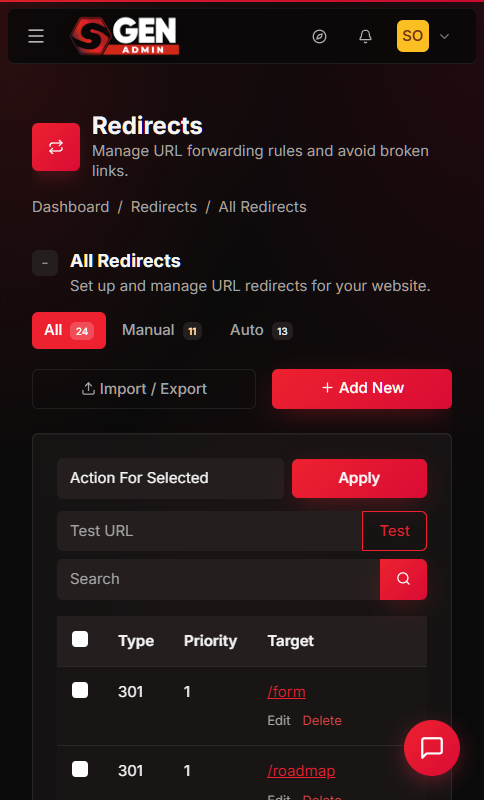
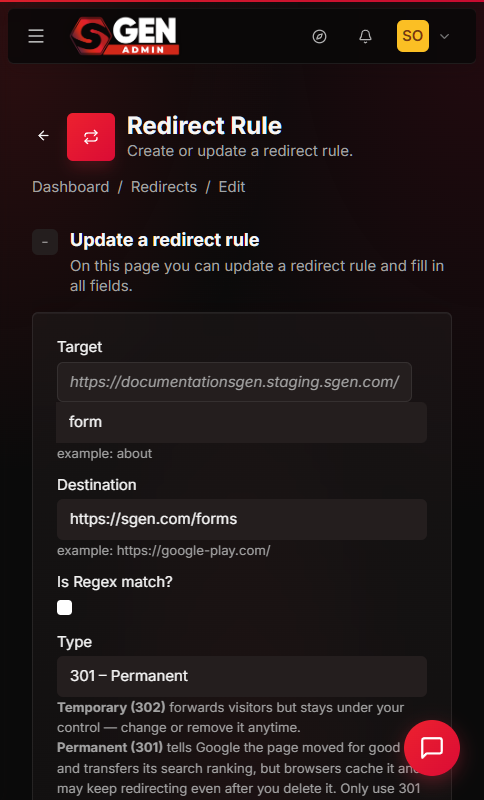
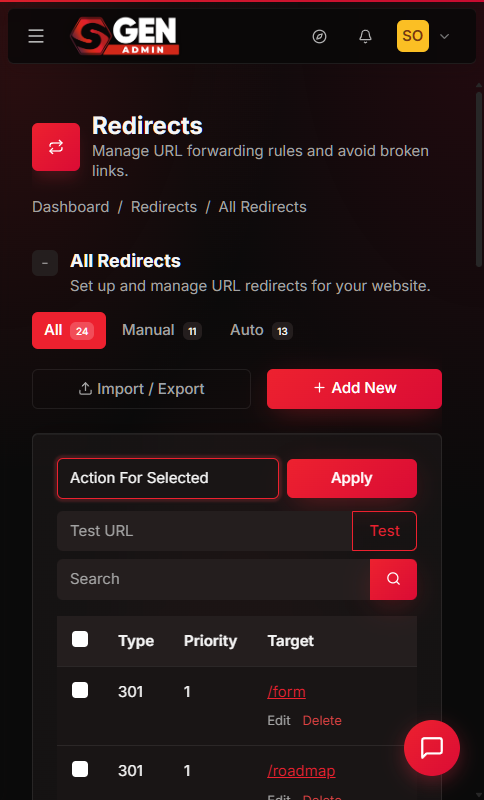
Disabling a redirect rule sets its Status to Inactive. The rule remains in the Redirects list with all its configuration intact. Its hit count and last-matched date are preserved. The rule stops intercepting visitor requests immediately after saving. You can reactivate it at any point with a single toggle flip.
⏱ ~5 min read · quick answer above the fold · full steps and examples below.
In short. Open the redirect rule you want to pause, find the Status toggle in the sidebar, switch it to Inactive, and click Update redirect rule. The rule stays in your list with its hit history intact — visitors will no longer be forwarded by that rule. To pause several rules at once, use the All Redirects list, check the rules you want, and choose Move to Inactive from the bulk-action menu.
On this page: What this is for · Scope · Fields · Good use cases · What NOT to use this for · How this connects to other features · Before you start · Where to go · Steps · What success looks like · What to do if it does not work · Examples
What is this for?
Every redirect rule in SGEN has a Status field that controls whether the rule fires. An active rule intercepts matching visitor requests and forwards them to the destination you configured. An inactive rule sits in the list without firing — it does not affect any traffic.
Disabling a rule is the pause operation. The rule record stays fully intact: target path, destination, redirect type (permanent or temporary), priority, hit counter, and last-matched date all survive the toggle. Nothing changes except whether the rule fires on incoming requests.
When you re-enable the rule later, it picks up exactly where it left off. The hit counter continues accumulating from its previous total — there is no reset on reactivation.
This is the right operation when you want to stop a redirect temporarily without discarding the configuration you already set up.
Preview: Edit Redirect Rule — a screenshot of this screen will be added here.
Scope
This guide covers one specific operation: setting an existing redirect rule's Status to Inactive so it stops firing, then optionally reactivating it. It does not cover creating a new rule — see How to add a new redirect rule for that. It does not cover changing a rule's destination, type, or target — see Edit an existing redirect rule for those edits. It does not cover permanently removing a rule — use Delete Permanently on the All Redirects list for that. Both single-rule and bulk paths are covered here.
Fields
The Status field is the only field you change when disabling a redirect rule. The table below describes all fields on the Edit Redirect form for context — understanding the full form helps you confirm you are looking at the right control.
| Field | What it does | Relevant to this guide? |
|---|---|---|
| Target | The URL path the rule matches against incoming requests (stored without leading slash; displayed with one) | No — do not change when disabling |
| Destination | Where matching visitors are sent | No — do not change when disabling |
| Is Regex? | When checked, Target is treated as a regular-expression pattern instead of a literal path | No |
| Type | Permanent or Temporary — controls whether visitors are forwarded permanently or just for now | No |
| Priority | Integer; higher number = evaluated earlier when multiple rules could match the same URL | No |
| Status | Active or Inactive — controls whether the rule fires at all | Yes — this is the toggle you change |
| Stop Processing | When active, prevents any lower-priority rules from also matching this request | No |
Bulk-action vocabulary on the All Redirects list:
| Action | Effect |
|---|---|
| Move to Active | Sets Status to Active on all selected rules |
| Move to Inactive | Sets Status to Inactive on all selected rules — equivalent to disabling each rule individually |
| Delete Permanently | Removes the rule record entirely — hit counts and configuration are gone |
The key distinction: Move to Inactive is reversible. Delete Permanently is not.
Good use cases
Campaign redirects that run on a schedule. A sale runs for two weeks. The redirect from /summer-deals to /sale/summer goes live on day one. On day fifteen you flip Status to Inactive. The rule and its hit stats stay available for the next campaign season — or for reporting.
Migration clean-up after a confidence period. After a site restructure, every old URL gets a redirect rule. Six months later, traffic to those old paths has dropped to near zero. You disable the rules rather than delete them. If a stale inbound link resurfaces later, you can find the rule and reactivate it in one step.
Seasonal content pauses. Holiday landing pages are not relevant off-season. Disabling the redirect rules for those pages means visitors who land on the old URL see your site's default not-found behavior instead of being forwarded to a page that says "Sale ended."
Preserving history while fixing a misconfigured rule. A redirect rule is firing on the wrong pattern. You disable it immediately to stop the bad forwarding, fix the Target field, confirm in the Test URL simulator, then reactivate. Hit history from before the fix is preserved.
Preview: Status tabs — a screenshot of this screen will be added here.
What NOT to use this for
Permanent removal. If a redirect rule is no longer needed and you have no intention of re-enabling it, delete it via Delete Permanently. Disabling is a pause, not a decommission. A growing list of permanently inactive rules creates noise and makes it harder to audit active forwarding logic.
Fixing a broken destination URL. If the rule's destination is wrong, open the rule and correct the destination field. Do not disable the rule as a workaround. A disabled rule with a bad destination causes the same problem when you reactivate it.
Stopping a redirect loop. If you have a redirect loop (A forwards to B, B forwards back to A), disabling one rule may fix the symptom but not the underlying configuration. Resolve the loop by correcting the destination fields on the rules involved.
Controlling which rule wins when two rules match the same URL. That is what Priority and Stop Processing are for. Disabling a lower-priority rule is not the correct way to force a higher-priority rule to win — use Priority to set evaluation order.
How this connects to other features
- Edit an existing redirect rule — the Status toggle is one field on the Edit Redirect form.
Disabling is a special case of editing. If you need to change any other field at the same time (destination, type, priority), use the full edit workflow rather than two separate operations.
- Browse all redirects — the All Redirects list is where you find rules to disable.
The Status column shows Active or Inactive at a glance. The bulk-action menu on this list is the fastest path when you need to disable several rules at once.
- Bulk manage redirects — bulk activate and deactivate are covered in detail there.
For disabling more than a handful of rules, use the bulk path rather than editing each rule individually.
- SEO and link equity — disabling a permanent redirect means the old URL no longer forwards to the new one.
If search engines have indexed the old URL, they will stop receiving the forwarding signal. Coordinate with your SEO strategy before disabling rules that have been live and receiving traffic for more than a few weeks.
Before you start
Confirm you have admin-level access to the SGEN control panel. The Redirects section requires admin access.
Check that the Redirects module is enabled on your SGEN plan. The Redirects module is available on the Launch+ plan tier. If you do not see a Redirects item in the sidebar, check your plan or contact your SGEN account contact.
Identify the rule you want to disable. If you are not sure which rule to look for, use the search box on the All Redirects list to find it by target path or destination.
If you are disabling a permanent redirect, note that browsers and search engines remember permanent redirects for a while. Disabling the rule stops SGEN from issuing the forward on future requests. It does not clear forwards that browsers or search-engine crawlers have already remembered. Plan accordingly if you need the old URL to become accessible again immediately after disabling.
Where to go
Navigate to Redirects in the SGEN admin sidebar. The All Redirects list opens. From there you can open any rule for editing or use the bulk-action menu to disable multiple rules at once.
Steps — disable a single redirect rule
1. Open the All Redirects list
Go to Redirects in the sidebar. The All Redirects list shows every rule, with columns for Type, Priority, Target, Destination, Hits, Last Matched, Is Regex?, Stop, and Status. Find the rule you want to disable. Use the search box if you have many rules — type part of the target path and submit.
Preview: All Redirects — a screenshot of this screen will be added here.
2. Open the rule's Edit screen
Click Edit on the row for the rule you want to disable. The Edit Redirect form opens, prefilled with the current values for that rule.
3. Find the Status toggle and switch it to Inactive
The Status toggle appears in the right-hand sidebar of the Edit Redirect form. When the rule is currently active, the toggle is in the on / Active position. Switch the toggle to the off / Inactive position. No other fields need to change for a disable-only operation.
4. Save the change
Click Update redirect rule. The form saves and the page reloads or redirects back to the list. A success message confirms the update. The rule now has Status: Inactive and will no longer fire on incoming requests.
Preview: Settings saved — a screenshot of this screen will be added here.
5. Confirm in the All Redirects list
Return to the All Redirects list. Find the rule you updated. The Status column now shows Inactive. The rule remains in the list — it has not been deleted. Its Hits and Last Matched values are unchanged.
Steps — disable multiple rules at once
Use this path when you need to pause several rules in one operation rather than editing each individually.
1. Open the All Redirects list
Go to Redirects in the sidebar.
2. Select the rules you want to disable
Check the checkbox next to each rule you want to disable. You can check as many rules as needed. The checkboxes appear in the leftmost column of each row.
Preview: All Redirects — Selection Mode — a screenshot of this screen will be added here.
3. Choose Move to Inactive from the bulk-action menu
Find the Action For Selected dropdown near the top of the table. Open it and choose Move to Inactive. Click the Apply button.
4. Confirm the result
The list refreshes. All the rules you selected now show Status: Inactive. Their hit counts, destinations, and all other configuration are unchanged.
Preview: Bulk action result — a screenshot of this screen will be added here.
What success looks like
A disabled redirect rule shows the following in the All Redirects list:
- Status column reads Inactive.
- The row is still visible — it has not been removed from the list.
- The Hits count is unchanged from before the disable operation.
- The Last Matched date is unchanged.
If you test the old target URL in the Test URL simulator on the All Redirects list, the result reads something like "No rule matched for /your-path" — because inactive rules are excluded from matching. If the test still shows a match, a different active rule with the same or overlapping target may be in play. Check the Priority and Is Regex? columns for other rules targeting the same path.
Preview: Public site preview — a screenshot of this screen will be added here.
What to do if it does not work
The Status toggle is not visible on the Edit form. The Status toggle appears in the right-hand sidebar panel. Scroll the right-hand panel — it may be below the fold on smaller screens. If the Redirects module is not enabled on your plan, the entire Redirects section will be absent from the sidebar, not only the toggle.
The form saves but the rule still fires. Check the All Redirects list Status column for the rule. If it still shows Active, the save may not have completed — try again. If another active rule has a matching or overlapping target, that rule may be firing instead. Search for the target path to identify all rules that reference it.
Move to Inactive is not in the bulk-action dropdown. The bulk-action dropdown on the All Redirects list includes: Action For Selected / Move to Active / Move to Inactive / Delete Permanently. If Move to Inactive is absent, try a hard reload of the page. If it remains absent, confirm that your plan includes the Redirects module.
The rule disappears from the list after disabling. Rules do not disappear when disabled — they remain in the list with Status: Inactive. If you cannot find a rule after disabling it, check whether a search term or filter is hiding inactive rows. Clear any active search and reload the page.
Visitors are still being redirected after you disabled the rule. Disabling a rule stops SGEN from issuing the redirect on future requests. However, if the redirect type was Permanent, browsers and search-engine crawlers may have remembered the forward. A remembered permanent redirect persists in browser history until the visitor clears it or the browser's stored data expires — this is expected browser behavior. If you need the old URL to be immediately accessible, test in a private or incognito browser window — which bypasses remembered history — to confirm what the site is now returning.
The Redirects section is not visible in the sidebar. The Redirects module is available on the Launch+ plan tier. Navigate to Modules in the SGEN admin, find the Redirects row, and check whether it shows as Locked. Contact your SGEN account contact to upgrade if needed.
Examples
Example 1: Pausing a post-sale campaign redirect.
A Site Administrator set up a temporary redirect from /memorial-day-sale to /sale/memorial-day during a campaign window. The campaign ends at the close of the holiday weekend. The next morning, the Site Administrator opens the rule in Edit, switches Status to Inactive, and saves. The /memorial-day-sale URL no longer forwards visitors. The rule stays in the list, showing its accumulated Hits and the date it last matched. When the next campaign runs the following year, the Site Administrator opens the same rule, updates the destination to that year's sale page, and reactivates it. No new rule is needed — the prior year's configuration is the starting point.
Preview: memorial-day-sale → /sale/memorial-day — a screenshot of this screen will be added here.
Example 2: Disabling a batch of migration rules after a confidence period.
After a content restructure, a Content Editor created a dozen redirect rules covering every renamed page. A few months later, traffic to those old paths has dropped to near zero. Rather than deleting the rules and losing the historical hit data, the Content Editor opens the All Redirects list, selects all 12 rules, and chooses Move to Inactive from the bulk-action menu. The rules stay in the list. If a stale inbound link resurfaces months later, the Content Editor can find the matching rule by searching for the old path and reactivate it in one step.
Preview: Bulk action result — a screenshot of this screen will be added here.
Example 3: Disabling a rule to safely edit its target before reactivating.
A redirect rule for /blog/old-post-slug has been firing correctly for months, but the Content Editor notices the target path has a typo. The correct path should have a different spelling. The Content Editor opens the rule, sets Status to Inactive, and saves — the bad forwarding stops immediately. The Content Editor then edits the Target field to correct the typo and saves again. The corrected rule is tested in the Test URL simulator on the All Redirects list. Once confirmed, Status is flipped back to Active and saved. The entire operation takes under two minutes. Hit history from before the correction is preserved in full.