
Manage admin notifications
⏱ ~8 min read · quick-answer above the fold · full reference below.
In short. Go to Notifications in the left sidebar (there is no bell icon in this version — bookmark /sg-admin/notifications/). Every row is a pending-comment alert. Filter to Unread to see what is waiting. Click View on a row to jump to the Discussions queue, then approve or reject the comment there. Come back and click Mark as Read on the row. For a quiet week, tick the master checkbox and bulk-mark all as Read. Read state is per-admin — marking something read affects only your inbox, not your teammates'. Delete removes the row for every admin; prefer Mark as Read on shared sites.On this page: What this covers · Daily triage workflow · Steps · What NOT to do · Troubleshooting · Per-admin vs shared state
How to catch up on pending comments and admin alerts
The Notifications page is a central inbox for alerts that need your attention as an admin. On this version of SGEN, every notification comes from your site’s comment queue — when a visitor leaves a comment that needs moderation, a notification appears here so you do not miss it.
What is this for?
Notifications is a central inbox for admin-facing alerts about pending comments that need your attention. Open the inbox to see what is waiting, then head to the Discussions area to act on each comment. Read state is tracked per admin — your Unread count is yours alone, even on a site with multiple admins.
Scope
The inbox covers pending-comment events only on this version. Only when a visitor leaves a comment that requires moderation does a row appear here. The three tabs split the count by read state: All, Unread, and Read.
The following do not create notifications: page publishes, redirect changes, media uploads, theme edits, or any other admin action. For a full audit trail on those areas, check the individual feature sections (for example, Pages history or Custom Codes history).
Examples
The three tabs carry live counts of how many items are in each state for your user specifically. A healthy morning inbox — on a site with an active blog — might look like this after the first overnight:
Example 1: Daily morning check — triage overnight comments. Visitors leave comments on your blog posts overnight. You open Notifications at the start of your day, filter to Unread, and see 6 new rows. Reading the snapshot above you see 6 Unread out of 8 All — six comments to triage. Click View on any row to jump to the Discussions queue and approve or reject from there:
Note: Every View link in the list goes to the same URL — /sg-admin/discussions?status=pending — regardless of which comment the notification is about. Once you arrive on the Discussions page, use its search box to find the specific comment by commenter name.Example 2: Post-comment-surge triage — find one commenter quickly. Your site published a new blog post and 12 visitors commented in the first hour. You remember a specific commenter left a question but you cannot recall whether you replied. Type part of their name into the Search notifications box and press Enter. The inbox narrows to every notification whose title contains that text. You see their row, the status badge tells you it is still Unread, and you click View to jump to Discussions:
Example 3: Weekly inbox zero — bulk-mark a quiet week read. It is Friday afternoon and you have been on top of comments all week — your business had a calm 5 days. You open the All tab and see 5 rows, all already handled in Discussions. Tick the master checkbox in the header to select all 5, pick Mark as Read from Bulk actions, and click Apply. The list reloads, your Unread tab drops to zero, and every row moves to the Read tab:
Example 4: Bookmark URLs — reach specific inbox views in one click. Because the bell icon is not available in the top navigation on this version of SGEN, you rely on direct URLs. Bookmark these so you can reach your inbox views without typing every morning. Replace yourdomain.com with your own site domain:
Example 5: Single-row mark read — close the loop on one commenter. A visitor left a thoughtful question on the Canvas Tote Bag post. You opened Discussions, replied to their comment, and came back to the inbox. You do not need to run a bulk action — click Mark as Read on their row alone. The status badge flips from red to grey without a page reload, the Unread count in the tab drops by one, and the inbox confirms the change:
What NOT to use this for
- Do not rely on the bell icon in the top navigation — it is not rendering on this version of SGEN. You may remember a bell icon from older versions of SGEN or from screenshots other admins have shown you — on this version, the bell is suppressed and nothing in the admin chrome signals that notifications exist. A count exists behind the scenes but no UI surfaces it. Bookmark
/sg-admin/notifications/and make it part of your daily routine until the bell returns.
Preview: Admin navbar — no bell icon — a screenshot of this screen will be added here.
- Do not expect the View link on a notification to take you to that specific comment. On this version, every notification’s View button lands you on the same page — the generic Pending Discussions queue — regardless of which commenter or post the notification was about. If you have five notifications for five different comments, all five View links go to the same URL. Once you arrive on the Discussions page, use its search box or scan by commenter name to find the specific comment the notification was telling you about.
- Do not click View on an old notification without checking the comment still exists. If a comment has already been moderated (approved, marked as spam, or permanently deleted) since the notification was created, the notification row stays in your inbox but clicking View lands you on an empty queue with “No discussions found.” These stale rows do not auto-clean — expect some phantom entries in the inbox as your site accumulates history. Mark them read (or delete them) to keep the list tidy.
- Do not rely on this as your only alert channel. On this version, notifications are admin-dashboard only. No email, no text message, no push, no bell. If you need out-of-band alerts (for example, you are on vacation and need to know immediately when a comment comes in), set up email forwarding from your submission form or use a third-party tool — the Notifications page will not do that for you.
- Do not expect multi-user scoping to be airtight on bulk delete. On a site with several admins, bulk Delete does not respect per-admin scope. If one admin bulk-deletes notifications, the rows are removed for every admin on that site — not just dismissed from their own inbox. Coordinate with your team before running bulk delete, or use Mark as Read instead, which is safely scoped to you alone.
- Do not use this as a general activity log. Only pending comments create notifications on this version. Page publishes, redirect changes, media uploads, theme edits — none of those write to this inbox. If you need a full audit trail, look at the individual feature areas (for example, Pages history or Custom Codes history).
Before you start
- You are signed in to SGEN as an admin.
- You know the URL of your notifications inbox:
/sg-admin/notifications/. - You have a pending comment to triage (or you are scanning a known-quiet inbox to get familiar with the layout).
If you do not have any pending comments yet, the inbox will be empty — that is expected. It populates automatically the next time a visitor submits a comment that requires moderation.
Where to go
- Open Notifications from the left navigation menu. There is no bell icon in the top navigation on this version — if the left nav entry is not visible, type the inbox URL directly into your browser address bar.
- The page lists every notification addressed to you, newest first. Across the top you have three tabs: All, Unread, and Read. Each tab badge shows the count.
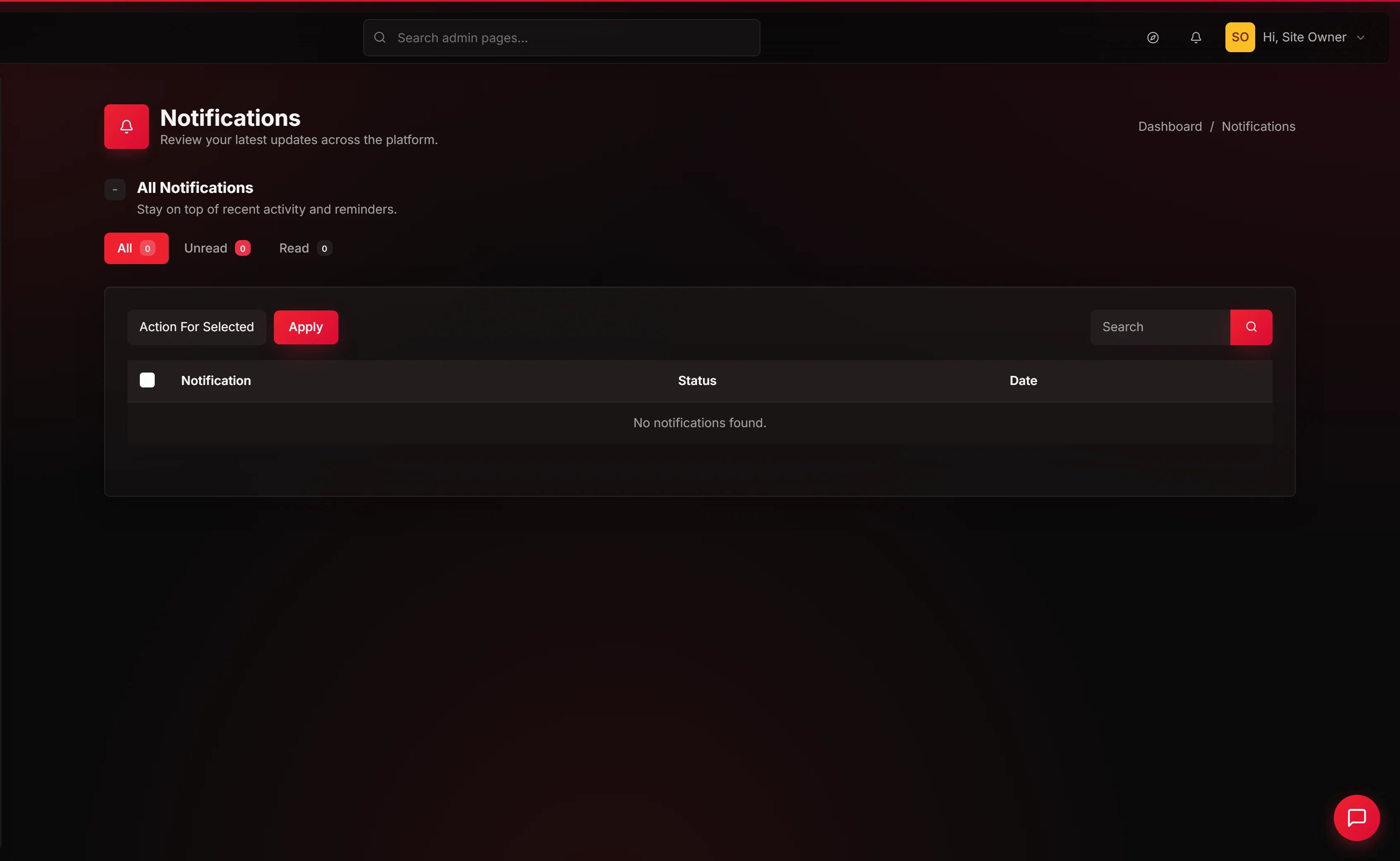
- If you have zero notifications, the table shows “No notifications found.” — that is expected on a quiet site or a site without any public-facing comment traffic yet.
Steps
1. Scan the Unread tab
Click Unread at the top. The list narrows to only items you have not yet acted on. Your read/unread state is scoped to you — if a colleague marked an item read, your copy stays unread until you mark it yourself.
The Unread tab count is your at-a-glance signal for how much is waiting. A count of zero means the morning sweep is done; anything above zero means there are pending comments that may still need a Discussions decision.
2. Open a specific notification
Click the View link inside a row to jump to the Discussions queue (filtered to pending comments). Approve or reject the comment there, then come back to the notifications list.
Remember: every View link goes to the same page on this version, so use the Discussions search box to locate the specific comment named in the notification message. The notification row tells you the commenter name and the post title — use those as search terms once you land in Discussions.
3. Mark items read
Two ways to mark things read:
- One at a time: click Mark as Read inside a specific row. The row flips from red “Unread” to grey “Read” without reloading the page.
- In bulk: tick the checkbox on the left of each row you want to clear (or the master checkbox in the header to select everything on the current page), pick Mark as Read from the Bulk actions dropdown, and click Apply.
There is also a Mark as Unread action in the same dropdown — useful if you accidentally marked something read before you had a chance to deal with the underlying comment, and want to put it back on your radar.
If you are cleaning up a backlog and are sure you have handled everything in the list, you can also use Delete from the Bulk actions dropdown — just be aware that on a multi-admin site, Delete removes the rows for everyone, not just you. When in doubt, prefer Mark as Read.
4. Search
Use the search box on the right of the toolbar to find a specific notification by keywords in the title or message body. This searches your own notifications only — not site-wide content.
The search looks at the notification title and message text. Commenter names appear in the title in the format “a teammate on Canvas Tote Bag — New Colours” — searching for a partial name matches any row containing it. Partial words work: a few letters are enough to narrow the list.
The search does not look across Discussions content or any other area of the admin — it is scoped entirely to the notification title and message text that SGEN stored when the notification was created.
What success looks like
- The Unread tab badge is 0 (or only shows items that arrived since you cleared the queue).
- The Discussions Pending tab is also 0 — remember, marking a notification read does not moderate the underlying comment. You still have to go to Discussions to approve or reject.
- When you come back tomorrow, any new pending comments from overnight are already waiting for you at the top of the inbox.
After a typical morning sweep, the tab counts look like this — all 8 notifications accounted for, Unread at zero:
A triage rhythm — five minutes each morning
Most sites can be cleared in five minutes a day. A consistent routine means nothing slips through unnoticed and your Unread count never climbs into the dozens.
- Open the Unread tab. Glance at the count. Active blog sites typically see 3–8 overnight comments.
- Scan the notification titles. Each row shows the commenter name and the post they commented on. Familiar names with on-topic comments are usually safe to handle quickly.
- Click View on anything that needs a Discussions decision. The link takes you to the Pending queue. Search for the commenter name there, then approve or reject. Come back and mark the notification read when done.
- Mark what you have handled. Click Mark as Read on each row you have acted on, or tick multiple rows and bulk-mark when you have cleared several at once.
- Repeat until Unread is 0. When the Unread tab shows zero, the morning check is done.
Delete stale rows sparingly. Rows whose underlying comments were already moderated long ago can be deleted to keep the list lean — but prefer Mark as Read on a shared-admin site because Delete removes the row for every admin, not just you.
A weekly cleanup pass
Once a week, take a few minutes to audit the inbox for rows that are no longer meaningful. Over time, as comments get moderated, their notifications become stale — the View link goes to an empty Discussions queue. These stale rows stay in the inbox indefinitely and can make the All tab count misleading.
The cleanup flow:
- Open the All tab. Look for rows older than a few days where the underlying comment is likely already handled.
- Check a sample by clicking View. If Discussions shows “No pending discussions found” for the commenter named in the notification, the row is stale.
- Tick the stale rows using the row checkboxes. If most of the inbox is stale, use the master checkbox in the header to select all rows on the current page.
- Mark as Read or Delete. On a single-admin site, Delete is fine for stale rows. On a multi-admin site, check with your team before bulk-deleting — another admin may not have seen those rows yet.
After the weekly pass, the All tab count more accurately reflects genuinely active notifications rather than a graveyard of already-handled comments.
Keeping your inbox useful
Use the search box to find old threads. If a customer contacts you about a comment they left, search by their name in the notifications inbox. The search covers the notification title and message text — a partial name is enough to surface the matching row.
Treat an Unread count above 20 as a signal. If your Unread tab is climbing past 20, the underlying Discussions Pending queue is probably also growing. Tackle Discussions first, then come back and bulk-mark the corresponding notifications read.
Use Mark as Unread to re-flag items. If you opened a notification, started a Discussions action, and then got interrupted — mark the notification Unread again so it surfaces the next time you check. A lightweight way to put something back on the agenda.
What to know about per-admin versus shared state
Read state in the notifications inbox is personal: your Unread count is yours alone, and marking an item read does not change how it appears for other admins on the same site. This is useful on a team because two admins can both see the same notification independently and triage it at their own pace.
The one exception is Delete. When any admin uses bulk Delete (or a row Delete action), the rows are removed from the database for every admin — not just dismissed from their own view. A notification deleted by one admin disappears from all inboxes immediately, with no warning and no undo.
The safe default on a multi-admin site:
- Mark as Read for routine triage — safe, per-person, reversible.
- Mark as Unread to re-flag something you want to come back to — also per-person only.
- Delete only when you have coordinated with your team, or when you are the only admin on the site.
Common questions
Can I reply to a comment directly from the notifications inbox? No — the inbox is read-only. Clicking View takes you to the Discussions queue, where you can approve, reject, and reply. The notifications inbox tracks that a comment arrived; all moderation and reply actions happen in Discussions.
Does the notification row update after I moderate the comment in Discussions? The row status (Unread / Read) updates only when you explicitly mark it read in the notifications inbox. Moderating the comment in Discussions does not automatically mark the notification read — the two actions are independent. This means you can have a zero Discussions Pending count while still showing Unread notifications, and vice versa.
Why does the Unread count not match the number of pending comments in Discussions? The counts are maintained independently. A notification is created when the comment is first submitted. If you moderate the comment directly in Discussions without visiting the inbox, the notification stays Unread until you mark it. Conversely, if a notification row was deleted, its Discussions comment may still be pending. Check both areas when they diverge.
Can I search across all notifications, including ones I already read? Yes. The search box runs against all notifications regardless of read state. The tab filter you are on when you search does narrow the results — if you are on the Unread tab, only Unread notifications matching your search term appear. Switch to the All tab first if you want to search across everything.
Is there a way to bulk-mark everything read without selecting rows? On this version, the fastest path is: click the All tab, tick the master checkbox in the table header (which selects every row on the current page), pick Mark as Read from the Bulk actions dropdown, and click Apply. If you have more than one page of notifications, repeat for each page.
What to do if it does not work
- My inbox is empty. If every tab shows the count 0 and the table reads “No notifications found.”, that is what a quiet site looks like — no pending comments, no alerts, nothing to action. The list will populate automatically the next time a visitor submits a comment:
- I see notifications but clicking View takes me to an empty page. The underlying comments have already been moderated or deleted since the notifications were created. The row stays in your inbox but the destination page now shows “No discussions found.” Check the Approved, Spam, or Trash tabs in Discussions — the comment may have moved. Then mark the notification read or delete it to clear the stale row.
- My search returns nothing for a commenter I know is in the list. The search looks at title and message text only. Try a partial name rather than the full name, and make sure you are on the All tab so the search covers read and unread notifications alike.
- I do not see a bell icon in the top navigation. Expected on this version of SGEN. If you don’t see a notification bell in your top bar, it may be hidden by your theme — check your top bar settings or contact support. In the meantime, bookmark
/sg-admin/notifications/for direct access. - My inbox looks different from a colleague’s. Read state is per-admin, but the list of notifications themselves is shared. If you and your colleague see completely different rows, check that you are both signed in to the same site and that your user roles are both admin-level. If a row you expected is missing for everyone, another admin may have used bulk Delete to remove it for the whole team.
- I bulk-deleted notifications and want them back. Not possible on this version — there is no undo for Delete. Use Mark as Read for dismissals you might want to revisit later.
- Marking something read does not seem to stick. The per-row mark-read action uses an in-page request that requires connectivity. If the page reloads and the row is still Unread, check your connection and try again — or use the bulk-action form instead, which submits as a standard form and is more resilient to connection hiccups.
Reference
| Action | Scope | Reversible | Notes |
|---|---|---|---|
| Mark as Read (per row) | Your inbox only | Yes — re-mark Unread any time | Safest dismissal on multi-admin sites |
| Mark as Unread (per row) | Your inbox only | Yes | Useful if you want to return to a row later |
| Mark as Read (bulk) | Your inbox only | Yes | Selects all visible rows; respects active tab filter |
| Mark as Unread (bulk) | Your inbox only | Yes | Same as above |
| Delete (bulk) | All admins on the site | No — no undo | Removes the row for every admin, not just you |
| Filter: Unread tab | Your inbox only | — | Shows only rows you have not yet marked read |
| Filter: Read tab | Your inbox only | — | Shows only rows you have already marked read |
| Search box | Title + message text | — | Partial name matching; search on the All tab for full coverage |
How this connects to other features
- Discussions. This is the only feature that creates notifications on this version of SGEN. Every time a visitor submits a comment that needs moderation, a notification is added to your inbox. When you approve, spam, or delete a comment, the related notification stays in the inbox — marking the notification read (or deleting it) is a separate step from moderating the comment. If you clear your Discussions Pending queue and leave the notifications alone, the notifications become stale (their View link goes to an empty queue).
- Users. Notifications are scoped per-admin: your unread count is yours. When you mark an item read, other admins still see it as unread in their own inbox until they mark it themselves. The exception is bulk Delete, which removes the row from everyone’s inbox — prefer Mark as Read on multi-admin sites.
Fields
| Element | Description |
|---|---|
| Unread tab | Shows only notifications you have not yet marked as read |
| Read tab | Shows all notifications you have previously marked read |
| All tab | Shows all notifications regardless of read state |
| Row checkbox | Select for bulk action (mark read, mark unread, delete) |
| Type badge | Category of notification (Comment, Form, Backup, System) |
| From | The commenter name, form submitter email, or system event label |
| Preview | Short excerpt of the notification content |
| Time | Relative timestamp (e.g. "2 hours ago", "yesterday", "3 days ago") |
| View link | Opens the related content (comment, form entry, etc.) |
Next step
- Moderate the pending comments from the Discussions area. Clearing the Pending queue is what resolves the underlying work — marking notifications read without moderating just hides the reminder.
- Bookmark
/sg-admin/notifications/so you can reach it in one click every morning until the bell icon returns to the top navigation. - Set a daily habit. Whether it is first thing in the morning or at the end of the day, build the inbox check into a routine. Five minutes daily prevents the hour-long backlog catch-up that happens when the inbox goes unchecked for a week.