
Modules — turn features on or off
The Modules page is the single control surface in SG PANEL where you decide which features are active on your site. Enable a module to make its admin pages and front-end routes live. Disable one to hide them instantly — without touching a single record of your data.
Data is always safe
Disabling a module hides admin pages and deactivates front-end routes. No posts, records, or settings are deleted. Re-enable the module and everything reappears exactly as you left it.
Changes stage before they save
Toggle as many modules as you need in a single session. Nothing goes live until you click Save Changes — giving you time to review the full set of changes before committing.
27 modules across 7 categories
Commerce, Developer, Content, Analytics, Operations, Marketing, and Media. Filter the list by category chip, or use bulk controls to enable or disable all toggleable modules at once.
What the Modules page is for
Each module represents a group of related functionality — a form builder, an analytics tracker, a redirect manager, an e-commerce engine, and so on. Enabling a module makes its admin pages appear in the sidebar and its front-end routes go live. Disabling a module removes those admin pages from the sidebar and deactivates the front-end routes. Your data is never touched. The Modules page groups all available features into seven categories and lets you filter by category using the chip row at the top of the list.
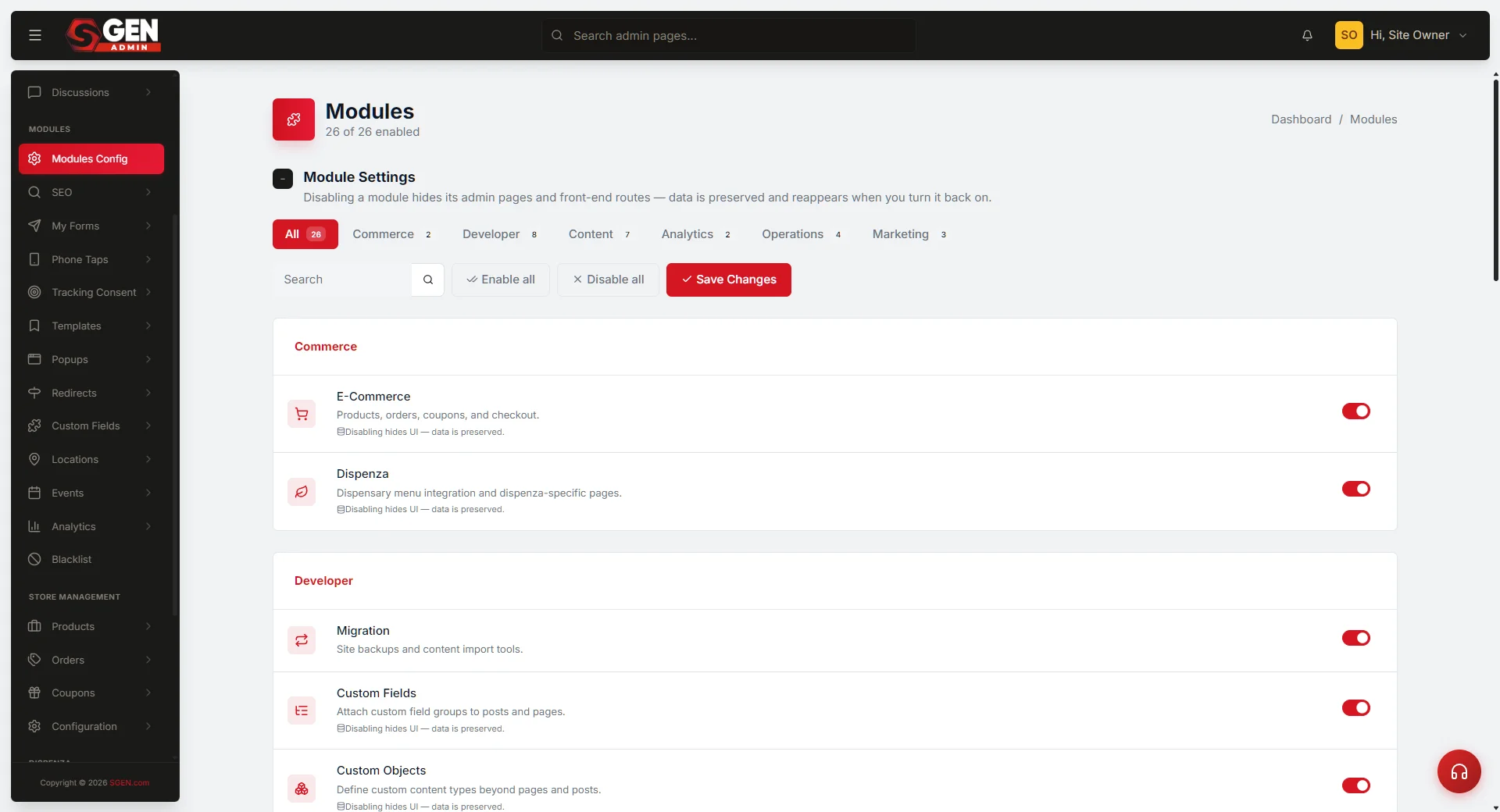
The live Modules page reads: "Disabling a module hides its admin pages and front-end routes — data is preserved and reappears when you turn it back on."
When to use this page
The Modules toggle is useful across a range of day-to-day site management tasks — from launching a focused site to diagnosing unexpected front-end behavior.
Launch
Start with a focused feature set
Turn off modules you are not ready to use so your admin sidebar stays uncluttered and no placeholder front-end routes are reachable by visitors before you intend them to be.
Seasonal
Hide a feature between campaigns
Disable a module such as Events at the end of a season. Re-enable it when the next season begins. All your event content is waiting, exactly as you left it.
Access
Keep a new team's workspace focused
Fewer active modules means fewer menu items for your team to navigate. Disabling unused modules reduces the chance someone edits something outside their scope.
Diagnostic
Run a quick front-end diagnostic
Temporarily disabling a module is a safe first step when troubleshooting unexpected front-end behavior. No data is lost during the test.
Retire
Retire a feature after a project ends
When a short-term campaign that used Popups closes, disable the module. The popup records stay in the system for reuse on the next campaign.
Clean-up
Remove routes after a content pivot
If your site no longer runs an e-commerce store, disabling E-Commerce removes its admin pages and stops the store routes from responding.
What NOT to use this for
The module toggle operates at the feature level across the whole site. It is not a content-deletion tool, a per-page visibility switch, or a per-user permissions control.
Deleting content
Disabling a module does not delete anything. To permanently remove content — for example, all your old event posts — delete the content inside that module first, then disable the module if needed.
Hiding a single page
Modules operate at the feature level, not the individual-page level. To hide one specific page, unpublish it from within the relevant admin section.
Controlling individual user permissions
Modules are a site-wide switch, not a per-user permissions control. To restrict what a team member can access, manage user roles separately.
Blocking specific visitors
Disabling a module removes the route entirely. For targeted traffic control — blocking specific IPs or user agents — use the Blacklist module instead.
Addressing billing or plan questions
Image Studio is gated by plan. For all other billing questions, contact SGEN support rather than adjusting module toggles.
How to enable or disable a module
Navigate to the Modules Config page and work through these steps. Multiple toggles can be staged in a single session before anything goes live.
1
Open the Modules page
Click Modules Config in the left sidebar under the MODULES section. The page loads showing the Module Settings section. A counter near the top of the list shows how many modules are currently enabled and flags any locked modules. The page URL is /sg-admin/modules.
2
Filter to the module you need
Click a category chip to narrow the list. The available categories are: All, Commerce, Developer, Content, Analytics, Operations, Marketing, and Media. Each module shows its name and a short description copied from the live interface.
3
Toggle the module
Click the toggle next to the module name. The toggle changes state in the interface immediately — nothing is saved yet. You are staging a change. Toggle as many modules as you need in a single session. To change all modules at once, click Enable all or Disable all at the top of the list.
4
Save your changes
Click Save Changes. The change takes effect when the save completes. Modules you disabled are now hidden from the admin sidebar and their front-end routes are now inactive. Your data for those modules is preserved.
5
Confirm the result
After saving, check the sidebar. Modules you disabled should no longer appear as menu items. If you disabled a module with active front-end pages, open one of those page URLs in a new browser tab — the page should no longer load.
What success looks like
After a successful save, each changed module reflects its new state across the admin and the front end.
Toggle reflects new state
The toggle for each changed module reflects its new state on the Modules page.
Sidebar updates immediately
Modules you disabled no longer appear in the left sidebar. Modules you enabled appear in the sidebar and their routes are live.
Front-end routes respond accordingly
Front-end routes for disabled modules return a not-found response. Routes for newly enabled modules go live.
No data changed
Posts, records, and settings for disabled modules are stored and reappear when you re-enable the module.
What to do if it does not work
Most issues on the Modules page have a straightforward fix. Check these before contacting support.
Save Changes does not respond
Check that your browser is connected to the internet. Reload the page, re-apply your toggle changes, and try saving again.
A toggle is grayed out and cannot be changed
Image Studio is locked to the Enterprise plan. Its control shows an Upgrade prompt instead of a standard toggle. All other modules should toggle freely. If a different module appears grayed out, contact support to confirm your plan includes it.
A disabled module's menu item still shows in the sidebar
Try a hard reload — Ctrl + Shift + R on Windows, Cmd + Shift + R on Mac. Browser caches sometimes show a stale version of the sidebar. If the item persists after a hard reload, contact support.
A re-enabled module's content looks different than expected
Disabling and re-enabling preserves data in the database. Appearance settings for a module's front end are separate from the module toggle itself. Confirm the content records are intact, then check display settings within the module.
A module was disabled by mistake and content is gone from the sidebar
Re-enable the module from the Modules page and click Save Changes. After saving, the module's admin pages reappear in the sidebar. No content was deleted.
Examples
Three common scenarios that show the toggle in practice.
Team handoff
Disabling unused modules before a handoff
Your site is being handed over to a new team that will not manage Discussions or Events. Before the handoff, open Modules, filter to Content, and toggle off Discussions and Events. Click Save Changes. The sidebar on the new team's accounts now shows only the features they are expected to manage. If those features are ever needed again, re-enable them — all previous content returns.
Seasonal
Temporarily hiding a seasonal feature
Your site runs a seasonal events calendar each winter. In the off-season, open Modules, find Events under the Content category, and toggle it off. Click Save Changes. Visitors can no longer reach the events front-end pages. When the next season begins, re-enable Events — all event posts and categories are waiting, exactly as you left them.
Diagnostic
Diagnosing a front-end conflict
Something unexpected is happening on a page that uses both the Forms module and Custom Codes. As a safe diagnostic step, temporarily disable Custom Codes from the Modules page. Save, then reload the affected front-end page. If the behavior changes, the Custom Codes injection is the source of the conflict. Re-enable Custom Codes after your investigation. No data is affected during this process.
Module reference — full catalog
All 27 modules available on the Modules page are listed below. Names and descriptions are copied verbatim from the live SG PANEL interface.
Commerce
E-Commerce
Products, orders, coupons, and checkout. Disabling hides UI — data is preserved.
Developer
Migration
Site backups and content import tools.
Developer
Custom Fields
Attach custom field groups to posts and pages.
Developer
Custom Objects
Define custom content types beyond pages and posts.
Developer
Custom Codes
Custom HTML / JS / code injection — head, body, footer, per-page or site-wide.
Developer
Custom CSS
Site-wide or page-scoped CSS overrides.
Developer
Search & Replace
Database-wide search-and-replace across pages, posts, and metadata.
Developer
Import / Export
Bulk import/export of pages, posts, products, and custom objects (CSV + JSON).
Content
Events
Event posts, categories, and scheduling.
Content
Locations
Multi-location pages and store locator.
Content
Forms
Form builder, submissions, and integrations.
Content
Discussions
Comments and discussion threads on posts, pages, and reviews.
Content
Custom Fonts
Google Fonts and self-hosted font upload.
Content
SEO Manager
Bulk SEO dashboard — listing, filters, and bulk-edit across all pages.
Content
Schema Editor
Edit JSON-LD structured data per page for advanced SEO.
Analytics
Phone Taps
Track phone-number tap events on mobile.
Analytics
Analytics
Visitor tracking, event analytics, conversions.
Operations
Tracking Consent
Cookie/consent banner and consent log.
Operations
Redirects
301/302 redirect rules with import/export.
Operations
Blacklist
Block IPs, user agents, and abusive traffic.
Marketing
Popups
Site-wide popups, slide-ins, and announcements.
Marketing
Form Integrations
Webhooks and third-party destinations for form submissions (Zapier, Make, Slack, custom).
Marketing
Google Integrations
Google Analytics, Tag Manager, reCAPTCHA, and Search Console hooks.
Media
Image Studio
AI image generation and stock photo search built into the media picker. Available on the Enterprise plan — Upgrade to access.
How this connects to other features
The module toggle has downstream effects on the sidebar, Custom Codes, Redirects, and the SEO Manager. Review these connections before disabling a module with active dependencies.
Sidebar navigation
The left sidebar reflects exactly which modules are currently enabled. Disabling a module removes its entry from the sidebar. Re-enabling it restores the entry.
Custom Codes
If you injected a third-party script that targets a module's front-end output, disabling that module will break the script's target. Review your Custom Codes before disabling a module with active script dependencies.
Redirects
When you disable a module, its front-end routes become inactive. Visitors who arrive at those old URLs will see a not-found page. To handle incoming links gracefully, add a redirect rule before you disable the module.
SEO Manager
The SEO Manager is itself a module. Disabling it removes the bulk SEO dashboard but does not affect the individual page SEO fields built into the page editor.
Image Studio
This is the one module gated by plan. All other modules are included in your current plan and can be toggled at any time.
Before you start
A few things to check before opening the Modules page.
Admin-level access required
You need admin-level access to your SG PANEL site to reach the Modules Config page.
Know which module you need
The list is long — knowing the module name or its category saves time. Use the category filter chips to narrow the list quickly.
Alert your team for live-route changes
If you are disabling a module with active front-end routes — for example, Events or Redirects — let your team know before you save. The change takes effect immediately when you click Save Changes.
Core system modules are always on
Core system modules are always on and do not appear as toggleable items on this page.
Page controls reference
Every control on the Modules Config page and what it does.
Filter
Category filter chips
Narrow the module list to one category: All, Commerce, Developer, Content, Analytics, Operations, Marketing, or Media.
Toggle
Module toggle
Enable or disable an individual module. Changes are staged until you click Save Changes.
Bulk
Enable all
Stage all toggleable modules to enabled. Nothing saves until you click Save Changes.
Bulk
Disable all
Stage all toggleable modules to disabled. Nothing saves until you click Save Changes.
Save
Save Changes
Apply all staged toggle changes. The change takes effect immediately on the live site.
Plan
Upgrade (Image Studio only)
Opens the plan upgrade path. Image Studio requires the Enterprise plan.
Frequently asked questions
Common questions about the Modules toggle.
Does disabling a module delete my data?
No. The Modules page states directly: "data is preserved and reappears when you turn it back on." Disabling a module hides admin pages and deactivates front-end routes. It does not remove records, posts, or settings.
Can I stage multiple changes before saving?
Yes. Toggle as many modules as you need in a single session. None of the changes take effect until you click Save Changes.
What do Enable all and Disable all do?
Enable all stages every toggleable module to on. Disable all stages every toggleable module to off. In both cases, nothing changes until you click Save Changes.
Why is Image Studio locked?
Image Studio requires the Enterprise plan. Its control shows an Upgrade prompt rather than a standard toggle. All other modules are included in your current plan.
What happens to front-end URLs when I disable a module?
Front-end routes for the disabled module become inactive. Visitors who arrive at those URLs will see a not-found response. To send them to a useful page instead, add a redirect rule in the Redirects module before you disable.
Heads up One module — Image Studio — requires an Enterprise plan upgrade and cannot be toggled on the standard toggle. All other modules are freely toggleable on any plan.