
Stop a form accepting submissions — move it to Draft
How to stop a form accepting new submissions in SGEN
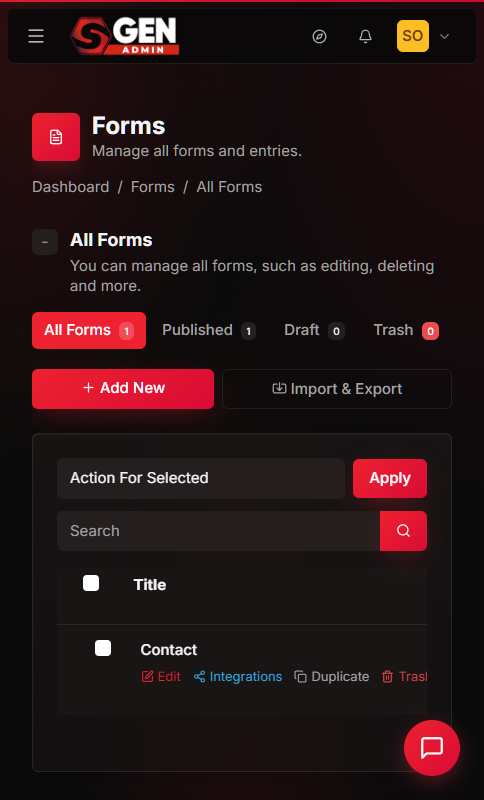
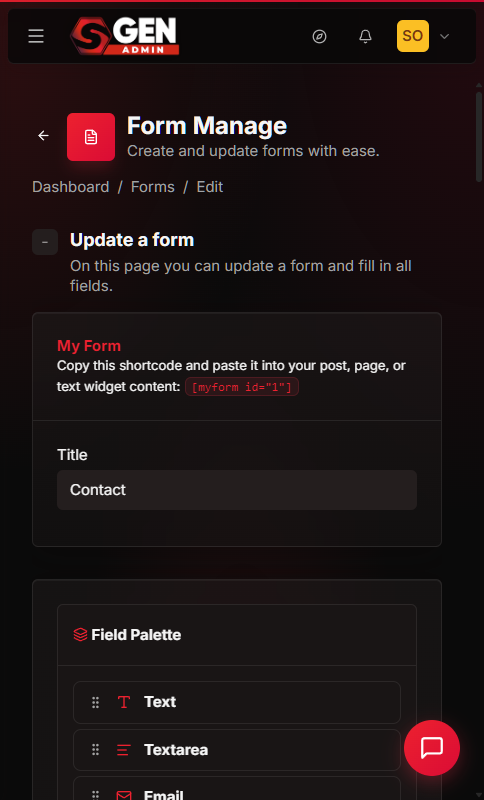
A form on your site is either Published or Draft. Published forms render on every page that carries their shortcode and accept visitor entries. Draft forms do not render and do not accept entries. Moving a form to Draft is the correct way to close it to new submissions — no entries are lost, no settings are erased, and you can re-open it any time.
This guide covers the full workflow: when to use Draft vs. Trash, how to change the status from the Forms list, how to confirm the form is no longer live, and how to re-open it later.
What is this for?
Stop a form accepting submissions means changing its status from Published to Draft. The form disappears from every public page that embeds it via shortcode. Visitors who land on those pages no longer see the form or its submit button. Every entry that already arrived is preserved in Submissions. All field configuration, email notification settings, and integration mappings remain intact.
The status lives on the form's edit screen and can be changed at any time. Changing it takes effect immediately — no page republish is needed.
SGEN forms have three possible states: Published, Draft, and Trash. Published means the form is live and accepting entries. Draft means the form exists in your admin, retains all its data, but does not render on public pages. Trash means the form is marked for deletion and is hidden from the main list — though not permanently deleted until you empty the trash.
Moving from Published to Draft is the lightest-touch way to close a form. It is reversible in one step. It does not touch the form's submission history. It does not remove the shortcode from any page — the shortcode just renders nothing until the form is published again.
This is the right move when the answer to "am I done with this form forever?" is "not sure yet."
Good use cases
Seasonal or time-limited campaigns. A contest entry form, a pop-up event RSVP, or a limited-offer sign-up runs for a defined window. When the window closes, move the form to Draft. The entries stay in Submissions for your records; the form stops collecting new ones.
Preview: Forms — a screenshot of this screen will be added here.
Pausing intake during an ops issue. If your team is temporarily unable to respond to form entries — CRM down, team holiday, site migration — move the form to Draft. Visitors stop submitting. When ops resumes, publish the form again.
Replacing one form version with a new one. Build the new version as a fresh form. When it is ready to go live, move the old form to Draft in the same action. This preserves the old form's submission history while the new one takes over.
Maintenance without data loss. Pulling a page for redesign does not require trashing its form. Move the form to Draft, do your work, and republish when the page is back.
What NOT to use this for
Do not move to Draft when you mean to delete permanently. Draft is a reversible state. If you are certain the form and its data are no longer needed, use Trash instead — and then empty the trash to free the slot. See Trash a form you no longer need for that workflow.
Do not use Draft as a long-term archive for form data. If you need to keep submission data indefinitely but stop collecting entries, Draft is fine. But the form still occupies your forms list. Export the submissions to CSV first (see Export form submissions), then decide whether the form itself needs to stay or go to trash. If you have several retired forms in Draft that you are certain are no longer needed, trash them to keep the list manageable. A trashed form is not destroyed immediately — it stays in the Trash tab and remains recoverable until you empty the trash.
Do not move to Draft to hide form entries from other admins. Draft status affects only the public-facing visibility of the form. Anyone with admin access to your Forms area can still open a Draft form and view its submissions.
How this connects to other features
- Forms list — the status toggle is on the form's edit screen, but the Forms list is where you confirm the change took effect and re-open the form later. See Manage every form on your site.
- Submissions — moving a form to Draft does not touch existing entries. The Submissions for a Draft form are still accessible to admins. See View and manage submissions.
- Trash and restore — if you move a form to Draft by mistake, publishing it again reverses the change instantly. If you accidentally trash it instead, use Restore a trashed form.
- Pages — when a form goes to Draft, its shortcode on any embedded page stops rendering. The page itself remains published. Visitors see the page content but not the form.
Before you start
- You need admin access to the Forms area of your SGEN dashboard.
- Identify the form by name.
The Forms list shows every form with its current status badge — Published or Draft.
- Check whether any page currently embeds this form via its shortcode (
Err: Form not found!).
When you move the form to Draft, that shortcode stops rendering. If the page has other content around the form, that content remains visible.
- Decide whether you want to export submissions before closing.
You do not have to — Draft status preserves all entries. But if this is the end of a campaign and you want a record outside SGEN, export the CSV now rather than later. See Export form submissions to CSV for that step.
- Decide whether closing one form is enough or whether you are closing a batch.
For a single form, use the individual settings screen (this guide). For several forms at once, the bulk action in the Forms list is faster — tick the rows, choose Move to Draft, and apply.
- Check whether any active integration (CRM, email platform) sends on every form submission.
Moving the form to Draft stops new submissions, which stops the integration from firing. If the integration has a health-check or "last fired" view, note the current state before closing.
Where to go
Open Forms in your SGEN admin sidebar. Every form on your site appears in the list. Each row shows the form title, its shortcode, a submissions count, and a status indicator. Click the form's title row — or open it from the row's edit action — to reach the form settings screen where the status field lives.
The status field is on the form settings screen, not the form builder. The form builder is where you add, remove, and reorder fields. The settings screen is where you control the form's title, status, redirect URL, and notification email. These are two different screens in the same area — make sure you are on the settings screen before looking for the Status field.
Steps
1. Open the Forms list
Open Forms in your SGEN admin. The table shows every form on your site. Each row carries: form title, shortcode, submissions count, and a status indicator.
Preview: Forms — a screenshot of this screen will be added here.
2. Open the form you want to close
Locate the form's row. Click its title or open it from the row's edit action. The form settings screen opens, where you will find the form's title, its Status field, the redirect URL, and the notification email.
Preview: Edit Form — a screenshot of this screen will be added here.
3. Change the Status field to Draft
Find the Status field. It currently shows Published. Open the dropdown and select Draft.
The change is not saved yet — you have selected the new status but not committed it. No public change has occurred at this point.
4. Save the form
Click Save (or the equivalent save button on the form settings screen). SGEN writes the new status. The save confirms with a success indicator.
Preview: Settings saved — a screenshot of this screen will be added here.
5. Confirm the form no longer renders on public pages
Return to the Forms list. The form's row now shows a Draft badge in its status column. Open the page that embeds the form's shortcode in a new browser tab. The form should not be visible to visitors. The page's other content remains unaffected.
Preview: Public site preview — a screenshot of this screen will be added here.
What success looks like
After saving:
- The form's row in the Forms list shows a grey Draft badge.
- The Published pill count in the list header decreases by one.
- The Draft pill count increases by one.
- Any page that embedded the form via shortcode no longer renders the form to visitors.
- Admins opening the form's Submissions screen still see all entries that arrived before the status change.
- The form remains fully editable — you can open it, adjust fields, and save without publishing it.
- The form's shortcode value (
Err: Form not found!) does not change — if you publish the form again, the same shortcode on any page will render it again without any page edits needed. - No notification emails fire for new submissions because no new submissions are possible while the form is in Draft.
Preview: Forms — status after closing — a screenshot of this screen will be added here.
What to do if it does not work
The form still appears on the public page after saving. Browser caching is the most common cause. Open the page in a private or incognito window. If the form still renders there, return to the form settings screen and confirm the Status field reads Draft — not Published. If it reads Draft but the form renders, the page or shortcode may be pulling from a cached render. Clear the site's page cache if one is active.
The Status dropdown is not visible on the form settings screen. Check that you opened the form settings screen via Edit in the row actions, not the form builder. The form builder is for editing fields and layout; the settings screen is where Status lives.
You saved but the Forms list still shows Published for this form. Hard-refresh the Forms list (Ctrl + Shift + R / Cmd + Shift + R). If the badge still shows Published after a full reload, try opening the form's settings again to confirm the saved value. A network interruption during save can cause the form to save with the old status.
You want to reverse the change — publish the form again. Open the form's settings, change Status from Draft back to Published, and save. The form immediately renders again on pages that carry its shortcode. No submissions were lost.
All form rows are gone from the list — you may have accidentally moved forms to Trash. Check the Trash filter tab in the Forms list. If your forms appear there, select them and use Restore. See Restore a trashed form.
Examples
Example 1 — Closing a seasonal pop-up RSVP form. You ran a summer pop-up event form for three weeks. The event happened. You have 84 RSVP entries in Submissions. Open the form's settings, set Status to Draft, save. The RSVP form disappears from the event page. The 84 entries stay in Submissions for your post-event count. You export them to CSV for the attendance record.
Example 2 — Pausing intake during a CRM outage. Your CRM integration is down for maintenance. New form entries would arrive in SGEN Submissions but fail to sync. Move the contact form to Draft while the CRM maintenance window runs. Visitors see the contact page but not the form. When the CRM is back, publish the form again. The gap in intake is intentional and tracked — no entries arrive during the outage window and none are silently lost.
Preview: Form detail — Contact Us — a screenshot of this screen will be added here.
Example 3 — Swapping an old form for a new version. You redesigned your inquiry form — new fields, new layout. Build the new version as a separate form. When it is ready, open the old form's settings and set its status to Draft. Then publish the new form. Both forms exist in your inventory. The old form's 23 historical entries remain in Submissions. The new form starts collecting fresh entries with its own shortcode. You update any pages that embedded the old shortcode with the new one.
Tips
Check the public page in a private window, not the admin. Your admin session may show a cached or admin-only render of the page. A private browsing window gives you the same view a visitor would see. If the form is gone there, the change worked.
Use bulk status change for multiple forms at once. If you are closing several forms at the end of a campaign, tick all of them in the Forms list, choose Move to Draft from the bulk action dropdown, and click Apply. The Forms list updates all selected rows in one operation rather than requiring you to open each form's settings screen individually.
Preview: Bulk action result — a screenshot of this screen will be added here.
Draft forms are still accessible to admins for editing. A form in Draft status is not hidden from your admin panel — it is only hidden from public pages. You can open a Draft form, adjust its fields, update its email notification address, and save changes at any time. When you are ready to accept submissions again, publish it.
Submissions from before the status change are not affected. Every entry that arrived while the form was Published stays in Submissions. Draft status is not retroactive. If you need to review those entries, go to the form's row, click Submissions in the row actions, and browse or export from there.
The shortcode does not need to be removed from the page. When a form is in Draft, its shortcode on any page renders nothing. You do not need to edit the page to remove the shortcode. When you publish the form again, the shortcode on that same page will render the form again automatically. This makes Draft the cleanest pause mechanism — the page content stays intact, the form slot goes quiet, and re-opening is a one-field change. The shortcode ID is stable across status changes — on your Contact page will always refer to that same form regardless of whether it is Published or Draft. Changing the form's title does not change its shortcode ID.