
Show a popup to visitors at the right moment
⏱ Quick answer below · full page ≈ 8 min · skim the bold lead-ins to move faster.
In short. A popup is a modal layer that appears on top of your live site at a moment you define — after 15 seconds, after a 50% scroll, when the cursor moves toward the close button, or on a click. You build the popup once, assign a trigger and targeting rules, set a frequency cap so visitors are not pestered, and your site handles the rest. The popup content is fetched only when the trigger fires, so it never slows initial page load. That's the pattern — read on for triggers, use cases, the step-by-step setup, and eight real-world examples.
On this page: What it's for · Good use cases · Fields reference · Steps: set up your first popup · Examples · Troubleshooting
How to show a popup to visitors at the right moment without annoying anyone
What is this for?
A popup is a focused modal that appears over your live site — a coupon, an email signup, a restock alert, a cookie-consent banner. Assign a trigger and your site fetches the popup content at that exact moment, so it never adds weight to the initial page load.
Good use cases
- Email signup with a clear reward — a specific offer (10% off, free guide) in exchange for an email. Give first, ask second.
- Restock and back-in-stock alerts — capture high-intent customers before a popular item runs out; email the segment when it's back.
- Cookie consent / privacy notices — fire on page load, site-wide, frequency = once ever.
- Newsletter signup for engaged readers — trigger at 50% scroll on blog posts; readers that far in are real prospects.
- Exit-intent retention — a coupon when the cursor heads toward the browser close button recovers a meaningful share of would-be lost visitors.
- Geography- or referrer-aware messaging — show only to visitors from a specific country or traffic source.
- Event registration nudges — on relevant pages in the run-up to a workshop or sale.
- Product-launch / seasonal announcements — site-wide for a defined window; set an end date so it expires automatically.
What NOT to use this for
- Critical interactions that visitors must complete — popups can be dismissed or blocked. Required flows belong in the page itself.
- Important error messages or session warnings — easy to miss as a transient modal. Use an inline banner.
- Every page with no targeting — a popup on every page for every visitor irritates people. Target by page, audience, and trigger.
- Stacked popups — only one popup should be visible at a time. If two qualify, set priorities.
- Cluttered popups with five fields — one headline, one input, one CTA, one close button. Anything more bounces visitors.
- Popups that fire three seconds after landing — wait for an engagement signal. Immediate-load interrupts before the visitor has read anything.
- Full-screen mobile popups — a popup that blocks the whole viewport and has a hard-to-tap X is the most-complained-about pattern. Use a bottom-of-screen banner on mobile or skip popups entirely.
Scope
- Popups are configured per-site in the Popup Builder — each popup has its own targeting rules, trigger, frequency cap, and content.
- A popup can target site-wide, specific pages, or specific page categories.
- Only one popup can be visible at a time — if multiple qualify, SGEN shows the highest-priority one.
- Popup impressions default to once per session per popup; the frequency cap controls cross-session visibility.
- Popups that embed a form use the same submission pipeline as on-page forms — submissions appear in Forms → Submissions.
Fields
| Setting | Where to find it | What it controls |
|---|---|---|
| Trigger | Popup Builder → Triggers | When the popup fires (time delay / scroll depth / exit intent / click) |
| Targeting | Popup Builder → Display rules | Which pages or page categories the popup appears on |
| Frequency cap | Popup Builder → Frequency | How many times a returning visitor sees this popup (per day / per session / once-only) |
| Mobile display | Popup Builder → Display rules | Whether the popup shows on mobile (on / off / alternate layout) |
| Content | Popup Builder → Design | Headline, body copy, CTA button, close affordance |
| Priority | Popup Builder → Settings | Order of precedence when multiple popups qualify simultaneously |
How this connects to other features
- Popup Builder — every popup that appears on your site is built and configured there. Triggers, targeting, frequency caps, and content all live there.
- Pages and blog posts — popups attach via "show on this page" or "show on this category" rules. Site-wide popups apply across the board.
- Forms — popups that embed a form send submissions through the same pipeline as any on-page form. Wire integrations (Mailchimp, Slack, etc.) on the form directly.
- Custom CSS — the popup pulls from your site theme by default. Target the popup wrapper in Custom CSS for design overrides.
- Analytics — popup impressions, dismissals, and conversions are trackable events. Most analytics platforms can record them.
- Storefront (coupon codes) — the actual coupon (discount, expiry, eligibility) is configured in the storefront's coupon-management area; the popup just displays it.
Before you start
- Define one conversion goal. Email signup, coupon redemption, restock notification — pick one. Popups without a clear purpose underperform.
- Choose which pages it applies to. Site-wide is rarely right (except cookie consent). Target a blog category, a single product page, or the homepage.
- Pick a trigger. Scroll depth, time delay, exit intent, click trigger — each has a different annoyance and conversion profile.
- Set a frequency cap. "Once per 30 days" is the most common sensible default. "Show every time" is the most common annoyance source.
- Calendar a retirement date. A holiday-promo popup that runs in January is a year-long nuisance. Book a review date at launch.
- Decide desktop vs. mobile separately. Exit intent is unreliable on mobile. Many sites run a smaller bottom-of-screen banner on mobile instead of a center modal.
Where to go
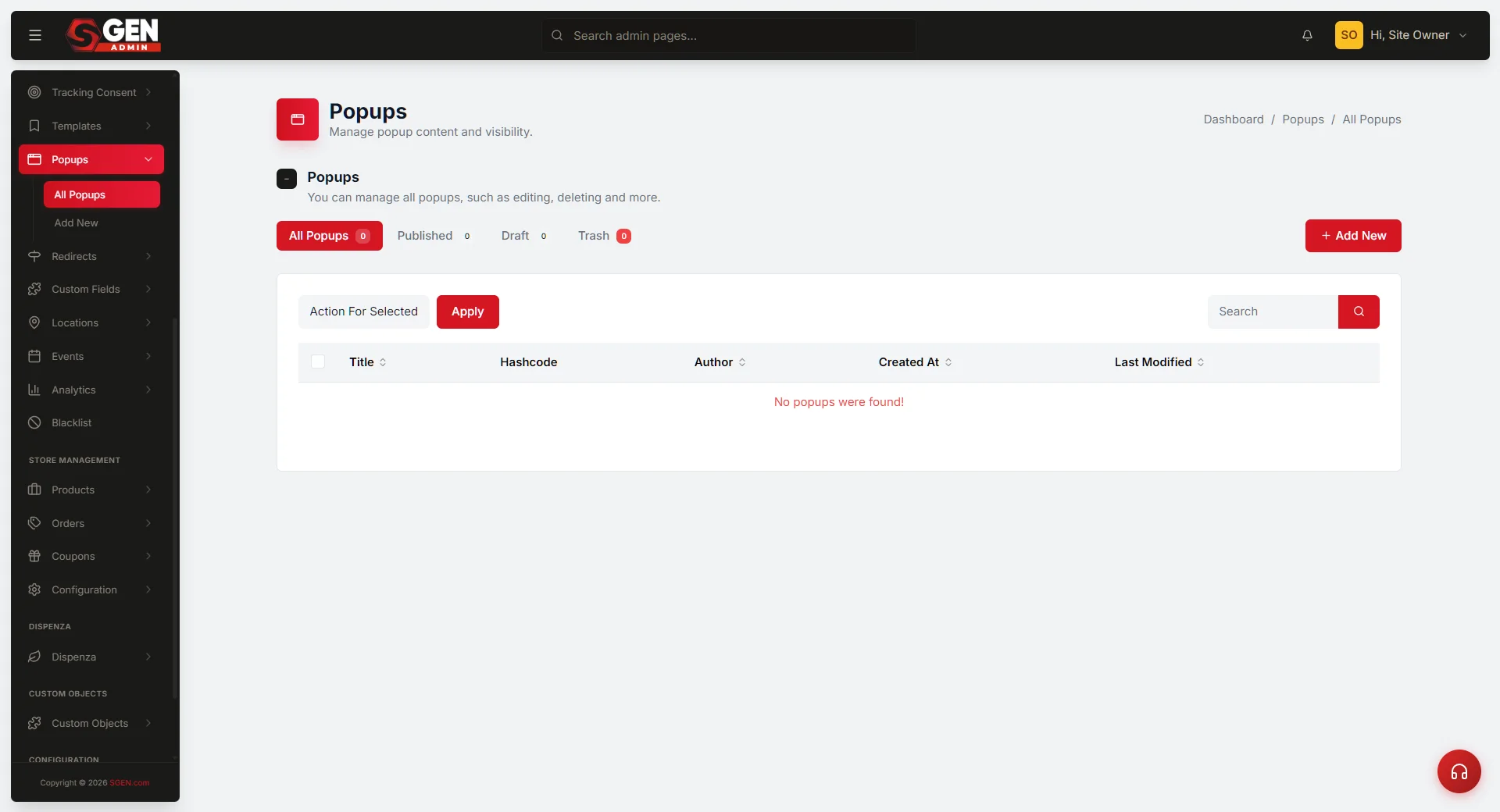
- Build or edit a popup: Dashboard → Popups → [your popup] or Add new.
- Configure triggers and targeting: Dashboard → Popups → [your popup] → Triggers tab.
- See popup statistics: Dashboard → Popups → [your popup] → Stats tab.
- Pause or unpublish: Dashboard → Popups → [your popup] → Status → Draft.
- Style popups: Dashboard → Appearance → Custom CSS (target
.popup-modaland related selectors). - Test as a visitor: open the trigger page in an incognito window.
Steps — set up your first conversion-driving popup
This sequence assumes you have already created the popup in the popup editor (content, design, fields, and buttons). Here you wire the trigger, targeting, and frequency — and verify it fires.
1. Open the popup and pick a trigger
In the popup editor, go to the Triggers tab. The most common trigger types:
- Time on page — fires after N seconds. Common values: 15 s for high-intent pages (product detail, pricing), 30–45 s for blog posts.
- Scroll depth — fires after the visitor scrolls past N% of the page. Common value: 50% on long posts.
- Exit intent — fires when the cursor crosses the top-of-window threshold. Desktop only.
- Click on element — fires when the visitor clicks a specific link or button. Useful for "Click for the discount" patterns.
- On page load — fires immediately. Use only for cookie consent or legal-required notices.
2. Choose where the popup applies
Set targeting to answer "which pages?" Options: site-wide, specific pages, blog categories, or URL patterns. Targeting precisely separates a popup that converts (right moment, right audience) from one that feels spammy (everywhere, no context).
3. Set the frequency cap
- Once per 30 days — the right balance for most conversion popups. Enough chances to convert without becoming background noise.
- Once ever — right for one-time announcements. The news is stale on every return visit.
- Once per session — minimum viable respect. Never the right choice to leave it at "Every time."
4. Save and verify in an incognito window
Save the trigger configuration. Open an incognito window, visit the target page, and wait for the trigger condition. The popup should appear. If it does not:
- Is the popup Published, not Draft?
- Did you meet the trigger condition (waited the full delay, scrolled far enough)?
- Is the target page in the included list?
- Does the incognito window have leftover cookies from a previous test? Open a fresh one.
5. Watch the data after launch
Open the popup's Stats tab within 24 hours. Key numbers:
- Impressions — near-zero means the popup is not firing. Re-check trigger and targeting.
- Conversion rate — for email signups, 2–5% is typical, 10%+ is excellent.
- Dismissal rate — above 80% is normal; above 95% consistently suggests the trigger is too aggressive or the offer is wrong.
6. Calendar a retirement or refresh date
Set-and-forget popups become annoyance. A quarterly review — even just checking conversion rate and retiring underperformers — keeps your popup set relevant.
What success looks like
A well-performing popup shows:
- Impressions match expectations — a popup on a busy product page should get dozens of impressions per day. One per day means something is wrong.
- Healthy conversion rate for its type — email signup: 2–5%+. Coupon redemption: higher if the offer is real. Cookie consent: near 100% (everyone must choose).
- Dismissal rate within normal range — 80–90% is fine; 95%+ sustained signals the trigger is too aggressive or the offer is wrong.
- No customer complaints arriving in support — a few complaints usually signal a much larger silent group. Tighten targeting, delay trigger, or retire the popup.
What to do if it does not work
The popup is not appearing at all. Check status (Published, not Draft), trigger condition (did you meet it?), targeting (is this page included?), and test in a fresh incognito window.
The popup shows the wrong content. You likely have unsaved changes open in the editor. Reload the popup-builder tab; if content reverts, it was not saved. Save again, then test.
The popup appears multiple times per session. The frequency cap is set to "Every time" or is unset. Change to "Once per session" at minimum.
The popup appears on pages where it should not. Open the Targeting tab and confirm the page list. Check for URL pattern edge cases that inadvertently match extra pages.
The popup looks broken (unstyled, wrong button colors). The popup inherits your site theme. A recent theme change can bring in unexpected styles. Compare popup preview in the editor against the visitor experience; a Custom CSS conflict is the common cause.
Conversion rate drops over time. Popup fatigue is real. Refresh copy, refresh the offer, or replace the popup entirely. A popup that converted at 5% in week one may be at 1.5% by month three.
Visitors cannot close the popup. Test on multiple browsers and devices. The X button must be large enough to tap. If the popup blocks outside-tap events on mobile, open Custom CSS and allow tap-outside-to-close.
The popup affected page load speed. Popups load lazily — content only fetches when the trigger fires. If load speed is still an issue, the popup likely contains a heavy image or third-party script. Lighten the payload.
A popup with video plays sound on autoload. Default video to muted. Visitors caught by full-volume autoplay in a quiet setting will not just dismiss — they will leave.
Examples
Eight patterns that show the full range of what popups can do.
Example 1: time-delay restock alert
Your Store's canvas tote bag sells out every July. Instead of support tickets, they built a popup: "The canvas tote is back in stock — enter your email to be alerted next time." Trigger: 15 seconds on the product page. Targeting: that product page only. Frequency: once per 30 days. It captured 178 email signups in the first month (5.5% conversion). When the tote sold out in July, the restock email to that segment cleared the first 50 totes in 20 minutes.
Example 2: exit-intent coupon recovery
A 10%-off coupon popup fires when a desktop visitor moves their cursor toward the browser close button without having added anything to cart. Targeting: desktop only (exit intent is unreliable on mobile), all storefront pages, once ever per visitor. Of 720 desktop sessions that saw it in one month, 38 turned into purchases — roughly 5% incremental revenue from a single popup.
Example 3: scroll-triggered blog signup
A newsletter signup popup fires at 50% scroll on blog posts — targeted only at blog posts, mobile included (as a smaller bottom-of-screen banner on mobile). Conversion: 4.7% desktop, 3.2% mobile. They run three variants by blog category, each with a category-specific lead magnet. Conversion is higher than the generic site-wide version because the trigger selects genuinely engaged readers.
Example 4 — 8: other common patterns
| Pattern | Trigger | Targeting | Frequency | Key detail |
|---|---|---|---|---|
| Click-trigger flash-sale details | Click on homepage banner | Homepage only | Once ever | Zero annoyance — popup fires only on visitor's explicit click |
| GDPR cookie consent | Page load (immediate) | Site-wide | Once ever | Bottom-of-screen banner; three buttons (Accept / Reject / Customize) |
| Single focused popup for a small site | 30s time delay | Homepage only | Once ever | One popup, one purpose; 3.4% conversion; refreshed quarterly |
| Reorder reminder for repeat buyers | Visitor match (purchased before, 30+ days away) | Homepage | Per-campaign | 18% conversion because audience is uniquely pre-qualified |
| Priority stacking (multiple popups) | Varies per popup | Varies | Varies | Set "max one popup per page view" + priorities so visitors never see two at once |
Tips for popups that convert
- One primary action per popup. A single email field and Submit, or a single coupon and Copy — not three fields and four buttons.
- Headline tells the value; subhead handles detail. "10% off your first order" is a headline. The visitor decides in the first second.
- Use a specific reward. "Get exclusive content" is vague. "Get 10% off" converts.
- Make the close affordance obvious. A clear X, tap-outside-to-close, or "no thanks" link reduces frustration for visitors who do not convert.
- Test mobile separately. A popup that looks great on desktop can feel hostile on a phone — size it mobile-first, hide it, or build a separate mobile popup.
- Match offer to funnel stage. Top-of-funnel (homepage, first visit): subscribe. Mid-funnel (product page, return visit): 10% off. Bottom-of-funnel (cart): free shipping today.
- Track a real metric. "4.2% conversion, 38 sales last month" tells you something. "I think it's doing well" does not.
Next steps
- Build the popup content — see the Popup Builder docs for fields, design, and copy.
- Wire signups to your email tools — see the Integrations docs for Mailchimp, Klaviyo, HubSpot, and CRM connections.
- Style popups — see Custom CSS docs for
.popup-modaland related selectors. - Set up cookie consent — see the Privacy and Compliance docs for the recommended GDPR popup configuration.
- A/B test popup variants — see the Experiments docs for running two variants and measuring lift.
- Cross-reference with storefront analytics — popup-driven coupon redemptions should appear in sales data; correlating confirms the popup is driving real revenue.