
Record phone-number taps from your website visitors
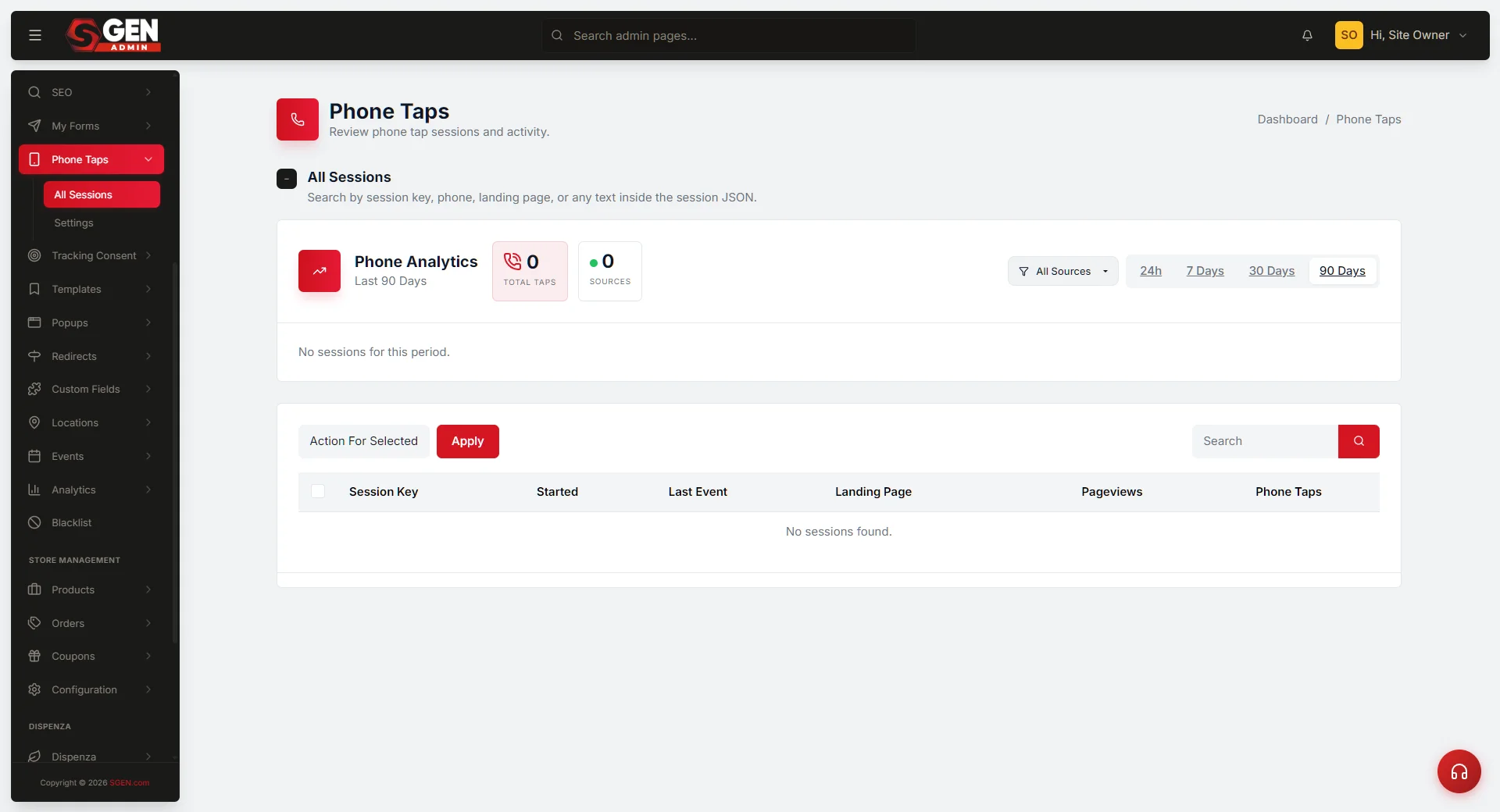 Phone Taps toggle)" loading="lazy" style="width:100%;max-width:900px;height:auto;border-radius:8px;border:1px solid #e5e7eb;display:block;margin:12px 0">
⏱ 30-second answer below · full page ≈ 6 min · skim the bold lead-ins to move faster.
In short. Turn on Phone Taps in Settings and every tap on a phone-number link on your site is recorded — no code needed. The admin dashboard then shows per-day counts, a per-page breakdown, and device types so you can see which pages drive the most call interest from mobile visitors.
On this page: What is this for? · Before you start · Steps — turn on recording · What success looks like · What to do if it does not work · FAQ
How to record phone-number taps from your website visitors
What is this for?
Phone Taps records every tap on a phone-number link on your site. When a visitor on a phone taps your number, the platform quietly logs that tap. From your admin you can see how many people tapped today, this week, and this month — plus which pages and device types drove the most taps.
You do not need to install anything, write any code, or configure a third-party tool. You only need to turn the feature on.
Good use cases
- Confirming a phone placement works — find out whether the number in your header is generating calls, versus the flyer in the window or the maps listing.
- Comparing call vs. email interest — see whether visitors prefer your call button or the contact form on the same page.
- Spotting a seasonal spike — use week-over-week tap counts to staff the phone during high-demand periods.
- Measuring a layout change — compare tap volume before and after moving your number from the footer to the header.
What NOT to use this for
- Tracking individual visitors — Phone Taps records aggregate counts, not personal identities. IP addresses are anonymized before storage. For caller identity you need a phone-side caller-ID tool.
- Replacing your phone system's call log — the feature records the tap, not whether the call connected or how long it lasted.
- A/B testing button designs — the feature counts taps but does not run experiments.
- Full attribution — a tap is one data point. Cross-channel attribution (this call came from the Instagram post) needs UTM parameters and a dedicated tool.
How this connects to other features
- Settings > Phone Taps — the on/off switch and the retention window.
- Privacy and cookies — taps are stored with a coarse browser fingerprint and an anonymized IP. If your privacy notice mentions analytics, this feature is covered by the same wording.
- Header and footer phone numbers — wherever your number lives on the site, the same tap-to-call link convention triggers recording. No per-location setup needed.
- Maintenance mode — public pages are unreachable in maintenance mode, so no taps can land during that window.
- Visitor session purge — a companion guide covers removing old tap records on a schedule you choose. Full detail: How to clean up old phone tap records.
Before you start
- Your phone number is set up as a tap-to-call link. A plain text phone number will not trigger recording. The number must be inside a clickable link that a phone recognizes as a phone-call link. Most themes create this automatically; if yours does not, wrap the number in a link manually.
- Your visitors are mostly on phones. Tap-to-call only works from a device that can place a call. Desktop browsers usually open a "no app available" dialog instead, and that interaction is not reliably recorded.
- You have a privacy notice that covers analytics. Phone Taps anonymizes IP and stores no personal information, but it is still visitor analytics. Your privacy notice should mention aggregate website analytics.
- You have decided how long to keep records. The default is 30 days. Many sites pick 90 or 180 days for trend comparisons; some prefer 7 days for tighter privacy.
- Maintenance mode is OFF. Enable Phone Taps from a normal site state.
Where to go
In your admin sidebar: Dashboard > Phone Taps — running count for today / this week / this month, per-page breakdown, trend chart, and recent taps.
Settings live at: Dashboard > Settings > Phone Taps — on/off toggle and retention window.
Steps — turn on phone tap recording and read the first numbers
1. Open Settings > Phone Taps and turn the feature on
In your admin, click the gear-shaped Settings entry in the left sidebar, then click Phone Taps.
The settings screen has two pieces:
- Enable phone taps — the on/off switch for the whole feature.
- Retention (days) — how many days of records to keep before automatic cleanup. Default is 30; 90 days gives a quarter-over-quarter view; 7 days is strict but works if your only goal is "did this week beat last week".
Toggle Enable phone taps to ON. Set the retention window, then click Save changes.
A green confirmation appears at the top within a second.
2. Confirm the tap-to-call link is in place on your public pages
Open a fresh tab and visit your public site. Find the phone number and tap or click it.
- On a phone — the device's call screen opens with your number pre-filled.
- On a desktop — your computer asks if you want to open the link with a calling app. If nothing happens at all, the number is plain text, not a tap-to-call link, and taps will not be recorded.
If you tapped plain text, go back to your page editor, select the phone number, and convert it to a "phone number" link type. Most editors offer this option explicitly.
3. Test from a real phone
Open your site on your own phone. Tap your phone number once, then hang up. Open the admin at Dashboard > Phone Taps — the running count for today should read 1 within a few seconds.
This single end-to-end test confirms three things: your tap-to-call links are wired up correctly, recording is active, and the dashboard updates in close to real time. If the count stays at 0, see the troubleshooting section below.
4. Read the dashboard
Once the feature has been on for a few days, the admin dashboard becomes useful.
5. Build a weekly habit
Check the tap count for the previous seven days on the same day each week. Notice which pages are driving the most taps and whether the trend is rising or falling. Many site owners find a single unexpected page driving most of their calls — that is the insight the feature is designed to surface.
What success looks like
After a week of normal traffic, a working setup shows:
- A non-zero count for today, this week, and this month.
- The per-page breakdown lists at least two or three of your highest-traffic pages.
- The device breakdown skews mobile — if your breakdown is 90% desktop, something is misconfigured.
- The recent-taps list updates as visitors interact with your site.
What to do if it does not work
Counter stays at zero:
- Confirm the toggle is ON. Settings > Phone Taps > Enable phone taps. The most common cause is "feature is off" — even if you turned it on previously, double-check.
- Confirm the number is a tap-to-call link. Right-click the number in your browser, choose "Inspect", and look at the underlying markup. A real tap-to-call link wraps the number with a phone-call prefix. Plain text cannot record.
- Test from your own phone. Tap your number from the live site; the dashboard count should bump to 1 within seconds.
- Test from a phone, not a desktop. Tap-to-call on desktop is handled differently across operating systems. Always test from a phone.
- Check your retention window. If retention is set to 1 day and you are checking yesterday's count, the record may already have been swept by the daily cleanup.
- Wait a few minutes. The dashboard typically updates within seconds, but there can be a small delay during heavy traffic.
Counter shows unexpected numbers:
- The dashboard counts every tap, not every unique visitor. A visitor who taps three times in a session counts as three taps. The "distinct devices" widget gives an approximate unique count.
- Crawlers can occasionally register taps. A misbehaving crawler that follows phone links may produce a record — these are rare and usually self-corrected within a day or two.
- Old paths persist until they age past retention. If you renamed or deleted a page that had a phone number, taps from that old path remain until the retention window passes.
Device breakdown looks wrong:
- Mostly desktop is real signal, not a bug. Consider whether to hide the phone number on desktop and show a call button only on mobile.
- 100% from one device family is suspicious. Test from both iPhone and Android yourself to confirm the link works on each.
Examples
| Situation | What the data showed | What changed |
|---|---|---|
| Placement test — phone number moved from footer to header | Tap volume tripled in the first three weeks after the move | Kept the header placement; justified a taller mobile header |
| Call vs. email — event page with both a call button and a contact form | Phone taps were 4× more frequent than form submissions | Added a "Call us instead" link above the form to reduce friction |
| Seasonal spike — shop manager checked late November | Daily taps were 3× the October baseline | Added a team member on phones for the holiday period, removed in January |
| Stale number — old contact page with an unstaffed number | 3–5 taps per week on a line no one was answering | Removed the phone number and linked to the contact form instead |
Things to know that aren't obvious
- Tap records are anonymous at point of capture. The IP's last octet is zeroed at the moment of recording — even an admin cannot recover the full IP.
- The device breakdown is approximate. It comes from the visitor's user-agent string. Use it for trends, not precise counts.
- The dashboard counts taps on the call screen opening, not calls that completed. A visitor who backs out without dialing still produces a record. The feature records intent, not completion.
- A test tap from your own phone counts. It ages out within the retention window — harmless.
- Visitors with scripting disabled are not counted. This is typically less than 1% of traffic.
Frequently asked questions
Will visitors see anything different after I turn this on? No. The feature is invisible. Visitors see the same pages and tap the same links.
Does this slow down my site? No noticeable amount. The recording happens in the background and sends a tiny payload that does not block the page.
Do I need to update my privacy policy? You should mention that you collect aggregate website analytics. If your policy already covers analytics, Phone Taps is covered. If not, add a line: "We collect aggregate analytics about how visitors interact with our site, including counts of how many times the phone number is tapped. We do not store personal identifiers."
Can I turn this off later? Yes, at any time. Settings > Phone Taps > toggle OFF. Existing records remain until they age past retention, then are cleaned up automatically.
Does this cost extra? No. Phone Taps is included in the platform with no additional fee.
Can I see who tapped my phone number? No. Each tap record is anonymous — coarse device family, anonymized IP, page, and timestamp only. No name, no email, no caller ID.
Can I export the data? Yes. The dashboard has an Export CSV button that downloads the last retention-window of records as a spreadsheet.
Why do I see taps from desktop users? Desktop browsers usually offer to open a calling app when a phone-call link is clicked, and the tap is recorded as soon as the link is followed. A small number of desktop taps in your data is normal.
Does this work with my third-party phone system? Yes. The feature records the tap on your website. What happens after the visitor's phone places the call is between their phone and your phone system.
Privacy considerations
- Mention analytics in your privacy notice. Even though the feature stores no personal data, your visitors deserve to know you collect aggregate analytics.
- Pick a short retention window if you are unsure. 30 days is plenty for most sites. Going from 90 to 30 days deletes older records the next time cleanup runs; going from 30 to 90 does not retroactively restore deleted records.
- Do not link Phone Taps records to other personal data. Combining anonymous tap records with names or emails from your CRM defeats the privacy posture.
- Be careful sharing the dashboard externally. It reveals which pages get the most call interest. Share it only with people who would normally see your analytics.
Fields reference
| Field / element | Location | What it records or does |
|---|---|---|
| Feature enabled toggle | Phone Taps → Settings | Must be ON for any taps to be recorded |
| Phone number link | Your site (tap-to-call link) | Each tap on a phone-call link creates one record |
| Tap timestamp | Dashboard row | Date and time the visitor tapped |
| Device type | Dashboard row | Mobile / Desktop (inferred from user agent) |
| Page where tap occurred | Dashboard row | The page URL the visitor was on when they tapped |
| Daily tap count | Dashboard chart | Aggregated taps per day for the selected date range |
Next steps
- Set up your Phone Taps purge — How to clean up old phone tap records.
- Review your privacy notice to confirm it covers aggregate analytics.
- Decide whether to export tap data weekly into your own spreadsheet for trend analysis.
- Consider before-and-after tap counts to measure the impact of phone-button placement changes.
Scope
This reference covers the Phone Taps recording feature — how to enable it, what data it captures, and how to read the dashboard. It applies to SGEN plans that include the Phone Taps module. It does not cover:
- Retention and cleanup settings — see How to clean up old phone tap records.
- CSV export of tap records — covered in the Downloads / Export guide.
- Cross-channel attribution — Phone Taps is standalone; attribution requires a separate analytics tool.
- Tracking calls that come from sources other than your SGEN site.