
Google Business Profile
⏱ ~5 min read · what Google Business Profile is, what you need to connect it, where to enter the details, and what to check when the listing looks wrong.
In short. Google Business Profile (GBP) is your free Google listing — your business name, address, hours, and reviews — shown on Google Maps and Google Search. Connecting it to SGEN ties your site to that listing so the two represent the same business. You set the connection up in Tools → Google Integrations by turning on Enable Business Profile and entering your Account Name, Location ID, and a Service Account JSON. Your business details live in the admin Locations area. If the connection ever needs re-establishing, you return to the same place and reconnect.
On this page: What Google Business Profile is · What you need before you start · Connect it · Where your business details live · Dependency posture · Troubleshooting · Related reading
What Google Business Profile is
Google Business Profile is the free listing Google shows when someone searches for your business or finds you on Maps — your name, address, hours, phone number, website link, and customer reviews. It's how a lot of local customers find and judge a business before they ever reach your site.
Connecting GBP to SGEN links your site to that listing. The point is consistency: the business on your site and the business on Google should be the same one, with the same details, so customers get a clear, matching picture wherever they meet you. The listing itself stays in Google's hands; SGEN holds the connection to it.
What you need before you start
The connection is per-site — each SGEN site links to its own Google Business Profile. Before you connect, have these ready:
- A claimed and verified Google Business Profile on the Google side. The listing has to exist and belong to you.
- Your Account Name for the profile.
- The Location ID of the listing you're linking.
- A Service Account JSON — the credential file that lets SGEN talk to your profile.
If the listing isn't yet claimed and verified with Google, do that first; the SGEN connection depends on it.
Connect it
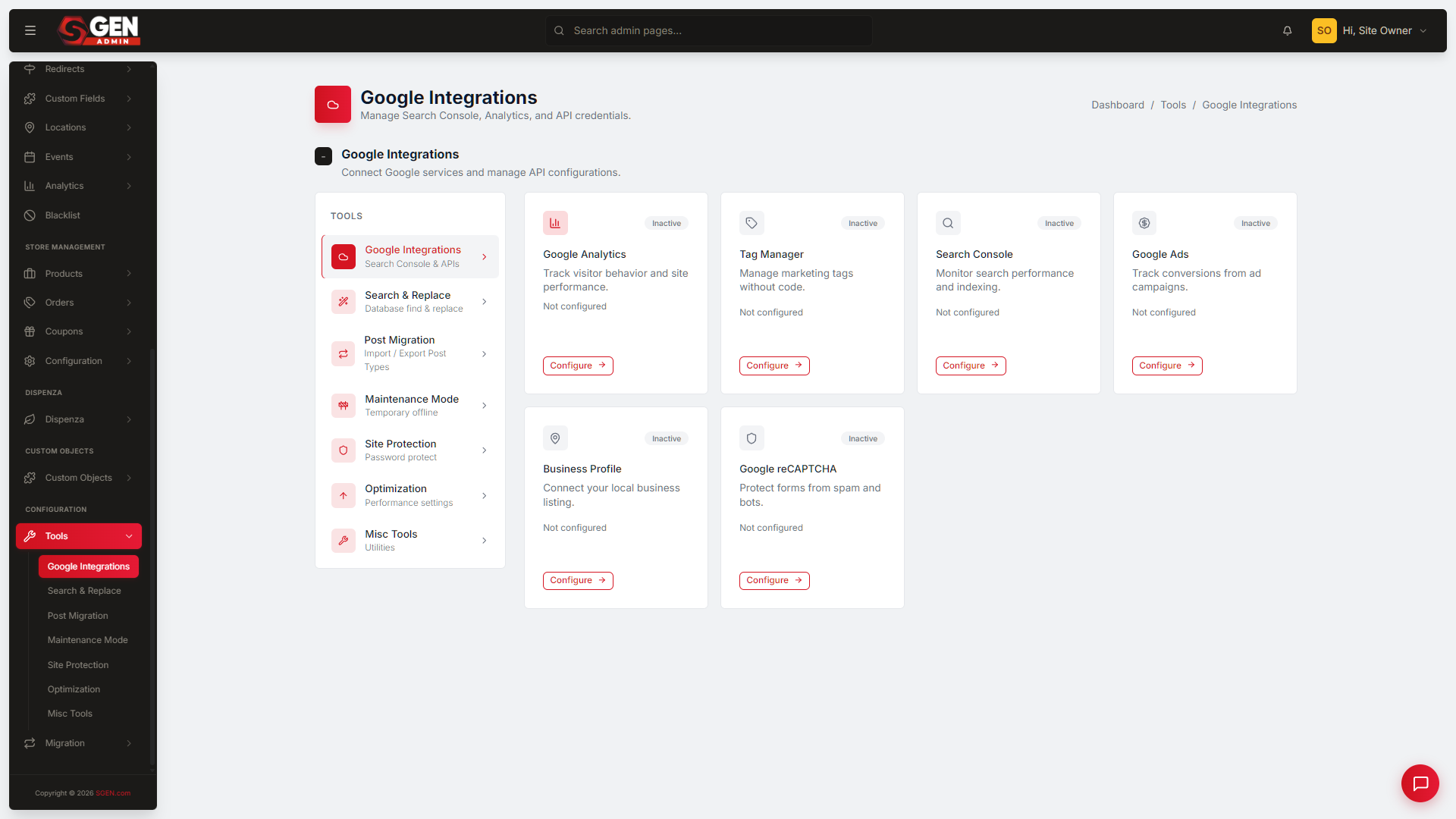
You set up the connection in the admin under Tools → Google Integrations:
- Open Tools → Google Integrations in your site's admin.
- Turn on Enable Business Profile.
- Enter your Account Name, your Location ID, and your Service Account JSON.
- Click Save Settings.
Where your business details live
The business details that define your listing — name, address, phone, hours — are managed in the admin Locations area, where you keep your physical locations such as a store or office. You add each location individually, and the details you set there are the canonical version of your business identity.
| Detail | Managed in |
|---|---|
| Business name | SGEN admin → Locations |
| Address | SGEN admin → Locations |
| Phone number | SGEN admin → Locations |
| Business hours | SGEN admin → Locations |
| Website URL | SGEN admin → Locations |
Keeping these accurate in SGEN is what keeps your business identity consistent across your site and the rest of your presence.
Dependency posture
The connection depends on the Google-side listing being claimed and verified, and on the link between that listing and your SGEN site staying valid.
| State | What happens |
|---|---|
| Healthy | The connection is active and the listing's state is reflected accurately in the admin. |
| Unhealthy | The connection has dropped. Return to Tools → Google Integrations to confirm the status and re-establish it. |
Common trigger: a re-verification on the Google side can reset the connection. When that happens, open Tools → Google Integrations, confirm the Business Profile settings, and save them again to reconnect.
Troubleshooting
- The connection won't save. Recheck the Account Name, Location ID, and Service Account JSON — a single wrong value will stop it. The JSON in particular has to be the exact credential file from Google.
- My listing details don't match my site. The canonical version of your business details lives in the admin Locations area. Update them there so your site and your listing tell the same story.
- The connection dropped on its own. A re-verification event on Google's side can reset it. Reopen Tools → Google Integrations, confirm the settings, and save again.
- I can't connect at all. Confirm your Google Business Profile is claimed and verified with Google first. The SGEN connection can't be made against an unverified listing.
Related reading
- Integrations Overview — parent reference area.
- Google Analytics 4 — sibling integration, analytics.
- Google Search Console — sibling integration, search performance.
- SG-Admin Overview — where GBP-paired identity fields live (Locations module, Site Settings).
Vocabulary
- GBP listing — the Google-side configuration that defines the local business presence.
- Synchronized field — a per-site identity field that flows between SGEN and GBP automatically.
- Sync cadence — the platform's defined frequency for propagating field changes.
- Verification status — the GBP-side state indicating whether the listing is claimed and verified.