
Disable a popup without deleting it in SGEN
How to pause a popup overlay so visitors stop seeing it — without losing your work
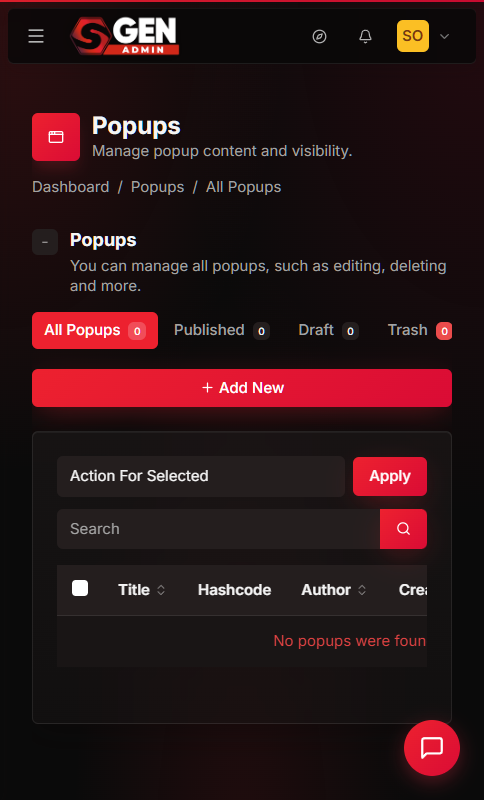
A popup you built last month for a sale is still configured exactly right. The sale ended. Deleting it means rebuilding every field next time. SGEN keeps a disabled popup fully intact — title, content, trigger settings, display rules — ready to re-enable in one action. This page covers the disable toggle, what it controls, when to use it, and how to preview a popup while it is off.
What is this for?
The Status field on a popup record controls whether SGEN serves that overlay to site visitors. Setting Status to Draft removes the popup from the public delivery path immediately after saving. The popup record stays in your admin list with all fields intact. It can be previewed, edited, and returned to Published at any time.
Disabling is a status change — not a deletion. The distinction matters: a trashed popup must be restored before you can edit it. A deleted popup is gone permanently after emptying trash. A disabled popup is parked indefinitely and available for editing at any moment.
The enable/disable pairing also supports a preview-while-off workflow. Site managers use this to inspect popup content and trigger behaviour without exposing the overlay to visitors. The popup status field is the single control point for public visibility. No page edits, no cache flushes, and no developer action are required to take a popup off the air.
Scope
This page covers:
- The Status toggle on an existing popup (Published to Draft and back).
- Previewing a popup while it is set to Draft.
- Re-enabling a popup after a pause.
- The fields that are relevant to this workflow.
This page does not cover:
- Creating a popup from scratch — see Create a popup in SGEN.
- Permanently removing a popup — that is the trash and delete flow, covered in the Popups list documentation.
- Trigger rules or audience targeting — those are separate fields within the popup edit form.
Good use cases
Seasonal promotions that repeat. You run a Black Friday popup every November. Disable it on 1 December. Re-enable it the following October. No rebuilding required — the discount code, copy, trigger settings, and hashcode are all preserved.
A/B test variants waiting their turn. You have two versions of a newsletter signup overlay. One is live; the other is parked as Draft. When you are ready to swap, disable the first and enable the second. The switch takes two save actions.
Content that needs review before going live. A popup references a promotion that requires sign-off. Disable it to stop visitor exposure immediately. Keep it configured so the copy can be updated and approved before re-enabling.
Post-event cleanup. A conference registration popup ran for six weeks. The event is over but the form settings, design choices, and trigger rules took time to refine. Disable rather than delete so the setup survives for next year's event.
Pausing during site maintenance. When pushing a major site update, disable popups that reference prices, URLs, or copy that will change. Re-enable each one after verifying the linked content is current.
What NOT to use this for
Permanent retirement. If a popup will never run again — a discontinued product, a closed location — trash it. A disabled popup that nobody will ever re-enable adds noise to the list over time. Use trash for permanent removal; use Draft for temporary pause.
Hiding a popup from a specific audience segment. The disable toggle is site-wide. If you need to show a popup to some visitors but not others, that is a targeting or trigger-rules configuration, not a disable-toggle problem.
Fixing a broken popup. If a popup is producing errors on the frontend, disabling it stops visitor exposure but does not diagnose the cause. Open the popup in the edit view, inspect the content and trigger settings, and correct the underlying configuration before re-enabling. Disabling a broken popup is a hold action, not a repair.
How this connects to other features
- Popups — Manage list — the Popups list in your SGEN dashboard is where you locate the popup before disabling it.
The status column shows Published or Draft for every row. See Manage popups list in SGEN for filtering, searching, and bulk actions.
- Popups — Create a popup — when you re-enable a popup after a pause, you may want to edit its content first.
The edit form is the same form used during creation. See Create a popup in SGEN for the full field reference.
- Custom Codes — if you fire a popup from a button using its hashcode, that button is wired in your page HTML or a Custom Code snippet.
Disabling the popup means the button will no longer open an overlay. Update or hide any visible CTA text that references the now-disabled popup.
- Pages and posts — popups with autoload triggers will stop appearing on those pages once disabled.
No page edit is required to stop delivery, but if you added visible CTA copy ("Click here to open our offer"), update that copy while the popup is off.
Before you start
You need admin access to the Popups section of your SGEN dashboard. The popup you want to disable must already exist and have been saved at least once. If you have not created a popup yet, see Create a popup in SGEN first. No staging environment or developer access is required. No other setup is needed.
Where to go
Go to your SGEN admin dashboard. Select Popups from the left navigation. The Popups list opens. Locate the popup you want to disable using search or scroll. Click its title to open the edit form.
Preview: Popups — a screenshot of this screen will be added here.
Fields
The following fields on the popup edit form are directly relevant to the enable/disable workflow.
Disable vs. Trash vs. Delete — quick reference. These three actions have different consequences and different levels of reversibility.
| Action | Visitor sees popup? | Record in admin list? | Editable? | Reversible? |
|---|---|---|---|---|
| Status → Draft | No | Yes — Draft tab | Yes | Yes — change Status to Published |
| Move to Trash | No | Yes — Trash tab only | No (restore first) | Yes — restore from Trash |
| Delete permanently | No | No | No | No |
Use Draft when the popup will run again. Use Trash when the popup is probably done but you want a safety net. Use Delete only when you are certain the popup is no longer needed.
| Field | Values | What it controls | Preserved when toggling? |
|---|---|---|---|
| Status | Published, Draft | Whether the overlay is served to site visitors. Draft removes it from the public delivery path on save. | N/A — this is the field being changed. |
| Popup Title | Free text | Identifies the popup in the list view. | Yes — unchanged by a status toggle. |
| Hashcode | Generated for the popup | The identifier used to trigger the popup from a button or link. | Yes — preserved across all status changes. |
| Autoload | On/Off with delay | Whether the popup fires automatically on page load. | Yes — setting is preserved but has no effect while Status is Draft. |
| Popup Content | Rich text / HTML | The overlay body copy and layout. | Yes — preserved across all status changes. |
Status is the only field that needs to change in this workflow. All other fields carry over unchanged when you set a popup to Draft or back to Published.
Steps
1. Open the popup you want to disable
In the Popups list, click the title of the popup you want to disable. The popup edit form opens showing all current settings.
Preview: Edit Popup — Newsletter Signup — a screenshot of this screen will be added here.
2. Change Status to Draft
Locate the Status field, which uses Published / Draft values. Change the value from Published to Draft. No other field changes are needed.
Preview: Edit Popup — Newsletter Signup — a screenshot of this screen will be added here.
3. Click Save
Click Save. SGEN updates the popup record. The status column in the list will show Draft for this popup. Visitors will no longer see the overlay.
Preview: Settings saved — a screenshot of this screen will be added here.
4. Confirm the change in the list
Return to the Popups list at your admin area. The popup shows Draft in the status column. The Draft filter tab count includes this popup. You can use the Draft tab to view all currently parked popups at once.
Preview: Popup Status Overview — a screenshot of this screen will be added here.
5. Preview the popup while disabled (optional)
SGEN lets you preview a popup from the edit form even when its status is Draft. Open the popup edit form and click Preview. The overlay renders in your browser so you can confirm the content is correct before re-enabling. Visitors see no overlay during this preview session. This preview-while-off capability is the key operational difference between disabling and deleting: a disabled popup can be inspected and refined with zero visitor exposure.
6. Re-enable the popup when ready
Open the popup edit form. Change Status back to Published. Click Save. The popup is live again immediately.
Preview: Edit Popup — Newsletter Signup — a screenshot of this screen will be added here.
What success looks like
After saving the Draft status:
- The popup record remains in the list at
your admin areawith all fields intact. - The status column shows Draft for this popup.
- The Draft filter tab in the list includes this popup in its count.
- Visitors loading any page that previously triggered the popup will not see the overlay.
- Any button wired to the popup hashcode will still render on the page but will not open an overlay.
- The popup is available for editing, preview, and re-enabling at any time without rebuilding from scratch.
- The popup's hashcode remains valid and unchanged — if you re-enable it later, any existing trigger buttons on your pages will work immediately without further edits.
- The Popups list accurately reflects the current count of Published and Draft overlays, giving site managers a clear picture of what is live at any moment.
Preview: Bulk action result — a screenshot of this screen will be added here.
What to do if it does not work
Status reverts to Published after saving. Check that you clicked Save and not Preview or Cancel. Both buttons appear in the same row of the edit form — confirm which one you used. Reload the popup list and re-open the edit form to verify the current status field value. If the problem persists, check whether your admin session is still active. A timed-out session can silently reject saves and return you to the same page without writing the change. Log out, log back in, and repeat the status change.
The popup is still appearing on the site after disabling. Perform a hard refresh on the public page (Ctrl+Shift+R on Windows, Cmd+Shift+R on Mac). If the popup persists after a hard refresh, open the Popups list and check whether a second popup with a similar autoload trigger is still Published. Two popups with overlapping trigger conditions can make it appear that disabling one had no effect. Confirm the correct popup record was saved as Draft by re-opening its edit form and checking the Status field directly.
The Save button is unresponsive. Check for a required field that may be empty. The popup title is likely required. Ensure the title field has a value before attempting to save. If the button remains unresponsive after filling required fields, try reloading the edit form and making the status change again.
The Draft filter tab shows 0 after saving. Refresh the Popups list page with a full browser reload. The tab counts update on page load, not in real time. If the count is still 0 after reload, re-open the popup edit form and verify the Status field shows Draft. If the field shows Published, the save did not take — repeat Steps 2 and 3.
Preview shows an error instead of the popup overlay. Preview mode is separate from the public delivery path. An error in preview may indicate a rendering issue with the popup content itself — for example, a broken image URL, an embed code that references a removed resource, or a malformed HTML snippet in the body field. Open the popup edit form, review the content field for obvious issues, correct them, save the record, then try preview again. The preview function reflects the saved state of the popup, not unsaved edits.
A hashcode trigger button on a page appears to do nothing after you disabled the popup. This is the expected behaviour. The button renders normally but the popup delivery is suppressed. If you want the button to not appear while the popup is disabled, edit the page or post that contains the button and hide or remove it manually. Re-enable the popup and the button will work again without any further page changes.
Examples
Example 1: Seasonal sale popup — pause between campaigns. A site owner ran a 48-hour flash sale popup set to autoload with a two-second delay. The sale closed on a Sunday evening. Rather than deleting the popup, the site owner opened the edit form, changed Status to Draft, and saved. On Monday the site ran without the overlay. Three months later, for the next sale, the same popup was re-enabled with only the discount code and expiry date updated. Total rebuild time: two field edits.
Preview: Flash Sale Popup — Status History — a screenshot of this screen will be added here.
Example 2: Compliance hold — remove from public view immediately. A compliance manager flagged a popup referencing a limited-time offer subject to terms. The marketing team disabled the popup immediately — removing it from visitor view within seconds of receiving the flag. No developer was needed. No page was edited. The status change alone was sufficient to stop all visitor exposure. The popup content was then updated inside the edit form to include the required disclaimer text. The updated copy was reviewed and approved offline. After approval, the site manager set Status back to Published and saved. The overlay went live the moment the save completed. The compliance hold lasted four business days; the popup ran for three more weeks after re-enabling before the promotion ended. Because the popup was disabled rather than deleted, the team retained the full audience targeting configuration and trigger settings that had taken time to calibrate.
Example 3: Multiple seasonal popups in rotation. A site running quarterly campaigns keeps one popup per quarter in the list. The Q2 popup is Published; Q1, Q3, and Q4 are Draft. At each quarter change, the outgoing popup is set to Draft and the incoming one is set to Published in two edit-and-save actions. The whole rotation takes under two minutes. Each Draft popup in the list represents a fully configured campaign — headline, CTA copy, discount code, display width, trigger delay — all ready for the next cycle. The marketing team uses the Draft tab as a campaign archive, not just a holding area. When a new campaign brief arrives, they open the most similar past popup, update the variable fields, change the status to Published, and save. Starting from a configured template is faster than building from blank each time.
Preview: Seasonal Campaign Popups — a screenshot of this screen will be added here.
Related features
- Manage popups list in SGEN — view all popups, filter by status, use bulk actions, and work with hashcodes.
- Create a popup in SGEN — full field reference for the popup form, including trigger and display options.