
Connect Google Analytics to your site
⏱ ~3 min answer below · full page ≈ 8 min · skim the bold step headings to move faster.
In short. Open Admin → Integrations → Analytics inside any SGEN site. Paste your GA4 Measurement ID (G-XXXXXXXXXX), pick a tag scope, save. Add GTM if you manage multiple tools. Turn on consent gating, map the actions you care about, run GA4 debug mode to confirm everything fires, then check Realtime view. The whole first-time setup takes about fifteen minutes. For a multi-site portfolio, the SG-Dashboard → Site Manager → Analytics view shows every site's status at once.On this page: Before you start · Where to find it · Steps · Troubleshooting · Common questions
Before you start
- GA4 property — create one in your Google Analytics account if you don't have one. It gives you a Measurement ID that looks like
G-XXXXXXXXXX. - Admin permission — you must be signed in as a site-admin on the SGEN site. The Analytics surface is locked to admin-level users.
- Consent posture agreed — for consent gating, decide on opt-in, opt-out, or region-aware before you open the panel. That decision belongs to your team's privacy review.
- GTM container ID — if using Google Tag Manager, have the container ID ready. It looks like
GTM-XXXXXXX. - Site on its public domain — the analytics tag fires on the public surface. Measurement data is limited while the site is private or in pre-launch.
Where to find it
Per-site: Admin → Integrations → Analytics. This surface holds the GA4 tag installation, GTM container reference, consent-gating settings, and event-mapping panel.
Portfolio view: SG-Dashboard → Site Manager → Analytics. Lists every site's analytics status — installed, consent-gated, data flowing — and surfaces sites that are missing setup steps.
Steps
Seven parts: install GA4 → add GTM (optional) → set consent gating → map events → run debug mode → confirm data is flowing → adjust over time.
1. Install the GA4 measurement tag
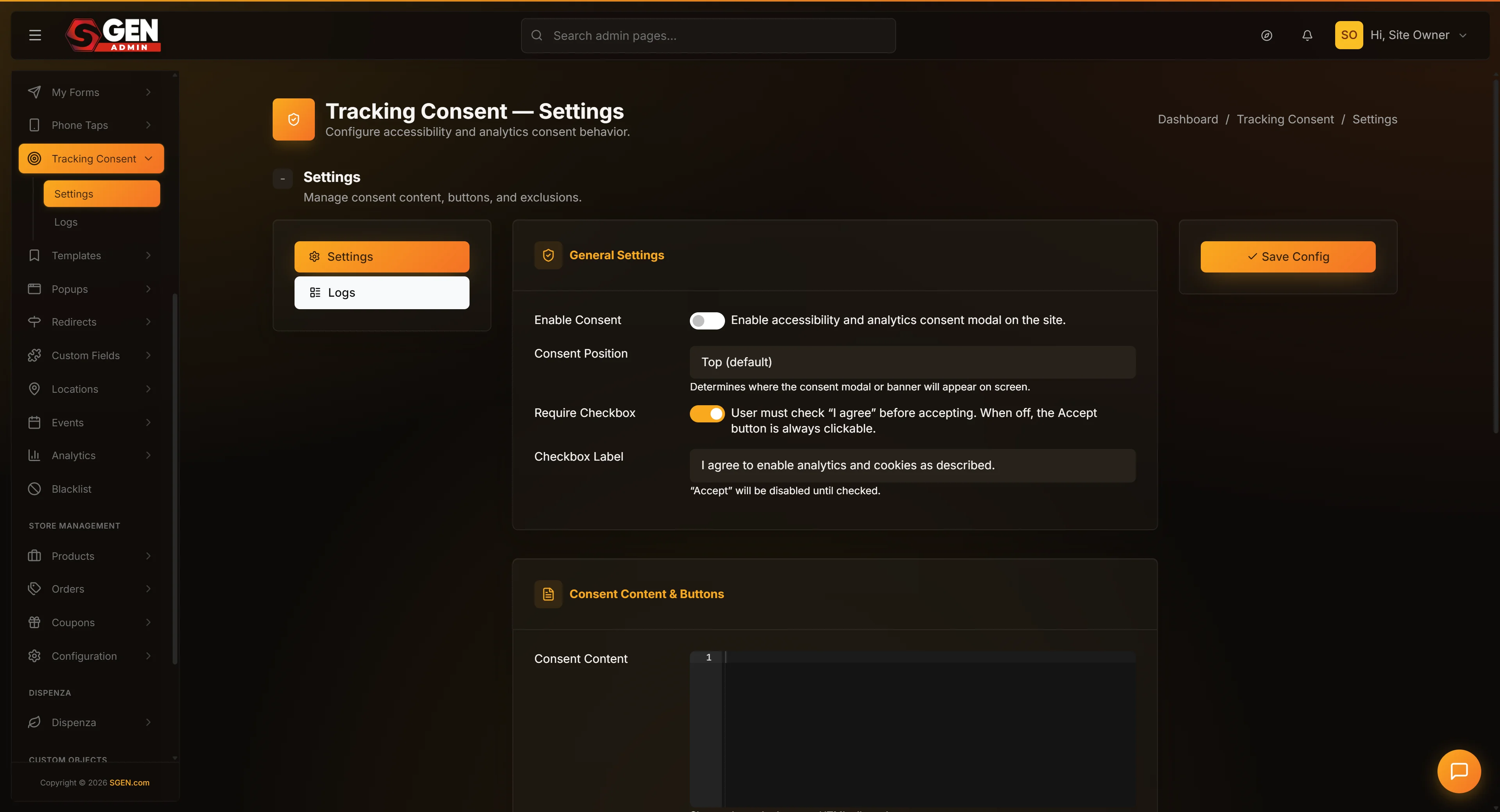 Integrations > Analytics panel: GA4 Measurement ID field, tag-scope selector, GTM/consent/event-mapping controls." loading="lazy" style="width:100%;max-width:900px;height:auto;border-radius:8px;border:1px solid #e5e7eb;display:block;margin:12px 0">
- Open the site in the admin → Integrations → Analytics.
- Click Install GA4.
- In another tab, open your GA4 property → Admin → Data Streams → Web → copy the Measurement ID (
G-XXXXXXXXXX). - Paste the Measurement ID into the field.
- Pick Tag scope — All pages for normal use, or Public pages only to exclude admin-facing activity from reports.
- Leave Send page_view automatically on unless you have a specific reason to suppress it.
- Click Save Installation.
Status changes to Installed — Awaiting Data. Once the platform confirms tag fires from at least one real visitor, status flips to Installed — Data Flowing.
2. Add Google Tag Manager when more flexibility is needed
Skip this step for a clean GA4-only setup — the direct install path is lighter and has no GTM dependency.
- In the Analytics panel, click Add GTM.
- Enter the GTM container ID (
GTM-XXXXXXX). - Pick Container loading mode — standard loads on every page; deferred delays until after first interaction.
- Click Save Container. The container appears with status Active.
Avoid duplicate events. If GA4 is being managed through GTM, switch off Send page_view automatically in the SGEN install panel after the GTM-managed GA4 tag is verified to be firing. Running the same tag from both surfaces produces duplicate page_view events.
3. Set up consent gating
- In the Analytics panel, click Consent Gating.
- Pick the Default posture — Opt-in measures no visitors until they accept; Opt-out measures every visitor until they decline; Region-aware switches between the two based on the visitor's region. For region-aware, the regional rules table is maintained by SGEN and updated as regulations change.
- Pick the Consent banner — the built-in banner meets most regulatory baselines. For a custom banner, pick External banner and supply its consent-signaling configuration.
- Pick Categories the banner covers (usually Analytics, Marketing, Functional). The Analytics category is the one that gates the GA4 tag.
- Click Save Consent Gating.
The consent layer is active on the next render. Visitors see the banner on first visit; the GA4 tag fires only when consent is granted. Visitors can update their preference at any time via the Manage preferences link.
4. Map site actions to GA4 events
- In the Analytics panel, click Event Mapping.
- For each action to measure, click Add Mapping → pick the action → pick the GA4 event name (standard like
form_submitorfile_download, or a custom name). - Add Parameters to carry context — a
form_submitmight carry the form name; afile_downloadmight carry the file path. Parameters must not contain personal information. - Click Save Mapping. Each mapping appears with status Active.
The most common mappings — form_submit on contact forms, file_download on PDF links, video_play on embedded video — cover the majority of measurement use cases. For complex conditional firing, use the GTM path instead.
5. Run GA4 debug mode to verify
- In GA4, open Admin → DebugView.
- In SGEN, click Enable Debug Mode in the Analytics panel. Debug mode is session-scoped — only your current session is flagged; live visitor data is unaffected.
- Browse the public site: navigate a few pages, submit a form, click a tagged button.
- Confirm page_view events and mapped events appear in GA4 DebugView with expected names and parameters.
- If a mapped event is missing, check the event mapping in SGEN, confirm the action selector matches the live page, save again, and retry.
- When done, click Disable Debug Mode. Debug mode auto-disables after one hour if left on.
6. Confirm data is flowing in GA4 reports
Open the GA4 surface → Reports → Realtime. With at least one or two real visitors on the site, the view shows pageviews and mapped events from the last thirty minutes.
If Realtime shows no data after debug mode confirmed the tag fires, the most common cause is consent gating — the test session may have declined consent. Open the site in a fresh browser window, accept consent, and recheck.
After twenty-four hours, Reports → Engagement → Events shows the full event list. Confirm mapped events appear with sensible counts.
7. Adjust event mappings and consent posture over time
Analytics is not a one-time setup. Open the Analytics panel monthly: walk the event mapping list to add new mappings and retire stale ones, and confirm the consent posture still matches the team's privacy policy. The Audit Log filtered to Analytics events records every change with a clear actor for traceability.
For a multi-site portfolio, use the portfolio surface (SG-Dashboard → Site Manager → Analytics) for a faster aggregate review.
What success looks like
- Analytics panel shows Installed — Data Flowing
- GA4 Realtime view shows pageviews from real visitors
- Mapped events appear in GA4 DebugView with expected names and parameters
- Consent banner appears on first visit; GA4 tag fires only after consent is granted
- GA4 Events report shows steady event counts after twenty-four hours
What to do if it does not work
| Symptom | Likely cause | Fix |
|---|---|---|
| Status reads Installed — Awaiting Data after several days | No visitors reaching the site, or consent gating is blocking the tag | Confirm the site has real visitors; open in a fresh browser window, accept consent, check Realtime view |
| Realtime shows pageviews but no events | Event mappings not saved, or action selectors don't match the live page | Open Event Mapping; confirm each mapping is Active; re-test in debug mode |
| Events firing twice in GA4 | GA4 tag installed both via SGEN direct install and via a GTM-managed tag | Pick one path; switch off Send page_view automatically in SGEN if GA4 is managed through GTM |
| Consent banner not appearing | Consent gating is set to Opt-out with the banner suppressed | Open Consent Gating; confirm banner is enabled; save again |
| Debug mode shows fires but live reports do not | Debug fires are recorded separately for testing only | Disable debug mode; re-test as a real visitor; check Realtime view |
| GTM container loads but no tags fire | GA4 tag inside GTM not configured to fire on the right trigger | Open the GTM container; confirm the GA4 tag has a Page View or All Pages trigger |
| Event parameter rejected at save | Parameter name matches a reserved or personal-information pattern | Rename the parameter to avoid personal-identifier patterns |
| Reports show traffic from your own team | Internal traffic not filtered | Set up internal traffic filters in GA4 using the team's IP ranges or a custom filter parameter |
Common questions about analytics setup
Do I need GTM to use GA4 with SGEN? No. The SGEN Analytics surface installs GA4 directly with no GTM required. GTM is useful when you have many measurement tools to manage or want more flexibility around when tags fire. For a GA4-only setup, the direct install is the lighter choice.
Does consent gating slow the site down? The platform's built-in banner is light enough that it does not show up as a measurable performance hit on typical sites. Custom banners from third parties vary; confirm performance impact when integrating an external banner.
What happens to GA4 data when a visitor declines consent? The GA4 tag does not fire for that visitor — no pageviews, no events, no data lands in GA4. Visitors can change their preference at any time via the Manage preferences link.
Can I measure events without GA4 — using SGEN's own analytics? SGEN's built-in analytics measures basic pageview activity for every site. For detailed event measurement — custom events, parameters, audiences, conversion tracking — GA4 is the right surface.
Does GA4 work on staging environments? The GA4 tag fires on whichever surface the site serves on, including staging. For most teams, filter staging traffic out of GA4 reports using GA4's internal traffic filter or a separate GA4 property for staging.
How long is GA4 data retained? GA4 data retention is set in the GA4 property settings, not in SGEN. The default is two months for event-level data; the property can be set to retain up to fourteen months.