
Your 404 page — what visitors see when a URL doesn't exist
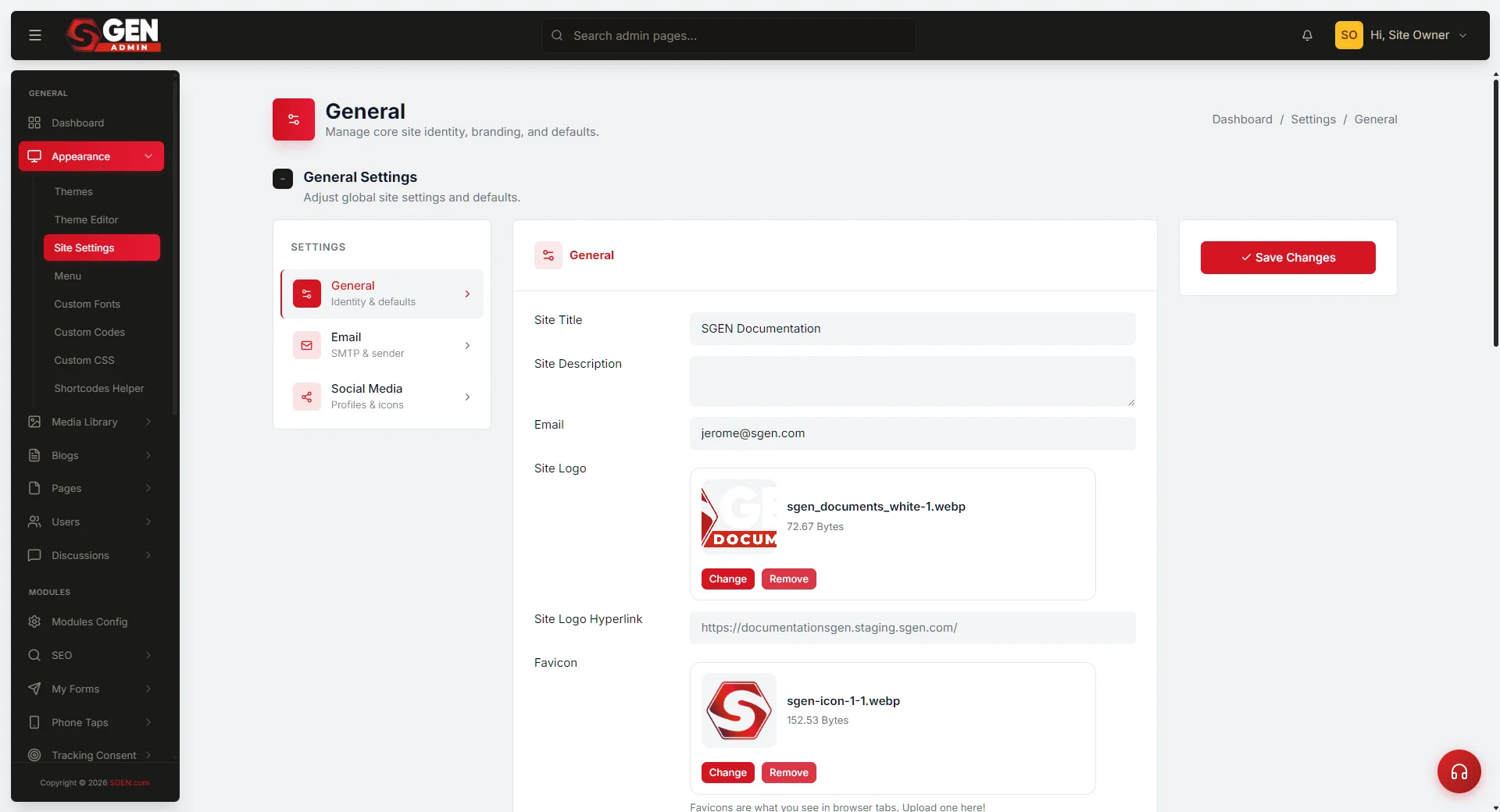 General > Special Pages with the 404 page dropdown row, where you assign a published page as the site 404" loading="lazy" style="width:100%;max-width:900px;height:auto;border-radius:8px;border:1px solid #e5e7eb;display:block;margin:12px 0">
⏱ Answer in the first block · full page ≈ 6 min · skim the bold lead-ins to move faster.
In short. Your 404 page is a real page in your Pages library — built like any other page and then assigned to the "404 page" slot under Settings → Special Pages. SGEN wraps it in your normal site chrome (header, footer, navigation) and shows it whenever a visitor hits a URL that doesn't match anything on your site. Build the page, publish it, assign it, test it. That's the whole job.
On this page: What this is for · What NOT to use it for · Scope and fields · Steps · Troubleshooting · Examples
How to customize the 404 page visitors see when they hit a broken or missing link
Your 404 page is a real page in your Pages library. You write it like any other page — headline, body, buttons — then assign it to the "404 page" slot in Site Settings. SGEN automatically shows it, wrapped in your normal site chrome, whenever a visitor hits a URL that doesn't match any published page, post, or product on your site.
A well-designed 404 page can recover a frustrated visit. A missing or generic one usually loses it.
What is this for?
The 404 page is the page your visitors see whenever they follow a URL that doesn't match any real page, post, or product on your site. Without a custom 404 page assigned, visitors see a built-in platform fallback that has nothing to do with your brand. Assigning your own page keeps even the error states on-brand and gives visitors a clear path forward.
Good use cases
- Broken bookmarks and old links. Visitors who saved a URL months ago, followed a stale link from another site, or clicked an email sent last year land on something helpful instead of a blank platform error.
- Typos. Customers who guess your URL (
/contacinstead of/contact) land softly. Your navigation lets them recover in one click. - Trashed seasonal pages. When you retire a holiday promo and forget to add a redirect, the 404 page is the safety net — it catches the old social and email links.
- Brand consistency at the worst moment. Without a custom 404 assigned, visitors see a platform fallback that has nothing to do with your site. Assigning your own page keeps even error states on-brand and gives visitors a clear next step.
What NOT to use this for
- Not a substitute for redirects. If you rename
/old-spring-promoto/spring-2026, add a redirect — don't let visitors hit the 404 page. The 404 page is the last resort for URLs with no successor, not the first response to moved content. - Not for time-sensitive copy. The 404 page should be evergreen. Promo copy left on it goes stale at the worst possible moment for a visitor.
- Not a "coming soon" page. Publishing a placeholder at a real URL confuses search engines. Use an unpublished (draft) page for that instead.
Scope
The 404 page is a single globally-assigned page. It fires for any URL that does not match a published page, post, product, or event — and does not match a redirect rule.
- Site-wide. One 404 page for the entire site. You cannot assign different 404 pages per section.
- Redirects take priority. If a redirect matches the URL, the redirect fires and the 404 page never shows.
- Draft pages. A visitor who knows a draft page's URL sees the 404 page — correct behavior, because the URL is not publicly available.
- Password-protected pages. These show a password prompt, not the 404 page.
Fields
| Setting | Where | Notes |
|---|---|---|
| 404 page assignment | Settings → General → Special Pages → 404 page | Dropdown listing your published pages. Pick any published page to use as your 404. |
| 404 page content | Pages editor for the assigned page | Edit the 404 page like any other page. Add copy, links, a search box, featured products, or any page-builder section. |
The 404 page must be a published page. Draft pages cannot be assigned as the 404 page — the dropdown only shows published pages.
How this connects to other features
- Slug routing and 404 fallback — almost every "visitor hit my 404 page when they shouldn't have" problem is solved by a redirect or a slug fix. When you rename or move a page, add a redirect from the old URL to the new one. The 404 page is the safety net for URLs that genuinely have no replacement.
- Pages — the body of your 404 page is just a regular page in your Pages library. Edit it the same way you edit any other page. Add a hero image, write your copy, lay out your buttons.
- Appearance — Header, Footer, Mobile Menu — your 404 page shows whichever header, footer, and mobile menu are configured for the rest of your site. If you change those globally, the 404 page picks up the changes automatically.
- Site Settings — Special Pages — this is the panel that tells SGEN which page to use as your 404 page. Without an assignment, visitors see a built-in fallback that doesn't match your brand.
- Your home page — the home page and 404 page are the two most important "special page" assignments. Both are worth verifying before launch.
Before you start
You'll need:
- A published Page to use as your 404 page. If you don't have one yet, create it as Step 1 below. Aim for: a clear "this page doesn't exist" acknowledgment, a friendly tone, and one or two buttons pointing to useful destinations (homepage, shop, or contact form).
- Access to Site Settings → Special Pages. If you're a team member without settings access, ask your site owner to make the assignment.
Where to go
Pages → New Page to create · Settings → Special Pages → 404 page to assign.
Steps — Create and assign your 404 page
1. Create the page that will be your 404
Go to Pages and click New Page. Give it a clear title — "Page Not Found" is common; something on-brand like "Looks Like You're Lost" also works. The title shows in the browser tab, so make it descriptive.
Set the slug to /page-not-found or /404. The slug won't be visible to visitors when the page is acting as the 404, but a clean one lets you preview it directly during testing.
Write a short body — two to four sentences — and add one or two Buttons linking to your homepage, shop, or contact form.
2. Publish the page
Click Publish. Visit the URL slug you chose to confirm it looks right. At this point it's a regular page on your site — it won't act as your 404 page until you assign it in Step 3.
3. Assign the page to the 404 slot
Go to Settings → Special Pages. Find the row labeled 404 page. Open the dropdown and pick the page you just published.
4. Save your settings
Click Save Settings. The change takes effect immediately — no cache clear or sync needed. The next visitor to hit an unmatched URL sees your assigned page.
5. Test by visiting a fake URL
In a private or incognito window, visit a deliberately wrong URL like https://yoursite.com/this-page-does-not-exist-test. You should see your assigned 404 page with your normal site header and footer.
If it doesn't look right: hard-refresh (Ctrl+Shift+R / Cmd+Shift+R). If chrome is missing entirely, revisit Step 3 — your assignment may not have saved. Always test in a private window so you're seeing what real visitors see, not a cached version.
6. Tell your team
If multiple people work on your site, note somewhere that the assigned page serves a special role. The most common cause of a "broken" 404 is someone editing or trashing it not knowing it's the 404 page.
What success looks like
Every URL on your site that doesn't match a real page renders your assigned 404 page inside your normal site chrome. You'll know it's working when:
- A deliberately-broken URL shows your assigned page with your normal header and footer.
- Browser tabs show the page title you set.
- Analytics shows data for the 404 page — a useful signal of how often visitors hit missing URLs.
- The 404 page does not appear in your sitemap (SGEN excludes it automatically).
What to do if it does not work
- You see a generic platform fallback instead of your page. Re-check Settings → Special Pages. The dropdown for "404 page" should show your page selected, not "None". Save again.
- You see your page body but no header or footer. This is unusual. Hard-refresh first. If the chrome is still missing, check Appearance → Header and Appearance → Footer — your chrome templates may be set to "None" globally. Reassign them.
- You still see your old 404 page after changing the assignment. Browser caching can hold an old version for a bit. Try a hard-refresh (Ctrl+Shift+R / Cmd+Shift+R), or open the URL in a private window.
- Visitors are hitting your 404 page for URLs that should still work. That means the original page was renamed or trashed and there's no redirect in place. Add a redirect from the old URL to the new one in Redirects. The 404 page should be a last resort, not your default for moved content.
- Search engines are showing your old URLs and visitors land on your 404 page. Same fix — add redirects from the old URLs. Search engines will pick up the redirects within a few weeks and stop indexing the old URLs.
- The 404 page looks unstyled or weird. This usually means your global theme has an issue, not the 404 page specifically. Check your homepage in the same private window. If the homepage looks weird too, the issue is in your theme or Custom CSS, not in your 404 page.
- You can't find the Special Pages section in Settings. Some admin roles don't have access to all settings. If you're a team member without admin permissions, ask your site owner or another admin to make the assignment.
- The dropdown shows your page but the site still shows the wrong page. The most common cause is a CDN cache. Wait 5–10 minutes, then test again in a private window.
- The 404 page works on desktop but is broken on mobile. Your mobile menu chrome may be misconfigured. Check the homepage on mobile too. If the issue is only on the 404 page, the assigned page body might have layout issues at narrow widths — edit the page and review its mobile layout.
Examples
Example 1: Your Store retires last year's holiday promo
Your Store trashed its /holiday-sale-2025 page in January 2026. A customer clicked an old newsletter link in February and landed on that URL. With no redirect in place, the 404 page caught the visit — the customer saw the branded fallback, clicked "Browse the shop," and recovered.
The better path would have been a redirect from /holiday-sale-2025 to /shop at the time of deletion. That's the rule of thumb: redirect when you have a clear successor URL; let the 404 catch URLs that have no successor.
Example 2: Your Store catches typos with a helpful nudge
Your Store's contact page is at /contact. About 30 visitors a month type /contac or similar typos and land on the 404 page. Your Store added a "Were you looking for one of these?" section listing their four most-visited pages, with the Contact link bolded.
The design came from 6 months of analytics: they found the top 5 attempted URLs and added direct links to the real pages. Bounce rate from the 404 page dropped noticeably.
Example 3: Your Store uses analytics to find broken links
After restructuring their blog and product pages, Your Store saw a spike in 404 page views. They checked analytics for the top attempted URLs and found three patterns — renamed and removed pages — then added three redirects. The next month, 404 page views dropped by 80%.
The lesson: your 404 page should be your last line of defense. Any URL that hits it repeatedly is a candidate for a redirect. Your Store made this a quarterly task — most sites accumulate 5–10 new 404 patterns per quarter as old links go stale.
More 404 page patterns worth knowing:
- Match tone to your audience. A wholesale or B2B site needs professional copy ("We couldn't locate that resource — contact your account manager"), not a playful "Oops!" The 404 page is just another page on your site — match it to your audience the way you would any other.
- Add a search box for content-heavy sites. If a lot of your 404 hits don't map to clean redirect targets, a site search box on the 404 page gives visitors a self-serve recovery path. One site saw 404-page bounce rate drop from 71% to 52% after adding one.
- Rotate the image seasonally. If your site has regulars who might occasionally hit a 404, a seasonal image swap (winter, spring, summer, fall) keeps the page from feeling stale. It's a 2-minute edit in Pages.
- Minimal is fine too. Some brands prefer one line of text and a "Return home" link — no buttons, no explanations. If that matches your brand's design aesthetic, it works.
A worked checklist before you publish your 404 page
- Page title is clear and on-brand (not "Untitled" or "New Page").
- Body acknowledges the page is missing — don't make visitors guess.
- At least one button links to a useful destination.
- Buttons link to URLs that actually exist.
- Page is published, not draft.
- Page is assigned in Settings → Special Pages → 404 page.
- A fake URL renders this page with your normal site chrome.
- Contents are evergreen — no time-sensitive promos or dated copy.
- Works on mobile.
Related reading
404 page settings
| Setting | Where | Notes |
|---|---|---|
| 404 page assignment | Settings > General > Special Pages > 404 page | Dropdown listing your published pages. Pick any published page to use as your 404. |
| 404 page content | Pages editor for the assigned page | Edit the 404 page like any other page. Add copy, links, a search box, featured products, or any page-builder section. The 404 page must be a published page. |